Exporting Test Cases Linked to Test Suite
Export the test cases associated with a test suite so QA Managers can review the selected fields in either PDF or Word format.
Note
Enable the integration app in your QTM subscription.
Get export permissions for the Test Suite module. The admin can grant the access from Roles.
Export Options:
Export all test cases
Export selected test cases
To export test cases linked to test suites, perform the following steps:
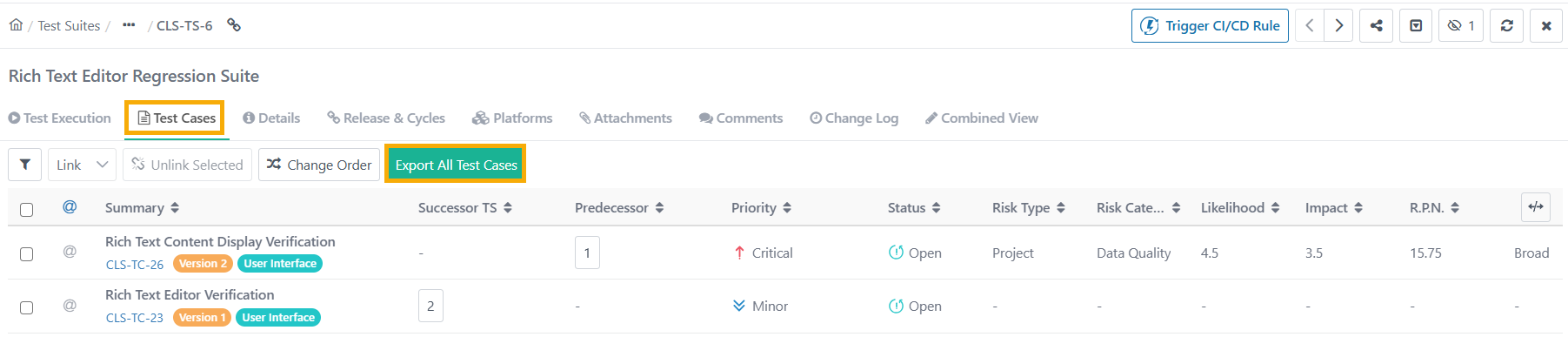
Go to Test Suite and select Test Cases tab.
Click: Export All Test Cases or Export Selected Test Case
Select the formatL PDF or Word.
Select the page orientation: Portrait or Landscape.
Open the drop-down, and clicl Test Cases or Test Steps.
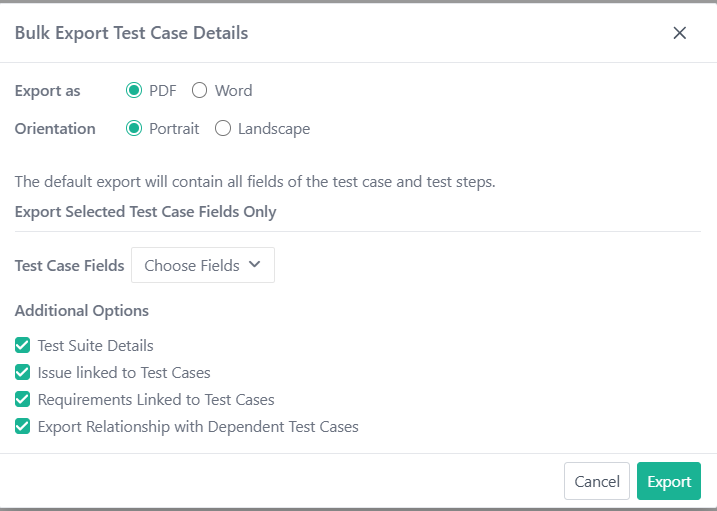
On the Bulk Export Test Case Details screen:
Select Export Format PDF or Word.
Select Page Orientation: Portrait or Landscape.
Open the drop-down, and select Test Cases or Test Steps tab.
Select the fields to export. By default, all fields are selected.
Click Save.
Additional Options
Test Suite Details: Include key test suite information such as status, owner, project, and description.
Test Case Approval Details: Available only for eSignature-enabled projects, it adds test case approval information.
Issues Linked to Test Cases: Export issue details, like Entity Key, Summary, External Key, Priority, Status, Resolution, and Linkage Information.
Requirements Linked to Test Cases: Adds requirement details, such as Requirement ID, Version, External Key, and Summary.
Export Relationship with Dependent Test Cases: Export details of test case dependencies, like Entity Key, Summary, and Dependency Type.
Click Export.
Track export progress in the Scheduled Task section.
Note
Bulk Export Test cases includes test case folder path.