Copying Test Suites
The Copy Test Suite feature lets you duplicate an existing Test Suite for a different release, cycle, or platform configuration. You can select which settings to copy (such as platforms, test case versions, assignees, and execution data) and which to reset.
You can copy Test Suites in three ways:
Copy an individual Test Suite.
Copy all Test Suites within a folder at once.
Copy multiple Test Suites in bulk. For bulk copy instructions, see copying multiple test suites in bulk
All three copy options support the following configurations:
Copy with Existing Release and Cycle: Use when you need a new version of the suite in the same testing context.
Link new Release and Cycle: Use when you want to reuse the suite across releases.
Link new Release, Cycle and Platform: Use when you need the test suite in a new target environment.
Warning
Fields that are never copied
The following fields are never copied to the new Test Suite:
Linked Issues.
Execution Build.
Execution Attachments.
Copying an Individual Test Suite
To copy a single Test Suite, perform the following steps:
Go to the Test Suites module.
Click the Cog (⚙️) icon for the Test Suite to copy and select Copy.
In the Copy Test Suite dialog box, select a copy option:
Copy Existing Release and Cycle
Link New Release and Cycle
Link New Release, Cycle and Platform
In the Select Destination Folder Path panel, select the destination folder.
Configure the copy options (described in following sections) and select Copy.
Note
You can copy the test case execution even if some Test Run UDF values are missing or archived. The system applies the selected execution status.
Common Options Across All Copy Methods
The following settings appear on all three copy screens. Configure these settings before you copy.
Copy Platforms: Copies platform information from the source Test Suite.
Copy the Latest Version of Linked Test Cases:
No (default): Retains the same Test Case version.
Yes: Updates each linked Test Case to its latest unarchived version. Assignee, Planned Date, and Execution Status auto-reset to Not Run.
Reset Assignee: Clears the assignee in the copied suite.
Reset Planned Date: Clears all planned execution dates.
Reset Execution Status as Not Run: Resets the execution status of every Test Case to Not Run. Selecting this option enables three additional settings:
Status: Filter which Test Cases are copied by their current execution status.
Copy platform with selected Execution Status: Copies only the platforms that match the status you selected.
Copy Test Run UDFs Values: Copies UDF values from the source execution.
Copy with Existing Release and Cycle
This option creates a duplicate of the Test Suite under its current Release and Cycle. Use it when you need a second version of the suite in the same testing context.
The system excludes different fields from copying depending on whether Reset Execution Status to Not Run is selected or cleared. Please read the Notes on your screen to know more.
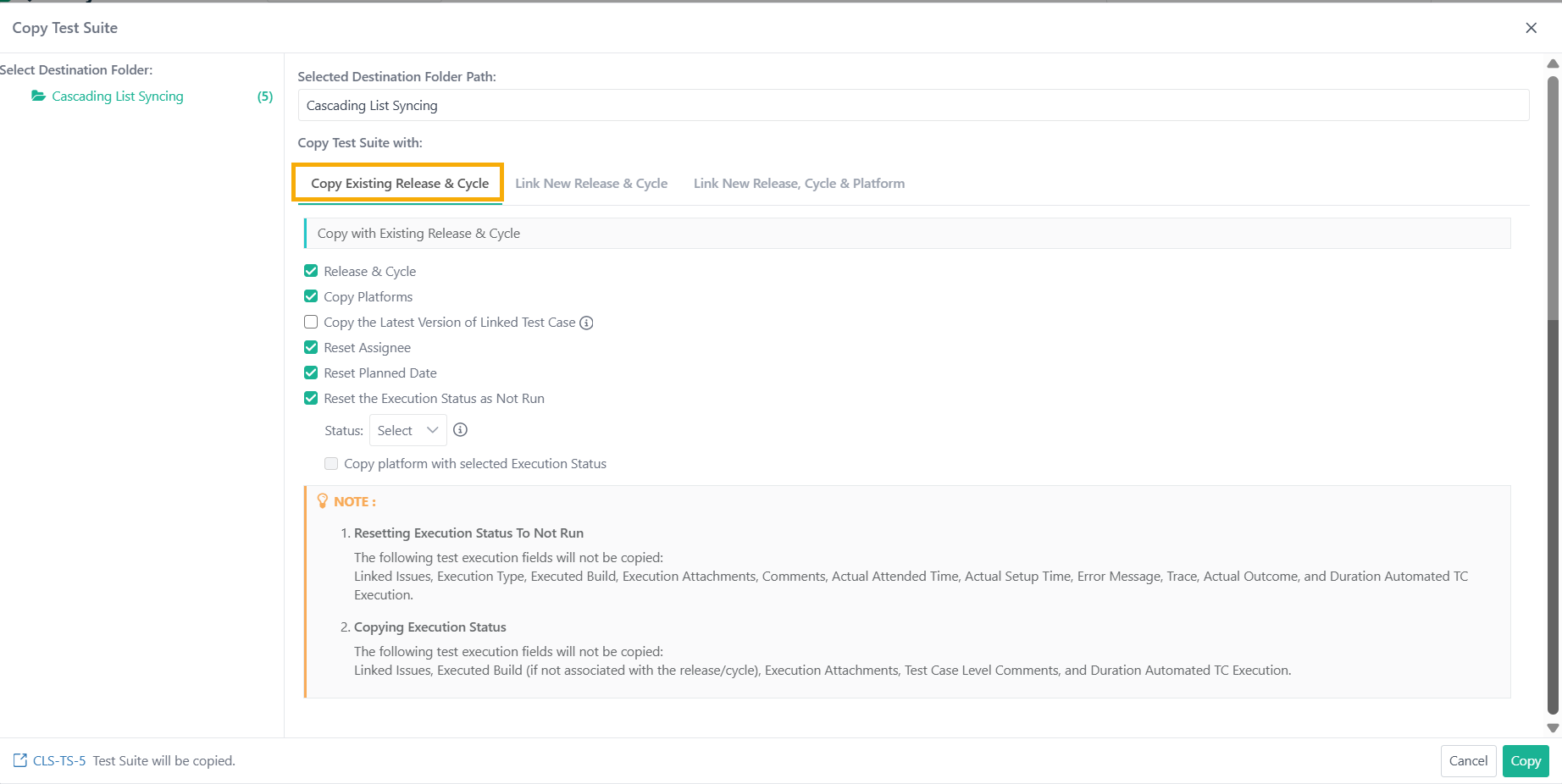
The following table describes the settings available for this copy method.
Setting | Description |
|---|---|
Release and Cycle (Mandatory Fields) | Shows only active and unarchived combinations linked to the Test Suite. |
Copy Platforms (optional) | Yes (default): Copies all linked platforms to the new Test Suite. No: Creates the new Test Suite without any platform information. |
Copy the Latest Version of Linked Test Cases (optional) | Yes: Uses the latest available unarchived version of each Test Case. No (default): Retains the versions linked in the source suite. |
Reset Execution Status as Not Run | When selected:
When not selected:
For eSignature-enabled projects, the system auto-selects Reset Execution Status to Not Run. |
Copy Test Run UDFs Values |
|
Note
If eSignature is enabled:
Assignee, Planned Date, and Execution Status auto-resets.
Copy the Latest Version of Linked Test Cases: Only the latest approved and unarchived version of each Test Case is copied.
For eSignature enabled projects the Execution Status is reset to Not Run.
Link New Release and Cycle
This option copies the Test Suite and attaches it to a different Release and Cycle. Use it when you want to reuse an existing suite's structure and test cases in a new release.
The system excludes certain fields from copying depending on whether Reset Execution Status to Not Run is selected or cleared. Please read the Notes on your screen to know more.
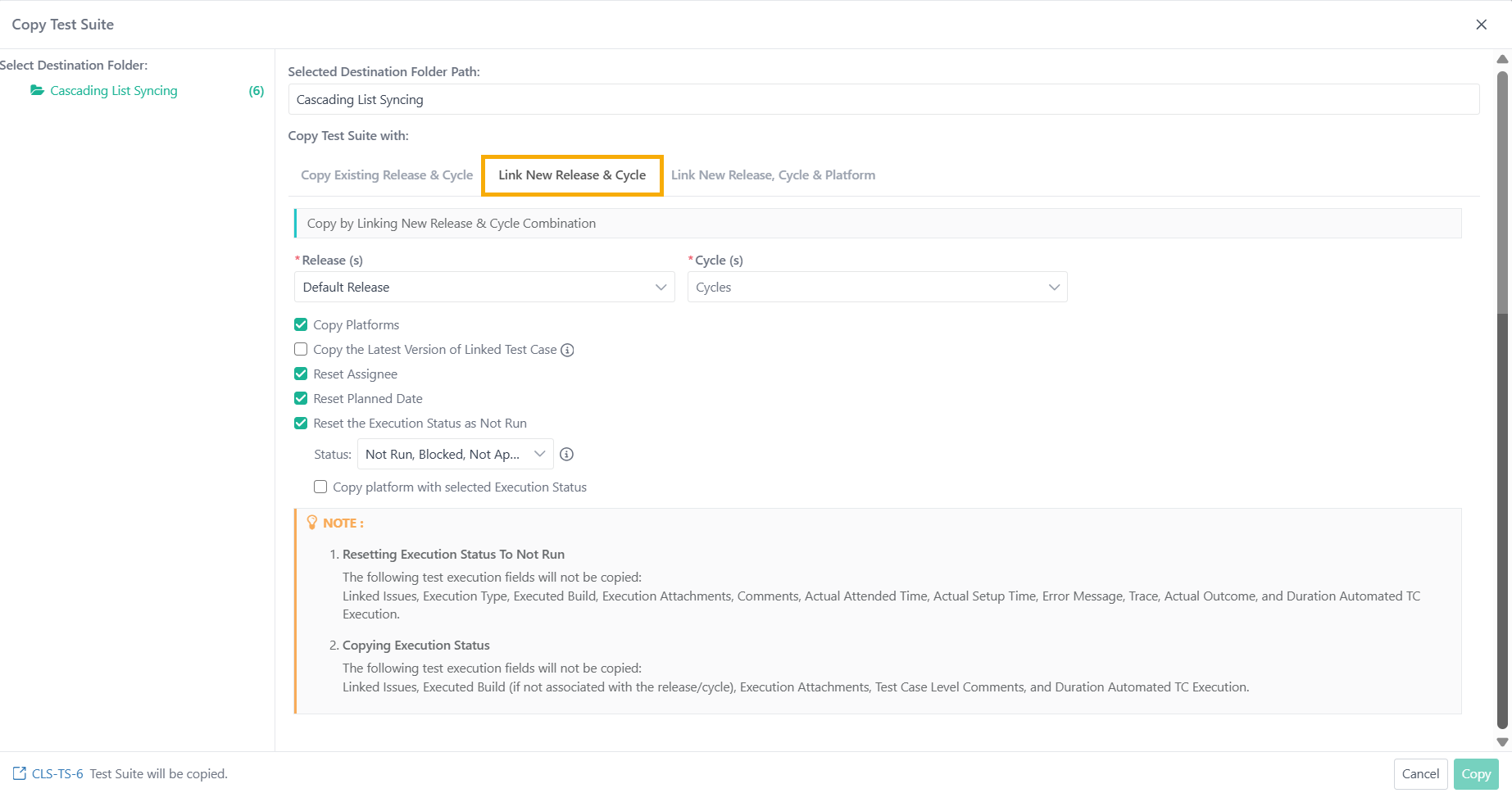 |
The following table describes the settings available for this copy method.
Aspect | Description |
|---|---|
Mandatory Fields | Release and Cycle |
Copy Platform (optional) | Yes (default): Copies all linked platforms, including archived. |
Copy the Latest Version of Linked Test Cases(optional) | No (default): Keeps the currently linked approved version of each Test Case. Yes: Updates each Test Case to its latest unarchived approved version. |
Reset the Execution status as Not Run | When selected:
When not selected:
For eSignature enabled projects,
|
Copy Test Run UDFs Values | When Selected:
When not selected
|
Note
If eSignature is enabled
Assignee, Planned Date, and Execution Status are always reset automatically. You cannot change these settings.
The execution status is always reset to Not Run.
Link New Release, Cycle and Platform
This option copies the Test Suite and attaches it to a new Release, Cycle, and Platform combination. Use it when the target environment has changed and you need to run the same tests against a different platform.
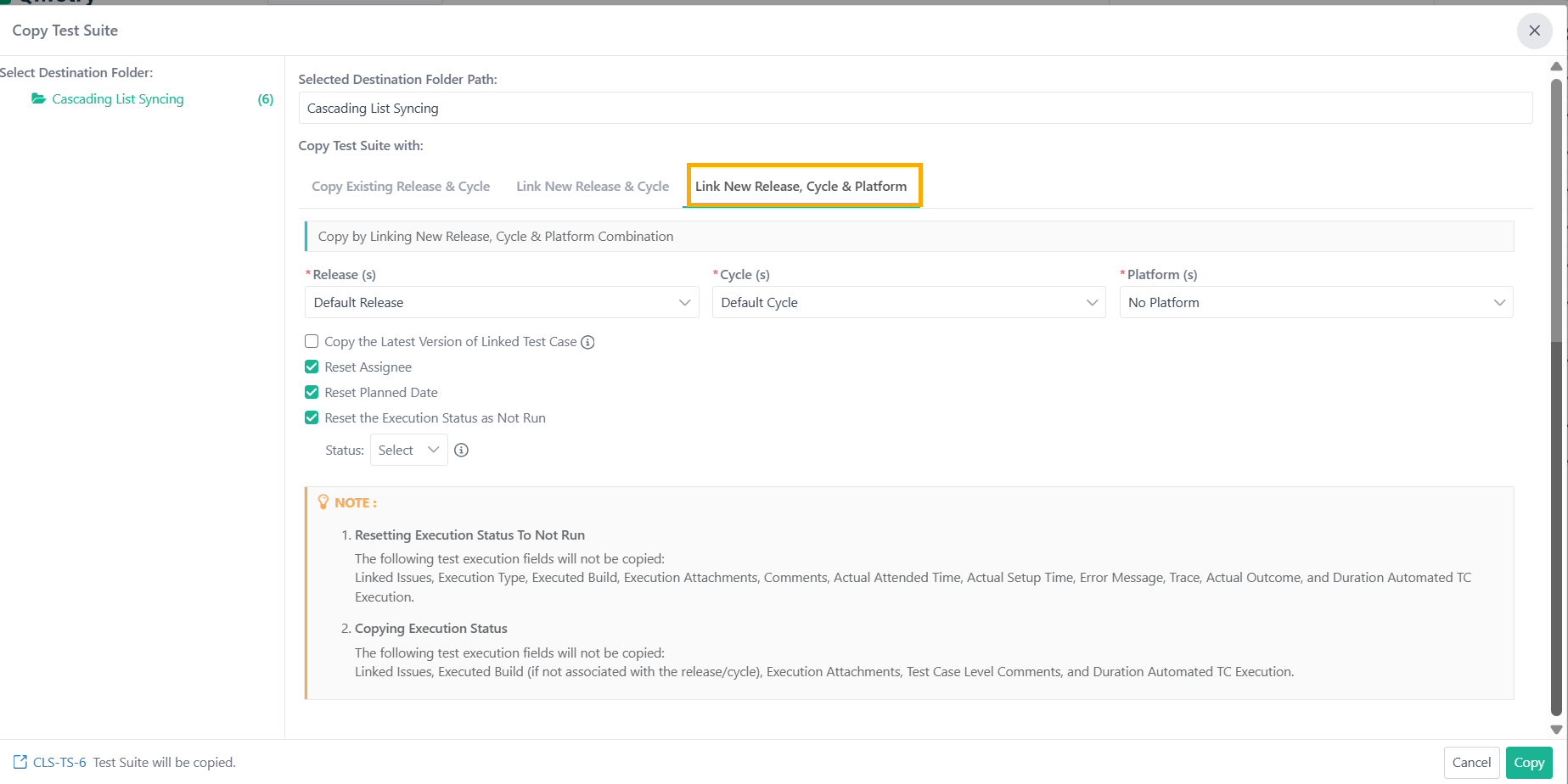 |
The following table describes the settings available for this copy method.
Aspect | Description |
|---|---|
Mandatory Fields | Releases, Cycles, and Platforms. You can select up to three active platforms. |
Copy the Latest Version of Linked Test Cases (optional) | No (default): Keeps the currently linked approved version of each Test Case. Yes: Updates each Test Case to its latest unarchived approved version. |
Reset Execution Status as Not Run | Selected
Not selected:
For eSignature enabled projects,
|
Copy Test Run UDFs Values | When selected
When not selected:
|
Note
If eSignature is enabled
Assignee, Planned Date, and Execution Status are always reset automatically. You cannot change these settings.
The execution status always resets to Not Run.
Executions in the new Test Suite are always created in In Review state.
Copying Test Suite folders
You can copy every Test Suite in a folder in a single operation. This is the fastest way to replicate an entire folder structure for a new release or testing cycle.
When copying a folder, configure the same Release, Cycle, Platform, Test Case versioning, and reset options as you would for an individual copy. The system applies your settings to every Test Suite in the folder.