Linking Requirements to Test Cases
Link requirements to the test cases to ensure traceability and comprehensive coverage.
The linkage applies to all versions of the test case, ensuring that any updates to the test case maintain the requirement's relevance.
Linking the test case with the requirement gives relevance between the two what is developed and what to test.
Linking Requirements
Link requirements to a test case through the Requirements tab on the Test Case Details page.
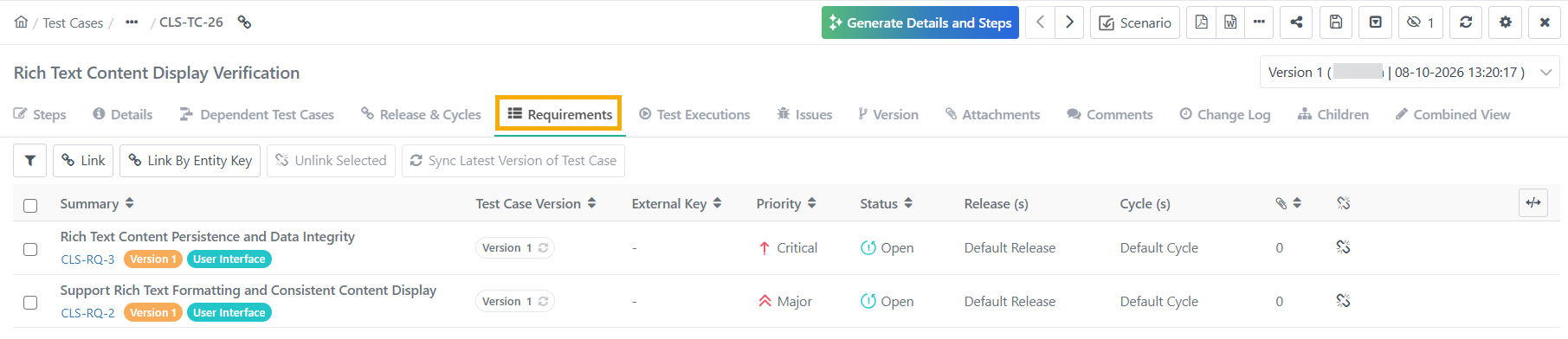 |
To Link Requirements to a test case, perform these steps:
Go to the Requirements tab on the test case details page or the test case edit page.
Click Link.
Filter, sort, or manage requirements view as needed.
Link requirements to a test case.
For linking a Single Requirement, click the Link icon on the right.
For linking Multiple Requirements, select the requirements and click .
You can also link multiple requirements from different projects to a single test case.
Linking Requirements Across Projects
To link multiple requirements from different projects, perform these steps:
Select Project from the Project drop-down.
The system displays all associated requirements for that project.
Select the requirements and click Link before switching projects.
Once all requirements are linked, click Link and Close.
Click + to expand the requirements and link specific version.
Note
If you're linking requirements from multiple projects, make sure to click Link after selecting the requirements from one project. The system clears out unlinked requirements from the selection when switching projects.
Requirements of Release and Cycle of this Test Case
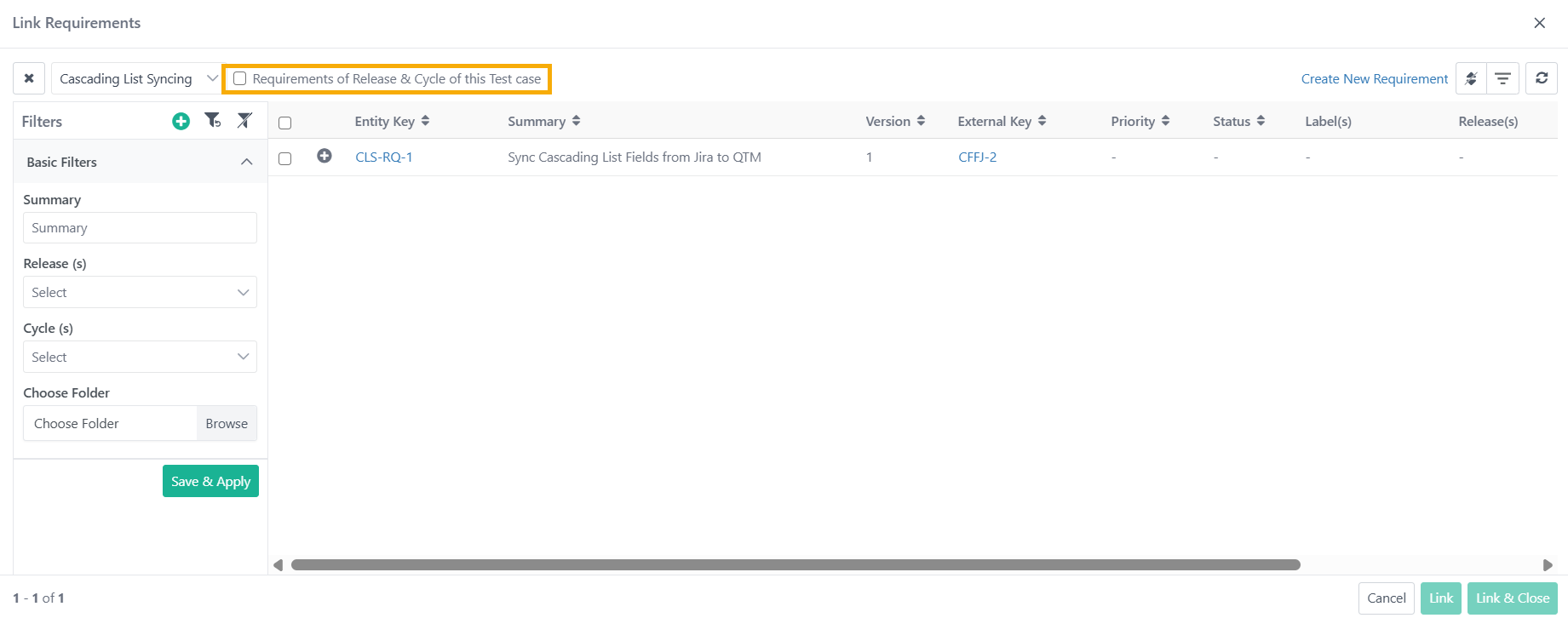 |
When viewing test assets of other projects, the Requirements of Release and Cycle of this Test Case checkbox remains unavailable. For test cases within the same project, clicking this check box displays those test cases that are associated with the same Release and Cycle to which the test case is linked.
Linking Requirements by Entity Key
Link requirements to a test case using comma-separated requirement entity keys.
Note
A maximum of 500 entities can be linked at once.
The system ignores requirement keys if the requirement key is not found.
The system links a requirement only once even if the key is mentioned multiple times.
If an older version of the requirement is already linked, then the latest version does not replace the older version.
The system skips archived versions from linking. It only links the the latest unarchived version of entities.
To link requirements by entity key, perform these steps:
Go to the Requirements tab of the test case.
Click .
Mention the Requirement Entity Keys seperated by comma.
Click .
Viewing Linked Requirements
Check the linked requirements under the Requirement tab.
If the linked requirements belong to other projects, the system displays the Entity Key of the corresponding project. Clicking the requirement entity key opens the requirement detail page in the respective project.
Unlinking Requirements from a Test Case
To unlink requirements from a test case, follow these steps:
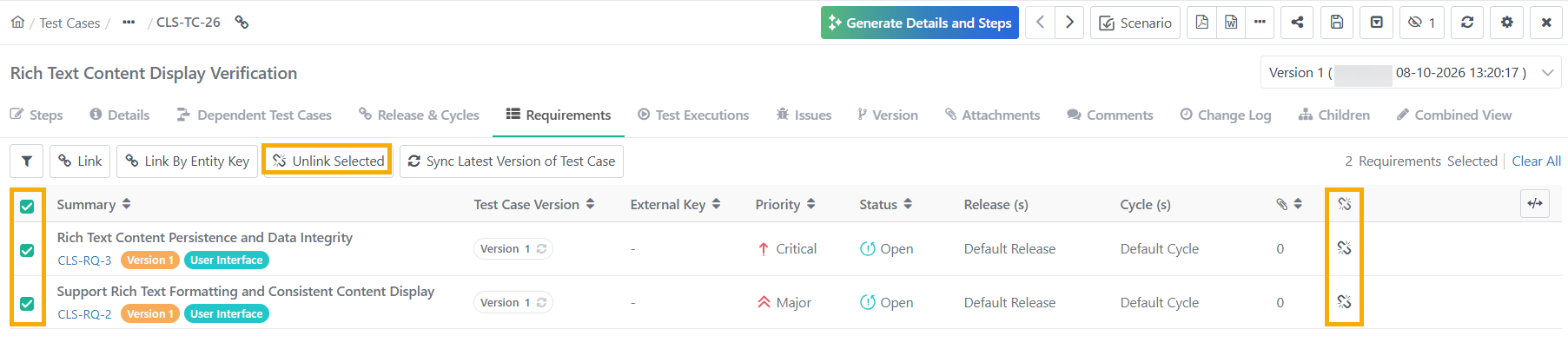
Go to the Requirements tab on the test case details page.
To unlink a single requirement: Click the Unlink icon next to the requirement.
To unlink multiple requirements, select the requirements from the test case and click Unlink Selected.
Syncing the Latest Test Case Version with Requirements
Sync the latest version of the test case to its linked requirements individually or in bulk. Click Sync to sync the test case version with individual requirements or with multiple requirements.
For example, the current version of the test case is v2. All the requirements are linked to this version of the test case. Now, a new version (v3) is created. Users can sync the v3 of test case with the linked requirements.
Syncing the Latest Test Case Version with a Single Requirement
To sync the latest test case version with a single requirement, perform these steps:
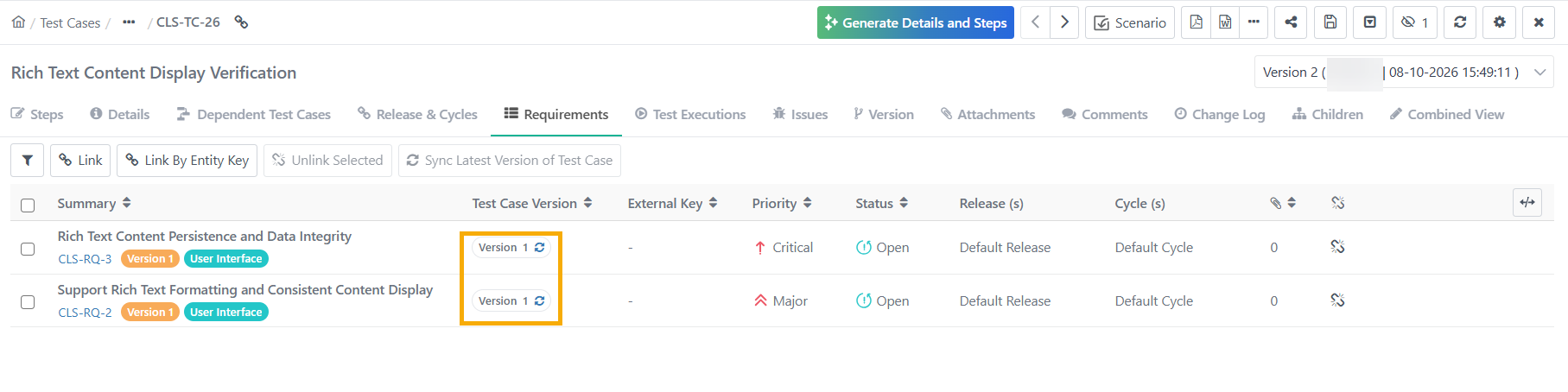 |
Go to the Test Case module.
Select the Requirement.
When a new version of the test case is available, the Sync icon under the Test Case Version column turns blue.
Click the blue Sync icon to sync the latest version of the test case with the requirement.
The linked requirement is aligned with the most recent version of the test case.
Syncing the Latest Test Case Version with Multiple Requirements
To sync the latest test case version with multiple requirements in bulk, perform the following steps:
Go to the Requirement tab on the Test Cases Detail Page.
Select the requirements to sync the latest test case version.
Click .
Click Yes.
Monitor the progress in the Scheduled Tasks section.