Creating Test Case Versions
Create a new version to save changes to an executed test case that. In the new version, you can update test case details, modify steps, or edit parameters. The new version captures all your updates, and the earlier version preserves the original details.
Pre-requisites
You need versioning rights to create a new version. Without these rights, the Save as New Version option does not appear.
An administrator configures versioning rights on the Roles tab in Customization.
The execution-status behavior described below applies only to test cases that have already been executed.
Creating a New Version
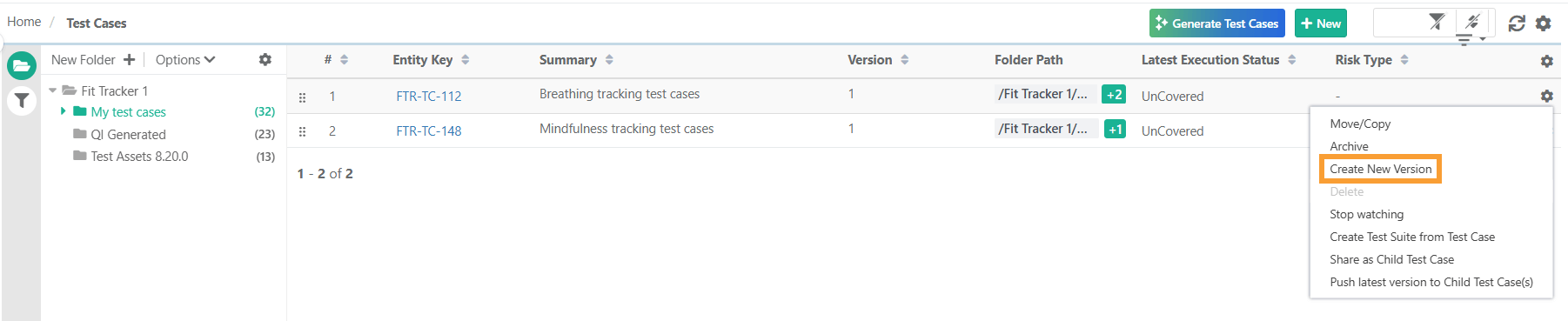
To create a new version of a test case, perform the following steps:
 |
Open the Test Cases module.
In the list view, point to the test case, and then select the cog icon.
Select Create New Version.
On the Create New Version screen, edit the test case details.
Select Save as New Version.
The confirmation pop-up depends on the following project settings:
When Enable Auto-Sync All Executions on New Test Case Version is ON, you get the following options:
Auto-sync latest version of Test Case in all executions.
Add versioning comment.
Select this option to sync all unarchived executions and test suites automatically.
When Enable Auto-Sync All Executions on New Test Case Version is OFF:
The Save New Version pop-up displays only the Version Comment field.
The linked test suite continues to refer to the previous version. You have to manually sync executions to the new test case version.
Handling Test Case Execution Status
When saving a new version of a test case that has been previously executed, you can:
Auto Sync Latest Version: When Auto-Sync is ON:
The system updates the test case version, and resets its execution status to Not Run.
Example: If TC1 previously had a Passed status in TS1, and the user updates TC1 and creates a new version, then TS1 will display TC1’s status as Not Run.
Manual Sync Latest Version: When Auto-Sync is OFF
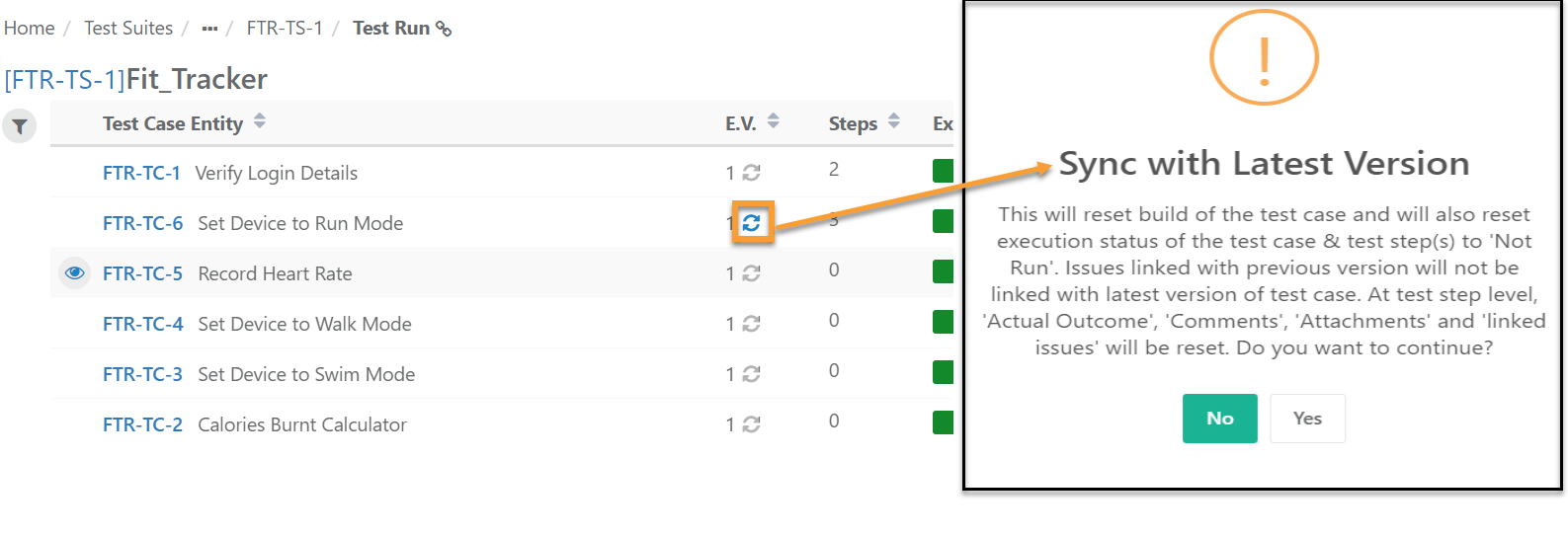
Sync icon appears beside the current version of the test case on the Test Run screen.
To update to the latest version, click Sync.
Note
Synced version does not display previously linked issues.
After syncing, the execution status of the test case changes to Not Run.
The execution screen reflects new test steps from the latest version.
You can use different versions of a test case for testing.