Linking Test Cases to Requirements
Link test cases to requirements to track coverage and ensure full traceability throughout your testing process.
If you want to view test cases in the custom order defined in a Test Case module folder, browse the folder and clear Include entries from sub-folder.
Pre-requisites
To link test cases, you must have Linking rights. Admins can grant these rights from Roles.
Selecting Test Cases to Link
You can link test cases to a requirement from the Requirement Details Page or the Requirement Edit Screen.
To link test cases, perform the following steps:
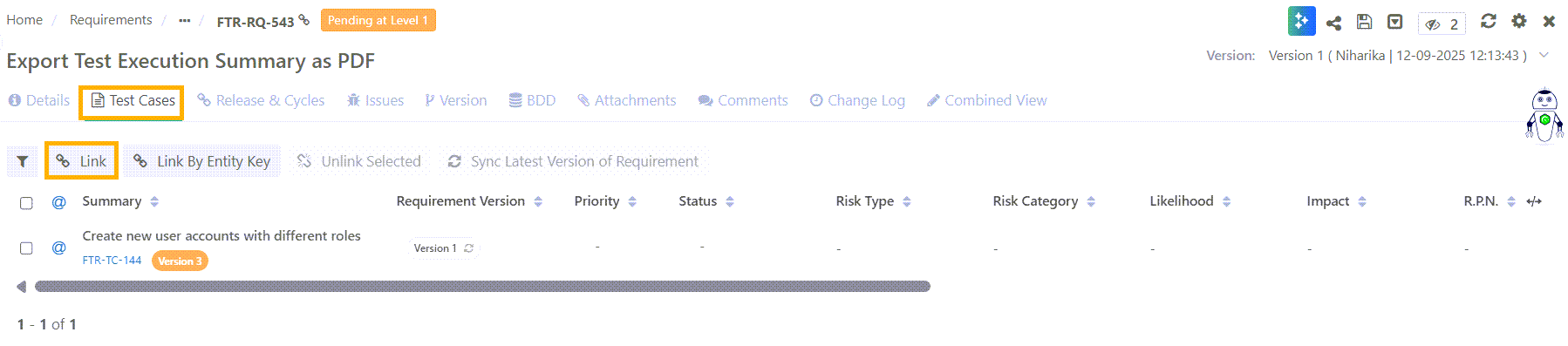 |
On the Requirement Details Page, click Test Cases tab.
Click Link.
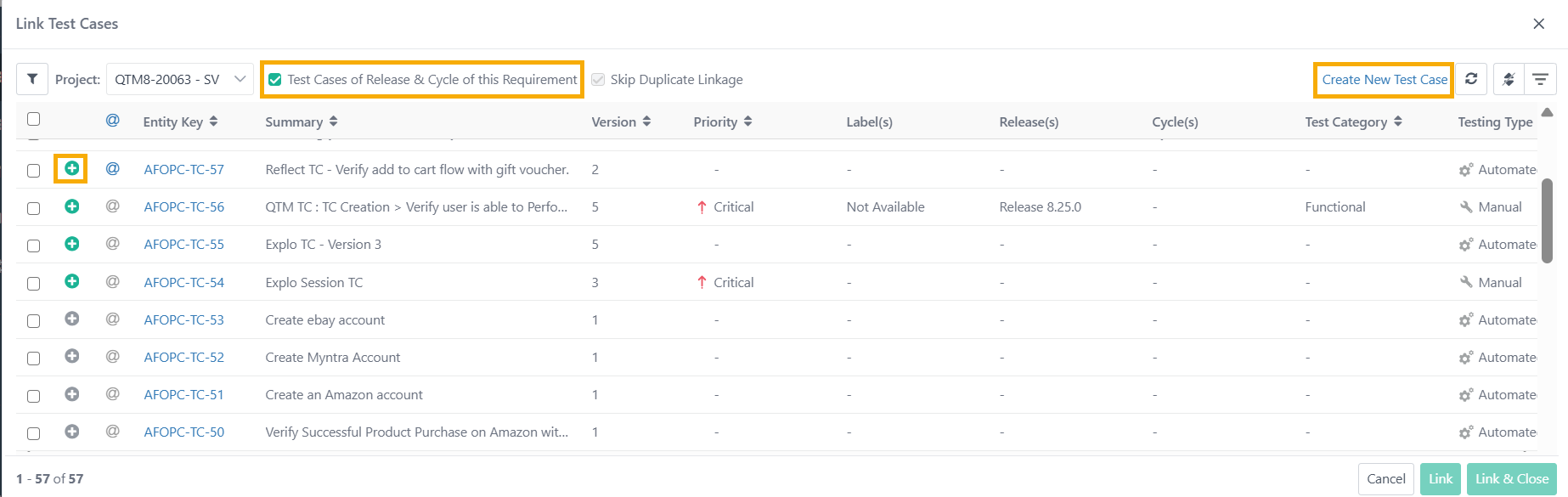
In the Project drop-down list, select the relevant project, and then select the test cases to link.
Click .
QMetry links the test cases in the exact order in which you selected them.
 |
Note
Click the + icon to select a specific version of the test case.
When linking test cases from multiple projects, click Link before switching projects. After selecting test cases from all required projects, click Link and Close.
To create and link a new test case, select Create New Test Case. After you create the test case, select Refresh and Link.
Linking Test Cases from a Release and Cycle
You can link test cases that belong to a specific release and cycle to a requirement.
On the Link Test Cases screen, select Test Cases of Release & Cycle of this Requirement.
Select the relevant release and cycle from the drop-down list, and then select the test cases to link.
Linking Test Cases by Entity Keys
An entity key is the unique identifier assigned to a test case, for example, FTR-TC-114. You can link the latest version of a test case to a requirement by entering one or more entity keys separated by commas.
Note
You can link a maximum of 500 test cases at a time.
QMetry skips the test case if it cannot find a matching key.
QMetry links a test case only once, even if the entity key appears multiple times.
If an older version of a test case is linked, QMetry skips the latest version and does not replace it.
QMetry skips archived versions and links only the latest unarchived version of the test case.
To link test cases by entity key, perform the following steps:
On the requirement detail page, select the Test Cases tab.
Click Link by Entity Key.
Enter the test case keys separated by commas.
Click Link.
QMetry links the test cases in the same order as the entity keys you entered.
Viewing Linked Test Cases
After you link test cases to a requirement, you can review them and open any test case for more detail:
View the test cases linked to a requirement on the Test Cases tab.
The Test Cases field on the details screen displays the total number of linked test cases, including separate counts for archived and unarchived test cases.
Select a test case entity key to open the test case detail page in its project. This switches your current project to that project.
Understanding Test Case Order
QMetry maintains a predictable sequence for the test cases linked to a requirement:
The test cases linked to a requirement before this feature was introduced does not reorder them automatically.To change their sequence, select Change Order.
QMetry appends newly linked test cases to the list in the order you link them through the Link Test Cases screen or Link by Entity Key screen.
You can then manually reorder any linked test case using the Change Order option.
When you create a test suite from a requirement or link test cases through a requirement, the system maintains the test case sequence defined in the requirement.
Changing Order of Linked Test Cases
Use the Change Order option to manually set the sequence of the test cases linked to a requirement.
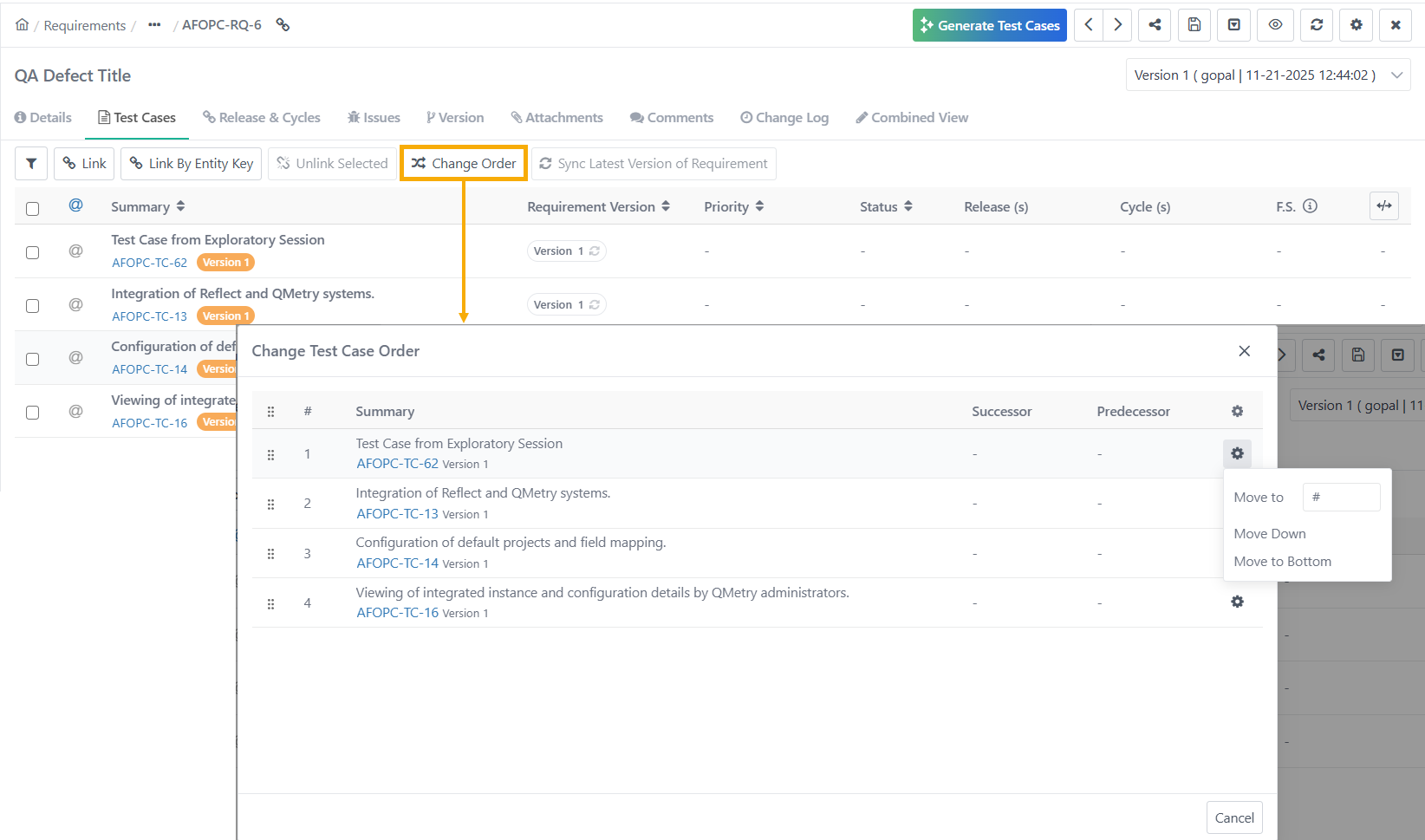
The Change Test Case Order screen lists all test cases linked to the requirement, including both archived and unarchived test cases. Each row shows the sequence number, the test case Summary, its Entity Key, and Version.
 |
To reorder test cases linked to a requirement, perform the following steps:
In the Requirement module, open the relevant requirement.
On the Test Cases tab, click Change Order.
On the Change Order screen, select the test case to reorder.
Use the following options to move the test case:
Move to Top: Moves the test case to the first position.
Move Up: Moves the test case one position higher.
Move Down: Moves the test case one position lower.
Move to Bottom: Moves the test case to the last position.
Move to: Enter the target position number in the adjacent field to move the test case directly to that position.
Note
For dependency-enabled projects, the Change Test Case Order screen displays clickable Successor and Predecessor count columns.
QMetry does not support sorting on the Successor and Predecessor columns.
Unlinking Test Cases from a Requirement
To unlink test cases from a requirement, perform the following steps:
On the Test Cases tab of the Requirement Details page, select the test cases to unlink.
Click Unlink Selected.
Click Yes to confirm.
The test cases are unlinked from the requirement.