Revise Test Case Description and Steps Using QI
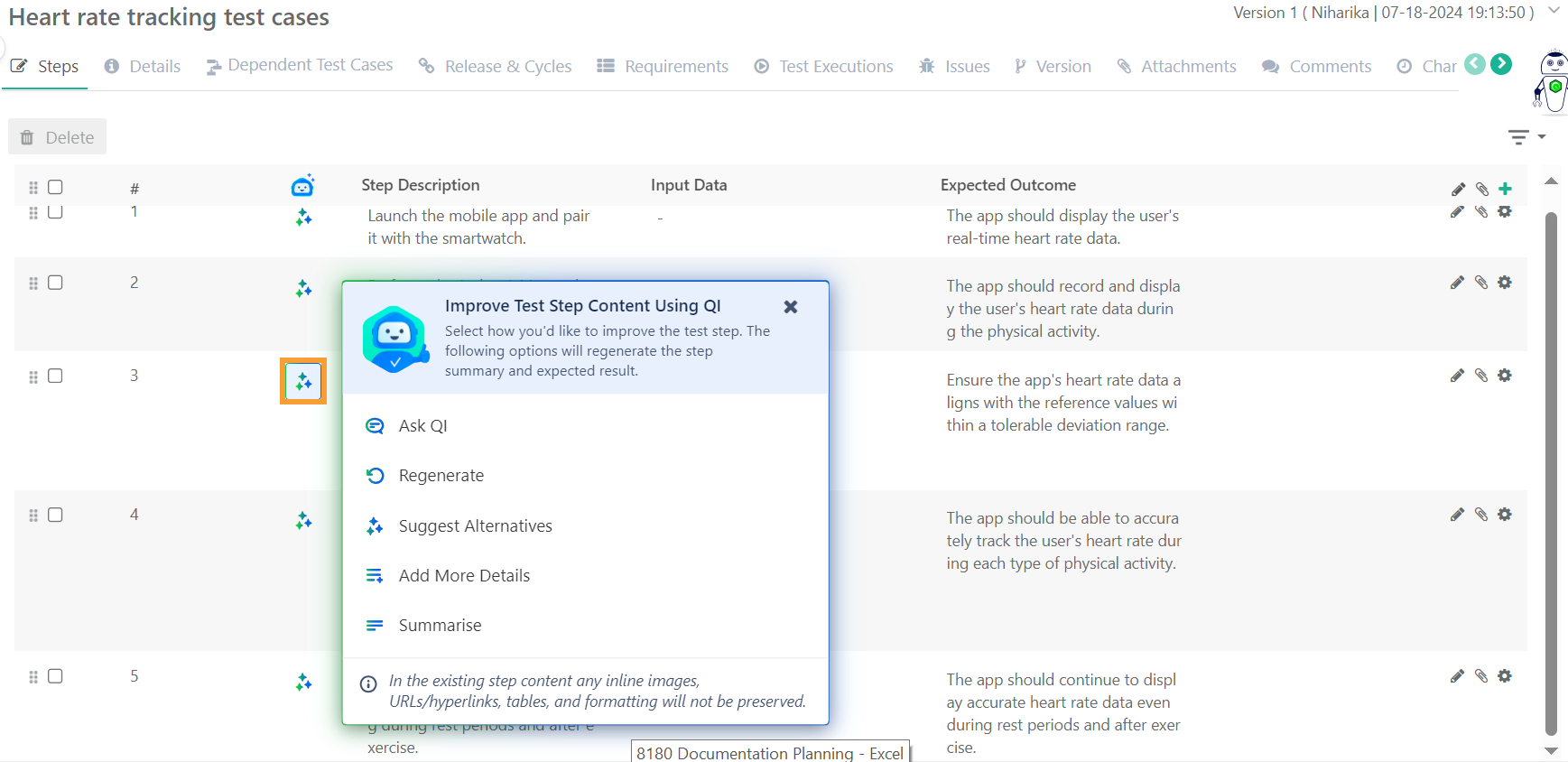
You can use QMetry Intelligence (QI) to enhance existing test case descriptions, preconditions, or step content. For test steps, QI supports the improvement of step descriptions and expected outcomes. You can refine and enhance the content based on their needs using the following options:
Regenerate Text: QI rewrites the content for better clarity and structure.
Suggest Alternatives: QI provides alternative phrasing or wording to enhance the content.
Add More Details to Text: QI elaborates the content by adding relevant information or context.
Summarize Text: QI condenses the content into a concise version while preserving essential details.
Ask QI: You can also prompt QI with specific commands such as Enrich Vocabulary, Adjust Tone (for example, formal or professional), Simplify Text, Proofread Text (for example, correct grammar, spelling, and punctuation), Refine the Text, or Make it More Engaging.
Required Permissions
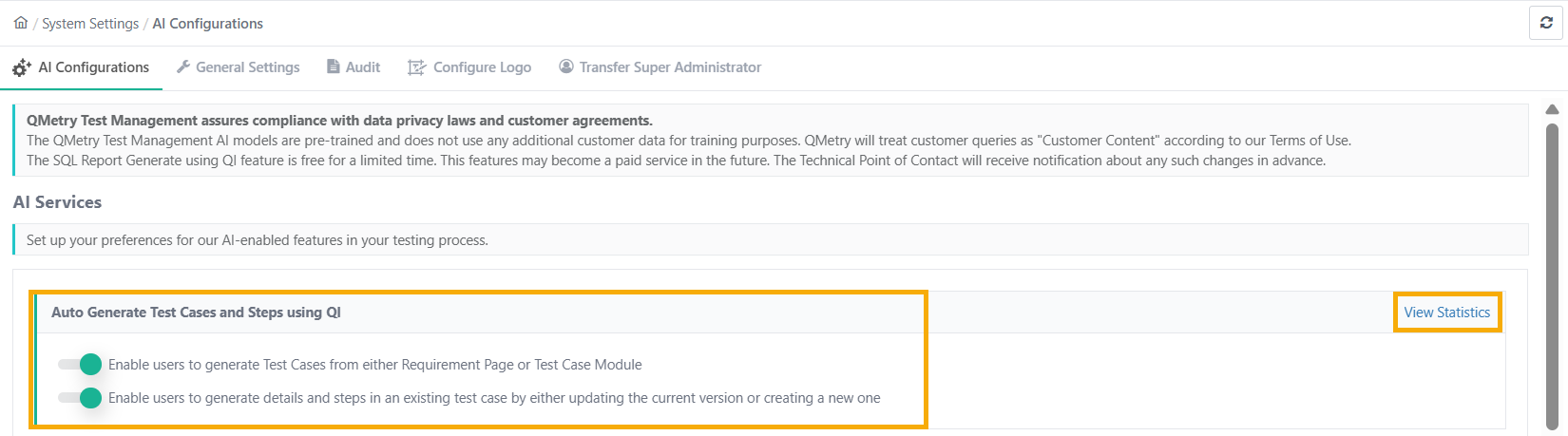 |
Enable the option Enable users to generate Test Cases from either the Requirement page or the Test Case Module to revise test case fields from the autogenerate test case screen.
Enable the option Enable users to generate details and steps in an existing test case by either updating the current version or creating a new one. This allows users to revise test case fields from the Test Case Detail.
Note
If the content is insufficient, a message indicates that generation cannot occur. For steps, at least a step description or expected outcome with sufficient details is required.
Enhance Test Case Steps and Details
You can enhance the details of test steps, expected outcomes, and other information using QI. You also have the option to regenerate text, summarize content, add more details, get alternatives, or ask QI for enhancements.
 |
Ask QI
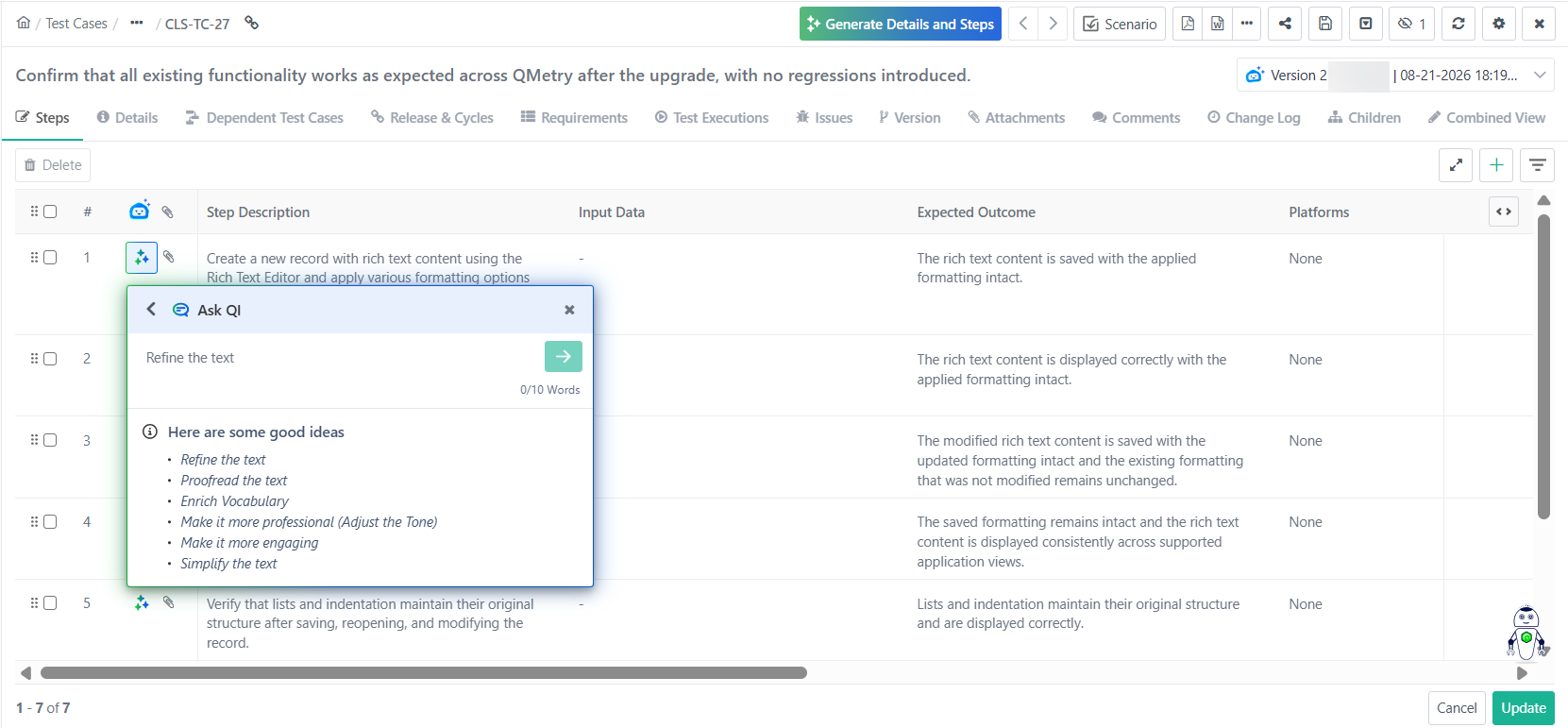
Identify and specify improvements needed in the text. Request changes to make the text sound more professional, correct grammar and spelling errors, or enhance engagement. The regenerated output from QI, reflecting the requested changes, replaces the original text, resulting in a refined and improved version.
The entered text shall not exceed 10 words.
Regenerate
Regenerate text based on existing field input. Upon selecting the regenerate option, the original text is replaced with the newly generated text, improving clarity, coherence, and style to better fit the desired context.
Suggest Alternatives
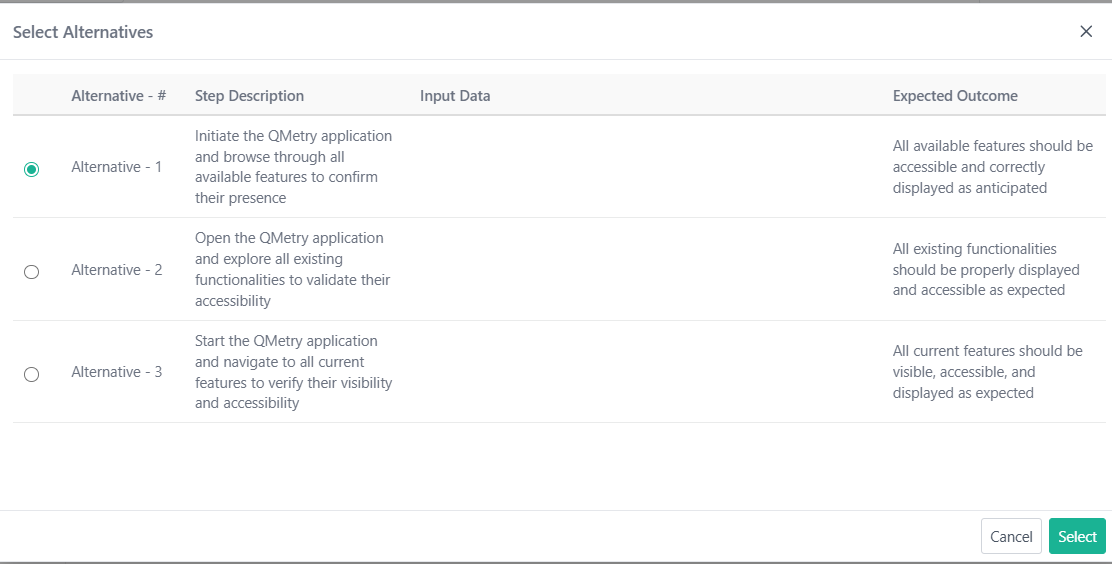
This feature generates up to three alternative versions of existing field content, allowing users to select a preferred option.
To suggest alternatives, perform these steps:
Go to the Test Case Detail page.
Select Edit.
Select the QI icon.
Choose Suggest Alternatives.
Select the appropriate alternative.
Click Select to confirm.
Upon selection, the original text is replaced with the chosen alternative, offering flexibility in content refinement.
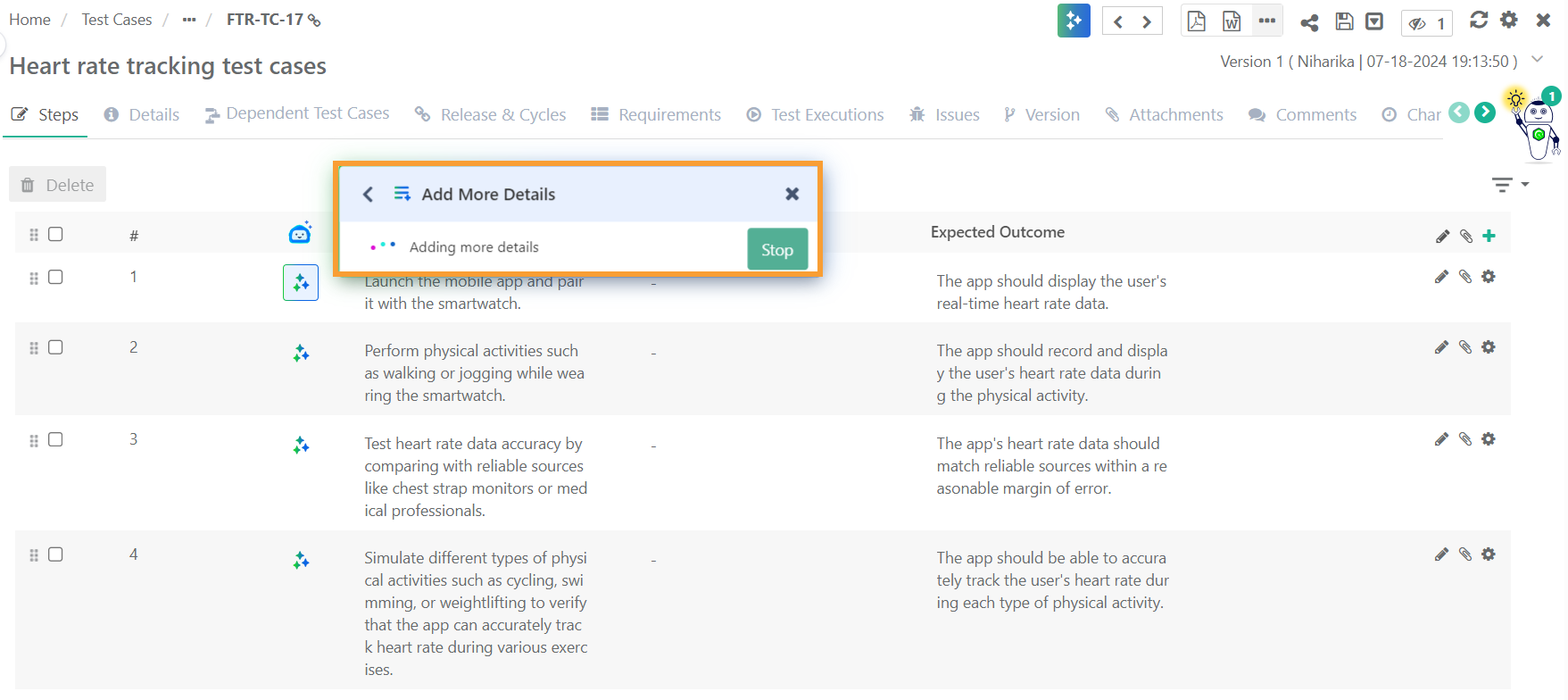
Add More Details
Enhance existing field content by providing additional information, specifics, or elaboration. Add supplementary explanations, examples, descriptions, or relevant data to enhance the clarity and completeness of the text.
The newly generated text replaces the original content, resulting in a more comprehensive and informative output.
 |
Summarize
Condense existing field content to provide a concise overview of the main points, key ideas, and important information. The generated summary replaces the original text.
 |
Note
This feature only helps generate textual content. The system doesnot preserve any inline attachments like images, tables, or rich text data.
Errors
If the content is insufficient, unclear, or unsupported, such as containing images, hyperlinks, URLs, or tables, a message indicates that alternatives cannot be generated. Additionally, contextually incorrect instructions trigger the same error message.
 |
Feature Availability
This feature is accessible from:
Test Case Details page in Edit mode.
Test Case Details page - Description.
Test Case Details page - Prerequisite.
Generate Test Cases and Test Steps Using QI screen (from Requirement as well as Test Case Module).