AI-Powered Virtual Search Assistant
The AI-Powered Virtual Search Assistant is available only with QTM Cloud edition.
The QMetry Intelligence (QI) Virtual Search Assistant simplifies search using natural-language queries. Instead of matching keywords alone, it interprets a written question and returns a summarised answer drawn from the product documentation.
Use the assistant to summarise features, obtain best-practice guidance, and navigate troubleshooting issues without leaving the application.
Administrators can upload project-specific documents in several formats like PDF or Word files, Confluence spaces, or web URLs, so that testing teams can access a personalised knowledge base on the go.
Pre-requisites
Before using this feature, ensure the following:
Only super admin can access and configure QMetry Intelligence Configuration at an instance level. The QI feature is disabled by default.
You have Project-Admin rights (or QI Search "Modify" permission) to configure project documentation.
QMetry Intelligence Configuration
To activate the QI search feature, the super administrator needs to enable it from AI Configuration under General Settings & Audit in System Settings.
Note
The search function supports only English language.
You must use specific queries rather than only keywords for effective results.
The search does not correct spelling errors in your query.
The AI Search feature becomes temporarily unavailable while configuring project documentation.
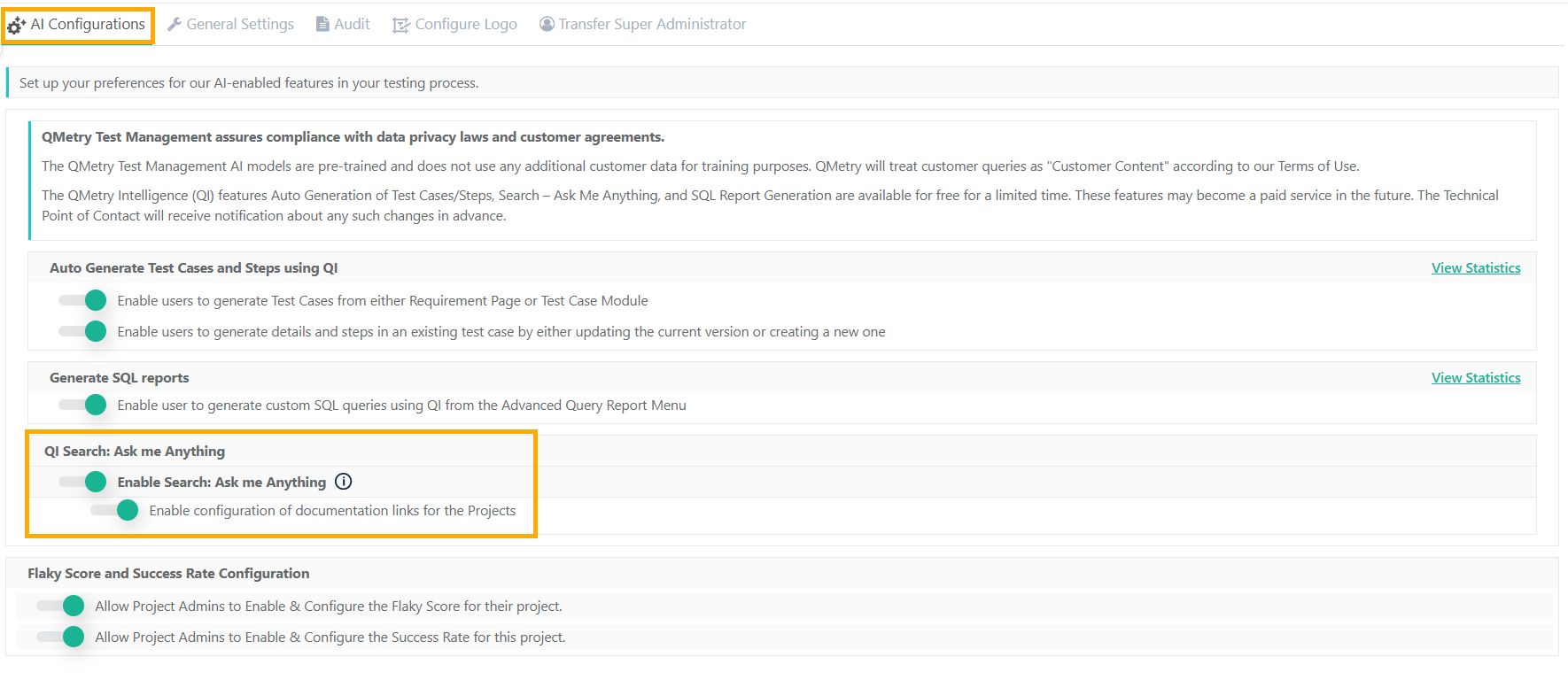 |
To Enable AI search, perform the following steps:
Enable Search: Ask me anything: This feature allows you to search text in QMetry help documentation.
Enable configuration of documentation links for the Projects: Allow users with QMetry Intelligent Search Modify permissions to configure project-specific documentation for AI search.
Project Documentation Configuration
Project administrators can configure project-specific documentation or knowledge bases. Once configured, users can select this personalised documentation as a search source in addition to the standard product help documentation.
To enable this option, go to System Settings and select AI Configuration. The setting is disabled by default.
Required Permissions
With the Customization Package:
Project Admins and users with QMetry Intelligent Search "Modify" permissions can configure Project Documentation settings.
Users with "View" rights can view the configuration but cannot modify it.
Without Customization Package:
Admin and QA Manager roles can access and configure Project Documentation settings.
Users with other roles can only view the configuration.
Configure Project Documentation
To configure project documentation, perform the following steps:
Go to QMetry Intelligence and select Search - Ask me Anything.
Enable the Enable the project-specific documentation search option.
Configure a URL or Documentation Files
Project Admins can configure documentation links or upload documents in Word and PDF formats.
You can configure multiple Confluence spaces (documentation links) within a single project.
Ensure that each Confluence Space is publicly accessible to all.
Upload multiple documents in Word (.docx) and PDF formats as needed.
Refresh the content after uploading the documents.
Note
Each file (Word or PDF) can be a maximum of 25 MB in size.
Refresh the content once you have uploaded the Confluence URL or documents.
The QI Search functionality is unavailable during the upload or refresh process.
Do not upload duplicate copies of the same document, as this may lead to ambiguous answers from the model.
When you click Refresh Content, a confirmation message appears. Read the instructions carefully before confirming.
Access the Search Feature
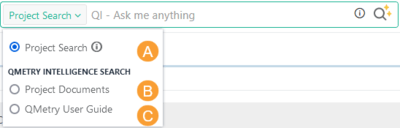
In addition to standard project-entity searches, QMetry Intelligent Search lets you search within the help documentation and any configured project documentation. The available search sources are:
Source | Description | Configuration required |
|---|---|---|
Project Search (Default) | Search by keyword in Entity Key, Summary, Description, and Test Step. | None. Available by default. |
Search: Ask Me Anything | Fetches the requested information from the QTM help documentation using natural language. | Enable at instance level (Section 2). |
Project Documents | Search project-specific documentation configured by a Project Admin. | Enable project-specific documentation search (Section 3). |
QMetry User Guide | Access information directly from the QTM User Guide. Becomes visible when Search: Ask Me Anything is enabled. | None once Ask Me Anything is enabled. |
 |
Steps to use QI Search: Ask me Anything
Modify Configuration
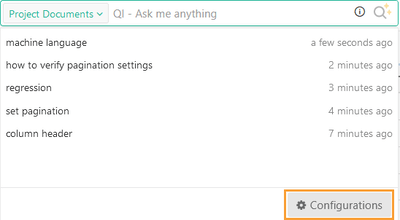
To modify configurations, click Configuration on the Search panel.
Note
You must have QMetry Intelligence Search “Modify” permissions.
 |
Use QI Search: Ask me Anything
Log into QMetry Test Management.
Click the QI-Ask me Anything search box in the application header to open the AI-powered search feature.
Open the drop-down and select the source documentation to search:
Project Documents:available only when the Enable the project-specific documentation search option is enabled in AI Configuration..
QMetry User Guide: the default source; accessible without any additional configuration.
Search Functionality
Entering search text
Select the desired source from the drop-down list.
Enter the search text in the search box.
Press enter on the keyboard or click the Search icon.
Viewing search results
The search results displays the relevant information along with a source link for further details.
Handling no results
If no relevant data is found in the QMetry User Guide, the source link remains blank. In this case, the displayed answer is generated from trained data in OpenAI.
Accessing previous searches
A list of previously asked questions is visible in the search box.
To re-search a previous question, select it from the list and press enter or click the Search icon to get the latest results. Simply clicking on a previous question returns historical search results.
Modify Configuration
To modify configurations, click Configuration on the Search panel. This opens the Search: Ask Me Anything Configuration screen under the QI module.
Note
You must have QMetry Intelligence Search "Modify" permission to change the configuration.
Refresh Content
Click Refresh Content to keep the search results synchronised with the latest documentation changes.
Unlink Project Documents
You can remove the configured project documentation if it is no longer required.
To unlink project documents, perform the following steps:
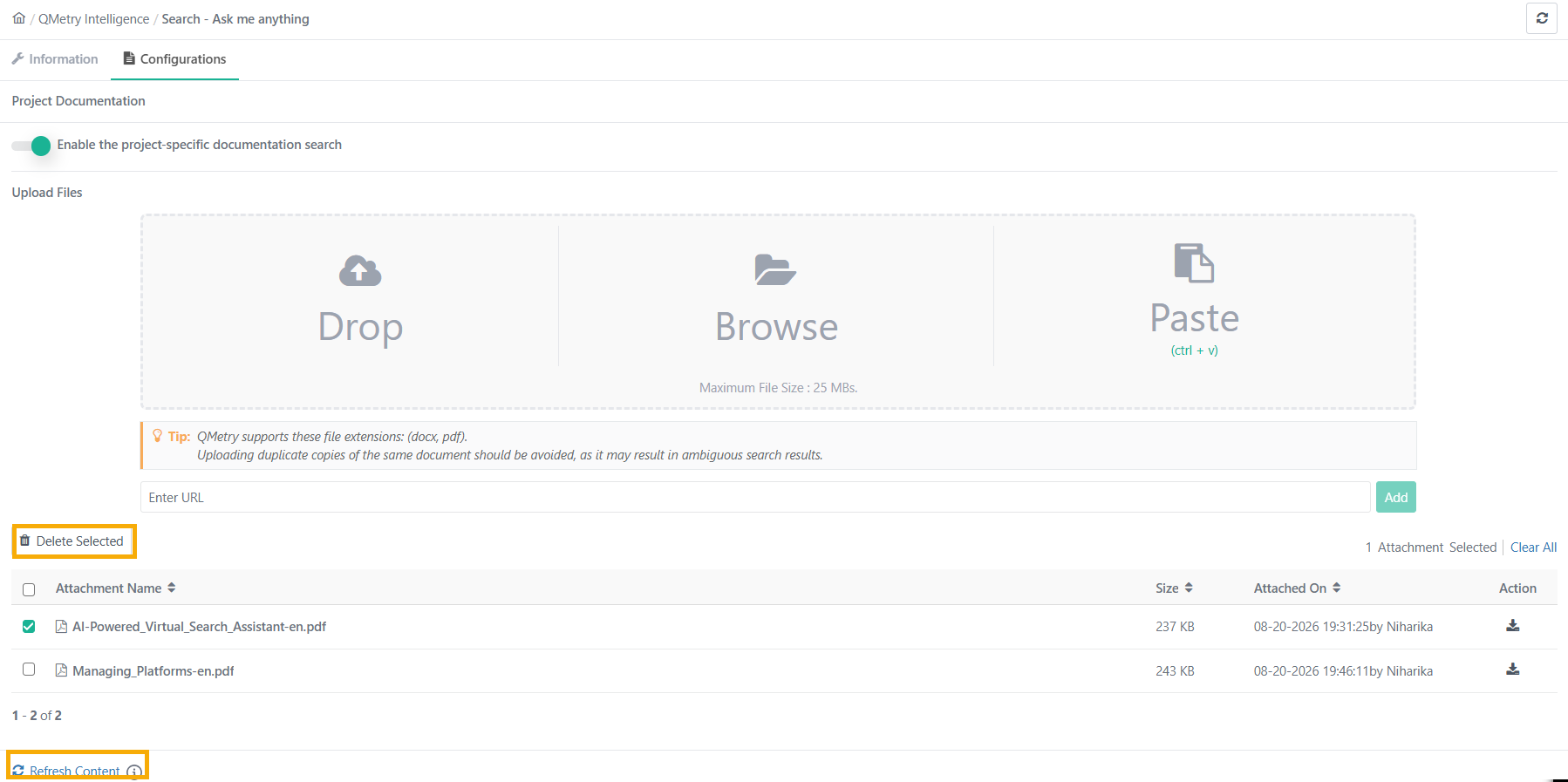 |
Select the attached document.
Click Delete Selected.
To delete multiple documents at a time, select multiple documents and click Delete Selected.
Note
The Delete action permanently deletes the file/confluence URL attached to this project.
Deleting and refreshing of the content process takes time in accordance with the size of the documentation. During the refresh operation, the QI Search functionality remains unavailable.
To delete the configuration of the documentation with the project, click Delete and Refresh Content.