QMetry Custom Dashboards
QMetry Custom Dashboard lists all the dashboards that you have created or are shared with you. You can access this from the left panel on the home screen.
Custom Dashboard has two tabs:
My Dashboard: Displays all dashboards created by you. You can edit, delete, schedule, and share your dashboards.
Shared Dashboard: Displays dashboards shared with you. You can view these dashboards but cannot perform any operations on them.
The Custom Dashboard offers an easy-to-use interface for organizing custom gadgets in sequence. The dashboard generates "best-fit" charts to display the report data.
A Custom Dashboard can be either Public (shared with other users) or Private (not shared with other users). By default, it remains private when created.
Access Rights
Note
The Dashboard access depends upon the package purchased. Packages are mentioned in the table below.
User Role and Rights:
QMetry Custom Dashboard module is visible only if you have View rights for Report.
You can create, edit and clone dashboards only if you have Modify rights for Report.
Package | View Custom Dashboard | Add System Gadgets to Custom Dashboard | Add Gadgets created using QMetry Insights (Custom Gadgets) |
|---|---|---|---|
Base | Y | Y | N |
Advanced Report | Y | Y | Y |
Features
Perform various operations on custom dashboards, including - adding, sharing, cloning, rearranging, removing, downloading, filtering, editing, scheduling, exporting, and refreshing or syncing.
Add Dashboards
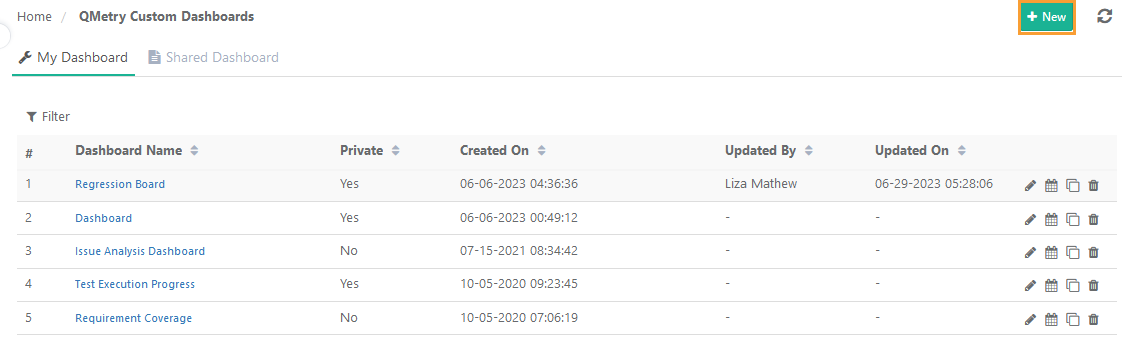
Create a Custom Dashboard using system gadgets, custom gadgets, or shared gadgets. To add a new dashboard, perform these steps:
 |
Go to QMetry Custom Dashboards.
On the My Dashboard tab, click New.
Enter the name of the dashboard, assign access permissions, and click Create Dashboard.
You can add System Gadgets, Custom Gadgets, or Shared Gadgets to the custom dashboard by navigating the tabs and clicking on the '+' sign.
Select Close after adding the gadgets.
To add more gadgets to an existing dashboard, open the dashboard and click Add Gadgets. Select the + icon to add a gadget to the dashboard.
Note
You cannot create QMetry Custom Dashboards with duplicate names.
To share the dashboard, add users in the Access section by entering usernames in the User tab or by specifying a project or role in the Project/Role tab to grant group access.
You can add multiple gadgets at once or add the same gadget multiple times.
Adding System Gadgets:
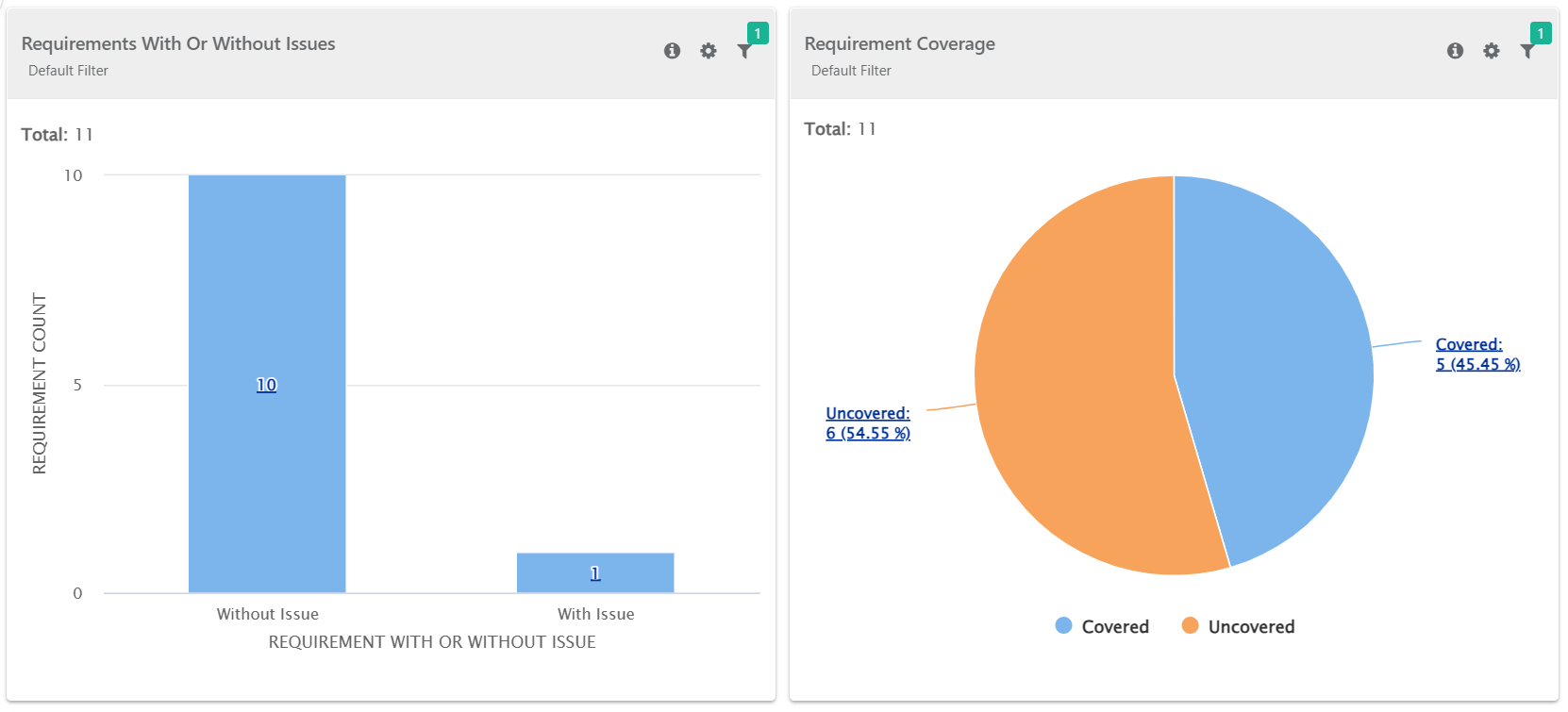
QMetry System Reports are predefined gadgets that cannot be edited or deleted. The drill-down feature enables the user to view details in a tabular format or download them.
Adding Custom Gadgets:
Custom Gadgets are gadgets created by you which you can edit or delete from the dashboard. You can drill down Custom Gadgets to view details in tabular form and downloaded.
Note
The drill-down functionality is implemented only for Visual Reports. The system does not support Cross-project charts for drill-down.
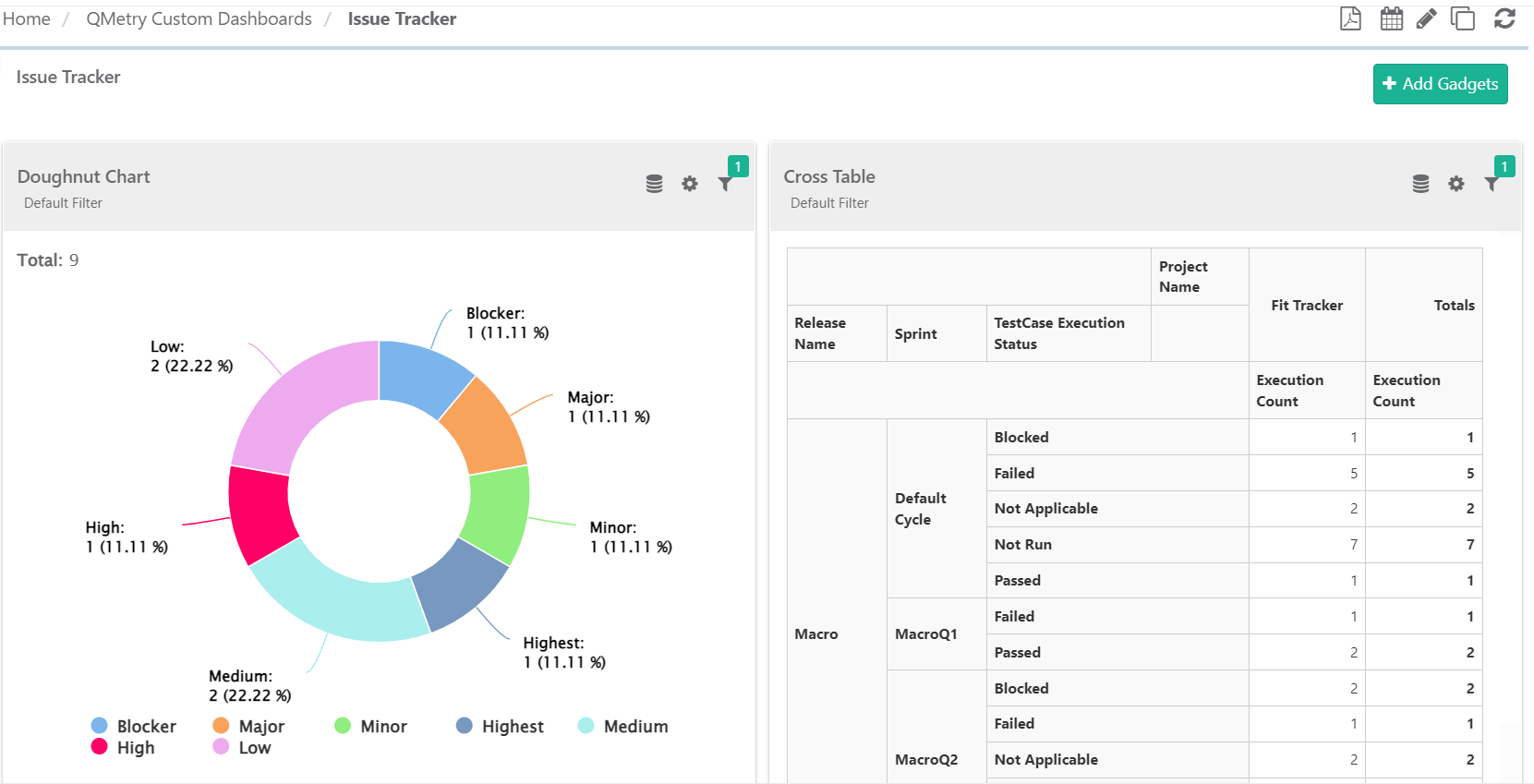 |
You can perform the following operations in the custom gadget -
View Query
Description of the gadget
Apply Filter
Edit, Download, Remove, and Export through the Cog icon (⚙️).
Adding Shared Gadgets:
Shared gadgets are those created and shared by other users. Recipients can view and export these gadgets but cannot edit them.
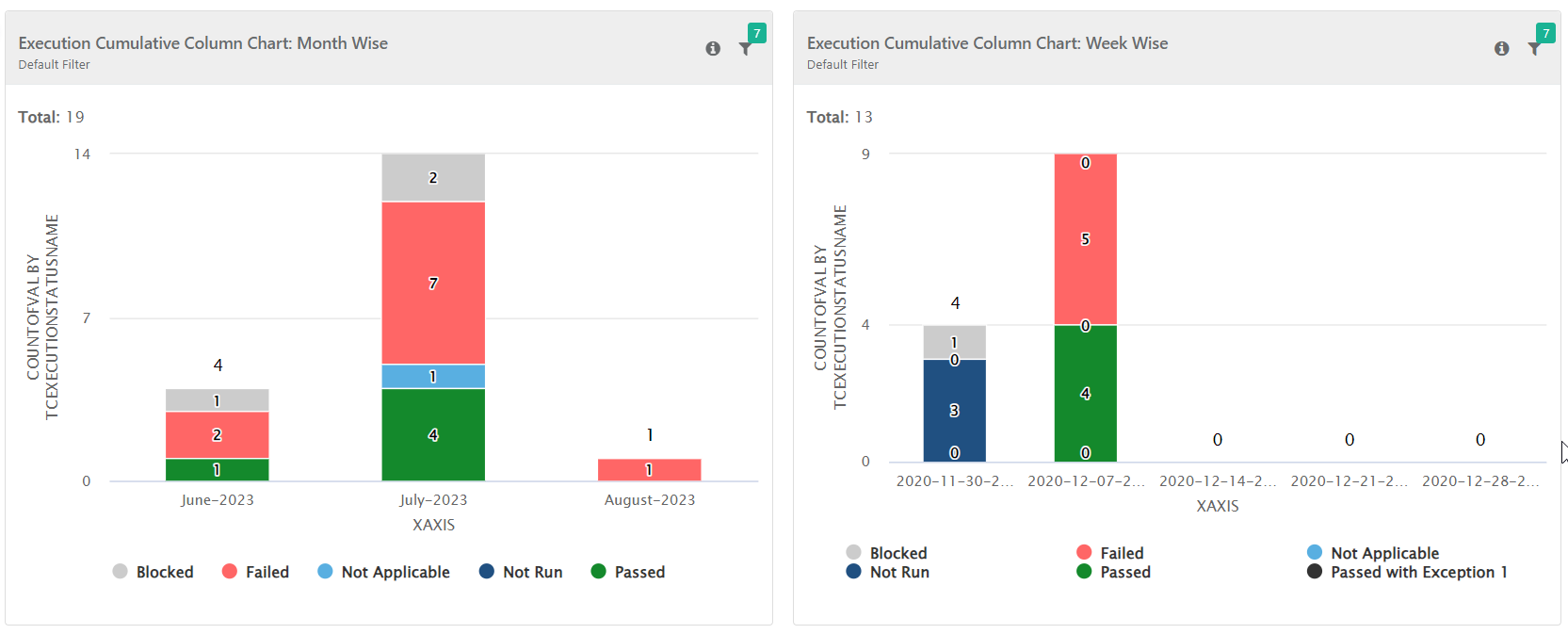
The logged in user can perform the following operations:
View query
View description of the gadget
Apply filter
Download, remove, and export using the Cog icon (:settings:).
Sharing Dashboard with Users
The creator of a dashboard can share it with other users. Once shared, the dashboard appears under the Shared Dashboard tab of the recipients.
Note
The shared dashboard reflects applied filters.
It is be in read-only mode for recipients.
You can export shared dashboards in PDF. You can also export individual gadgets on the dashboard as CSV.
You can switch the display view between chart and tabular formats, but the system doesnot save the changes.
You can share the dashboard from:
Add Dashboard Screen
Edit Dashboard Screen
Add Dashboard Screen
You can share a dashboard during its creation by adding usernames or specifying the project and role.
Edit Dashboard Screen
You can share dashboards from the edit dashboard screen in three ways:
Share Dashboards by Username: Share the dashboard with individual user.
Share Dashboards by Project or Roles: Share the dashboard with a group belonging to a particular role or project.
Share Dashboards through Embedded URL: Share the dashboard with users outside QMetry.
The dashboard edit icon is available on the My Dashboard tab and on the Dashboard Page header.
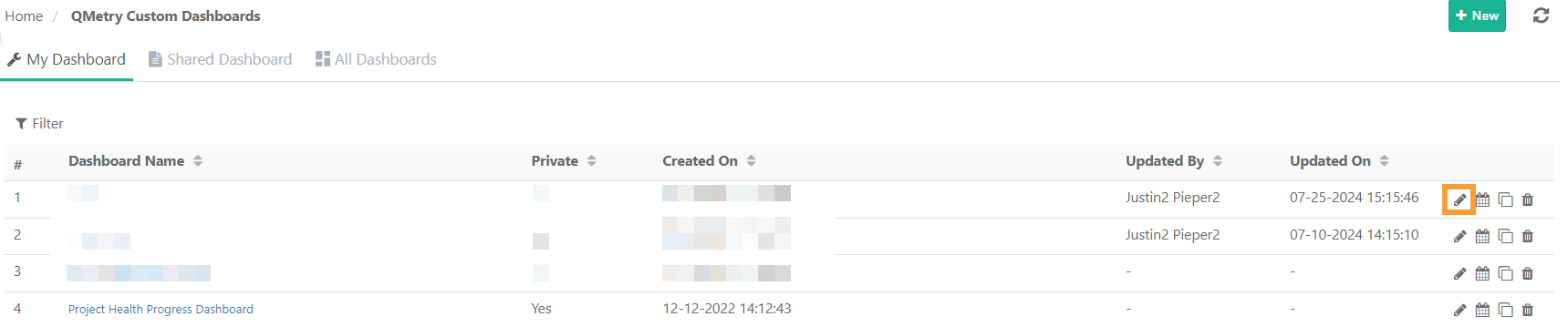
Click the Edit icon to open the Edit Dashboard pop-up. Modify the dashboard name and share it with others by entering their usernames or specifying their projects and roles.
Sharing Dashboard by Adding Users
A creator can share the dashboard with other users by adding QMetry usernames from the Add Dashboard, Edit Dashboard, or Share Dashboard screens.
To share dashboard, perform the following steps:
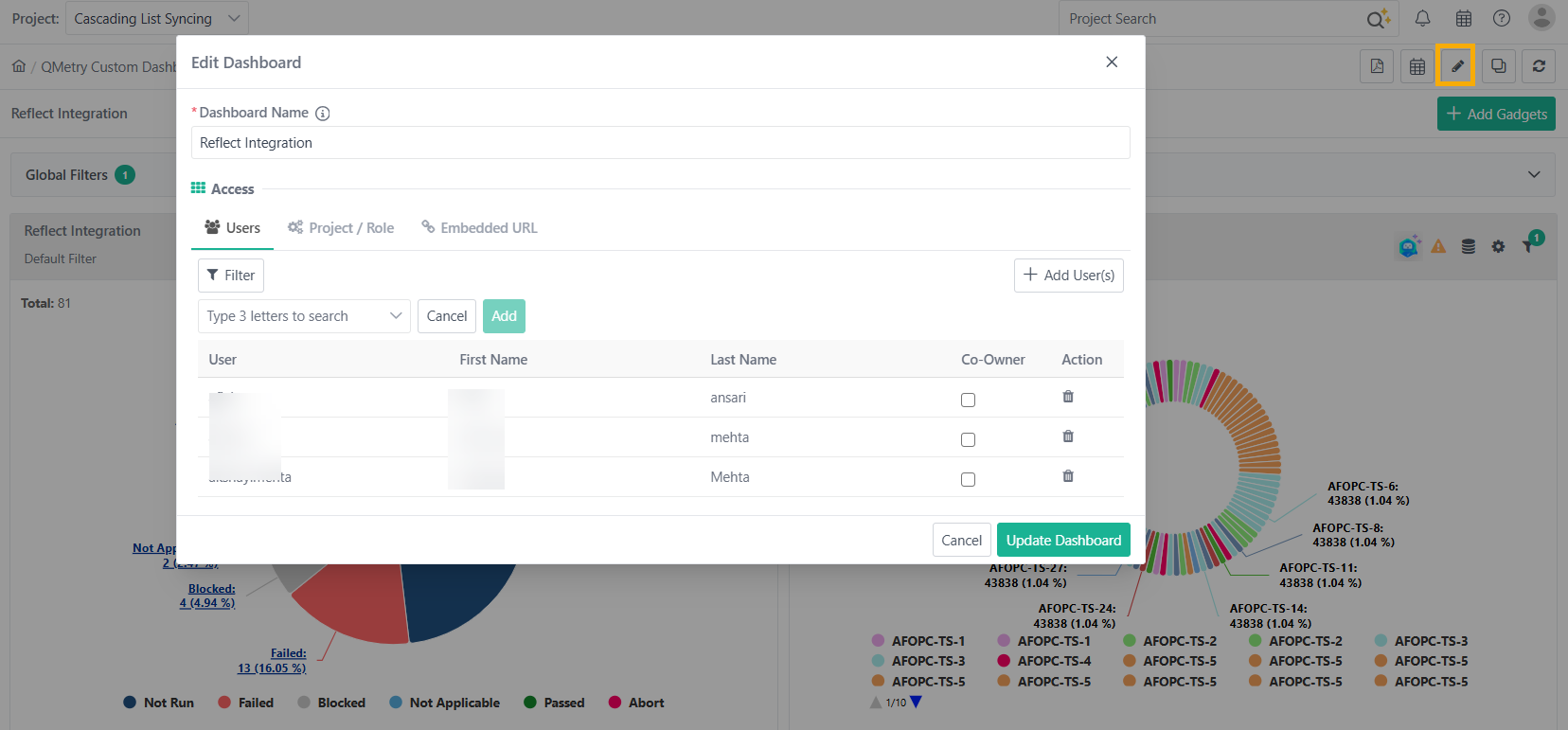
Go to QMetry Custom Dashboards.
In the My Dashboard tab, select the Dashboard to share.
Click the Edit Dashboard icon.
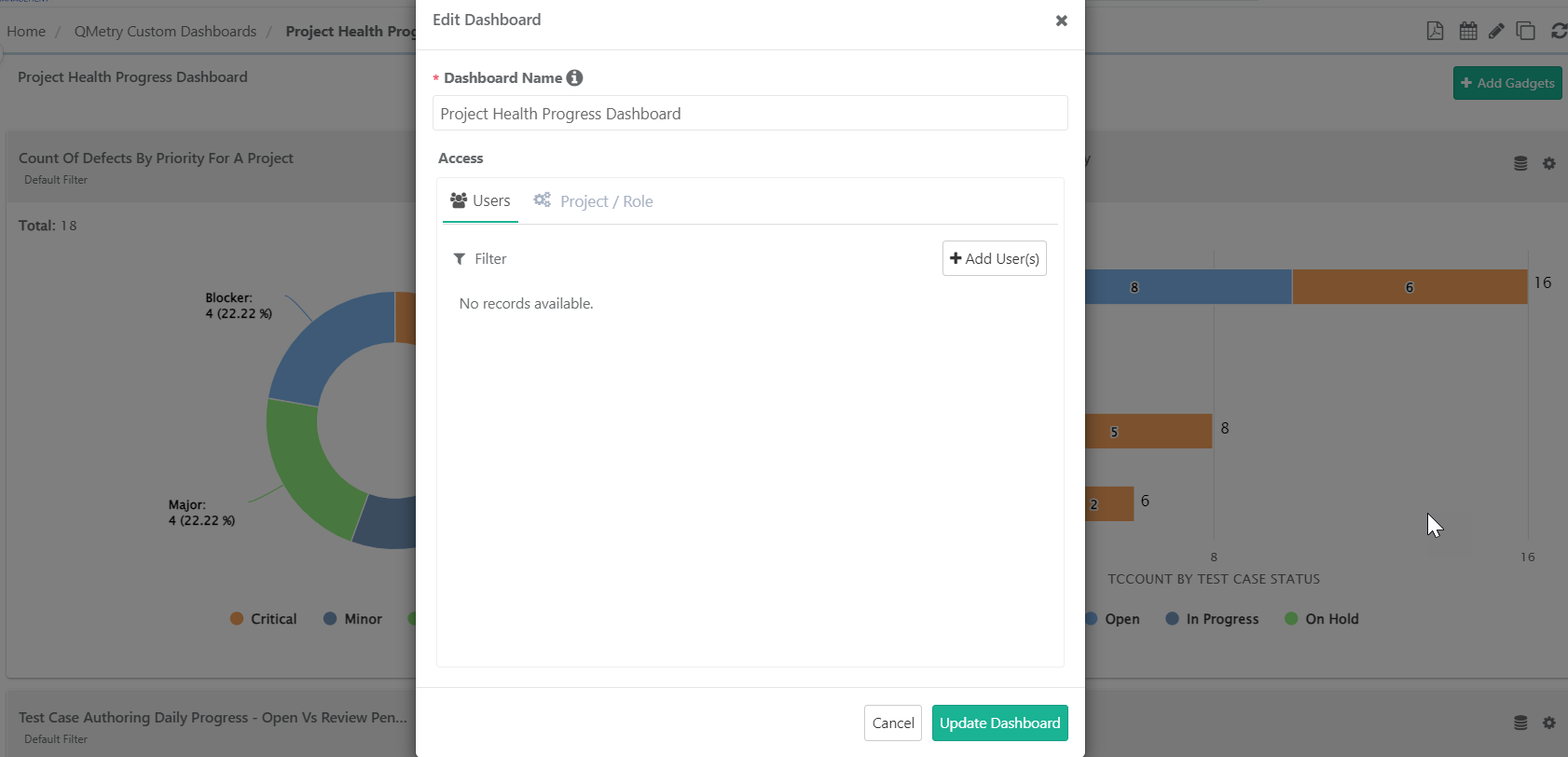
Select the Users tab and click Add Users.
Search for the users by clicking search. Select usernames with from the drop-down list.
Click Add.
Click Update Dashboard.
Generating Embedded URL
You can generate embedded URLs for sharing a dashboard with users outside QMetry.
Note
The super admin must activate the setting Allow Users to Generate Embedded URL for Sharing Reports Outside QMetry.
By default, this feature is enabled for Super Admins.
Super admins can enable this feature from General Settings & Audit under Customization.
Super admins can enable this feature from General Settings & Audit under System Settings.
When enabled, the dashboard creator can generate an embedded URL for all types of dashboards like co-owned, shared, cloned etc.
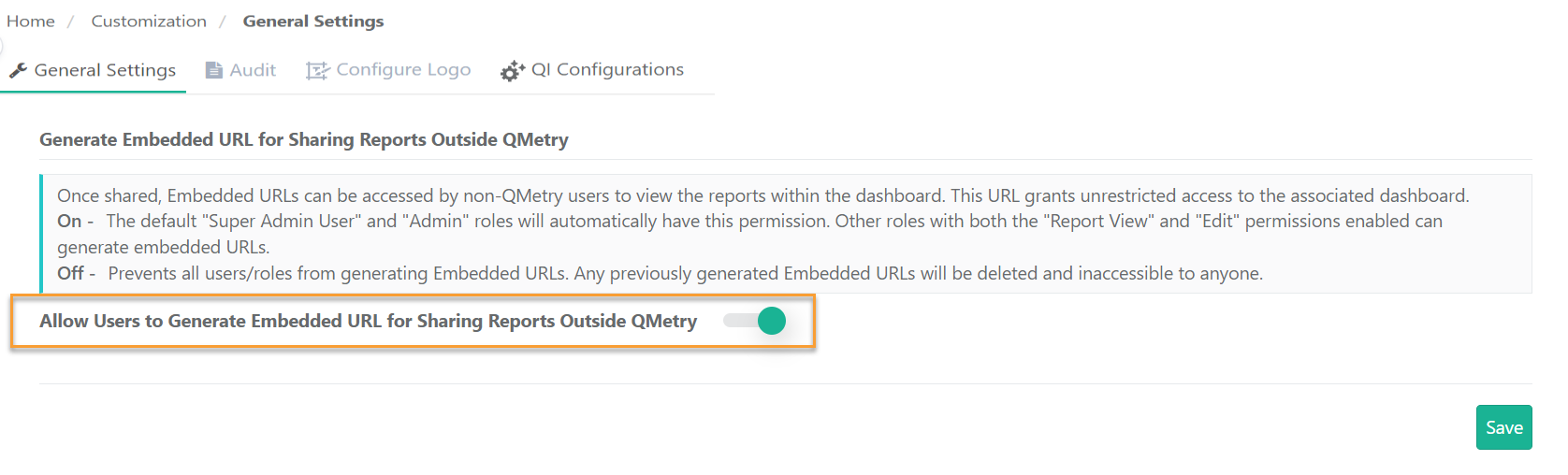
If Enabled:
You can access the Embedded URL tab through Edit Dashboard screen.
Steps to Generate an Embedded URL:
Go to QMetry Custom Dashboards and select My Dashboard. Select the dashboard and click Edit Dashboard icon.
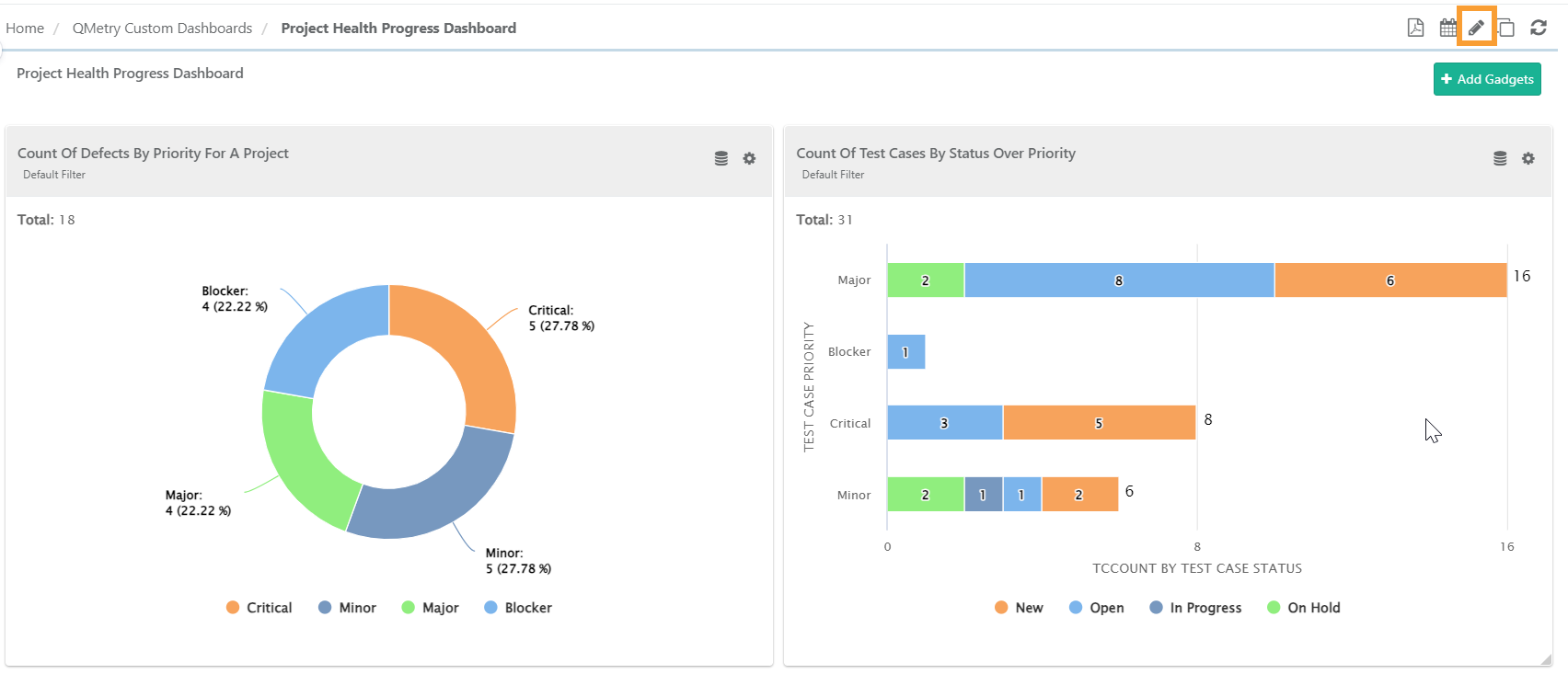
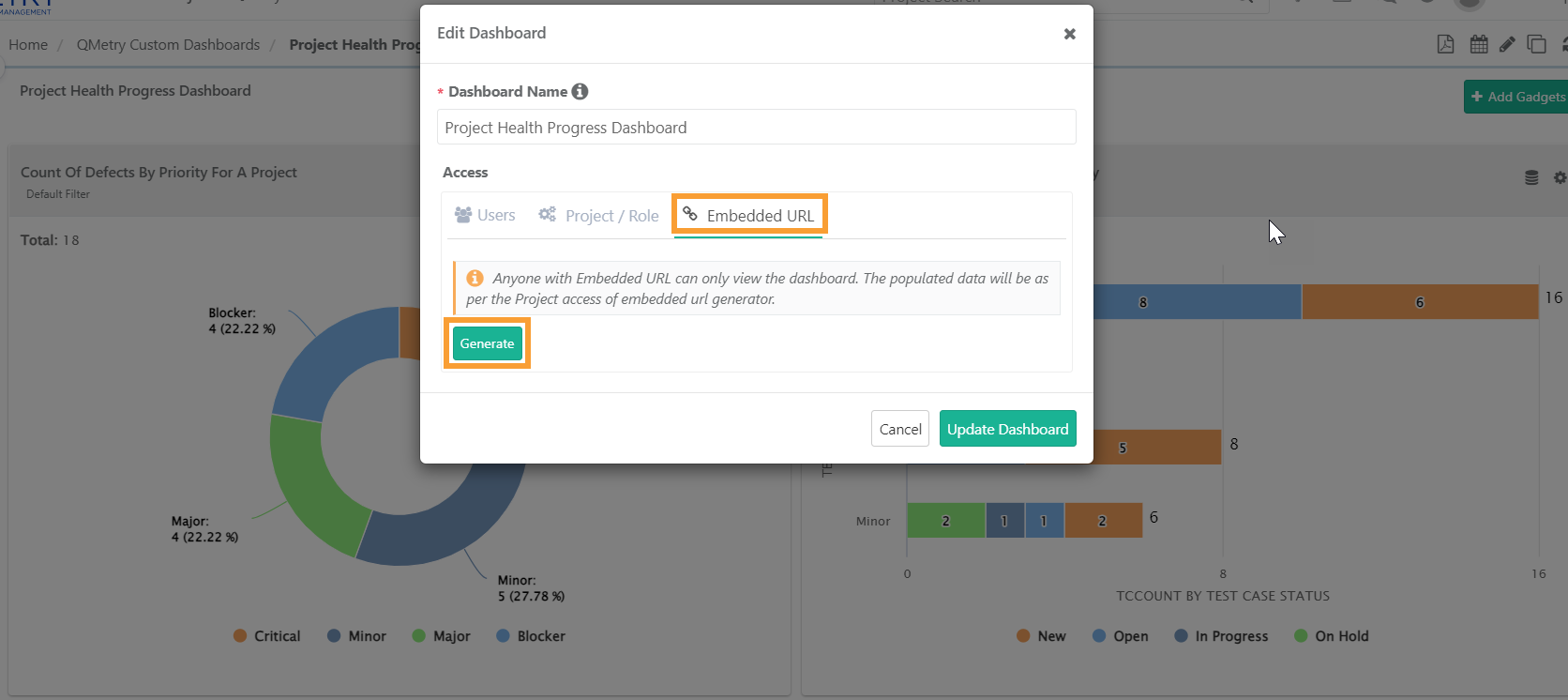
Generate URL: In the Edit Dashboard pop-up, go to the Embedded URL tab and click Generate. This creates an embedded URL for the dashboard.
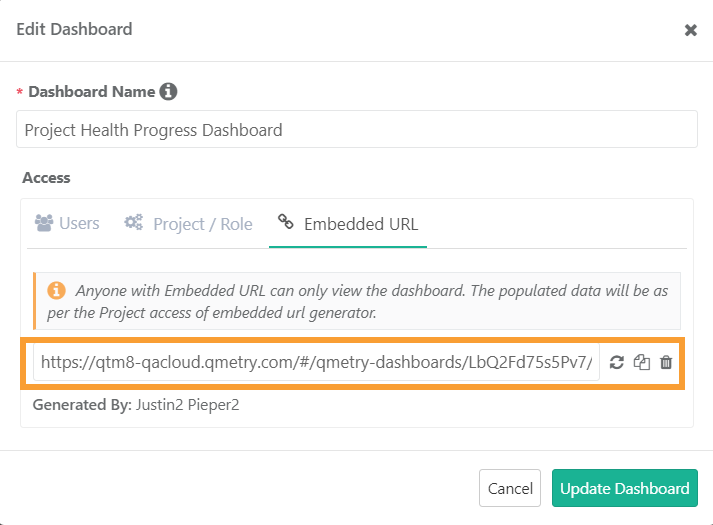
Share URL: Copy the embedded URL and share it via any communication channel.
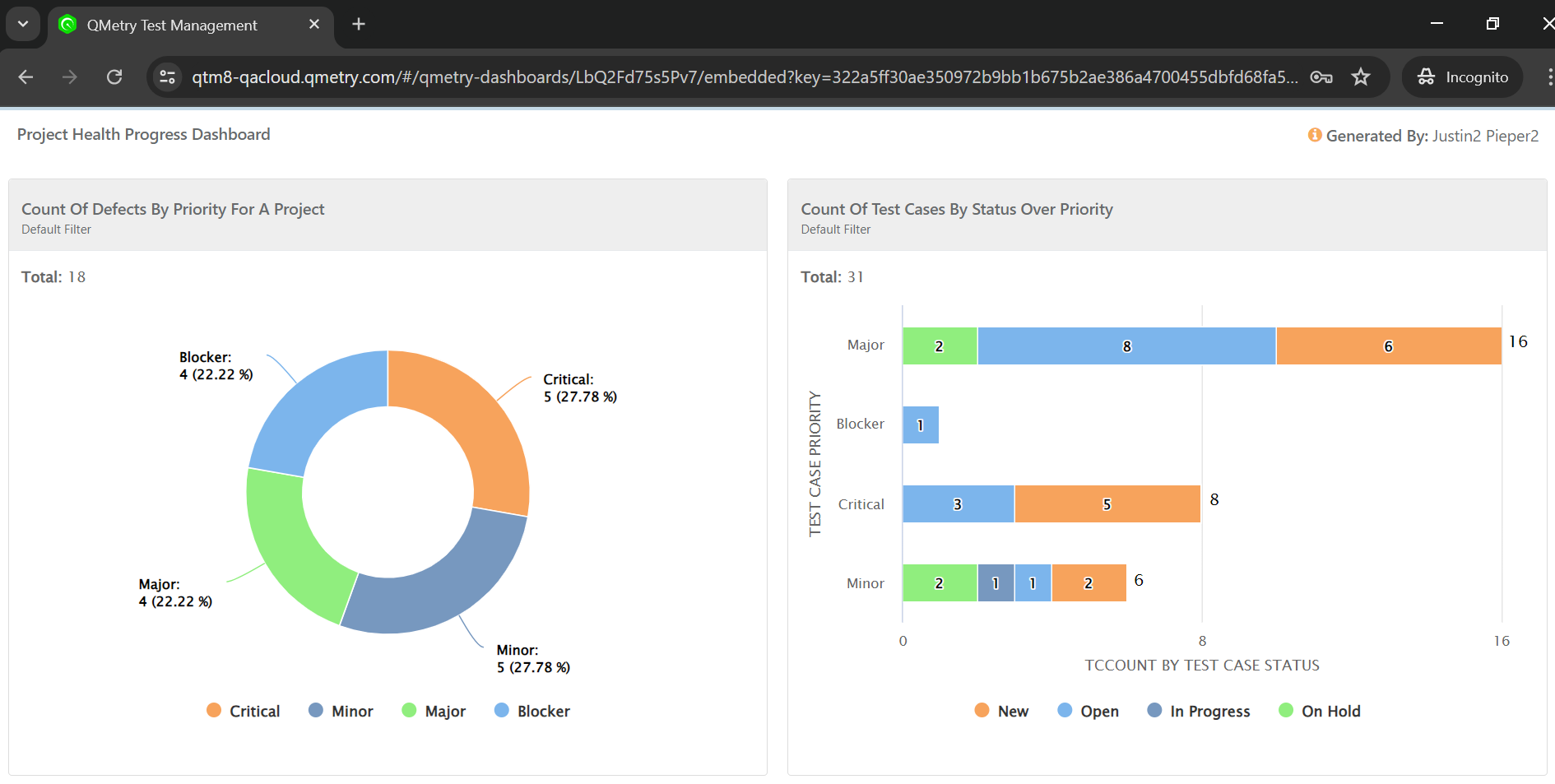
Access the dashboard: Users outside QMetry receive view-only access to the dashboard, with tags and applied filters visible on hover.
You can use the embedded URL for third-party integrations.
If Disabled:
The Super Admin can disable embedded URL sharing by toggling off Allow Users to Generate Embedded URL for Sharing Reports Outside QMetry.
Disabling the toggle:
Hides the embedded URL option in the edit dashboard.
Previously shared embedded URLs become inaccessible. Users attempting to access these URLs receives an error message.
Use Embedded URL in Confluence
Refer to Add QMetry Custom Dashboard Embedded URL in Confluence for more details.
Share Dashboard with Co-owner Rights
The dashboard creator can assign multiple co-owners to the dashboard. When sharing the dashboard, the creator can assign users or project roles as viewers or editors (co-owners).
Required Permissions: Shared users or co-owners must have Report and QMetry Insight rights to access the dashboard and its data.
Note
Co-owners can edit or delete the dashboard, add or remove gadgets, modify gadget filters, share the dashboard, schedule, or clone the dashboard.
The grid view displays the details and timestamp of the last user who updated the dashboard, helping identify editors among multiple co-owners.
The Audit Log Report captures dashboard deletions records.
Steps to assign other users as co-owners of the dashboard:
In the add dashboard, edit dashboard or share dashboard pop-up follow these steps:
If user is not yet added, click Add Users.
Search the username to add a new user.
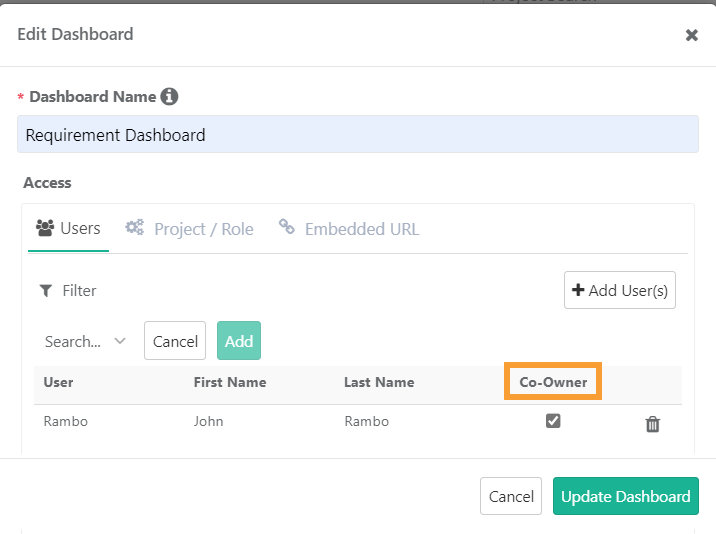
Select the Co-owner checkbox to designate the user as a co-owner of the dashboard.
Assign Co-owner while Deactivating Users
When deactivating a user, the system provides an option to select another user as the co-owner of the deactivated user's dashboards. All private and public dashboards of the deactivated user are transferred to the selected co-owner.
 |
Super Admin Sharing Dashboards
The Super Admin can access all dashboards. The admin can share the dashboards with individual users, a specific project, certain roles or certain roles within a particular project. The super admin can also grant co-owner status to any user.
Note
The Super Admin can view all dashboards but must assign themselves as a co-owner to edit the dashboards or generate embedded URL for any dashboard.
The super admin can share a dashboard from -
Add Dashboard Screen.
Edit Dashboard Screen.
All Dashboards Tab.
The steps to share a dashboard from the Add or Edit Dashboard screen are the same for all users, including the super admin.
All Dashboards Tab
All Dashboards tab is exclusively accessible to super admins. Super admins can share either a single dashboard or multiple dashboards from this tab.
Sharing a Single Dashboard: Click the share icon to share a specific dashboard.
Sharing Multiple Dashboards: Select the dashboards to be shared from the list and click Bulk Access.
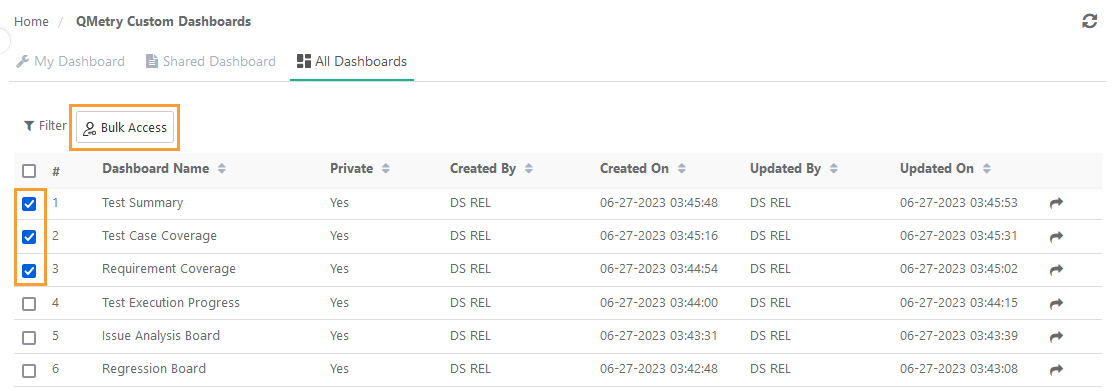
Both actions display the Share Dashboard pop-up. It allows you to share the dashboards with an individual by username, with a group by specifying the project or roles, or a combination of both.
Note
When the super admin adds a new user by username, the co-owner checkbox is checked by default. To restrict co-owner access, the super admin must uncheck this checkbox.
Super admin can give co-owner rights to any user or all users in a project or role by checking the co-owner checkbox.
View Shared Dashboards
Once a dashboard is shared, recipients can view shared dashboard under the Shared Dashboard tab.
Shared Dashboard with co-owner rights
If you have co-owner rights to a dashboard, then the co-owner icon becomes visible. You can filter records by Co-owner status (Yes/No). Hovering over the info icon displays the dashboard description.
Note
Co-owners can edit or delete the dashboard, add or remove gadgets, modify gadget filters, share the dashboard, schedule, and clone it.
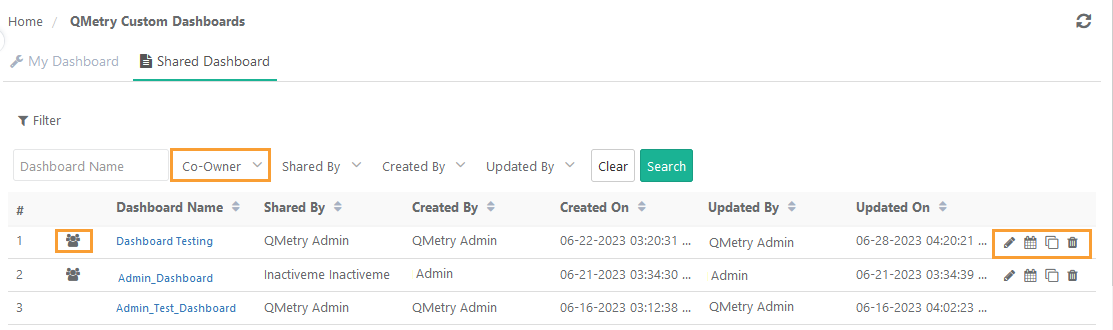 |
Co-owners can perform the following operations on the shared dashboards:
Edit the Dashboard
Delete the Dashboard
Share the Dashboard: Click Share Dashboard icon to share the dashboard with other users with “View” rights or as co-owners.
Unshare a Dashboard
The owner of the dashboard can stop sharing a dashboard from the Edit Dashboard screen.
To unshare a dashboard with individual users -
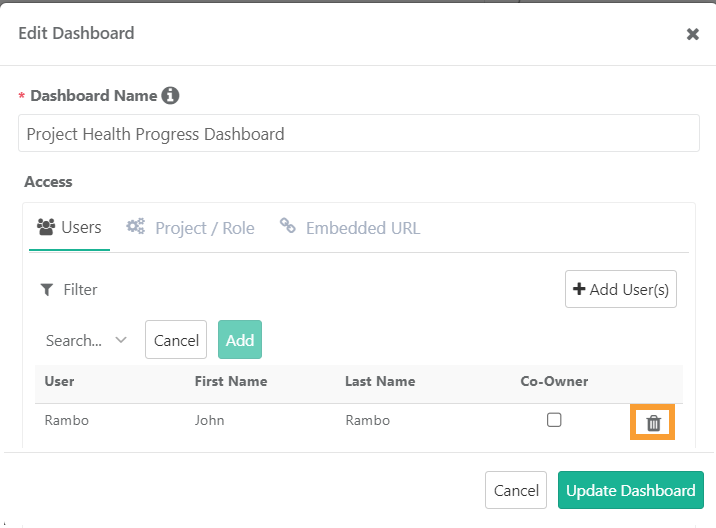
Open the Edit Dashboard screen and open the Users tab.
Click the Delete icon for the user to stop sharing the dashboard with that particular user.
To unshare a dashboard with a group of users -
Open the Edit Dashboard screen and open the Project/Role tab.
Click the Delete icon for the Project/Role to stop sharing the dashboard with users holding the role in that particular project.
The removal discards the dashboard access to the users who were falling under the selection criteria.
Clone a Dashboard
You can copy an existing custom dashboard, along with all its gadgets, using the Clone Dashboard feature. You can reuse and modify a dashboard without recreating it or re-adding gadgets.
For example, you can clone a dashboard to share with business leaders, updating it with different data points.
The cloned dashboard retains the allocated rights. You can modify the permissions assigned to users or roles.
Note
Permissions Required: Users with Report "Modify" rights for the project can create a clone of the dashboard.
To clone a dashboard, these are the steps:
Go to QMetry Custom Dashboard.
On My Dashboard tab, click Clone.
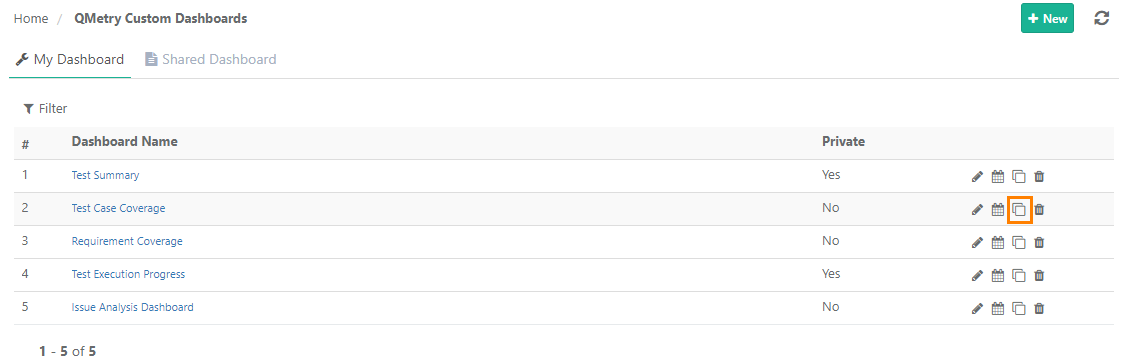
You can also access the clone icon from the dashboard header after opening the individual dashboard.
You can add or remove Users and Roles for sharing the cloned dashboard.
Click Clone Dashboard.
Rearrange and Resize Gadgets in Dashboard
You can rearrange or resize the gadgets for customizing their dashboard view.
Rearrange Gadgets: Drag the gadget and drop it in preferred spot on the dashboard.
Resize Gadgets: Drag the edges to resize the gadgets on the dashboard. You can organize the gadgets by maximizing or minimizing their size.
Removing a Gadget
You can remove a gadget from the dashboard. Removing a dashboard removes all shared versions.
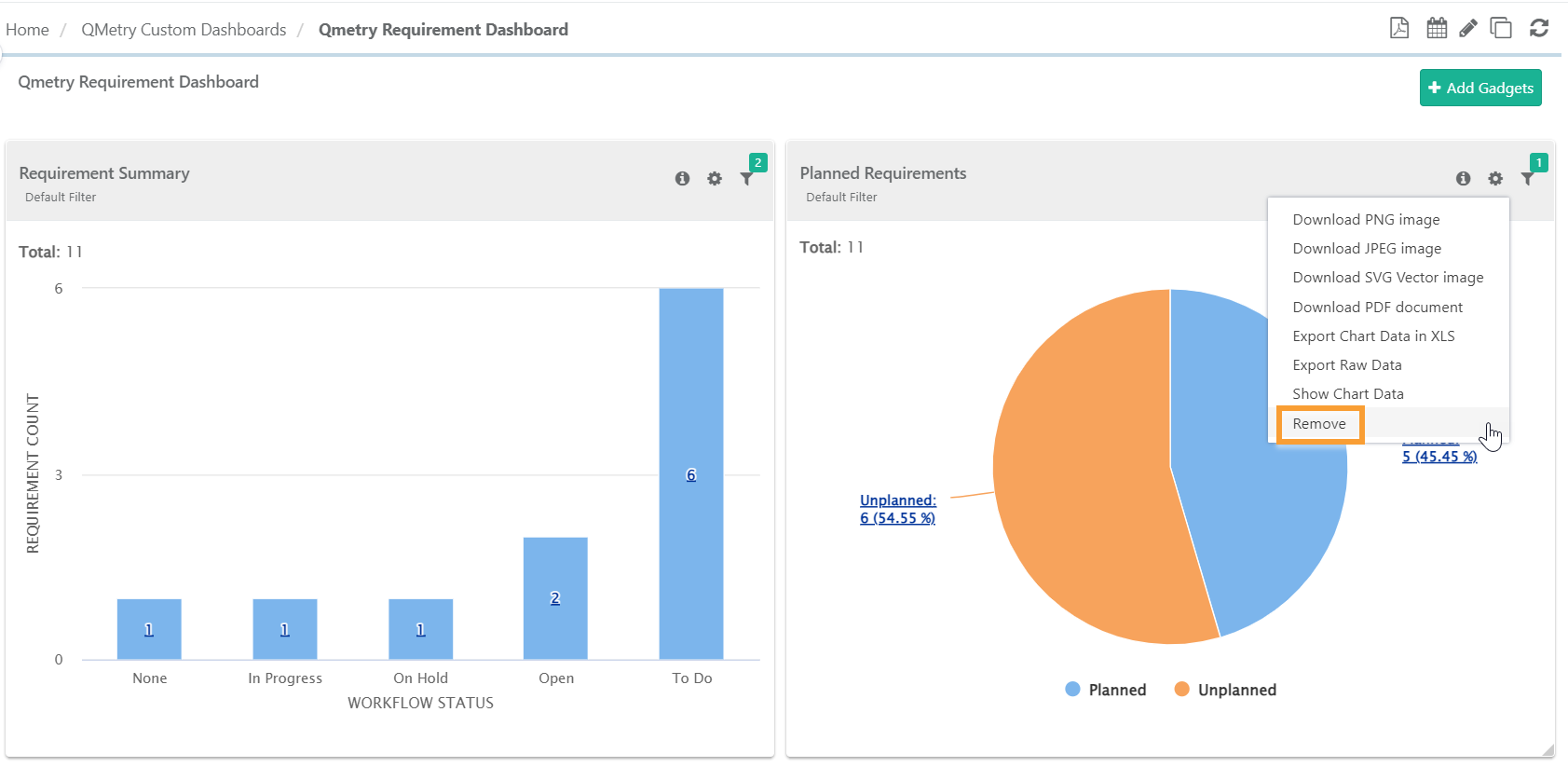
To remove a gadget from the dashboard, click the Cog(⚙️) icon and select Remove.
 |
Download Gadget
You can download a gadget in various formats:
You can download Graphs as PNG, JPEG, SVG, or PDF.
You can download Tabular data as XLS.
To download a gadget from the dashboard, click the Cog (⚙️) icon for the gadget and select the required download option.
Global Filters
With Global Filters, you can set shared filters that apply to all gadgets, instead of configuring filters for each gadget individually. However, you still have the flexibility to configure unique filters for individual gadgets.
Note
Only filters that are common across all gadgets in a dashboard appears in the Global Filter section.
If you access the dashboard via an embedded URL without co-owner permissions, you can view the common dashboard filters but cannot modify the filters.
 |
Here’s how Global Filters Function:
When you apply a global filter, it overrides the current filters on all gadgets.
You can edit the global filters as well as unique filters at the gadget level.
You can save global or unique filters based on their preferences.
You can select only one project at a time if a folder-level filter is available in the global filters section.
You can modify the Common filter field values at the gadget level and they may differ from the Global filter field values.
Filter Gadgets
The filters you apply during query execution are saved and applied as the default for the gadget on the dashboard. Changing the filter also updates the dashboard shared with other users.
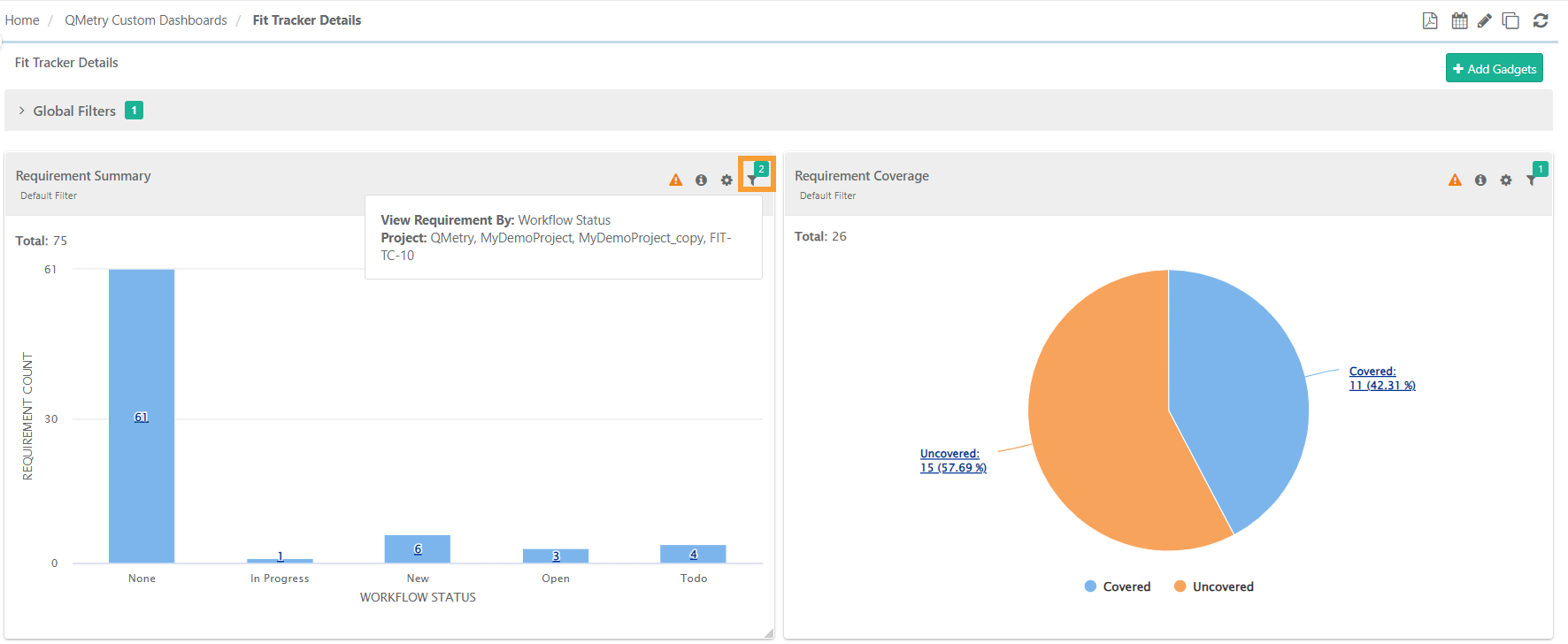
To modify the default filter, click the Filter icon for the gadget.
Select filter values and click Apply.
You can also tag the applied filter to identify it.
You can view the filters applied on the gadgets on hover over the filter icon in the gadget.
Schedule Custom Dashboard
You can configure scheduled email notifications for a custom dashboard. The system delivers the dashboard report as a PDF to recipients according to the selected schedule.
To schedule custom dashboard, perform the following steps:
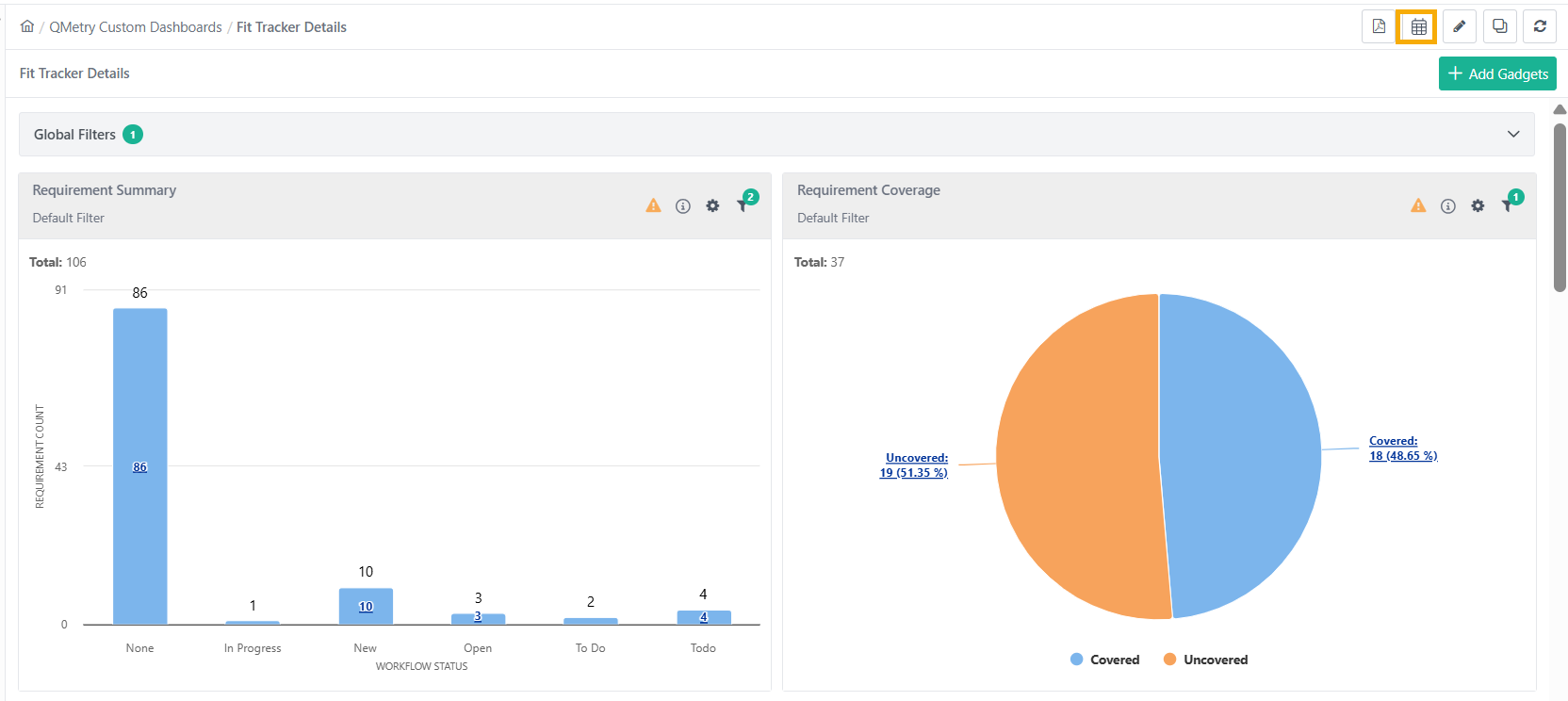
Go to the QMetry Custom Dashboard.
Click to select the dashboard.
Click the Schedule icon.
The schedule pop-up displays two tabs:
Schedules: The tab shows a list of the schedules for this dashboard.
Schedule Dashboard: Enter details to schedule this dashboard.
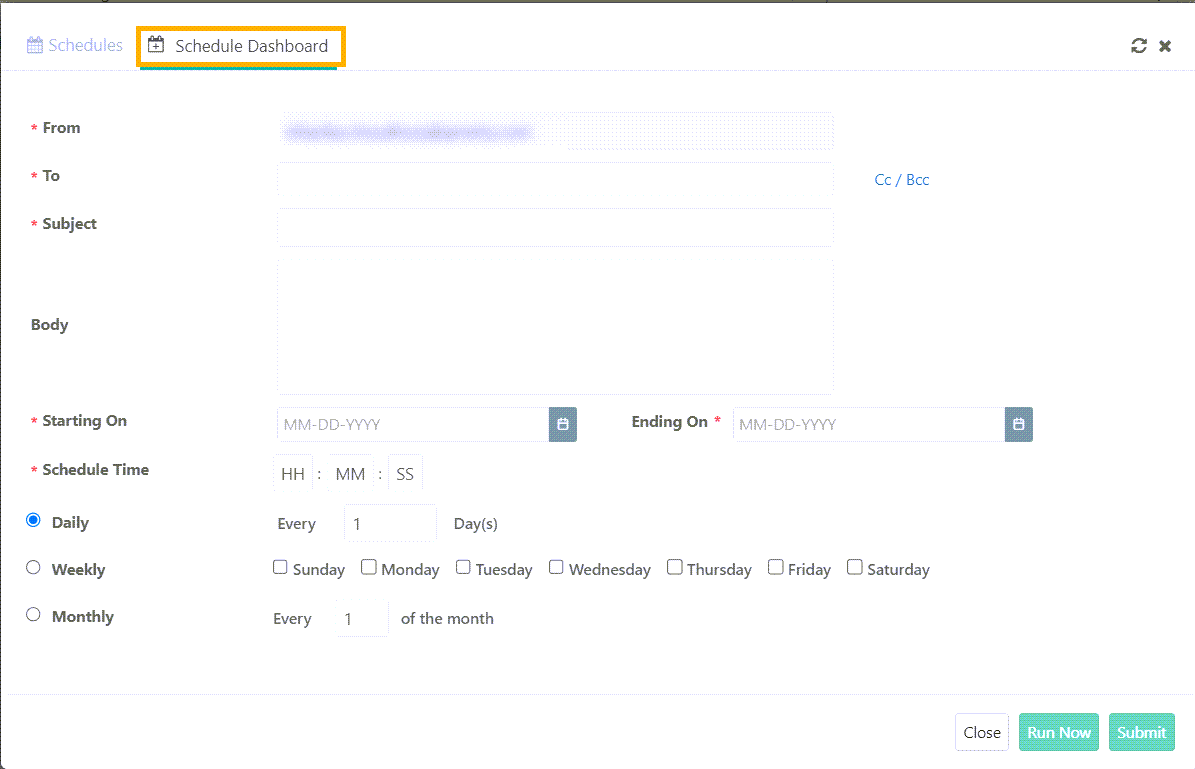
Scheduling Custom Dashboard
Open the Schedule Dashboard tab to fill in details and schedule email notifications.
Report details are sent as a PDF to recipients as per pre-defined schedule.
After entering the details, click Submit to schedule the report. The report is sent as per the set date, time and frequency.
To send the email instantly, click Run Now.
Note
You can email only graphical reports using Schedule Report. For tabular reports, you must export them individually as CSV files.
Scheduled Dashboards
Scheduled dashboards appears on the Schedules tab. You can edit or delete schedules by clicking the respective icons.
Export Dashboard to PDF
To export the dashboard gadgets to PDF, open the Custom Dashboard and click PDF icon on the header.
Note
You can export only graphical reports as PDFs.
You must export tabular reports individually in CSV format.
The system exports all reports in the UTC time zone.
You can also export all the custom dashboard gadgets through the API call.
Refresh or Sync Custom Dashboard
To refresh the gadgets on the custom dashboard manually, click the Refresh icon on the dashboard header. It syncs the gadget data to render the reports with the latest data.