Managing Platforms
Create platforms to define the configurations used to test software components or builds. A platform represents a specific test configuration and helps teams test builds consistently across supported environments.
Web applications platforms might be based on different combinations of OS and Browsers: Windows+IE8, Windows+FF, MacOS+FF, etc.
Mobile applications might require combinations like: AT&T+IPhone 4G, Vodafone+IPhone 4G, Airtel+IPhone 4G, etc.
Add Platforms
A default "No Platform" entry is available when you create a new project.
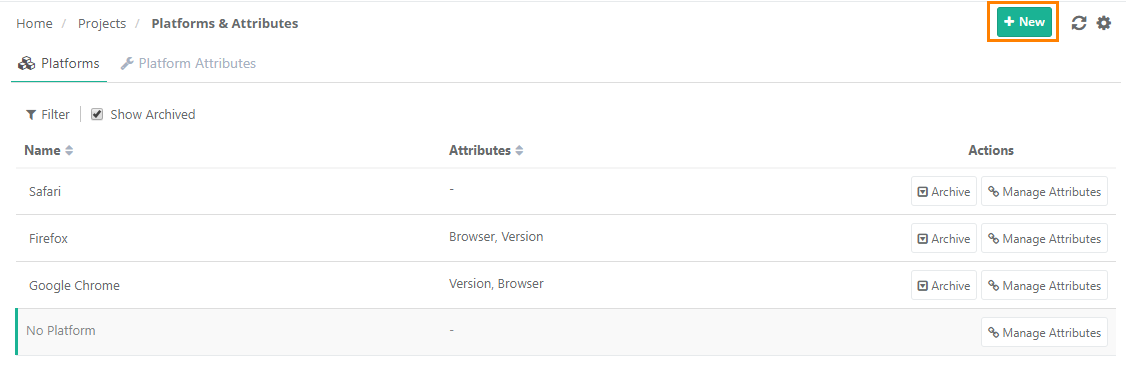 |
To add more platforms, perform the following steps:
Under Project Management, select Platforms and Attribute.
Select the Platforms tab.
Click New.
Edit Platform Name
To edit platform name, perform the following steps:
Under Project Management open Platforms and Attributes.
Select the Platforms tab.
Hover over the Platform to modify.
Click the platform-name cell and edit the name.
Link Platforms to Test Suite
To link platforms to test suite, perform the following steps:
 |
Go to the Test Suite module.
Open the Test Suite details page.
Select the Platforms tab and click Link.
Select the platforms to link and click Link Selected Platforms.
To create and link a platform that does not yet exist, click Create New Platform.
Archive and Delete Platforms
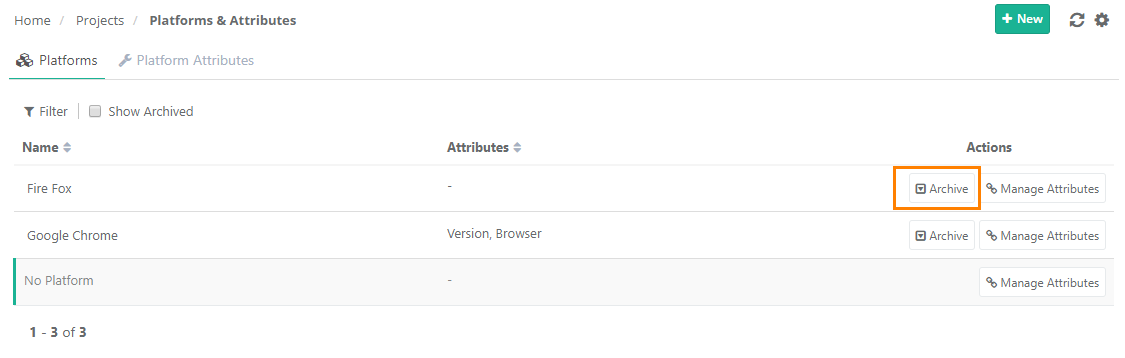
Archive platforms that are no longer required.
 |
Note
| You cannot archive the default "No Platform". |
| If a platform associated with test suite is deleted and the related test suites have already been executed. In that case, you cannot perform any operations on the execution screen of the respective test runs. |
Share Platforms Across Projects
Share platforms to copy the Platform values from a source project to multiple destination projects.
A project administrator wants to reuse the platforms defined in one project across multiple projects instead of manually adding and maintaining the same platform definitions in each project.
Required Permissions:
You need the following permissions to copy platforms between projects.
Source or Destination | Permissions |
|---|---|
Source Project (The Project from where the platforms is copied) |
|
Destination Project (The Project where the platforms is created) |
|
Import Platforms from Other Projects
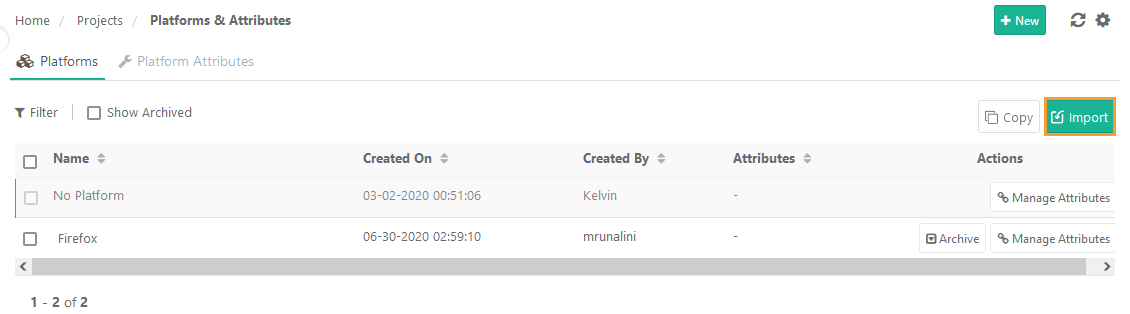 |
To import platforms, perform the following steps:
Go to Project Management and select Manage Platforms.
Select the Platforms tab.
Select Import.
Select the Project to import the Platforms.
Import only the Platforms: Only platforms are imported, not the platform attributes.
Import Platforms and their associated Platform Attributes: Import the selected platforms and all their linked platform attributes, along with the set values of the fields Tag at Runtime, Is Mandatory, and Default Value. The option appears disabled if the user does not have the Customization “View” and “Modify” permissions.
Select the Platform values to import in the existing project.
Note
Select a maximum of 50 platforms at a time.
Click Import.
You can track import progress in the Scheduled Tasks screen.
Copy Platforms to Other Projects
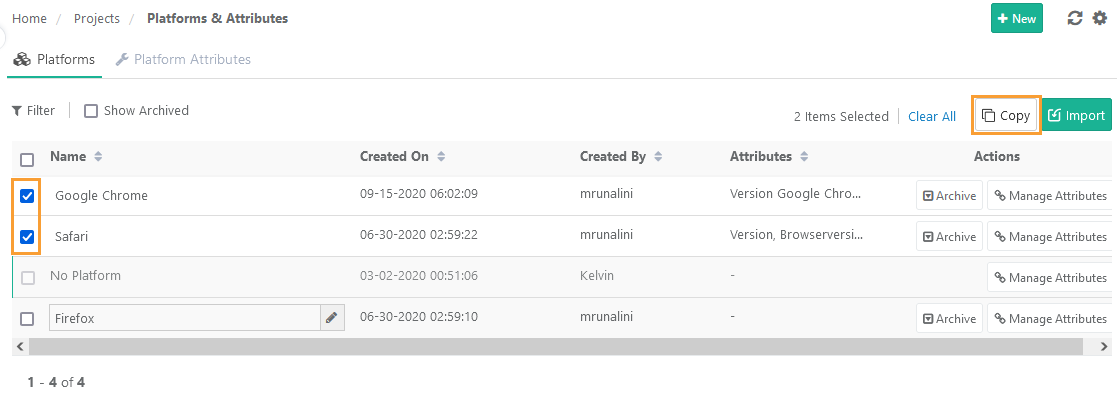 |
To copy platforms to other projects, perform the following steps:
Go to Project and open the Platform tab.
Select the Platform values and click Copy.
Select the projects on the drop-down list.
Select either of the following:
Copy only the Platforms: Copies only the platforms. This excludes the platform attributes.
Copy Platforms and their associated Platform Attributes: Copies the selected platforms and all their linked platform attributes, along with the set values of the fields. You need Customization View and Modify permissions for this.
Click .
You can track the progress in the Scheduled Task section.
Note
You can select a maximum of 50 platforms at a time.
Only those projects you have access to are shown in the list.
You can select a maximum of 5 projects at a time.
Duplicate platforms are ignored during the Copy.
Copy Platforms to Other Projects
To copy platforms, perform the following steps:
Go to Projects and select Platforms.
Select the Platform values to copy.
Click .
Select Projects on the drop-down list.
Select either of the following options:
Copy only the Platforms: Copies only the platforms, excluding the platform attributes.
Copy Platforms and their associated Platform Attributes: Copies the selected platforms and all their linked platform attributes, along with the set values of the fields. This is Enabled only if the user have the Customization “View” and “Modify” permissions.
Click Copy.
You can track the progress in the Scheduled Task section.
Note
You can select a maximum of 50 platforms at a time.
Only those projects you have access to are shown in the list.
You can select a maximum of 5 projects at a time.
Duplicate platforms are ignored during the Copy.
Bulk Operations
Carry out the following operations on multiple platforms at a time:
Bulk Archive Platforms
Bulk Delete Platforms
Bulk Unarchive Platforms
Where to find the Bulk Operations feature?
Go to Platforms.
Click the settings icon and select Bulk Operations.
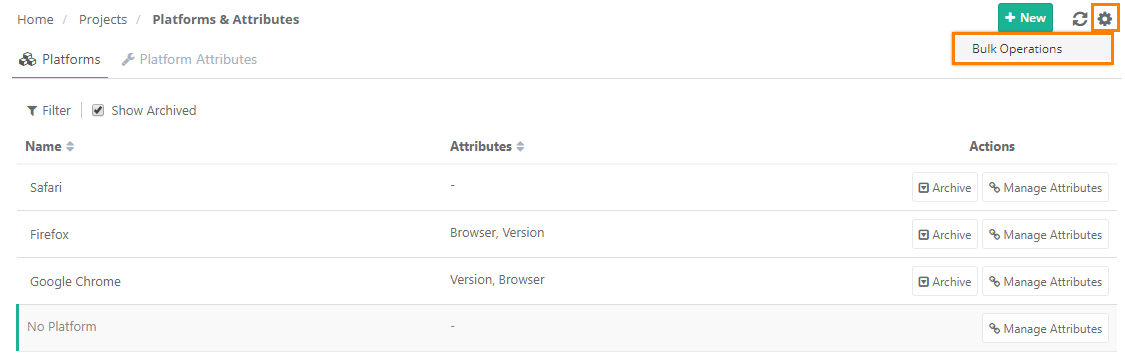
Bulk Archive Platforms
Bulk Archive Platforms
To archive platforms in bulk, select the platforms and click the Archive.
Bulk Delete Platforms
As mentioned above, it should first be archived to delete a platform.
On the Bulk Operations sreen, select Show Only Archived.
Select the archived platforms and click delete.
Bulk Unarchive Platforms
Unarchive the archived platforms to bring them in use again.
On Bulk Operations screen, select Show Only Archived checkbox.
Select the archived platforms and click Unarchive.