Rich-Text Editor
Create well-formatted, clear, and visually structured content across various modules such as Test Cases, Test Steps, Requirements, and Defects using the Rich Text Editor. It helps you document information with consistency and improved readability.
Key Features in Rich Text Editor
Text Formatting: Apply bold, italic, underline, strikethrough, superscript, and subscript styles.
Lists and Structure: Create ordered (numbered) and unordered (bullet) lists to organize steps and details clearly.
Tables: Insert and format tables to structure data, test step details, mappings, or expected results.
Images and Media: Add images in the editor to enhance documentation or provide visual references.
Hyperlink: Insert links to external documents, Jira tickets, or internal pages for quick navigation.
Alignment and Indentation: Align text (left, center, right) and adjust indentation for clean presentation.
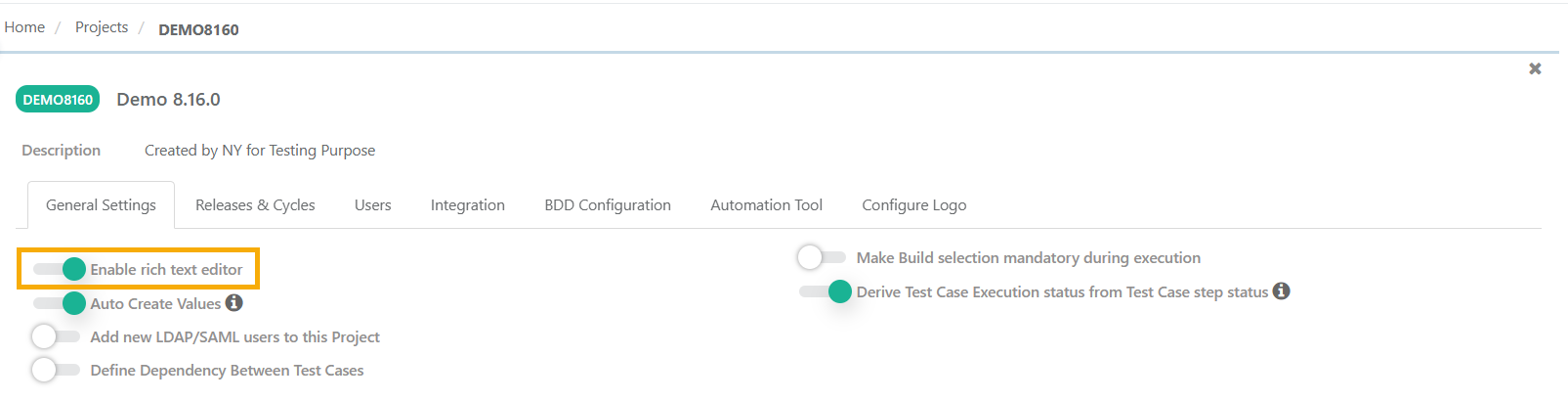
Enabling Rich-Text Editor
Enable Rich Text Editor for the project from Projects under Project Management.
Uploading Images in Rich-Text Editor
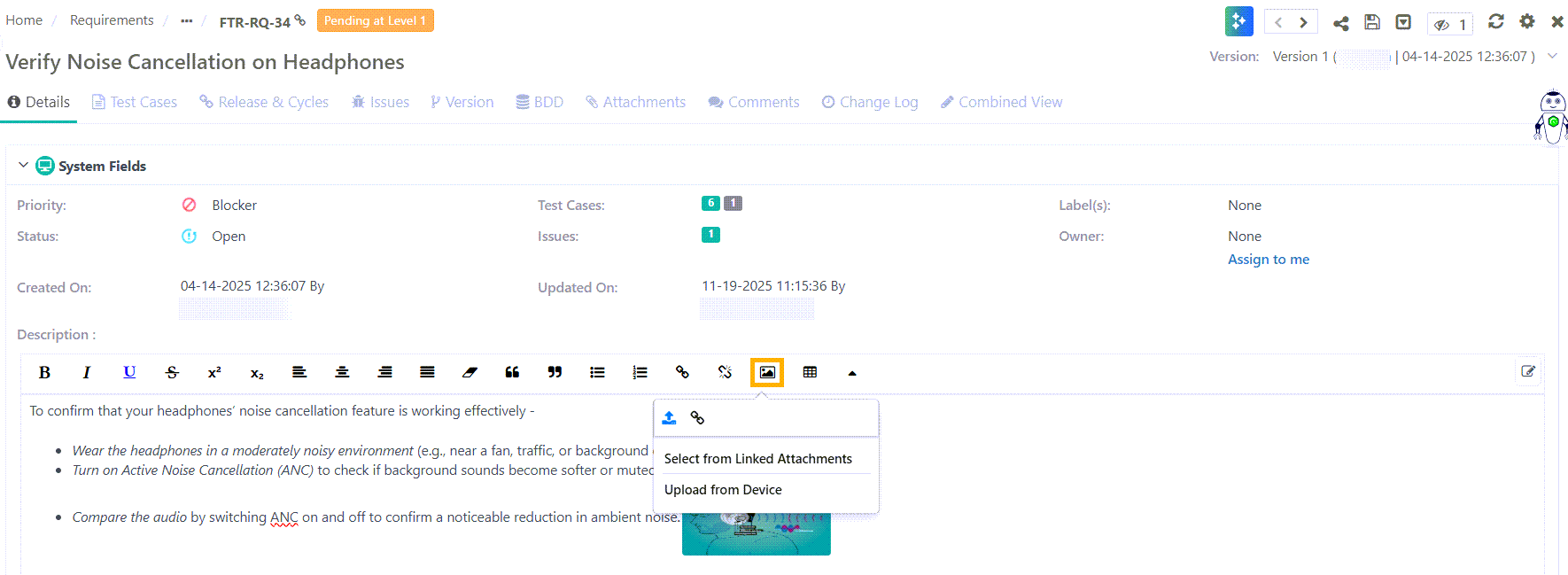
Upload Image in Rich Text Editor by:
Entering an Image URL.
Browsing the Desktop to upload an image.
Copying and pasting the image directly into the description box. Multiple images can be copied and pasted.
Note
The supported file formats of the image are JPG, JPEG, PNG, and GIF.
The maximum file size should be 1 MB for images uploaded through browsing.
To download the image, click the image and click the Download icon in the top right corner.