Managing Attachments
Attachments let you add extra information that is relevant to specific test assets. QMetry displays attachments on the Attachment tab for requirements, test cases, issues, and test suites, and you access them from the detail page of each asset.
QMetry stores attachments at the entity level, not at the version level. Entity-level storage applies when you add attachments in either of the following situations:
When you add a test asset.
When you edit a test asset, both when you update it and when you save it as a new version.
Types of Attachments
QMetry supports the following attachment types:
Attachments: Documents, Videos, Images, Files, URLs.
References: Links or URLs
Adding Attachments
You can add attachments while you create an asset, after you create an asset, or directly to individual test case steps. The following sections describe each method.
Attach files while you create an asset
You can attach a file to an asset at the same time that you create it. To attach a file while you create an asset, perform the following steps:
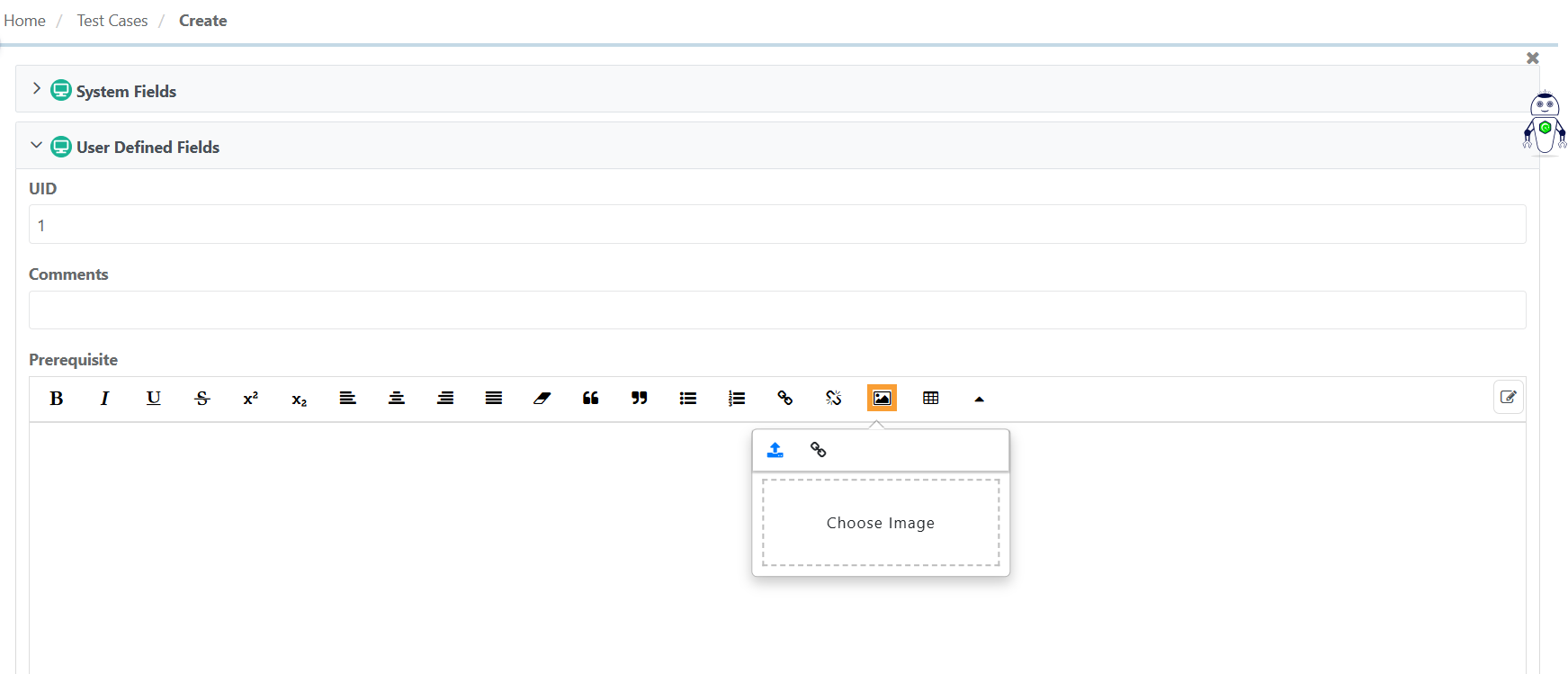 |
Click Create Asset in the module.
Click Insert Image.
Upload an image or insert a link.
Click Create.
Attach files after you create an asset
You can also attach files to an asset that already exists. To attach a file to an existing asset, perform the following steps:
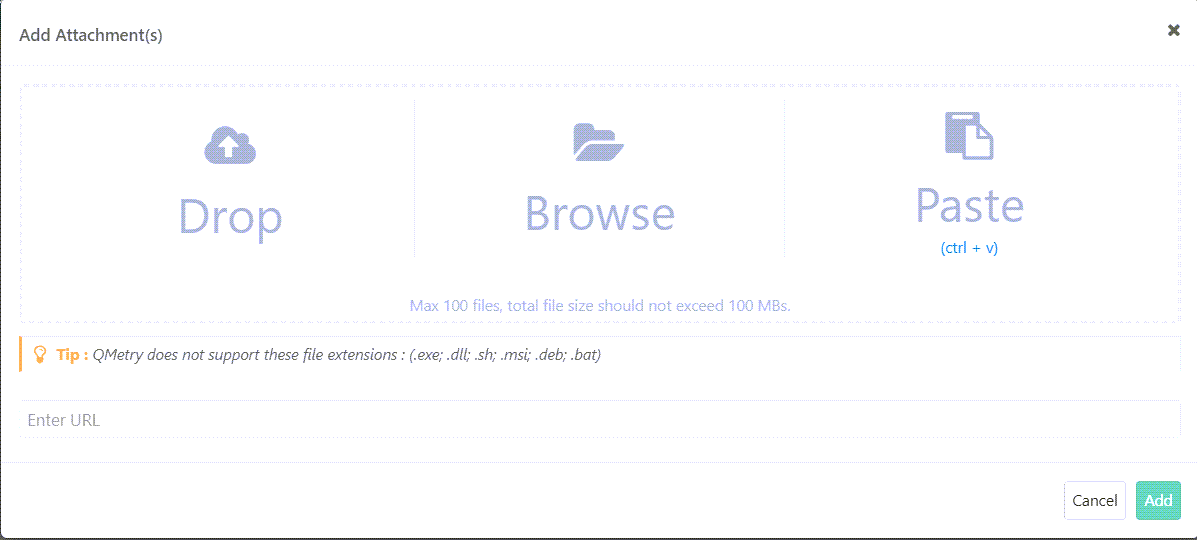
Go to the specific module.
Click the test asset entity key.
Go to the Attachments tab on the detail page.
Click Add Attachments.
Drop, Browse or Paste an attachment or enter an URL.
Click .
Adding Attachments to Test Case Steps
Add attachments to test case steps to provide additional information about that particular test step.
 |
To add an attachment to a test case step, perform the following steps:
Go to the test case detail page.
Open the Steps tab.
Click the Attachment icon.
Attach the files.
Note
You can add attachments on both the test case detail page and the test case edit page.
For attachments that you add at the step level, the Attachment Level shows as Test Step.
Ways to Add Attachments
Whichever method you use, you can attach files, images, and URLs together in a single action. You can add attachments in any of the following ways:
Drag and Drop, where you drag the attachments into the drop area for documents.
Browse, where you browse to the file and upload it from the Browse section.
Paste, where you paste attachments directly from the clipboard. Pasting lets you add screenshots without saving them to your local machine. You can paste only .png files directly into the Add Attachment pop-up.
Enter URL, where you attach a reference URL that uses the https protocol. The field type is Large Text, so it accommodates URLs that are longer than 255 characters.
Note
You can attach a maximum of 100 files. The total size of attached files should not exceed 100 MB.
QMetry does not support the following file extensions: (.exe; .dll; .sh; .msi; .deb; .bat)
An attachment that you add to one version of a test asset appears in all versions of that asset.
You can remove individual attachments during the upload stage. While the file uploads, QMetry shows a clickable thumbnail of the attachment so that you can preview it before you submit it.
Viewing Attachments and References
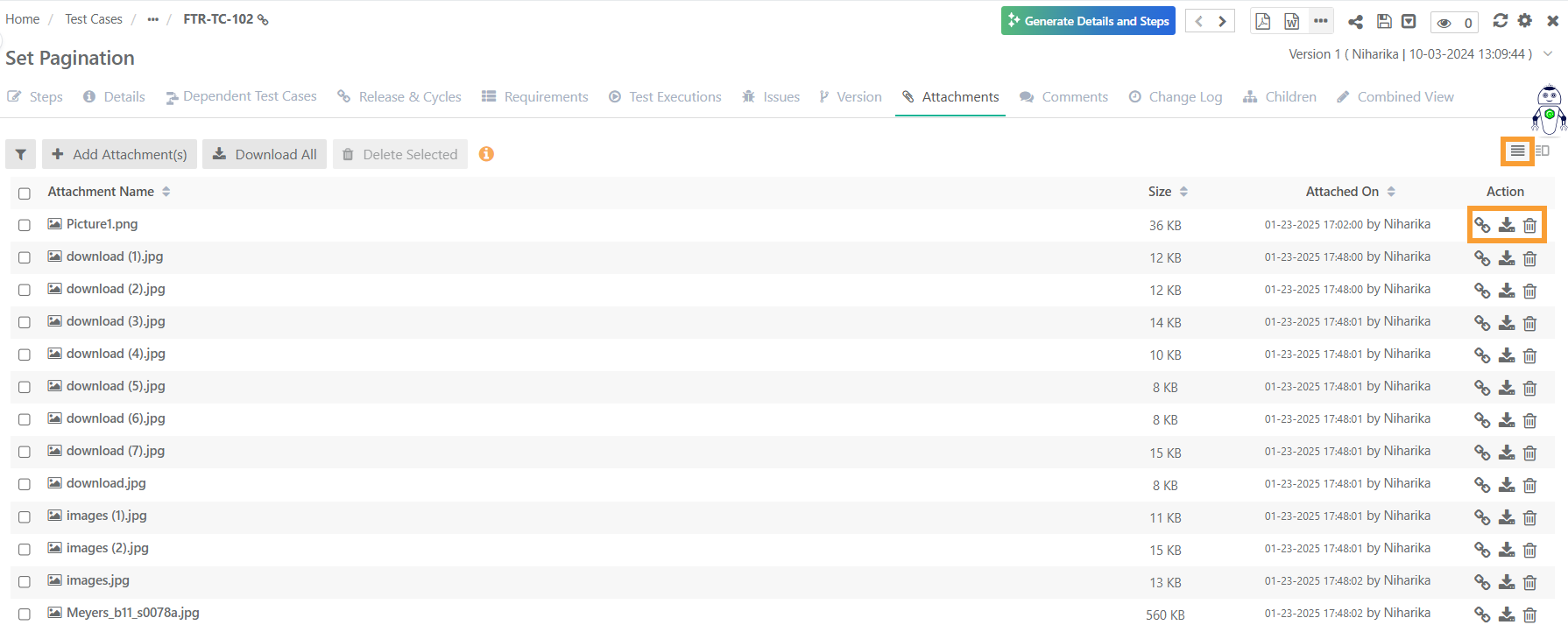
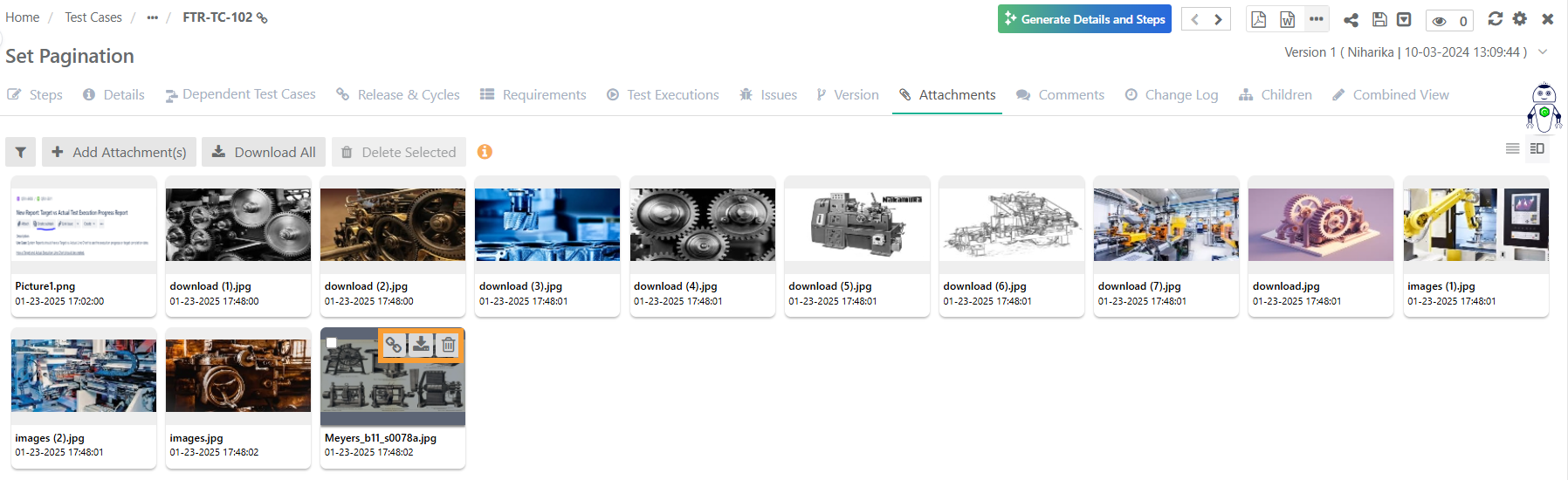
After you attach files, you can review them in either of two layouts. You can view the attachments in List View or Strip View.
List View, , which displays the attachments in a vertical list with details such as name, size, and the date attached.
 |
Strip View, which displays the attachments as a strip of thumbnails.
 |
Copying an Attachment URL
You can copy the URL of an image or file in the attachments section so that you can reference it within the rich text editor of the application. The URL is intended only for referencing files or images inside the application. If you delete the original image or file from the attachments section, the link becomes inaccessible.
The behavior of a copied URL depends on whether it points to an image or a file:
Copy Image Attachment: If the copied link of an image attachment is accessed in a browser directly, then the thumbnail is displayed as unreadable content.
Copy File Attachment: If the copied link of a file (e.g. PDF) is accessed in a browser where you are not logged into QMetry, then you are redirected to the login page. The file can only be downloaded after logging into QMetry.
Deleting Attachments
You can remove attachments that you no longer need, either one at a time or in bulk. To delete a single attachment, select the delete icon for that attachment. To delete several attachments at once, select them and then use Delete Selected.
Note
If you delete an attachment from one version of the test asset, QMetry deletes it from all versions of the test asset.
Downloading Attachments
You can download attachments so that you can review, update, and reattach them. You can download a single attachment, all attachments at once, or an attachment from the preview screen.
To download a single attachment, select the Download icon corresponding to the specific attachment.
To download all attachments at once, select Download All.
Download from the preview screen
You can preview an attachment before you download it. To download an attachment from the preview screen, perform the following steps:
Select the attachment to open the preview.
Select the Download icon at the top right.
View the progress and download attachments
For larger downloads, you can track the progress as a scheduled task. To view the progress and download the attachments, perform the following steps:
On the application header, select Scheduled Task to track the download progress.
When the process completes, select the Download icon for the activity. QMetry downloads the attachments in a ZIP file.
For more information, see Scheduled Tasks.
Embedding Attachments as Inline Images in Rich Text Fields
You can embed an attachment as an inline image inside a rich text field so that the image appears within the field content. You can embed inline images on the asset detail page, in test steps, and in test executions.
Embed an inline image on the detail page
To add an inline image to a rich text field on the detail page, perform the following steps:
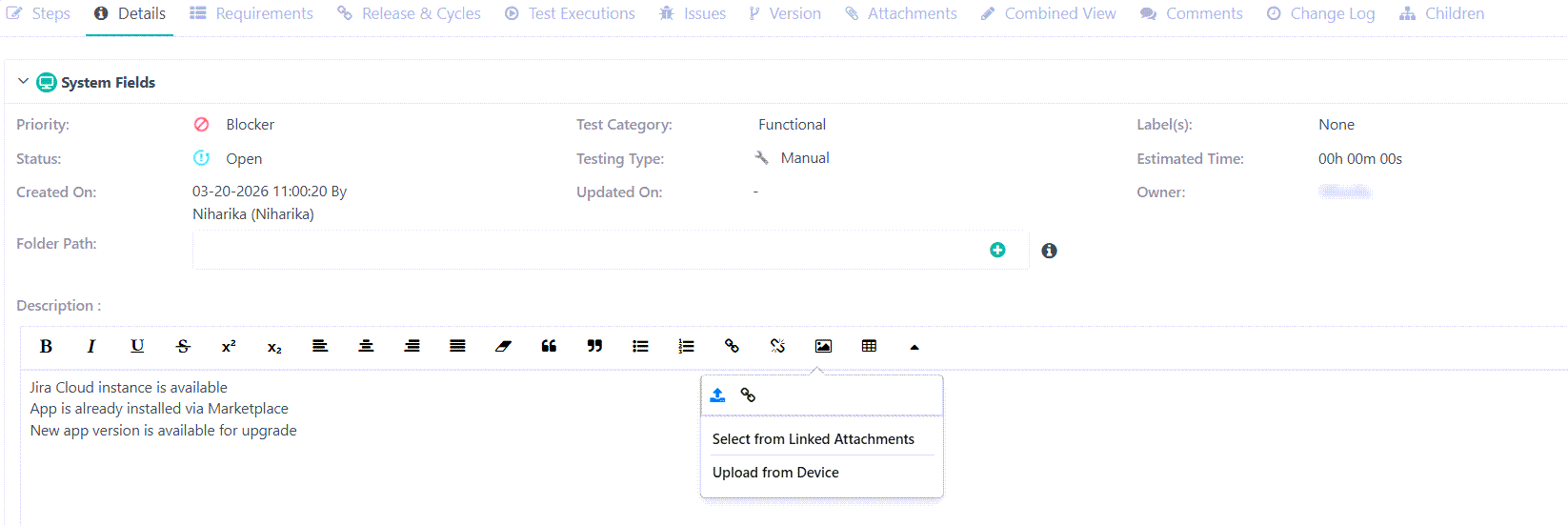
Go to the test asset detail page.
Go to the rich-text field and select Insert Image.
Select Select from Linked Attachments.
Select from the images, screenshots or GIFs that are already added.
Note
For Test Case Steps and Test Executions, you can select and embed attachments that are related to the test case or the test steps.
Adding In-line image in test steps
To embed an inline image in a test step, perform the following steps:
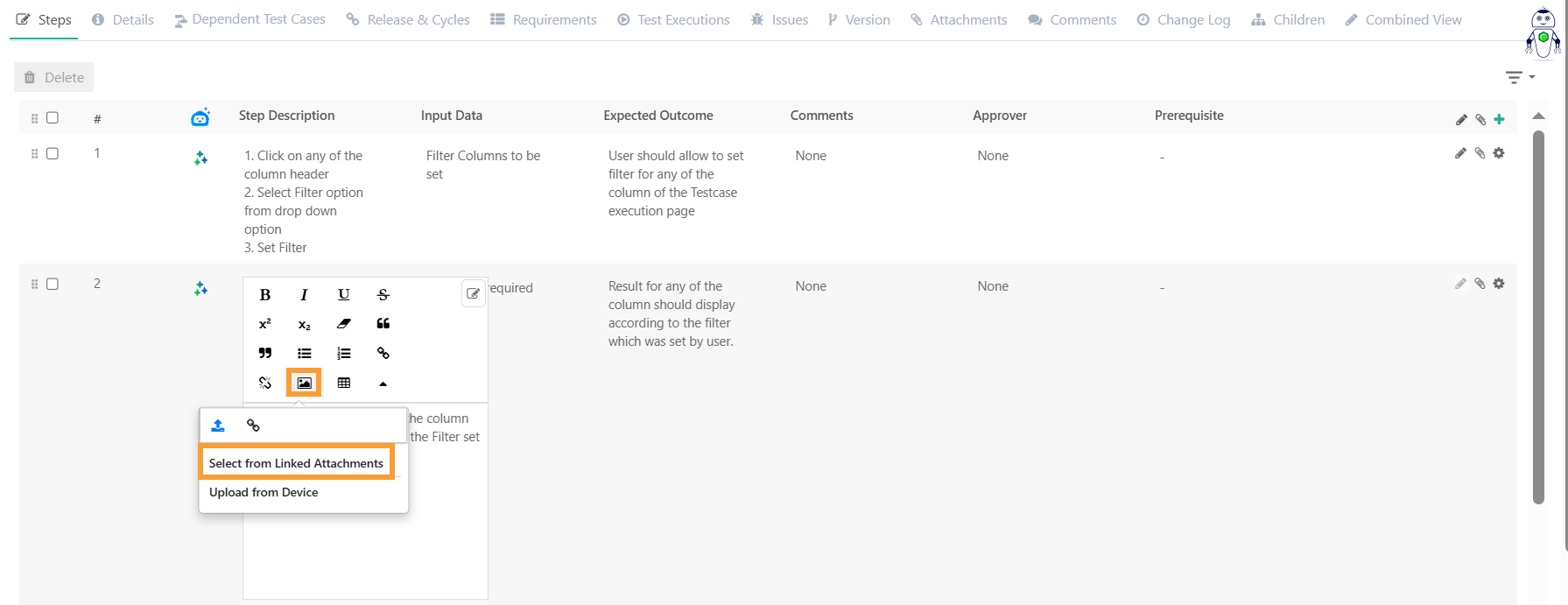
Go to the Test Case Detail Page and select Steps.
Click Edit.
Select the rich text field (step description, input data, expected outcome or any other user-defined field) to embed the image as a thumbnail.
Click Select from Linked Attachment.
Select test case or test steps from the drop-down menu.
Select the attachments.
Update the test case to save the changes.
Note
When you select the embedded thumbnail, QMetry opens the full image of the attachment.
If you delete the original image from the attachments section, the embedded image becomes inaccessible.
Rich text field attachments of up to 100 MB are supported.
Adding in-line images in test execution
You can also embed inline images in the rich text fields of a test execution. For rich text fields in a test execution, such as actual outcomes or comments, you can insert inline images that are attached to the test case, the test step, the test execution, or the test step execution.
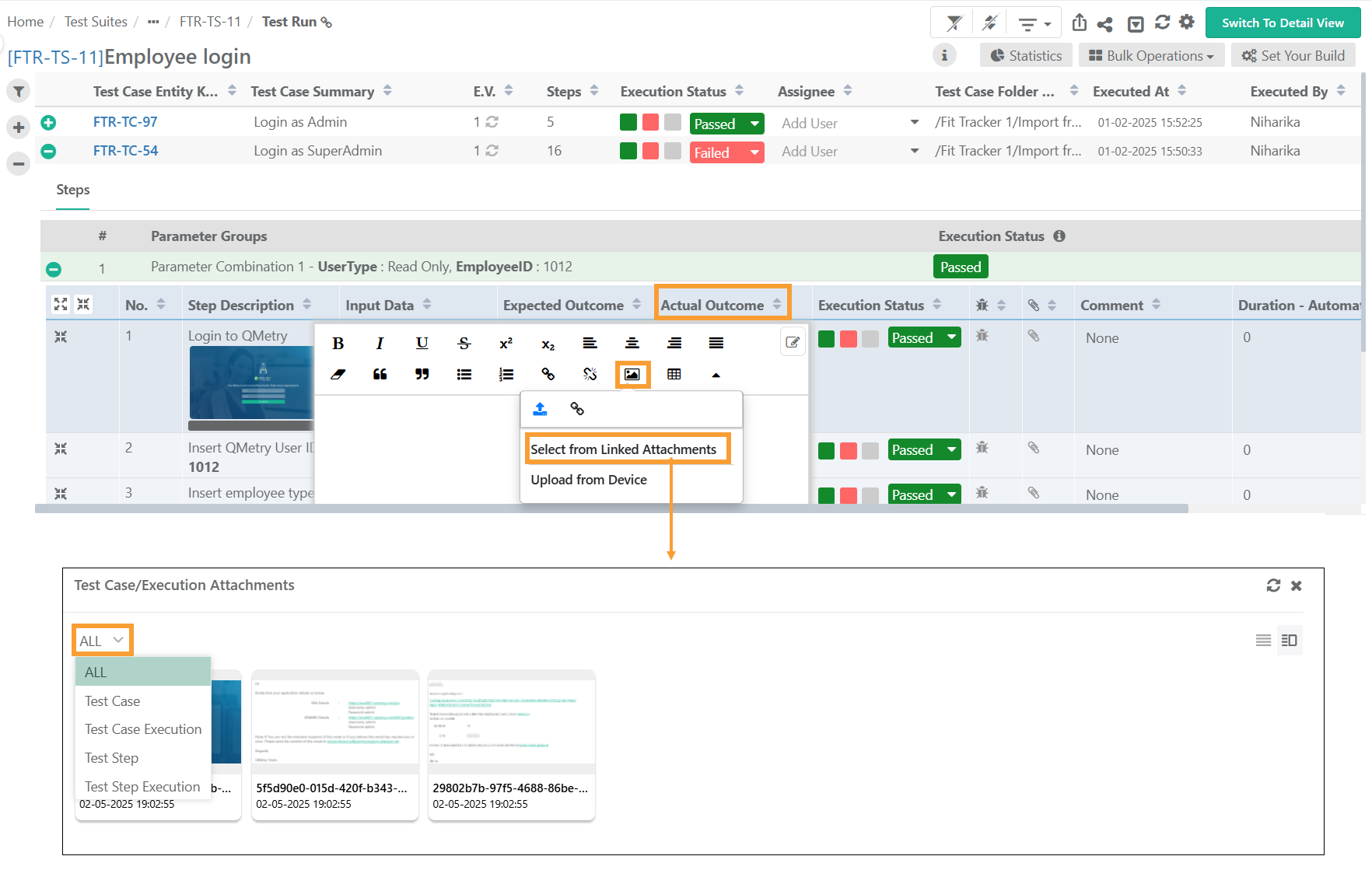
Syncing Attachments Between Jira and QMetry
When you integrate QMetry with Jira, attachments can sync between the two applications. The sync behavior differs between the Requirements module and the Issue module.
Requirement Module
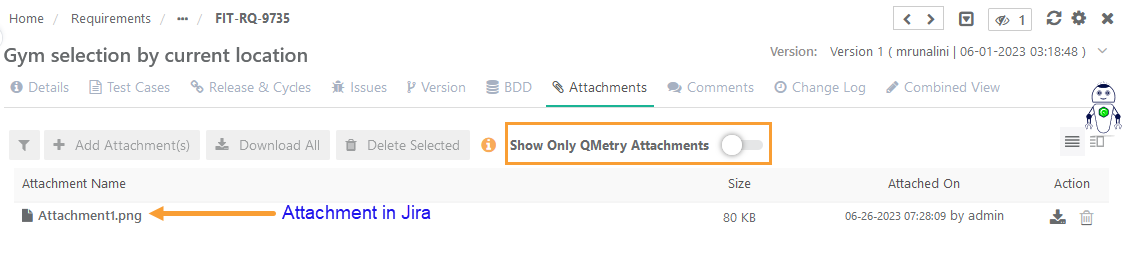
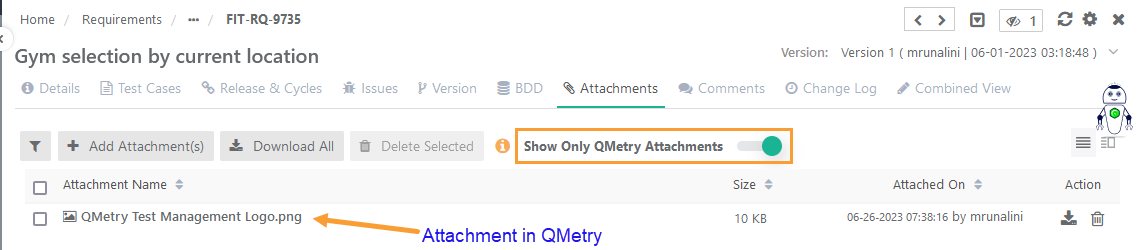
In the requirements module, attachment works independently of Jira. When you import stories from Jira, the Attachment tab on the Requirements detail page displays Jira attachments by default.
To view internal attachments, turn on Show QMetry Attachments.
Linking attachments from either side does not impact requirements that exist in other applications.
Issue Module
In the Issue module, attachments sync in both directions with Jira. When you import Jira issues that contain attachments, imports the associated attachments and links them to the issues in the Issue module.
If you link an attachment to an issue in QMetry, then that attachment also appears in Jira.
If you link an attachment to an issue in Jira, then that attachment also appears in QMetry for that issue.