Sync Requirements and Issues from Jira Cloud to QMetry
Once you configure and map the Jira issue types, the system automatically imports the requirements into the selected folder. All fields from Jira are synced to QMetry, and Jira fields displayed as read-only.
QMetry auto-syncs all Jira fields during the initial setup. To reflect newly added custom fields in Jira, you can manually sync the projects. By default, imported requirements are added to the “Import” folder specified during mapping.
Pre-requisites
Configure the Jira project with a QMetry project.
Map relevant Jira issue types to the Requirement module.
Syncing Requirements from Jira
QMetry auto-syncs all Jira fields during the initial setup.
To reflect newly added custom fields:
Go to Jira Integrations.
Click Sync Projects.
Note
Cascading Select List fields created in QMetry or synced from Jira work items are currently unavailable in QMetry Insights for custom reporting.
In JQL/Filter Scope
The In JQL/Filter Scope column shows whether a issue currently matches the active JQL filters. Items marked ‘No’ are outside the filter scope but still continue to auto-sync with the latest updates.
Note
This column appears only in projects mapped with Jira or Azure.
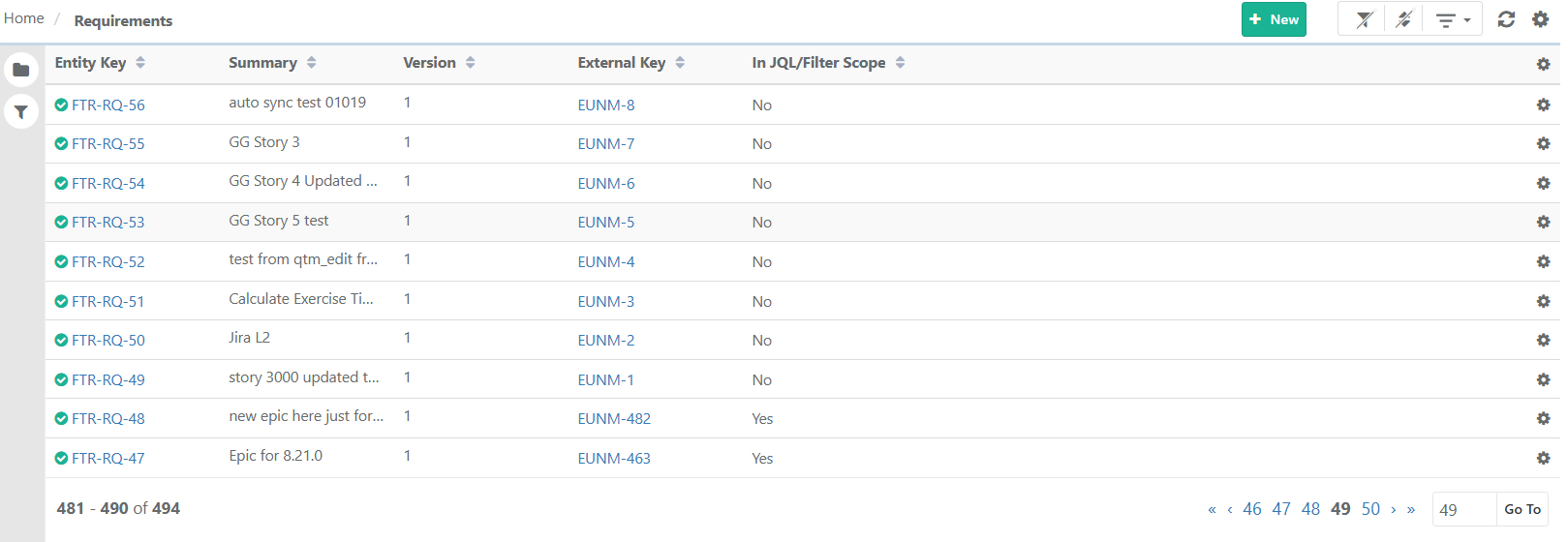 |
You can update or delete entities in QMetry that has ‘In JQL Scope’ set to “No”. Deleted entities are removed from QMetry and return as new entries only if they meet the filter scope again.
Managing the Import Folder
 |
Move Synced Requirements to Another Folder
You can move Jira-synced requirements from the default “Import” folder to another folder. Synced requirements when moved are not re-imported to the default folder. They continue to sync in the new folders.
Archiving Folders Containing Synced Requirements
Folders containing Jira-synced requirements (including archived requirements) cannot be archived or deleted directly. To archive or delete such folders, you must move all requirements to a different folder.
To Archive folder having archived requirements, perform the following steps:
Unarchive the requirements.
Bulk move the requirements to another folder.
Re-archive the requirements. (Optional)
Archive or delete the now-empty folder.
Note
The default Import folder cannot be archived or deleted.
Viewing Requirement Details in Jira
Jira synced requirements display the following information:
Jira System and Custom Fields (including Sprint and Labels).
Latest 10 Comments and Attachments from Jira issue.
To view Requirement Details in Jira, perform the following steps:
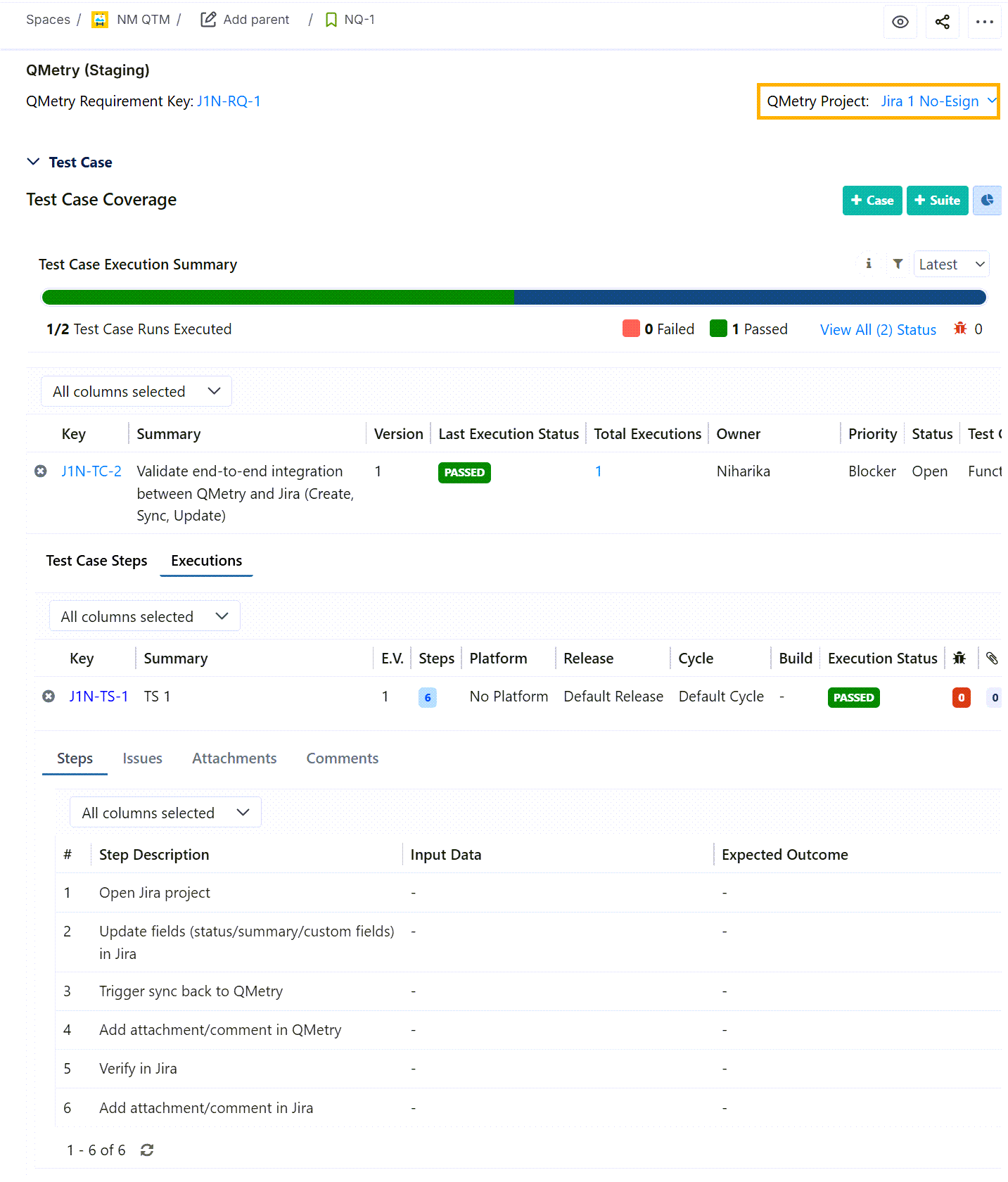
Go to the Jira Requirement.
Select the QMetry project. Once you select the project, the QMetry Key is populated for the work item synced as a requirement in QMetry.
Expand the Test Case.
Under the Test Case Coverage panel, you can view linked test case details.
Test Case Execution in Jira
The Test Case section on the story page displays linked test cases and their execution details. This helps developers and product managers track test execution summary directly on the Jira story page.
Note
Only test cases that are linked to the story and are associated with a test suite execution appears in this section.
Use the Filter icon in the Test Case section to filter test executions.
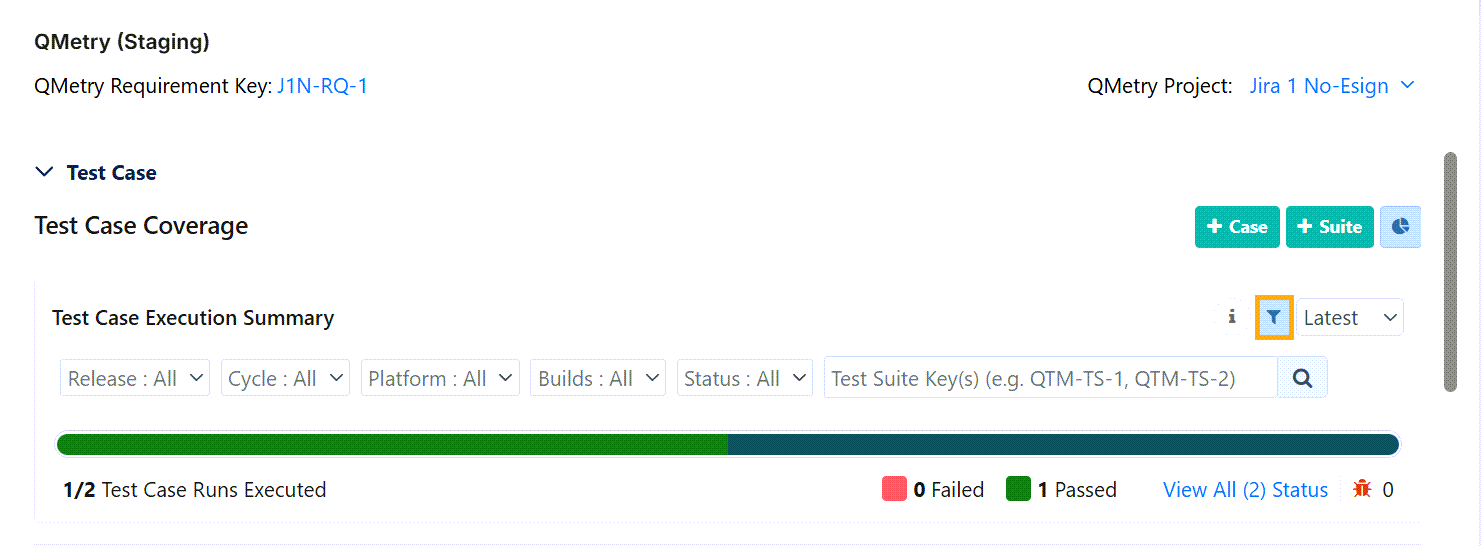
Note
Filters reset on page refresh.
Test execution filters do not apply to cross-project test suites and executions.
Use Test Suite Keys to filter cross-project executions.
View Test Case Execution Summary
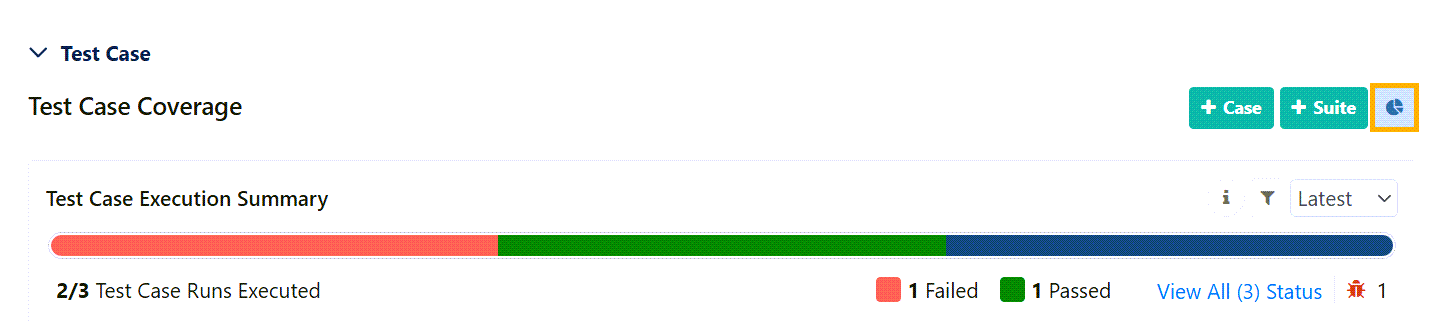 |
Click the graph icon to view execution statistics.
Select latest execution or all executions.
Click to view summary of statuses. All custom statuses gets displayed.
Count of issues linked to test cases and steps during the execution.
Note
Unplanned test cases are excluded from Execution Summary.
The graph resets on refresh.
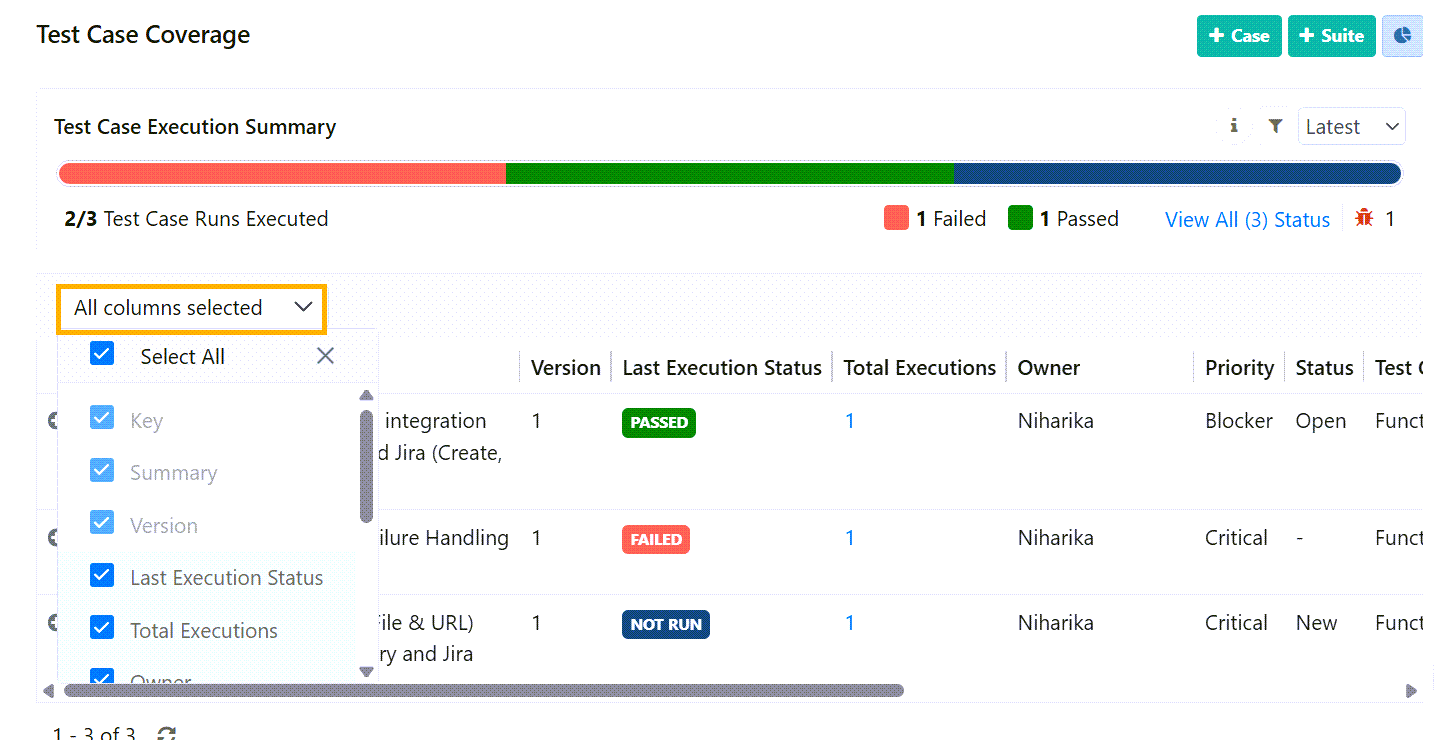
Enable/Disable Columns From List View
You can customize Test Case Execution Summary View by selecting the columns in the column dropdown list. The selections resets on refresh.
 |
View Test Case Details
To view the test case details, perform the following steps:
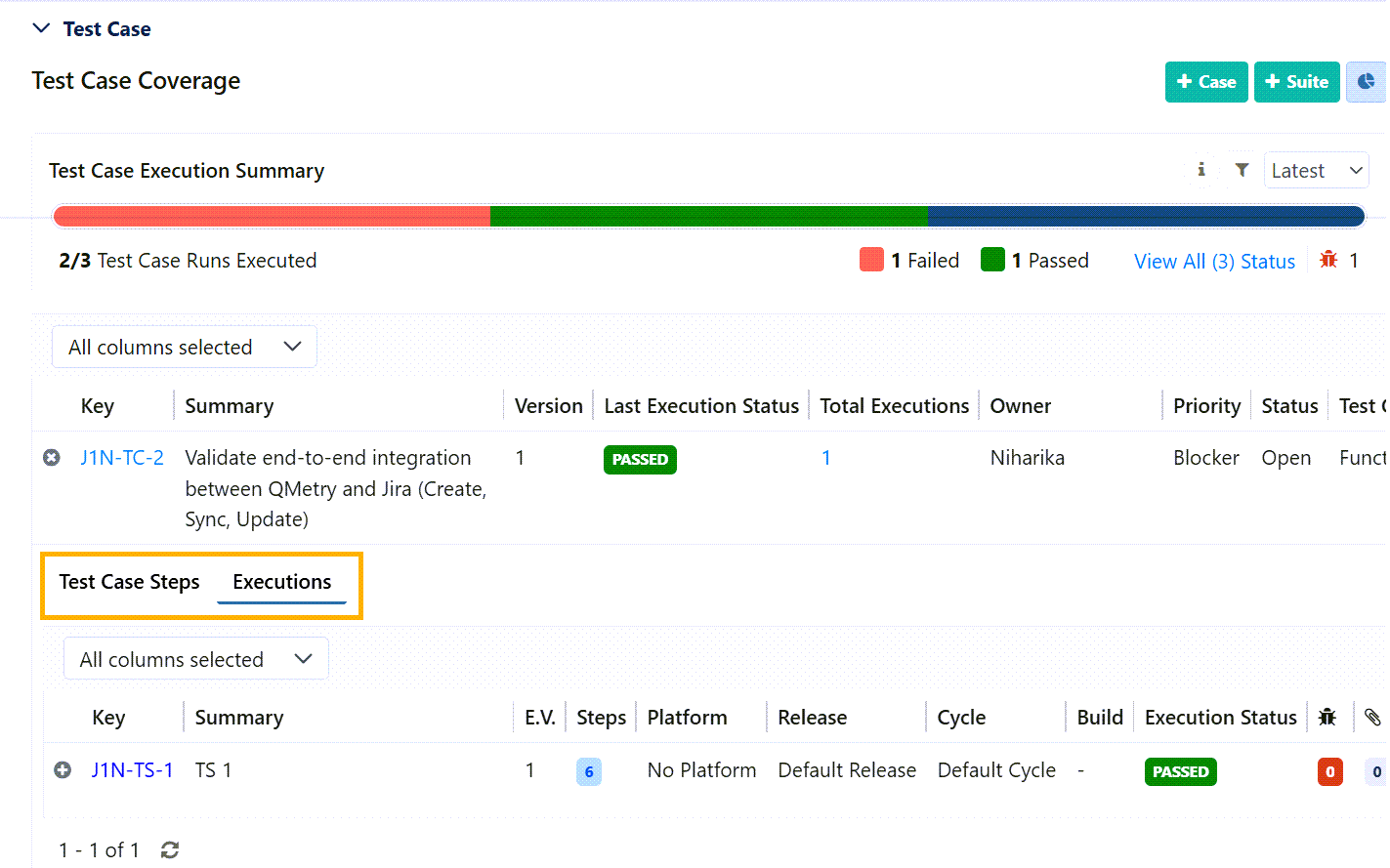
Expand the Test Case Entity Key.
You can view the Test Case Steps and Executions.
View Test Suite Details
To view the Test Suite Details, perform the following steps:
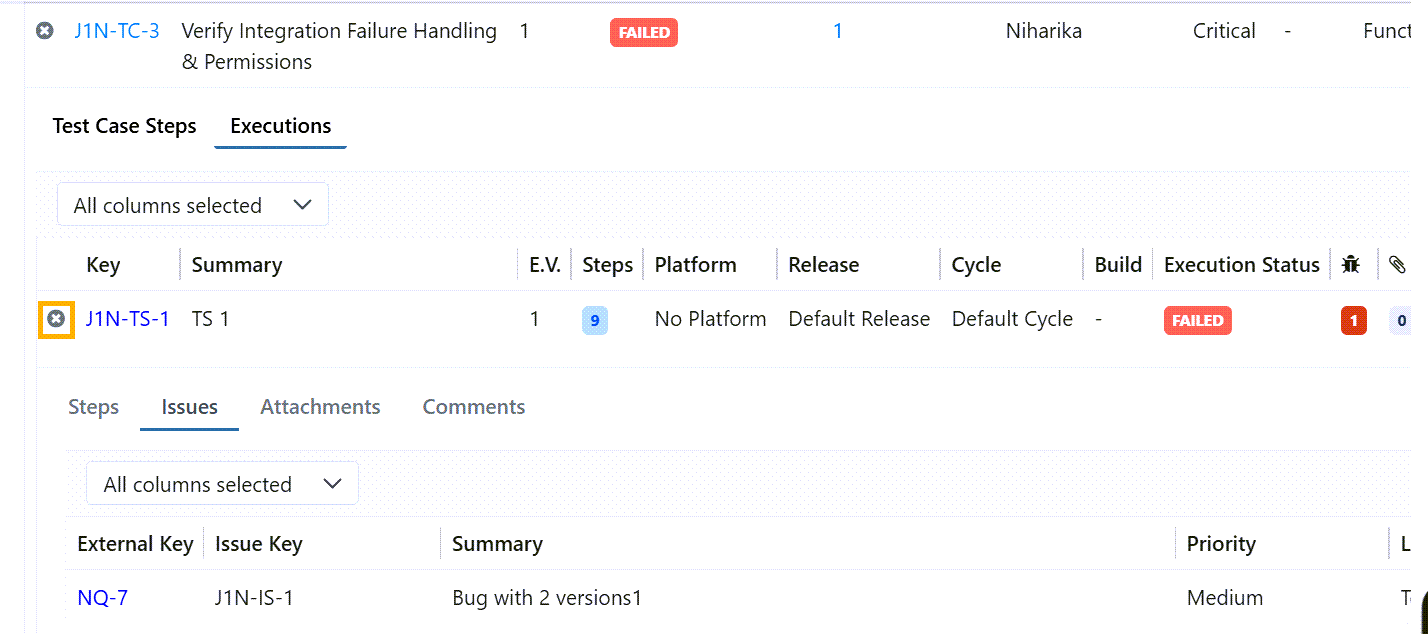
Expand the Test Suite Entity Key.
You can view the Steps, Issues, Attachments and Comments.
Sync Issues from Jira Cloud to QMetry
Once Jira issue type is mapped to the Issue module in QMetry, you can:
Create new issues in Jira directly from QMetry while executing test cases.
Link existing Jira issues to test cases or individual test steps.
View issues that are already linked.
QMetry Issue module remains visible even if the QMetry Project is integrated with Jira Project.
Refer to Projects using Jira integration for Issue (Bug) Tracking for more details.
Create Jira issues from the Test suite execution window
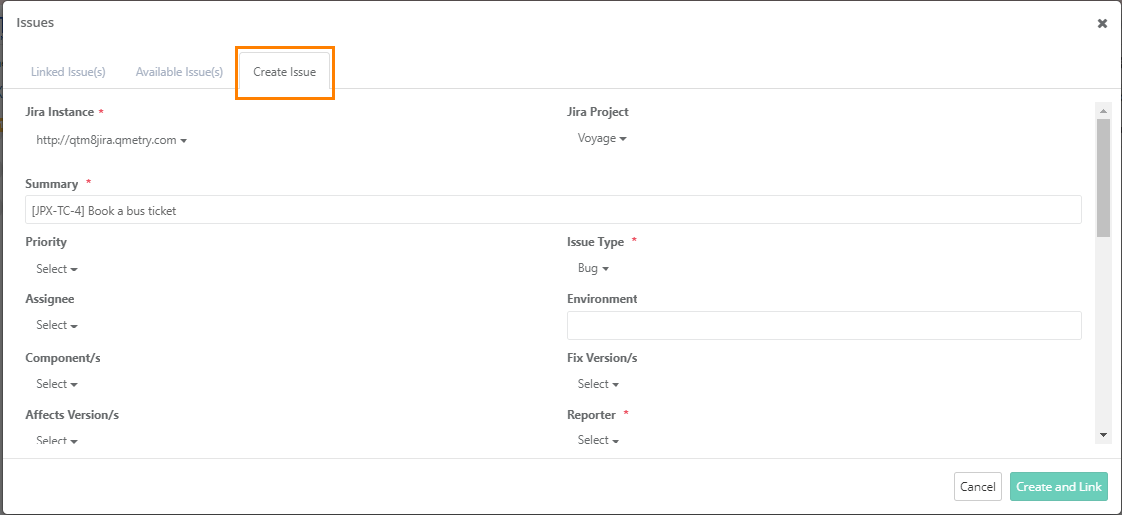 |
Test case and Step details are automatically added to the Issue Description.
Link Jira Issues from the Test Suite Execution Window
To link Jira Issues from the Test suite execution window, perform the following steps:
Go to the Available Issues tab.
Select the issues.
Click Link and Close.
The linked issues appear under the Linked Issues tab.
Sync Deletion of Requirements or Issues in Jira
When a requirement or issue is deleted in Jira, QMetry automatically deletes the corresponding item.
Linking Issue to Requirement in QMetry
For projects integrated with Jira, if bugs are directly linked to requirements in QMetry, they appear as issue links on the corresponding Jira story page.
Note
The Issue Links in Jira are created only when you have authenticated your Jira credentials in QMetry. Issue links are generated in Jira by a cron job that runs every 5 minutes.
To authenticate:
Go to Integrations.
Click the cog icon and select Configure.
Enter your Jira Credentials.
If the requirement is associated with test cases, then issues linked to the test cases (either directly or indirectly through execution) will also appear on the Issues tab of that requirement.
The linked issue gets displayed in the corresponding story/issue in Jira under the Linked Issues section if the story and issue linked in QMetry are from the same Jira instance.
If the issue is unlinked in requirement in QMetry, the issue in Jira also gets unlinked from the corresponding story or issue in Jira. The linkage relation will not be displayed in Jira anymore.
If an Issue link is deleted from Jira Story for an Issue Linked to QMetry Requirement, it does unlink the bug in QMetry Requirement.
If an Issue link is added in a Jira Story in Jira for a Requirement Imported in QMetry. The issues will not be auto-linked in QMetry.
The story in Jira reflects linked issues under the Linked Issues section as “relates to”.
Clicking on the issue key in the Issue links opens the issue details page in Jira.
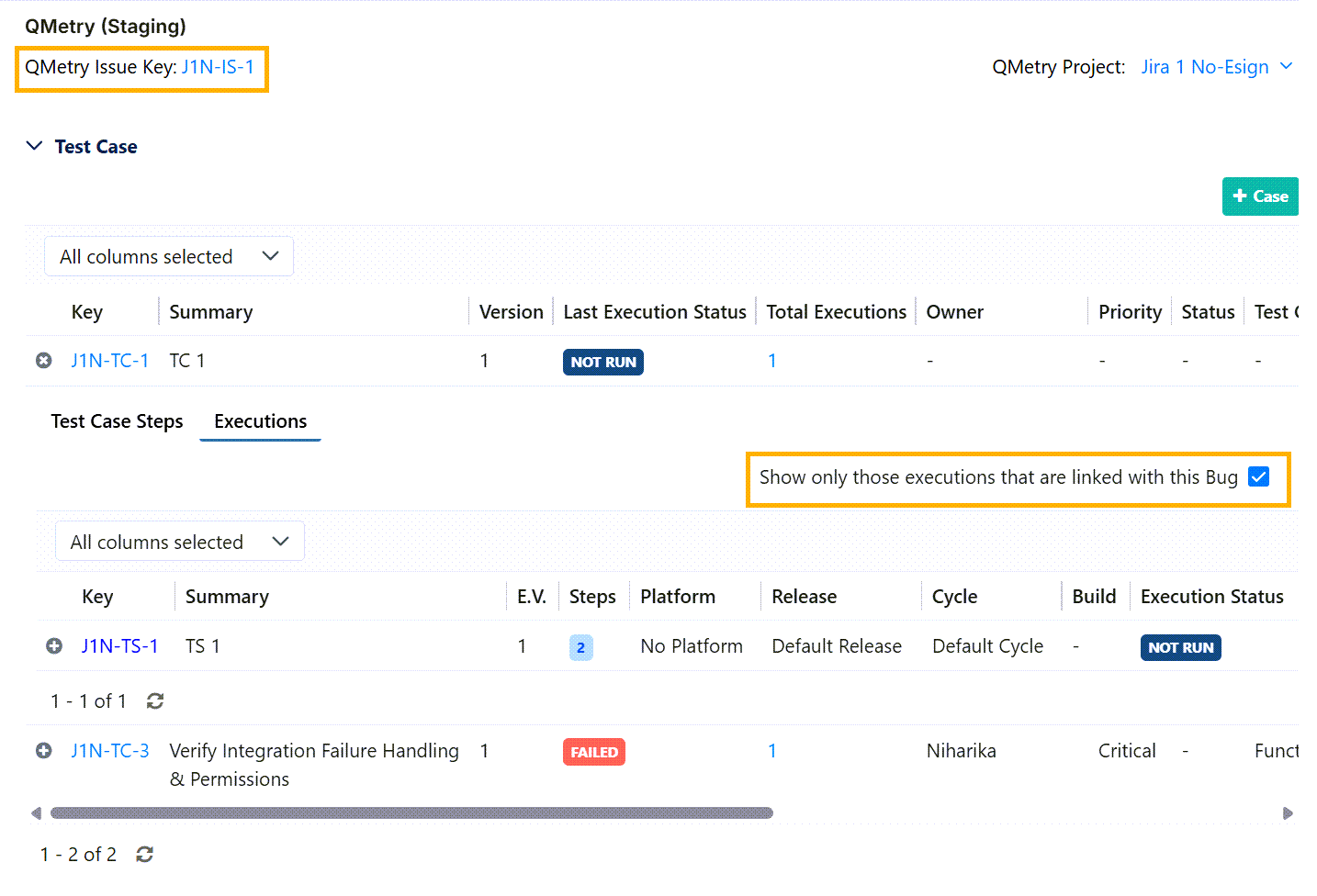 |
If the issue is directly linked to the test case without its execution, then the Executions tab will not show any execution details.
Show only those executions that are linked with the Bug: Enabling this toggle lists only those executions that are linked with the selected bug and disabling shows all executions.