Filter Synced Work Items Using JQL
Use Jira Query Language (JQL) filters to selectively sync Jira work items into the QMetry Requirements and Issues modules. When the JQL criteria change, QMetry reflects the updated filter scope without losing data.
Note
You can enable JQL filters only after you map work item types.
JQL filtering applies to both manual and automatic syncing of Jira entities.
The system automatically includes a fixed portion of the JQL based on the selected project and work item type.
The system restricts you from adding extra project or work item values to the JQL.
Permissions
Users with integration system modify permissions can change the configuration and mapping.
Users with integration system view permissions can view the configuration and mapping.
When you configure additional filters, make sure the overall JQL remains valid and properly structured.
Validate the JQL before you save it to ensure that the syntax and format are correct and prevent sync failures.
Apply JQL filters
Note
Before using a JQL query in QMetry, validate the query directly in Jira. Confirm that Jira accepts the query, the fields and values are valid and supported, and the query returns the expected work items.
After confirming the query in Jira, use the same JQL query in QMetry's JQL filtering configuration.
To apply JQL filters, do the following:
 |
Go to Projects and select the Integration tab.
Map Jira Work Items with QMetry Modules.
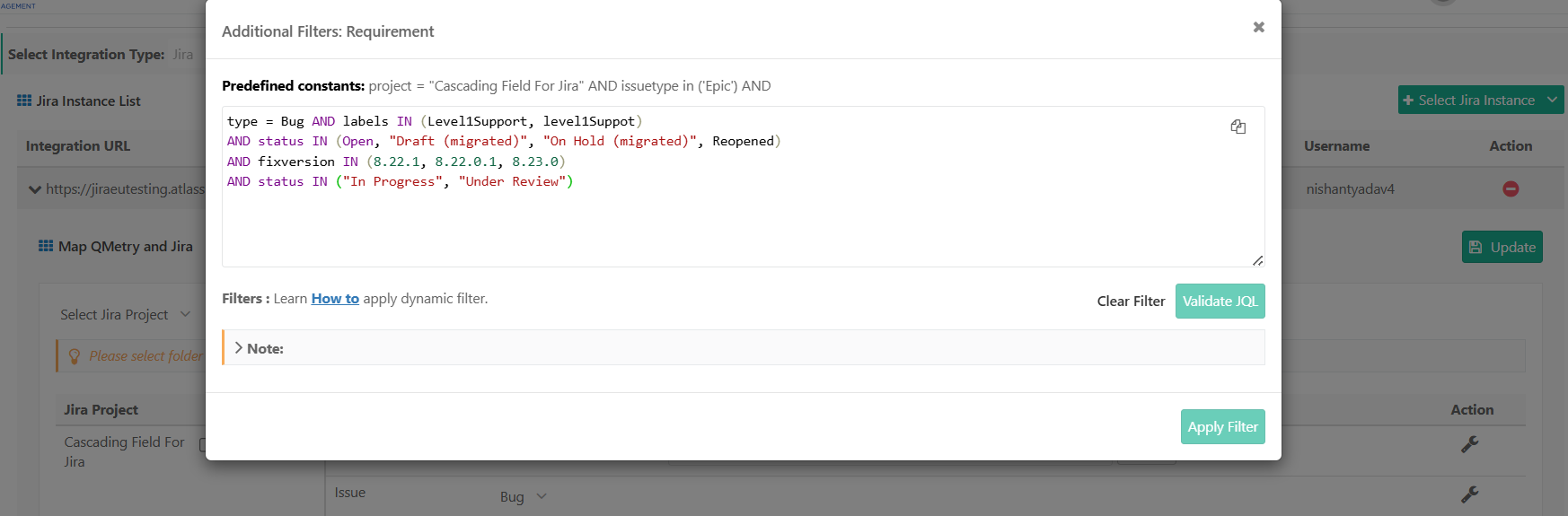
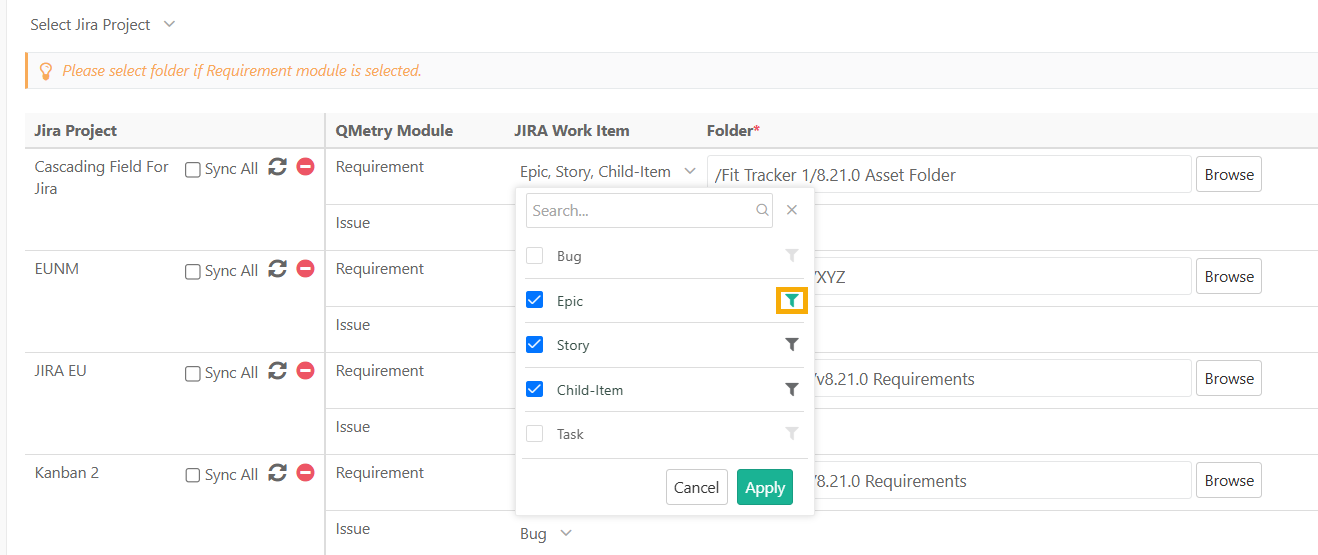
Select the Filter icon to open the Advanced JQL window.
Define a JQL query for filtering work items, beyond the default project and work item criteria.
Click Validate to check the query.
Note
Validate the JQL before you save it to ensure it is syntactically correct and does not cause a sync failure.
QMetry's JQL validation checks the syntax and format of the JQL query. It does not validate whether the fields, parameters, or values used in the query are valid or supported by Jira.
You define the JQL separately for each work item type that is integrated with either the Requirements module or the Issues module.
Select the copy icon to copy the JQL for multiple work items.
Click Save and Activate.
The filter icon turns green, and when you point to it, QMetry shows the applied JQL.
 |
How QMetry handles work items after a JQL update
QMetry actively syncs all Jira work items that match the JQL criteria. When you update the JQL, QMetry handles the affected work items as follows.
Requirements that no longer match the filter
Jira work items that were previously synced as Requirements in QMetry but no longer meet the updated sync conditions are handled as follows:
QMetry flags such requirements with the In JQL/Filter Scope indicator set to No.
The requirements stay in sync with Jira even though they fall outside the filter scope.
Once a Requirement is imported into QMetry, it remains linked to the Jira work item and reflects any updates made in Jira.
If a requirement returns to the filter scope, the In JQL/Filter Scope status updates to Yes.
QMetry does not automatically delete requirements that fall out of JQL scope.
You can filter requirements by the In JQL/Filter Scope parameters and manually delete them.
Issues that no longer match the filter
When the JQL filter is modified, Jira Work Items previously synced as Issues in QMetry but no longer meet the updated sync conditions are handled as follows:
QMetry flags such issues with the In JQL/Filter Scope indicator set to No.
The issues stay in sync with Jira even though they fall outside the filter scope.
Once an issue is imported into QMetry, it remains linked to the Jira work item and reflects any updates made in Jira.
You can manually update the In JQL/Filter Scope set to No from within QMetry, so that bi-directional syncing with Jira continues to work.
If an issue returns to the JQL scope, the In JQL/Filter Scope” status updates to Yes.
QMetry does not auto-delete issues that fall out of the JQL scope.
You can filter issues that have In JQL/Filter Scope set to No and manually delete them.
Note
Work items that no longer meet the JQL criteria show In JQL/Filter Scope set to No.
The system retains items that are linked to Jira and continues to sync updates.
For the Requirement module, the Jira fields are read only.
For the Issue module, the Jira fields are editable.
QMetry preserves existing traceability links to test cases, issues, or other requirements.
When a work item returns to the JQL scope, the system updates In JQL/Filter Scope to Yes.
The system does not automatically delete work items.
You can filter and manually delete items that are no longer relevant.
Deleting an item removes it only from QMetry. The item remains unchanged in Jira.
First-time sync with an additional JQL filter
When you sync work items as Requirements or Issues for the first time, QMetry syncs only the Jira work items that meet the defined JQL filter, which is the sync scope.
Existing synced work items after a JQL or issue update
If an already-synced Jira work item no longer meets the JQL filter, either because of updates in Jira or changes to the JQL in QMetry, QMetry adjusts its sync behavior based on the updated scope. The following table summarizes how QMetry handles each scenario.
Scenario | In JQL / Filter Scope? | What QMetry Does (Requirements vs. Issues) |
|---|---|---|
Mapping removed. | No | Requirements: QMetry converts the previously synced removed mappings into internal requirements. Issues: QMetry deletes the previously synced removed mappings. |
JQL updated and previously synced items no longer match the filter. | No | Requirements: QMetry retains the requirements and displays the Jira details in read-only mode. The items continue to sync and the QMetry fields remain editable, but you cannot add comments or attachments. Issues: QMetry retains the issues and continues to sync. The QMetry and Jira fields remain editable, and you can add comments or attachments. NoteYou can filter, bulk delete, move and archive items for both requirements and issues. |
JQL updated and the item returns to scope. | Yes | QMetry reuses the existing entity if the Jira Key matches. New items get new Requirement or Issue keys. |
Component changed in Jira and the component is removed. | No | Same as when previously synced items no longer match the filter |
Component changed in Jira, and replaced with a second component. | No | Same as when previously synced items no longer match the filter. |
Second component is added while first component remains. | Yes | Normal syncing for both modules; and both components are shown. |
Component changed from QMetry side (Issue module only) | No | QMetry applies the updates and the work items sync to Jira. |
Component change through Jira | No | Same as when previously synced items no longer match the filter. |