Configure Jira Field Visibility
QMetry displays the default Jira issue fields in its modules. Project admins can configure additional Jira system fields and custom fields separately for each Jira project and issue type.
Admins can sync only the required Jira system fields into QMetry, rather than syncing all fields:
Project admins can deactivate syncing for specific Jira system fields within QMetry Requirements and Issues modules for selected Jira issue types.
Project admins can configure separate Jira issue fields for viewing issue details in QMetry and for creating issues from QMetry when they configure Jira issue types as QMetry issues.
The system supports the following Jira field types:
Number
Date
Date and Time
Single line
Multiline
Multi-Look-Up Option
Single Look-Up Option
User picker
Multi-user picker
Select Cascading List
Version picker
Multi-version picker
Note
Select Sync if a Jira field does not appear in .
Sync Jira project data with QMetry projects
To sync Jira project data with QMetry projects, do the following:
Configure the custom fields for the Requirements and Issues modules.
Sync the Jira data to QMetry, for example, newly created custom fields:
Sync All: Syncs all issues irrespective of their updated date.
Sync: Syncs the issue values that were recently updated in Jira, based on their updated date.
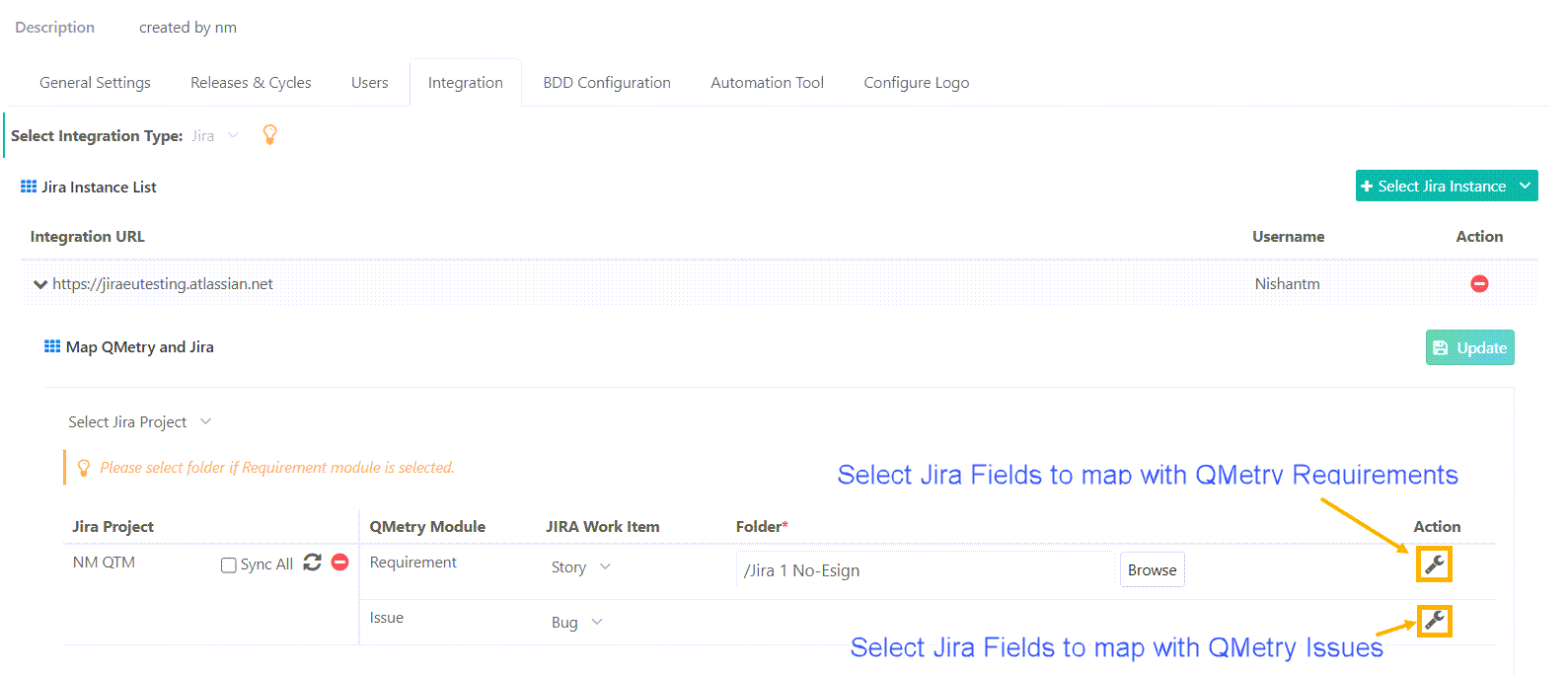
Requirement Mapping
When you map a Jira issue type to QMetry Requirements module, project admins can choose which Jira fields to show or hide on the Requirements screen.
Admins can also disable syncing for specific Jira system fields, such as Description, Component, Fix Version, Priority, Labels, and Attachments for selected issue types.
Some Jira fields are always visible and cannot be hidden. These include Summary, Issue Type, External Key, External Project, Created Date, Updated Date, Resolved Date, and Reporter.
Admins can select which Jira fields to map and display in the QMetry Requirements module. By default, QMetry preselects the Jira system fields and the mandatory custom fields. Admins can keep or clear the fields that do not need to sync. Field mapping also determines how fields appear in hierarchical structures.
For cascading list fields, the following behavior applies:
If the field is mandatory in Jira, QMetry does not auto-map it. Admins must map it manually with view-only access.
If the field is optional, admins can decide whether to map it or leave it unmapped.
Select Save once you finish selecting or clearing the Jira fields.
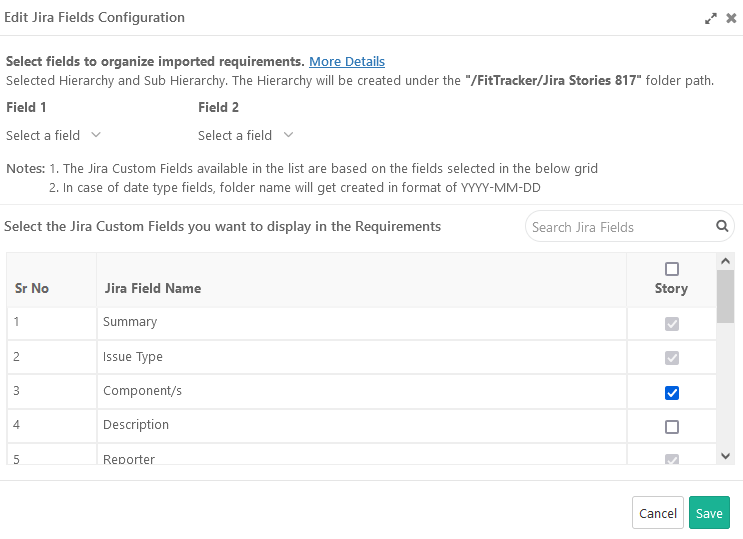
Issue Mapping
When you map a Jira Issue Type to the QMetry Issue module, project admins can control the visibility and use of Jira fields by setting the View and Create permissions.
Field Permissions
View displays the selected Jira field on the Issue List and Issue Detail screens.
Create displays the selected Jira field on the Create Issue screen in QMetry.
Note
If you clear the Description field, QMetry does not auto-populate the issue description when you create an issue from the Execution screen.
If you disable both the View and Create permissions for a field, users cannot see the field on the asset details page. The module list view displays “Not mapped for syncing” in place of the field.
Cascading List Fields
If a cascading list field is mandatory in Jira, QMetry auto-maps it to the Issue module with full access (view, create, and edit). Project admins can unmap it if necessary.
If the field is optional in Jira, project admins can decide whether to map it in QMetry.
After you set the required permissions for the Jira fields, select Save to apply the configuration.
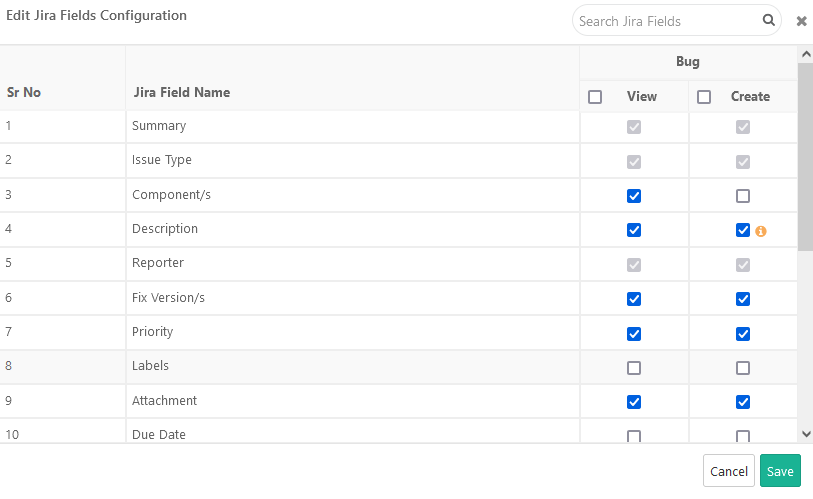
Display Issue Fields in Jira and QMetry
In Jira, all fields remain visible regardless of the field configuration settings in QMetry. In QMetry, the project admin can customize the field visibility based on project requirements.
Jira system fields are visible in the reports regardless of how the Jira field is configured in QMetry. The Jira system fields are visible in the reports even if the system field is not selected in the issue type configuration.
You can sync the mapped Jira custom fields in the QMetry Insight module for Visual Reports and Advanced Query Reports.
Read more about Sync Fields to Reports .
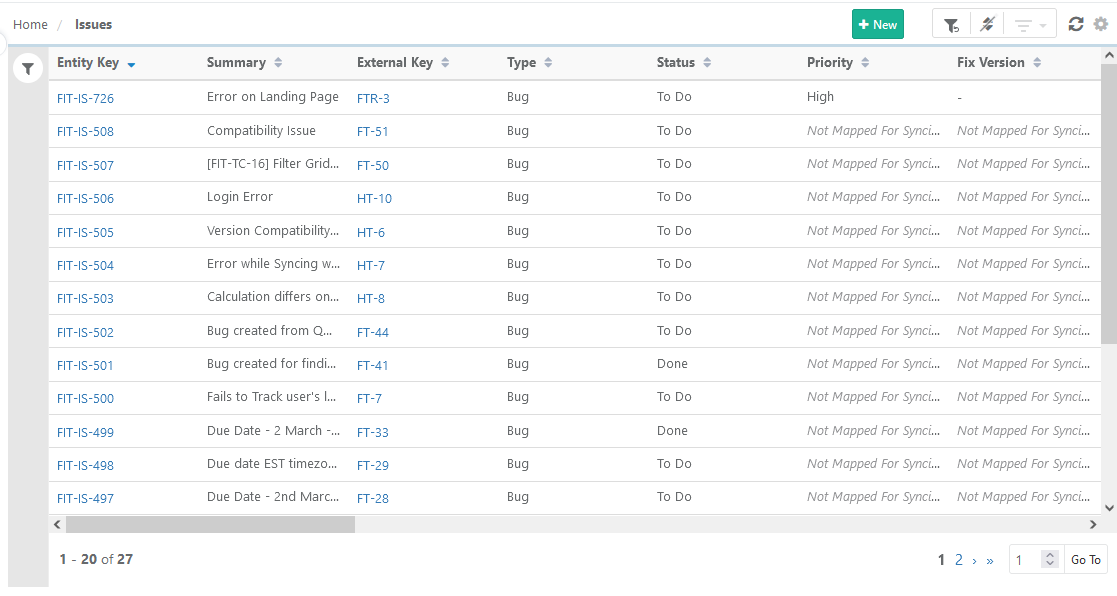 |
Note
The project admin must configure at least one of the Jira Projects with the Issue Module.
Once Jira is integrated with the QMetry project, the internal issue module is no longer available.
View status under the Integration Scheduler Status tab in Integration.