Enable QMetry Test Case and BDD Panels
Configuration to enable QMetry Test case and BDD panels for Jira Projects. This change is required for all Jira projects that are to be integrated with QMetry.
Enable QMetry Panels for Project: Enable it to make the QMetry Test Case panel visible on issue screen. If the feature is disabled, the QMetry panel will not be displayed on Issue screen. This panel shows the Test cases - Issue linkages.
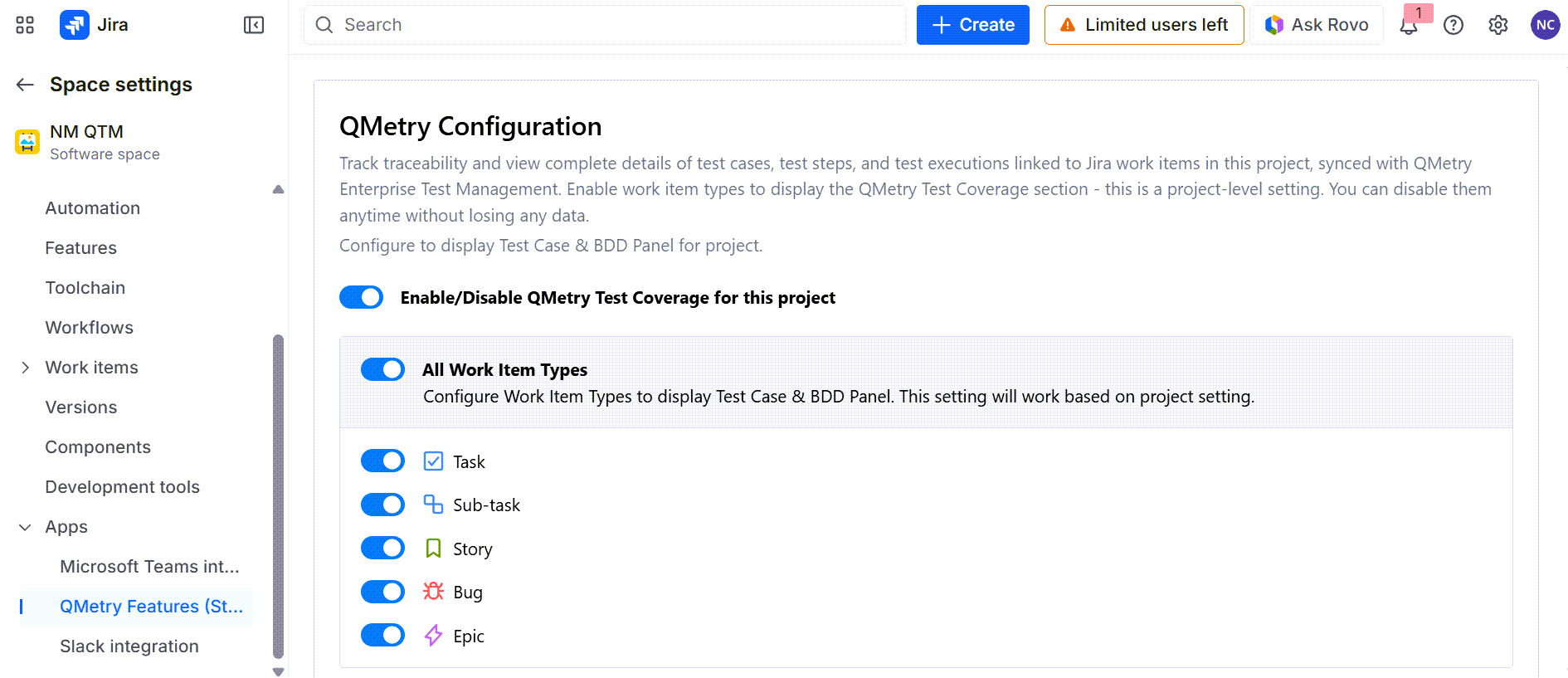 |
Issue Type - Enable Issue types for which Test case and BDD panel are displayed in Jira.
BDD and Test Case panels are enabled only for the current project (and not all other projects having the same project type).
A similar configuration has to be done for all projects which are integrated with QMetry.
Log into Jira.
Click on the three dots next to your Project.
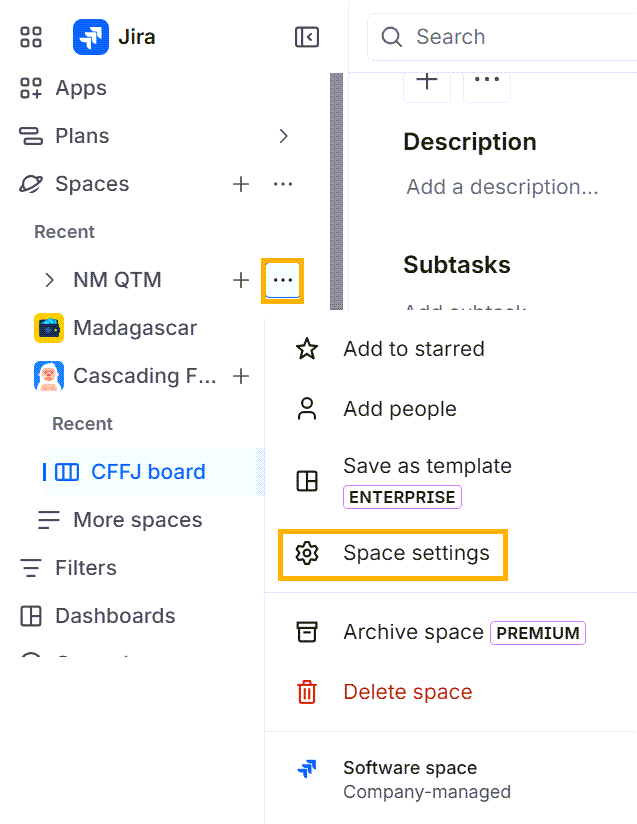
Select Space Settings.
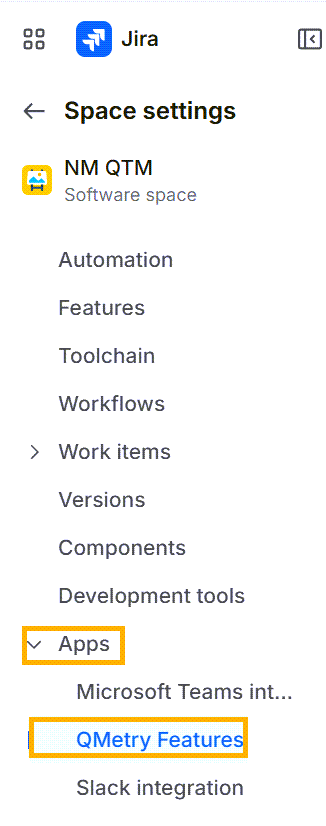
Scroll down to Apps and click QMetry Features.
To sync the data of the already linked Jira project, go to Projects > Project / Release / Cycle from QMetry. Open the Project > Jira Integration tab. Click the Sync button against your Jira Project to sync the requirements and issues from Jira.
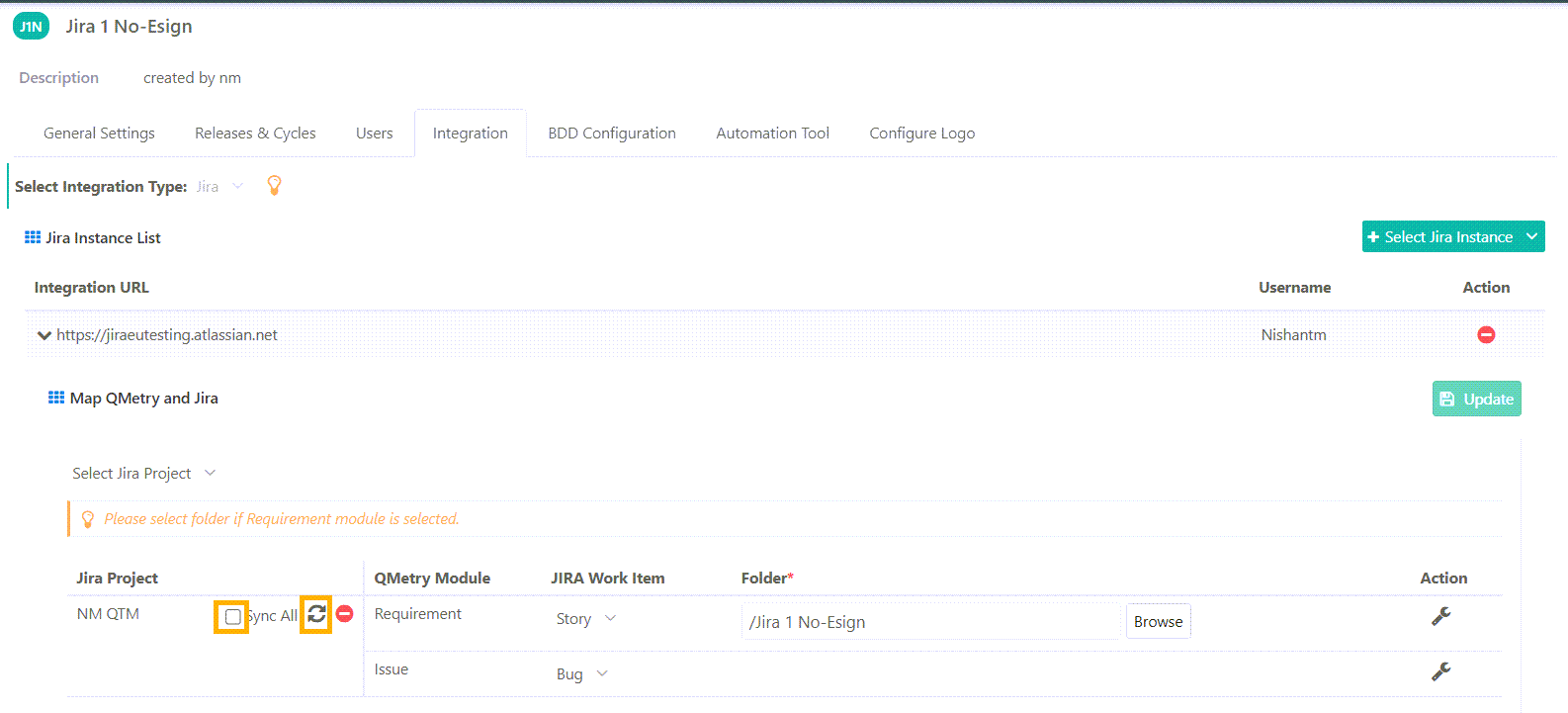
Sync All : Enabling this check-box and clicking the sync will sync complete data between QMetry and Jira (syncing all the Jira assets to QMetry).
Sync : Clicking on the sync button without enabling the Sync All check-box would just sync the updated assets from Jira. "Sync" option should be used when there are structural changes made in Jira like adding new fields, updating of the existing fields in Jira layouts, or when the QMetry-Jira integration was stuck or broken due to some reason.