Sync Issues from Azure to QMetry
Overview
QMetry - Azure Integration enables seamless synchronization of issues such as bugs and defects. Once the Azure project is configured and work items are mapped to the QMetry Issue module, you can create, and view Azure issues directly from QMetry.
The integration supports:
Creating new Azure issues during test execution in QMetry.
Linking existing Azure issues to test cases or test steps.
Viewing linked issues from the test execution screen.
Syncing deletions of Azure issues in real-time.
Creating New Issues from QMetry to Azure
Once the Azure project is configured with the QMetry project and work items are mapped to the QMetry Issue module, users can:
Create new issues in Azure directly from QMetry during test execution.
Link existing Azure issues to test cases or test steps.
View already linked issues.
QMetry Issue module remains visible even when the QMetry project is integrated with an Azure project. Refer to Projects using Azure integration for Issue (Bug) Tracking for more details.
Creating Azure Issues from the Test Suite Execution Window
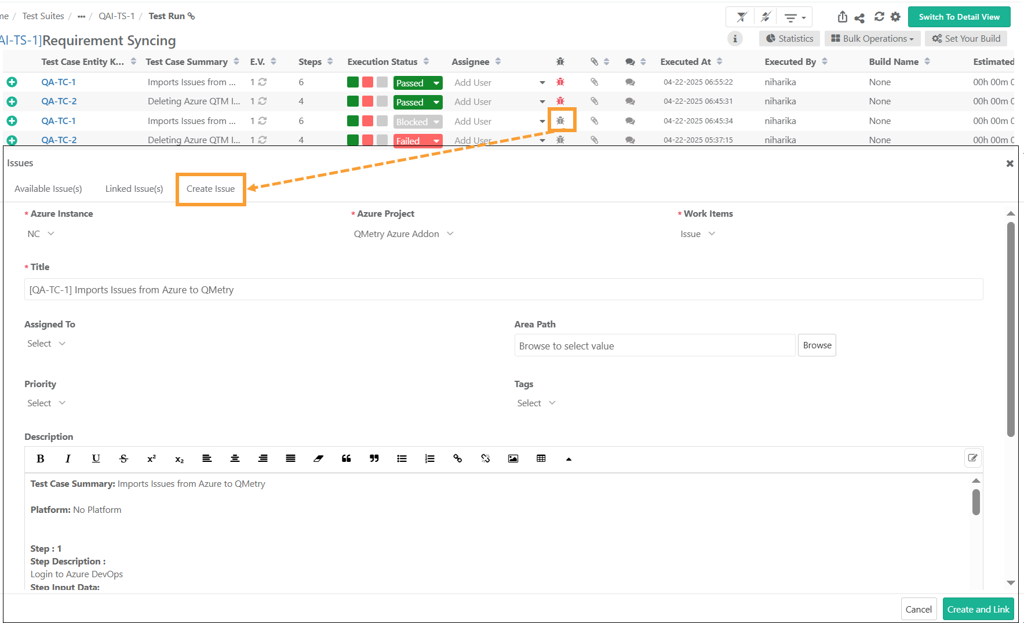
Issues created from the Test Suite Execution screen in QMetry are automatically synced with Azure. To create an issue from the test suite execution screen, perform the following steps:
Navigate to Test Suites.
Select the Test Suite Key to open the test suite details.
Select the Execution icon.
The Issues dialog contains three tabs:
Available Issues
Linked Issues
Create Issue
Click the Bug icon to open the Issues dialog.
Select the Create Issue tab. Test case and Step details are automatically added to the Issue Description.
Enter the required information and click Create and Link.
The Test Case section in Azure displays the details of the test case.

Linking Existing Azure Issues
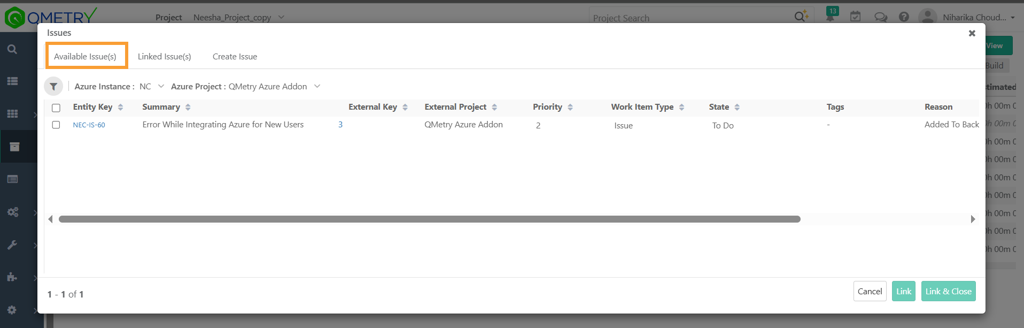
Link existing Azure issues to test cases directly from the Test Suite Execution window.
To link an existing Azure issue:
Click the Bug icon in the Execution screen to open the Issues dialog.
In the Available Issue(s) tab, select the Azure Instance and Azure Project from the dropdown.
Browse the list of available issues and select the ones to be linked.
Click Link to associate them with the test case or Link & Close to finish linking and close the dialog.
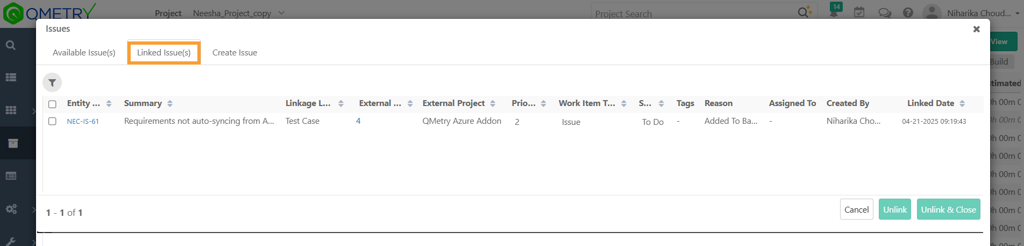
The linked issues will appear under the Linked Issue(s) tab for reference.
Viewing Already Linked/Newly Created Issues
All issues linked or created during test execution appear under the Linked Issue(s) tab in the Issues dialog. This allows testers to track issue associations without navigating away from the execution screen.
Viewing Issues Created in QMetry Test Execution
Issues created in QMetry during test execution are also reflected in Azure DevOps, maintaining real-time sync between both platforms. These issues retain test case context and execution details within the Azure work item.
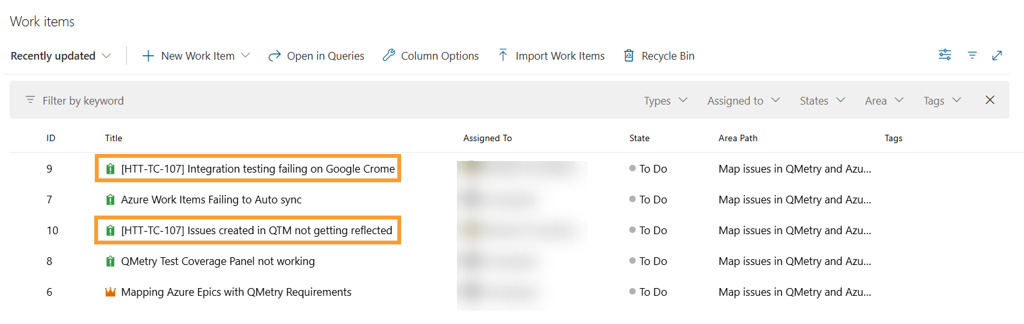
To view QMetry -created issues in Azure DevOps:
Log in to your Azure DevOps instance.
Navigate to Boards and select Work Items.
Identify the issue by its title or ID.
Click the issue title to open it and view synced details including:
Test Case ID
Summary and description from QMetry
Execution status
Assigned user and priority
This ensures traceability and allows teams working in Azure DevOps to access all relevant testing information without switching platforms.
Syncing Deletion of Requirements/Issues in Azure
When a synced requirement or issue is deleted in Azure, it is automatically deleted in QMetry as well.