Manage Custom Automation Templates
You create, view, edit, and delete Custom Automation Templates from the Integration menu.
Viewing Existing Templates
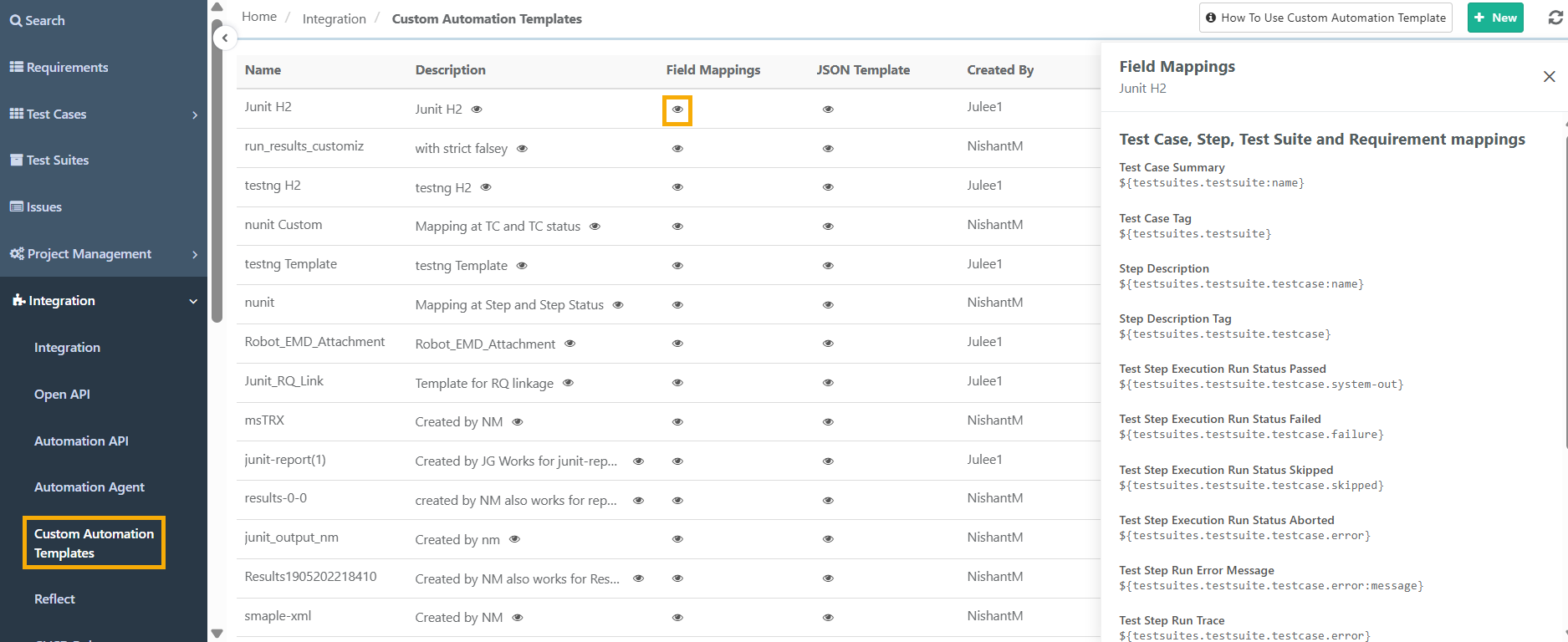
All templates appear in a list under Custom Automation Templates. The list shows the name, description, field mappings, JSON structure, and the created and last updated details for each template.
To view the templates available in your instance, perform the following steps:
 |
Go to Integration.
Select Custom Automation Templates.
To view a template's field mappings, descriptions or JSON structure, select the eye icon in the list.
The details page shows the details for all templates in the instance.
Creating a Template
To create a Custom Automation Template, perform the following steps:
On the Integration menu, select Custom Automation Templates.
Select Create.
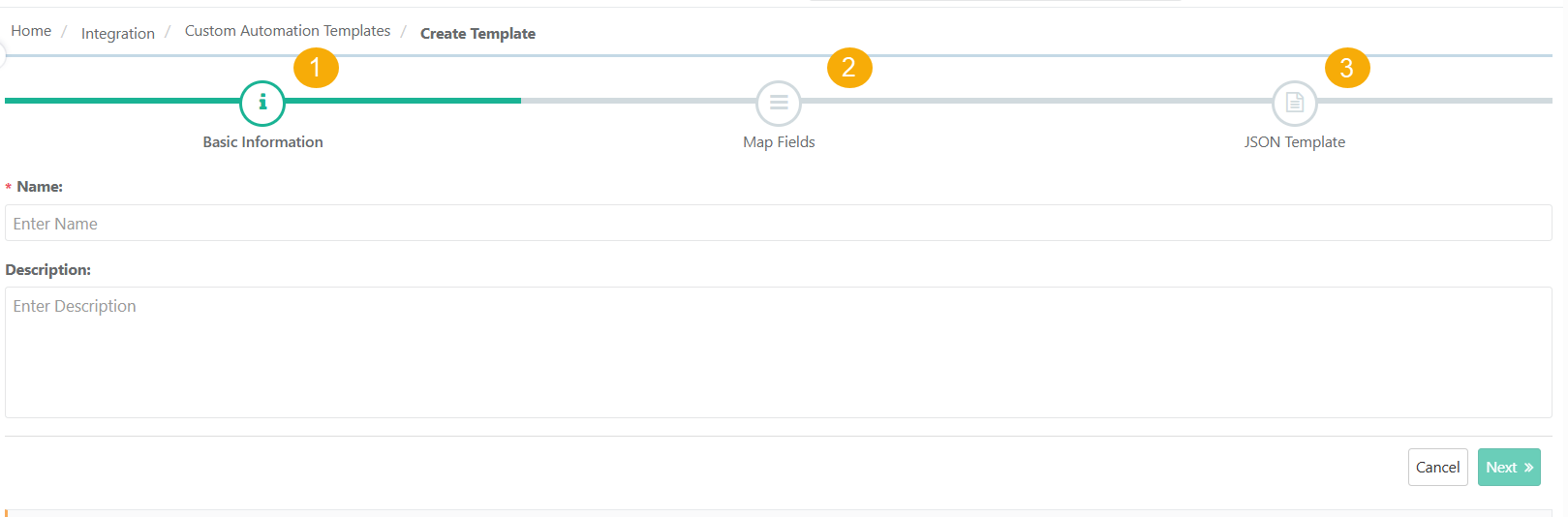
Add the Basic Information:
In the Name field, enter a unique name for the template. The name can contain up to 20 characters and must be unique across the instance.
In the Description field, enter a description that explains how the template is used. The description can contain up to 255 characters.
Select Next.
Map the QMetry fields to the fields in your XML automation results file. For details about the supported fields and the mapping syntax, see the Field Mapping reference.
Select Next.
Review the JSON template and select Create Template.
QMetry adds the template to the list and records an audit log entry.
Editing a Template
You can change the name, description, field mapping, and JSON structure of an existing template. To edit a template, perform the following steps:
 |
On the Integration menu, select Custom Automation Templates.
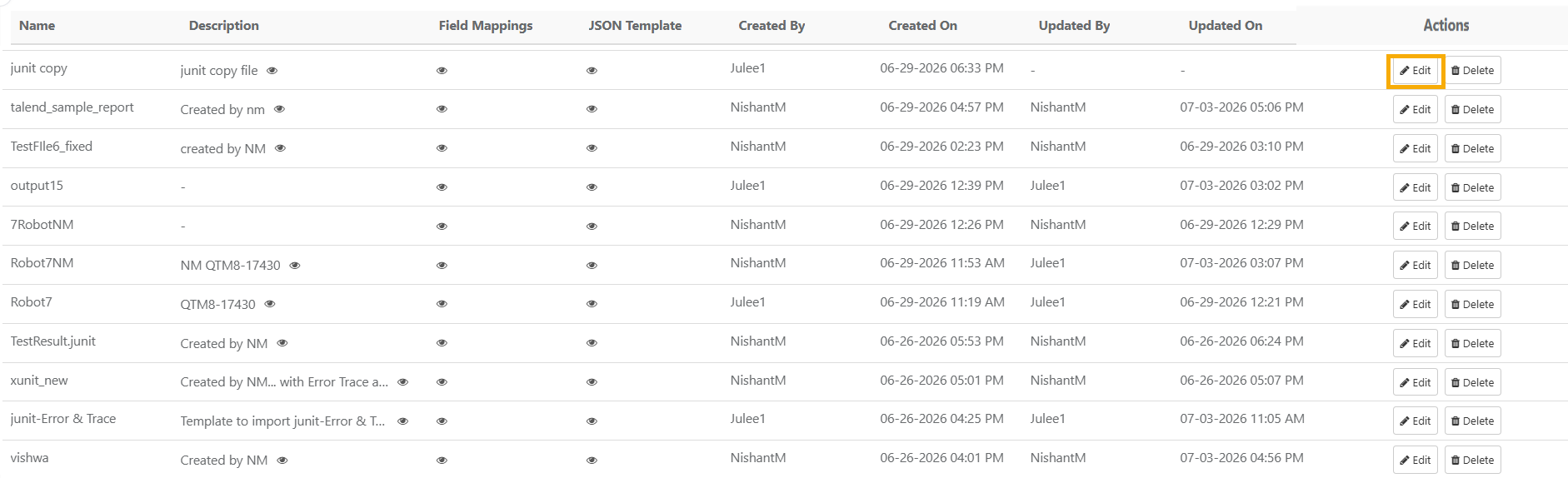
Locate the template, and select Edit.
Update the Name, Description, Field Mappings, or JSON structure as needed.
Select Save.
QMetry updates the last updated by and last updated date and time for the template, and records an audit log entry.
Caution
Any change you make to a template applies at the instance level and affects all projects that use it.
Deleting a Template
To delete a Custom Automation Template, perform the following steps:
On the Integration menu, select Custom Automation Templates.
Locate the template, and select Delete.
Select Delete.
QMetry removes the template from the list and records an audit log entry.
Warning
Deleting a template removes it at the instance level and affects all projects that use it.