Tracking Import and Export Progress
Import or Export bulk assets across multiple modules, without disrupting your workflow.
Import and export operations run in the background. Monitor progress, identify any issues, and download exported files directly from the Scheduled Tasks window.
Scheduled Task
The Scheduled Task icon turns orange when you initiate any of the following actions:
All bulk operations.
Import: Issues, Test Cases, Test Suites, Requirements.
Export: Issues, Test Cases, Test Suites, Requirements, Test Executions.
Project Clone.
It reverts to its original color once you click the icon to view the task status.
View Import and Export Progress
To view import and export progress, perform the following steps:
 |
Click Scheduled Tasks icon in the application header.
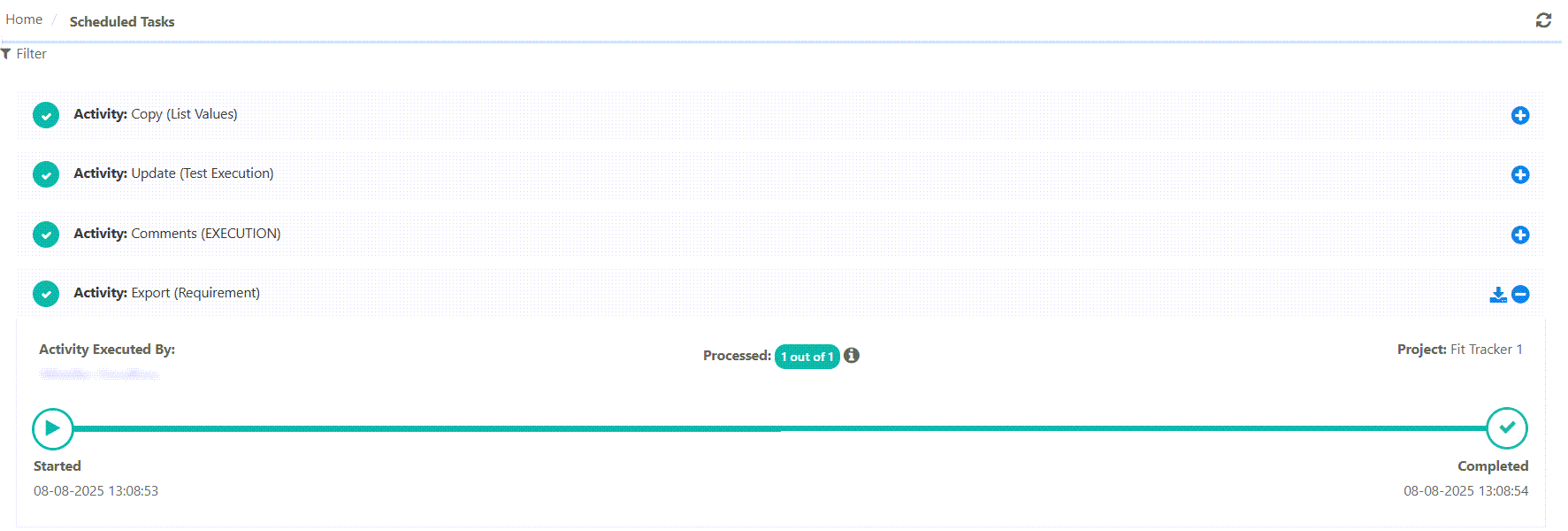
The Scheduled Task screen shows all the activities completed or in the queue. The progress bar shows the following statuses for each of the imports:
Started: The system initializes the export.
In Progress: The system is exporting records.
Completed: The system exports the intended records and finishes the import.
Failed: It indicates that the entire import has failed due to an error. Download the log file to identify the errors.
Download the exported file by clicking the download icon.
 |