Record a Session
You can record test sessions using the QMetry Exploratory Testing add-on. The system records these sessions and stores them in the QMetry instance that you specify when you log in to the add-on.
Pre-requisites
Generate an API key in QMetry Test Management, from the Exploratory Testing screen under Automation.
Open the site you want to explore before you start recording.
Log in and Start Recording
To record test perform the following steps:
Open the Firefox browser.
Select the QMetry Exploratory Testing.
If you are using the add-on for the first time, enter your QMetry URL and API Key, , and then select Login.
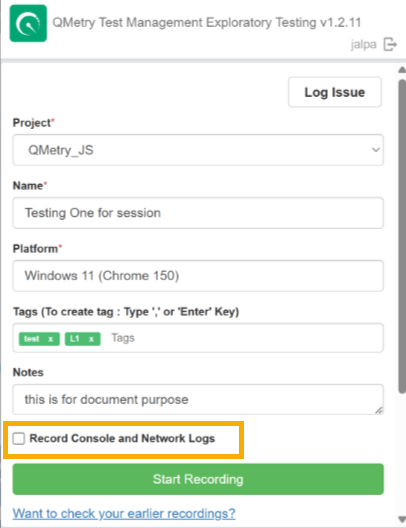
Enter the session details. For a description of each field, see Session details reference.
To capture console and network logs, select the Record Console and Network Logs check box before you begin recording. The check box is cleared by default.
Select Start Recording to start recording your actions on the website or application.
The icon beside the address bar indicates that recording is in progress. You can now add bugs, audio, and assertions to your current recording.
Adding an Audio Recording
You can add a voice-over to the recording by selecting the microphone icon.
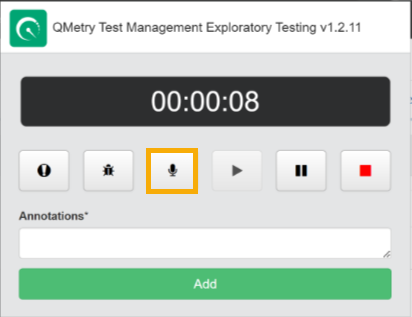
To add an audio recording, perform the following steps:
Select the microphone icon.
When you finish, select the stop icon.
A stopwatch appears.
Do one of the following:
Select Stop to stop the audio recording.
Select Discard to cancel the audio recording.
Playing an Audio Recording
To play an audio recording, perform the following steps:
Open the test scenario or session to which the audio recording is attached.
Open the Document tab.
The audio recordings appear on the screen.
Play the recorded audio. You can also download the recordings.
Adding Assertions
You can use an assertion to confirm the existence of a particular component on the website, for example, a button or a text string.
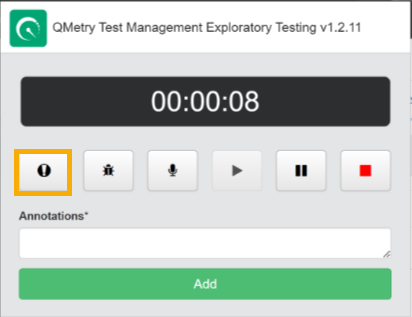
To add assertions, perform the following steps:
When you find an important component that you want to verify, select Start Assertion.
Select the element or select the text for the assertion.
Select Assertion again to stop the function.
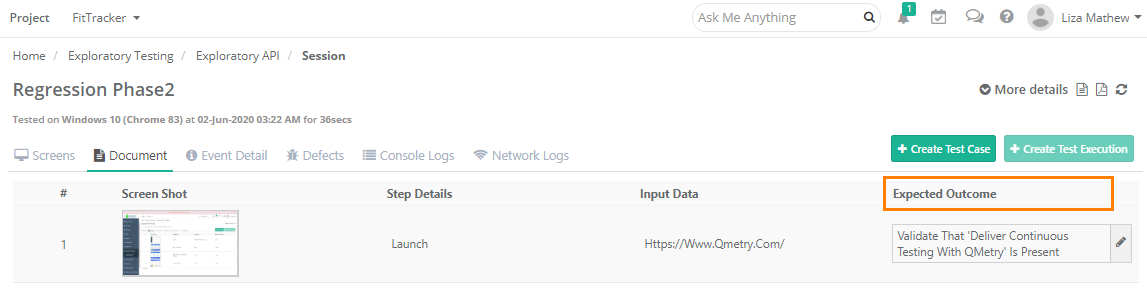
When you view the recorded sessions, all the assertions appear as the Expected Outcome. You can edit them, because the field is editable.
Recording Controls
On the QMetry Exploratory Testing extension, you can use the following controls:
Field | Description |
|---|---|
Annotations | Add annotations while you record. Enter the annotation, and then select Add. |
Pause | Select the Pause icon to pause the session recording. Resume it when you want. |
Play | Select the Play icon to resume the test recording from where you paused it. |
Stop | Select the Stop icon to stop the session recording. The upload starts when you stop the session recording. |