Test Case Sequencing and Reordering
Organize test cases within a folder in a custom sequence with Test Case Sequencing and Reordering.
Note
Get Test Case create or modify permissions to reorder test cases within a folder.
Sequencing applies only to test cases inside folders, not at the project root.
Actions like create, import, move, reuse, copy assign next available sequence.
Importing or re-importing test cases adds them to the end of the folder’s current sequence.
When you copy or move a folder, the order of test cases within that folder is preserved.
Test Case Sequencing
The Order column in the test case list view allows custom ordering of test cases. This column is non-removable and can not be repositioned.
Note
The sequence column is visible only when you disable Include Entities from Sub-Folder.
The system disables sequence editing and drag-and-drop if you have applied sorting.
The system hides the Sequence column when filters are active.
Each test case has a unique sequence number within a folder. If a test case is reused in multiple folders, its sequence number differs based on the folder.
For example, test case FTR-TC-119 appears in sequence 1 in Folder Test Assets 8.20.0 and it may appear in sequence 5 in Folder Test Assets 8.22.0.
Editing Test Case Sequence
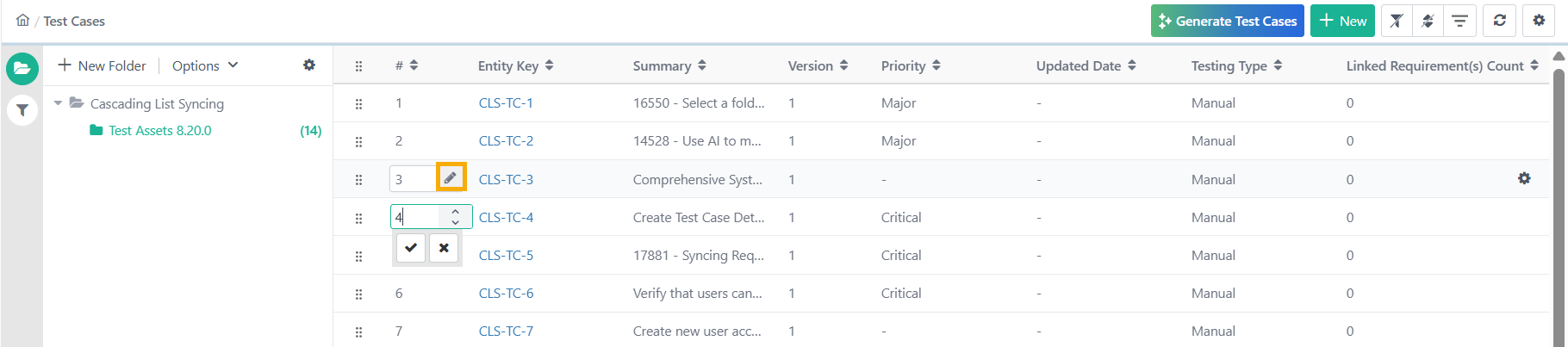
Reorder test cases within a folder by editing the Order column or using drag-and-drop. To enable editing, first clear any existing sorting, after which sorting will be limited to ascending order by the Sequence column. The Sequence column dynamically updates to reflect the changes.
 |
Note
The updated order is visible to all users with access to the folder.
To update the sequence of test cases within a folder:
Go to Test Case module.
Select a folder.
Hover over the Sequence number of the test case to reorder.
Click the Edit icon.
Enter the number and press to save.
Alternatively, drag and drop test cases within the folder to update their order. The system adjusts the sequence numbers of other test cases to reflect the new order.