Reusing Test Cases Across Multiple Folders
Associate a single test case with multiple folders within the same project. To establish this multi-folder association, go to the test case detail page and specify the folders in the Folder Path field.
The test case uses the same key in all folders, so updates apply everywhere.
Note
By default, all test cases, except the archived ones, exist in the project root folder, regardless of their folder associations.
Reusing a Test Case Across Folders
Associate a test case with multiple folders from the test case detail section. Folders can belong to the same hierarchy or different hierarchies within the same project.
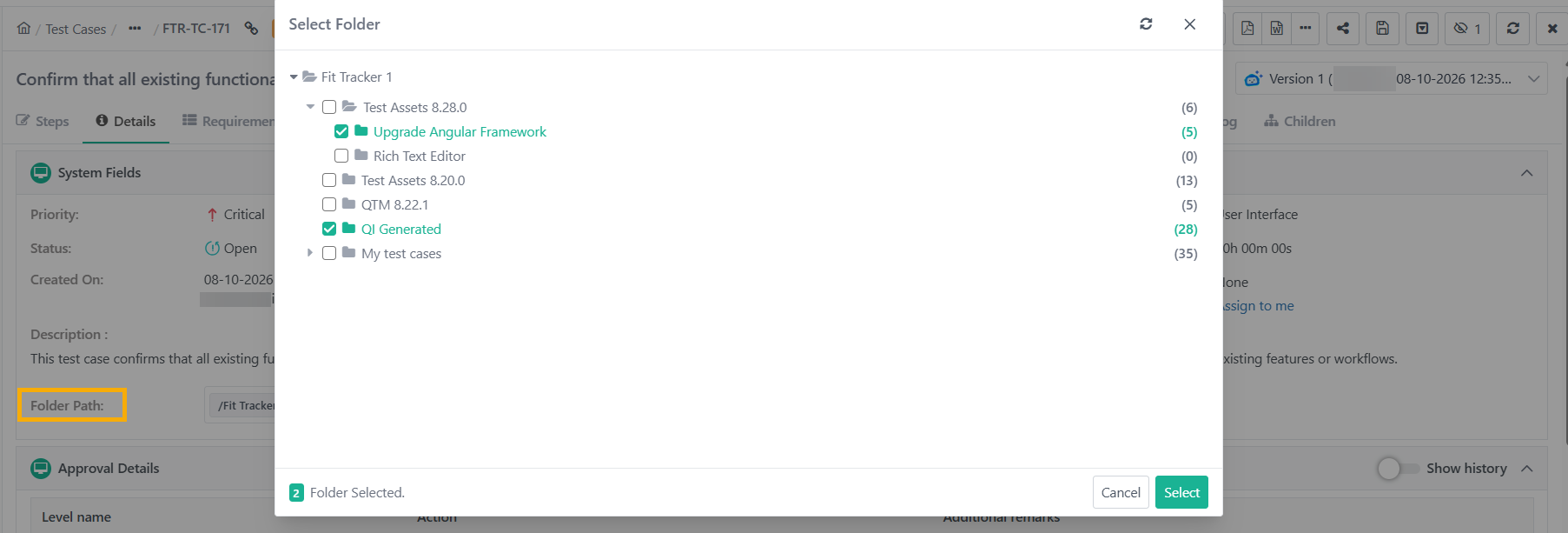
To associate a test case with multiple folders, perform the following steps:
Go to the Test Case Detail page.
Click Add (+) next to folder path.
Select the folders to associate with the test case.
Click Select.
Note
When updating folder assignments, the test case’s association with the root folder remains unchanged.
In eSignature-enabled projects, you can edit the Folder Path for test cases in Approved or In Review status.
Folder associations apply to all versions of a test case.
View all folders associated with a test case either from the test case detail page or the Folder Path column in the test case list view.
Importing and Exporting Test Cases with Multi-folder associations
Exporting Test Cases
The system displays the Test Case Folder Path in a colon-separated list.
Importing Test Case
While importing, specify the folder names in a colon-separated list.
Reimporting Test Case
Rules for reimporting test cases that already exist in the project:
Reimporting in the same folder: The test case remains unchanged and stays in its original folder.
Reimporting in a different folder: The test case is reused in the new folders. It also retains its original folder associations.
If a selected folder does not exist, the system auto-creates the folder during the reimport process.
Note
Folder associations can only be added, not removed, via re-import.
Importing Test Cases through Automation
When importing test cases through automation:
If a test case with the same key and summary already exists, it is reused and remains in its original folder.
The specified folder path in the import is only applied to newly created test cases.
If a reused test case is already associated with multiple folders, the import does not affect those existing associations.