Two-step Authentication in QMetry
Two-step Authentication is a simple best practice that adds an extra layer of protection on top of your user name and password.
With two-step authentication:
The system prompts username and password.
And an authentication code
You can enable two-step authentication for individual users. There is no additional cost for enabling users with two-step authentication.
Any users having QMetry authentication type can be enabled.
Users authenticated via LDAP/SAML cannot enable two-step authentication.
Two-step Authentication Workflow
You can enable two-step verification in your account.
While logging in enter the authentication code along with QMetry credentials.
Enable Two-step Authentication
You do not need create or update permissions for user module to enable or disable two-step verification.
Enabling two-step authentication requires an authentication application downloaded on your smartphone. Applications for your smartphone can be installed from the application store that is specific to your phone type. The following table lists some applications for different smartphone types.
Android | Google Authenticator, Microsoft Authenticator or others |
iPhone | Google Authenticator, Microsoft Authenticator or others |
After downloading the application, follow the below steps.
Login to QMetry.
Go to Customizations and select Users.
Filter by user and click Edit.
 |
3. Go to Security tab > Two-step Verification > Enable.
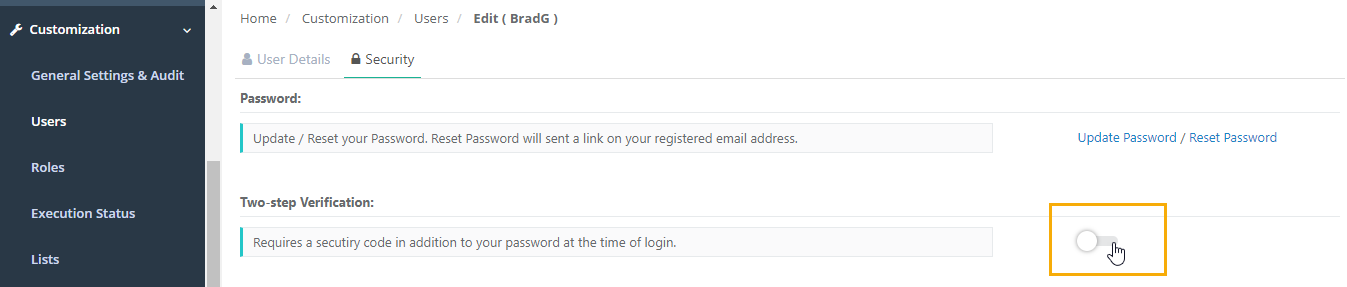 |
4. Scan the QR Code, and enter the verification codes to enable the two-step verification.
Note
Once the user registers for Two-step Verification device, eight Recovery Codes are generated and displayed on the screen. Each code can be used only once. Users can download the codes in .txt file to use them in case they lose the device to generate the recovery code.
Once the two-step authentication is enabled, the system prompts you to enter a two-step verification code.
Filter Users with Two-step Verification
You can filter users based on the two-step verification set up status using the 2FA filter selected as Enabled or Disabled.
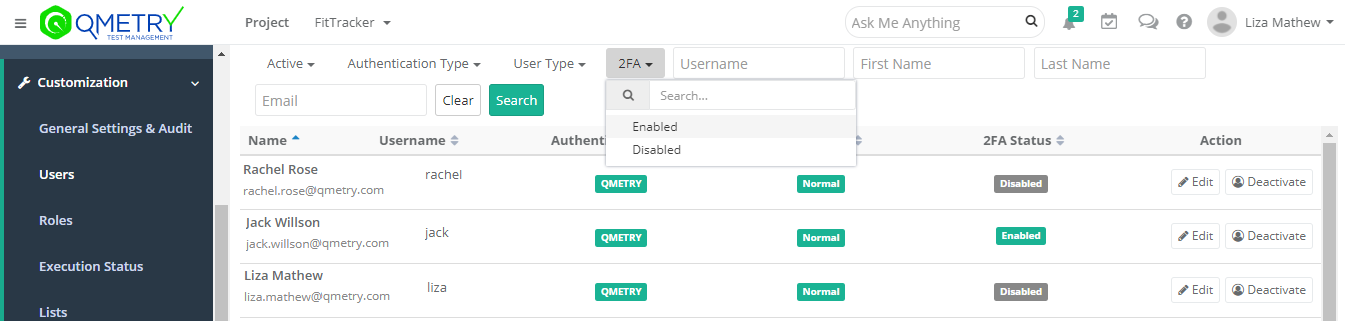
Disable Two-step Authentication
For scenarios where an end user loses the authentication device or the authentication app OR simply wants to disable two-step authentication, below are the steps that should be followed.
Steps :
Login with your credentials. Go to Customization > Users.
Go to Customization and select Users.
Filter by your user and click Edit.
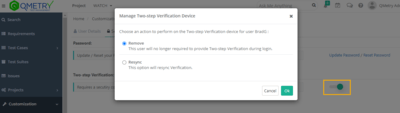
Go to Security and select Two-step Verification. Click the toggle to Disable.
Click Remove
Resync Verification details for Two-step Authentication
Login to QMetry with your credentials.
Go to Customization and select Users.
Filter by user and click Edit.
Go to Security tab and select Two-step Verification.
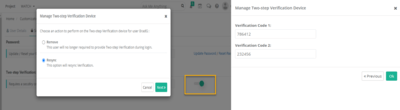
Click the toggle to show remove or resync options.
Click Resync and enter verification codes from the authentication app on your phone to complete the resync.
Generate Recovery Codes for Two-step Verification
With two step verification enabled, you can use recovery codes to regain access to your account. Once you register for Two-step Verification device, the system generates eight Recovery Codes and display them on the screen.
You can use a code only once. You can download the codes in .txt file.
Note
If the user loses their device or can not access their authentication codes, they can use these codes to login. We strongly recommend saving the codes to a safe place.
To generate new recovery codes, the device needs to be re-registered again.
These recovery codes are visible to other users as well. In case a user does not have the recovery codes, they can ask other users who have access to the Users module to look for their recovery codes and share with them.
In case, you have used all eight recovery codes and then lose your device, you cannot log into QMetry without having their two-step verification device removed and set up again.
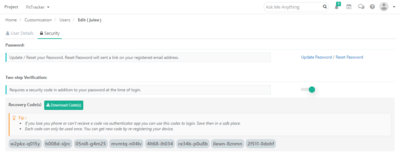
Using Recovery Code:
Click Login with Recovery Code on the QMetry Login screen. Enter the recovery code.
Make Two-step Verification Mandatory for All Users in QMetry
Permissions Required :
An “admin” user can make the Two-step Verification mandatory for all the QMetry authenticated users on the instance.
For SaaS instances, the first user (super-admin) who registered for QMetry, can make the Two-step Verification mandatory for all the authenticated users on the instance.
Note
The admin can make the Two-step Verification mandatory for other users only when the Two-step Verification is already enabled for their admin account.
To make two-step authentication mandatory for all users, perform these steps:
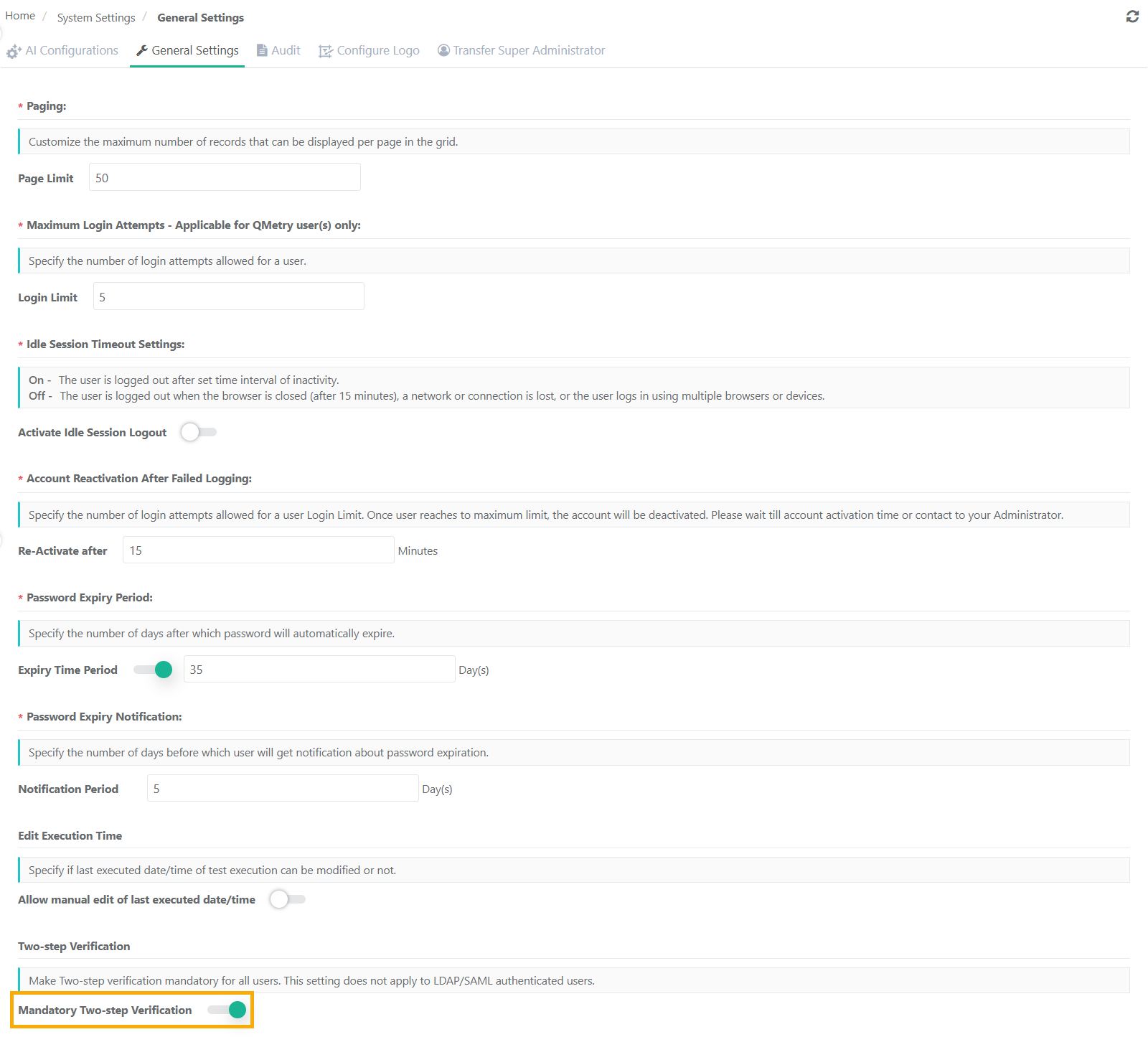 |
Go to System Settings and select General Settings & Audit.
Scroll down to locate the Two-step authentication section.
Enable the Mandatory Two-step Authentication option to impose the two-step verification for all the users of the instance.
Warning
When enabling Mandatory Two-Step Verification, a warning popup shows affected active users. Clicking Users opens the list of QMetry users with 2FA disabled.
The admin can review users who have not enabled Two-Step Verification and then proceed to enforce it for all users.