Configure QMetry Application in Okta
To configure QMetry Application in Okta, do the following:
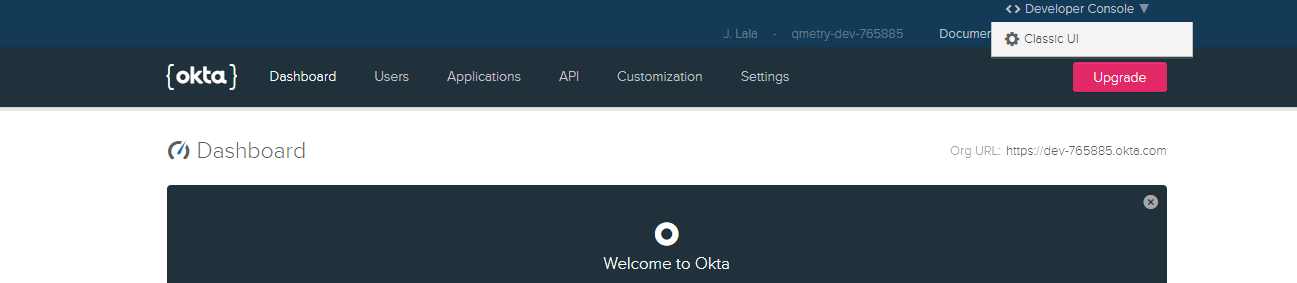
Open the Okta URL and go to Admin.
Select Classic UI on the top bar.
Click on the Applications option on the header.
Click Create New App.
Select SAML 2.0 as Sign on method.
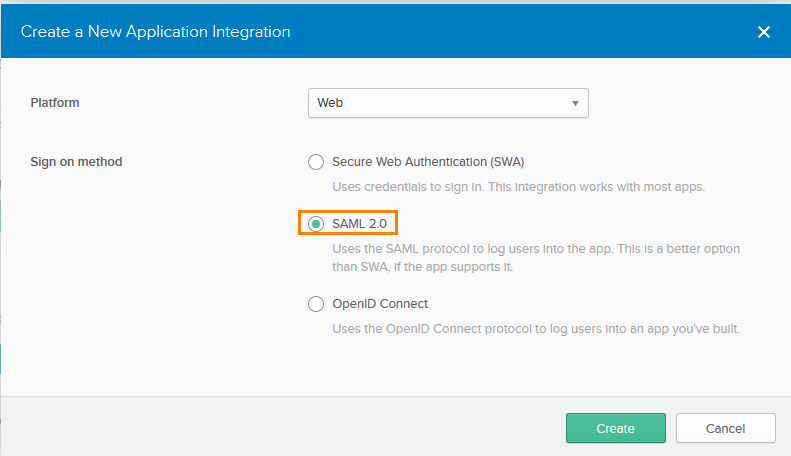
Click Create.
Provide App Name like QMetry and add a logo. Click Next.
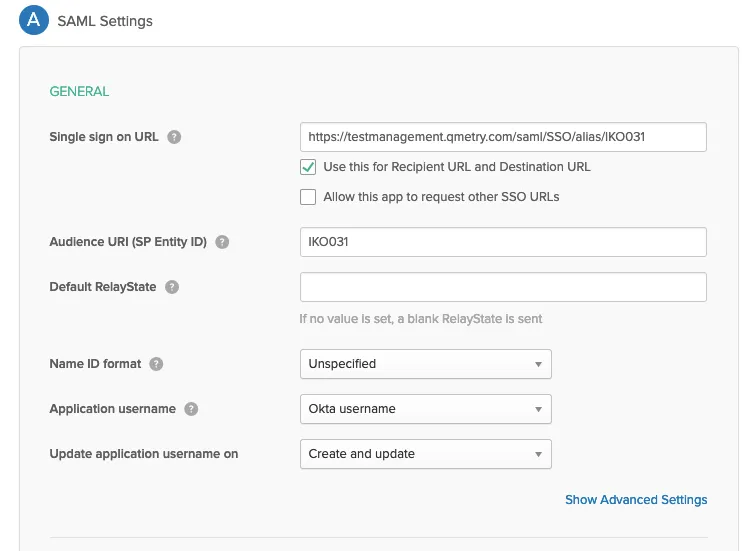
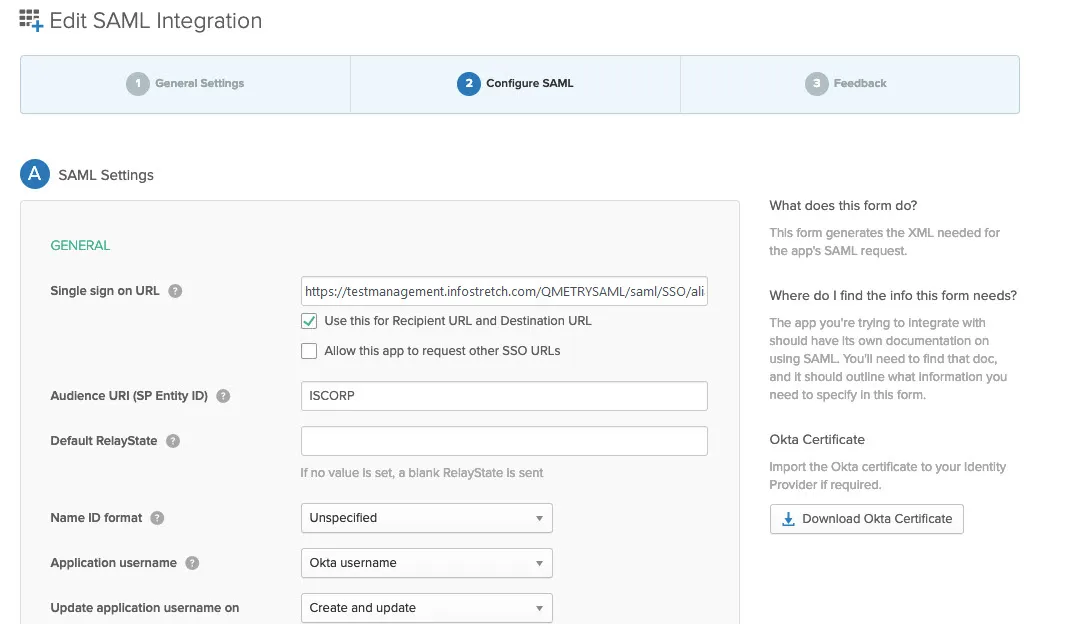
Provide the following details for SAML Settings.
QMetry Cloud
Single Sign on URL: https://testmanagement.qmetry.com/saml/SSO/alias/<orgcode>;
For example, if your QMetry URL is https://testmanagement.qmetry.com
The Single sign-on URL will be https://testmanagement.qmetry.com/saml/SSO/alias/IKO031
SP Entity ID: <orgcode>;
Keep rest parameters as default.
On Premise
In case of QMetry Test Management On-Premise edition:
Single Sign on URL: https://<clientdomain>/QMETRYSAML/saml/SSO/alias/<orgcode>;
For example, if your QMetry URL is https://testmanagement.infostretch.com
The Single sign-on URL will be https://testmanagement.infostretch.com/QMETRYSAML/saml/SSO/alias/ISCORP
SP Entity ID: <orgcode>;
Keep rest parameters as default.
Configure Firstname, LastName and Email from SAML to QMetry. The values will be populated in respective fields when you are creating a new user in QMetry.
In Okta, go to the Attribute Statements section.
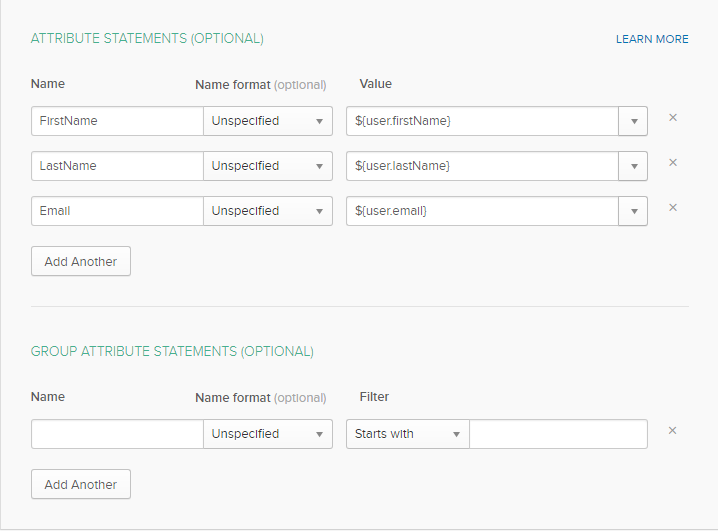
Mention QMetry fields (FirstName, LastName and Email) at left.
Select its corresponding values in Okta from the drop-down list at right. The values are editable.
Make sure you put the values in curly brackets {} and pre-fix $ to it. For example, for value "user.FirstName" you should write it as ${user.FirstName}
Move to next screen and Click Finish.
Click on the Identity Provider metadata to download the metadata xml file.
Rename it with extension “.xml”. You will need to upload this file to configure SAML Settings in QMetry.
Go to the Assignments tab in Okta.
Select the Assign button. Assign to People and assign the application QMetry to Users.
Assign QMetry to a user by clicking on the Assign button for that user and click Done.
The User Name appears in editable mode.
Change the User Name, if you want to make any changes to it.
Click Save and Go Back.
Click Done.
How to get the Organization Code?
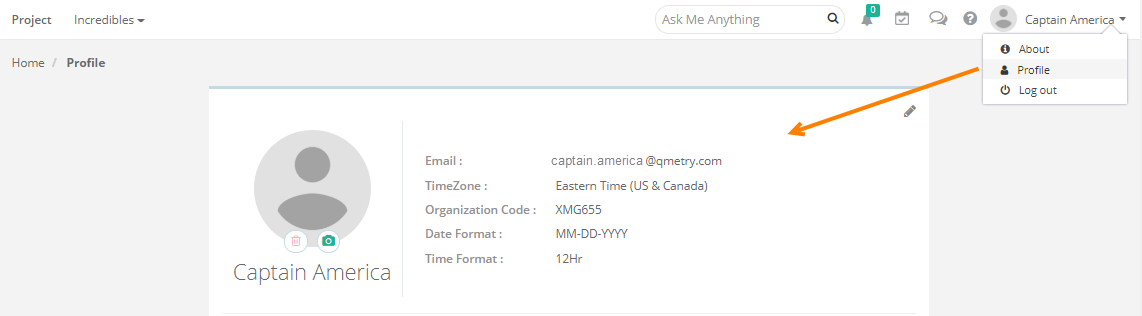
Log into QMetry and go to user profile.
You can see the Organization Code in your profile details.