User Provisioning and Deprovisioning with SCIM 2.0
Note
User Provisioning and Deprovisioning with SCIM 2.0 is an advanced feature.
Implementing System for Cross-domain Identity Management (SCIM) 2.0 for provisioning and de-provisioning users provides a standardized and efficient method for managing user identities across various systems and applications. It involves the automated creation, updating, and removal of user accounts across multiple systems.
QMetry supports SCIM 2.0 for automatic user provisioning and de-provisioning, which reduces manual intervention and potential errors. Its other benefits are:
It ensures consistency of user data across multiple systems, reducing the risk of discrepancies or outdated information.
It streamlines the user lifecycle management process, saving time and resources for both IDPs and SPs.
It helps enforce access control policies and maintain data security by promptly removing access for deactivated users.
SCIM settings are configured at the instance level; only the Super Administrator can manage them.
Step 1. Enable SCIM in QMetry
Enabling SCIM in QMetry involves configuring the application to support the SCIM standard and setting up the necessary endpoints and authentication mechanisms to communicate with an identity provider like Okta.
First, you need to enable the SCIM Provisioning in QMetry.
Note
Required Permission: Only the Super Administrator of the QMetry instance can access and enable the SCIM feature.
Steps
Log in to QMetry with Super Admin credentials.
Go to Integration > SCIM.
Turn on the SCIM Provisioning option.
Review the following configuration details displayed on the screen:
Base URL: The URL of the QMetry instance configured with Okta.
Example:
https://testmanagement.qmetry.com/scim/v2The SCIM administrator must use this URL to integrate the SCIM system with QMetry.
Supported SCIM 2.0 tool: Okta. Use the following syntax for Group Name and Custom Attribute in Okta.
Group Name:
QMetry_{ProjectKey}_{Role}for QMetry project and role mapping.Custom Attribute:
QMetry_User_LicenseTypefor license type mapping, regular and read-only.
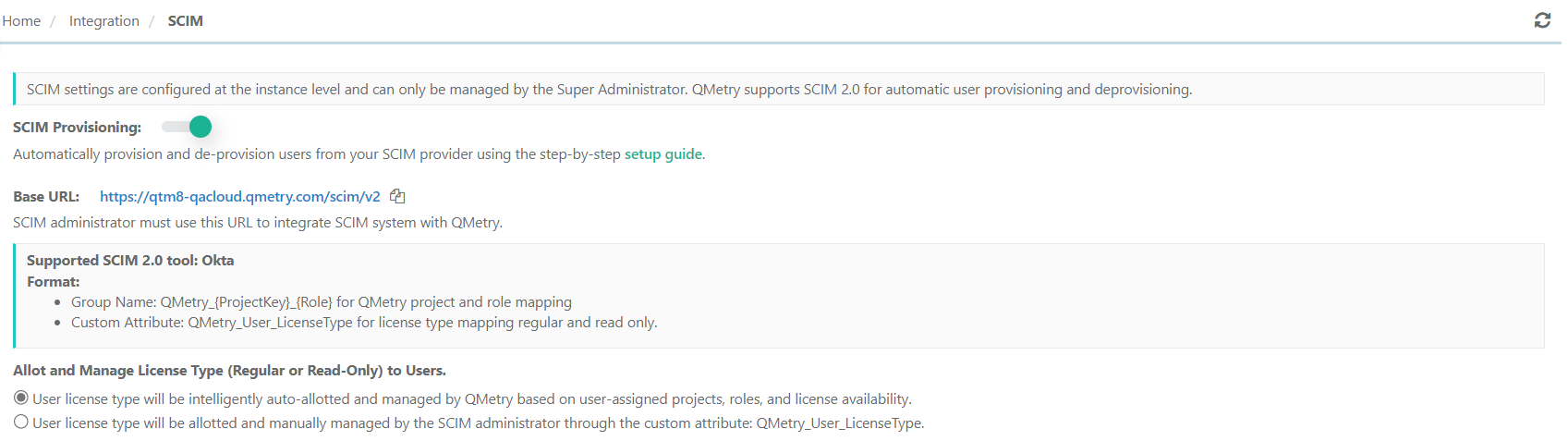
When prompted with a confirmation message, click Yes to enable SCIM provisioning.
QMetry displays a success message confirming the activation.
Note
After enabling the SCIM settings, user provisioning, de-provisioning, and assignment of users to projects will be directly managed through SCIM. Only the Super Admin of QMetry will possess the permissions to manage and assign users from within QMetry. Regardless of their role or permissions, any other user cannot create, update, or assign/unassign users to projects and roles.
Allotting and Managing User License Types (Regular or Read-Only)
QMetry allows the admin to choose how to manage user license types automatically or manually through QMetry or SCIM. The admin can select from the following options:
Automatic Management: QMetry automatically assigns and manages user license types based on the user's assigned projects, roles, and available licenses.
If a user is assigned only read-only roles for all projects, QMetry a Read-Only license will automatically be assigned, provided there are available Read-Only licenses.
If a user has at least one project with a non-read-only role, QMetry a Regular license will automatically be assigned as long as Regular licenses are available.
Manual Management: The SCIM administrator can manually assign and manage user license types using the custom attribute QMetry_User_LicenseType.
Understanding Scenarios for Automatic User License Management in QMetry
QMetry Intelligently assigns and manages user licenses based on the user's assigned projects, roles, and available licenses. Below are different scenarios outlining how licenses are allotted:
Scenario A: Has Sufficient Regular Licenses and Read-Only License Remaining.
Scenario | User License Action | Activation Status |
|---|---|---|
A New User is created with the Read-Only role assigned to all projects. | Read Only | User Active. |
A New User is created with a Non-Read Only role (Admin, Tester, QA Manager, etc.) assigned to any project. | Regular | User Active. |
A New User is created with all Non-Read Only roles (Admin, Tester, QA Manager, etc.) assigned to projects. | Regular | User Active. |
User Update (Current License: Read Only) | ||
User has All Project Access as Read Only, and a new Project with Read Only is assigned. | Read Only | Older projects remain as assigned. New projects/roles are assigned as read-only. |
The user has All Project Access as a Read-Only Role, and a new or existing Project with a Non-Read-Only Role is assigned. | License Type Changed to Regular | Older projects remain as assigned. New/updated projects/roles are assigned. |
User Update (Current License: Regular) | ||
User has All Project Access as Non-Read Only Role, and a new Project with Non-Read Only Role is assigned. | Regular | Older projects remain as assigned. New/updated projects/roles are assigned. |
The user has All Project Access as a Non-Read-Only Role, and a new Project with a Read-Only Role is assigned. | Regular | Older projects remain as assigned. New projects/roles are assigned. |
The user has all projects assigned/updated as a Read-Only Role. | License Type Changed to Read Only | Older projects remain as assigned, after the project with a non-read-only role is removed. Assign the updated new project/role. |
Scenario B: Has Sufficient Regular Licenses and No Read-Only License Remaining/Not Purchased
Scenario | License Action | Activation Status |
|---|---|---|
A New User is created with the Read Only role assigned to all projects. | Regular License | Activate user. |
A New User is created with any 1 Non-Read-Only role (Admin, Tester, QA Manager, etc.) assigned to any projects. | Regular License | Activate user. |
User Update (Current License: Read Only) | ||
The user has All Project Access as a Read-Only Role, and a new Project with a Read-Only Role is assigned. | Read Only | Older projects remain as assigned. Assign the new project/role. |
The user has All Project Access as a Read-Only Role, and a new or existing Project with a Non-Read-Only Role is assigned. | License Type Changed to Regular | Older projects remain as assigned. Assign the new/updated project/role. An audit log should be recorded for auto-conversion. |
User Update (Current License: Regular) | ||
The user has All Project Access as Non-Read-Only, and a new Project with a Non-Read-Only Role is assigned. | Regular | Older projects remain as assigned. Assign the new project/role. |
The user has All Project Access as a Non-Read-Only Role, and a new Project with a Read-Only Role is assigned. | Regular | Older projects remain as assigned. Assign the new project/role. |
User has all projects assigned as Read Only Role. | Keep License Type as Regular | Older projects remain as assigned, after the project with a non-read-only role is removed. Important: The SCIM Admin must push the group under the Push Groups tab or assign/unassign the project to the same user. |
Scenario C: Regular Licenses Exhausted and Read-Only Licenses are available
Scenario | License Action | Activation Status |
|---|---|---|
A New User is created with the Read-Only role assigned to all projects. | Read Only | Activate user. |
A New User is created with any 1 Non-Read-Only role (Admin, Tester, QA Manager, and so forth) assigned to any projects. | Error: The active regular user limit has been exceeded. Please contact your QMetry admin to increase the license limit or deactivate other users. | |
User Update (Current License: Read Only) | ||
The user has All Project Access as a Read-Only Role, and a new Project with a Read-Only Role is assigned. | Read Only | Older projects remain as assigned. The new project with the role will be assigned. |
The user has All Project Access as a Read-Only Role, and a new or existing Project with a Non-Read-Only Role is assigned. | Read Only. Error: QMetry could not automatically update the user license type to ‘Regular’ because the current limit for the Regular license has been exhausted. To resolve this issue, please either deactivate existing Regular license users or purchase additional licenses. | Older projects remain as assigned. |
User Update (Current License: Regular) | ||
User has All Project Access as Non-Read-Only Role, and a new Project with Non-Read-Only Role is assigned. | Regular | Older projects remain as assigned. New projects/roles are assigned. |
The user has All Project Access as a Non-Read-Only Role, and a new Project with a Read-Only Role is assigned. | Regular | Older projects remain as assigned. New projects/roles are assigned. |
User has all projects assigned as Read Only Role. | License Type Changed to Read Only | Older projects remain as assigned after the project with the non-read-only role is removed. Assign the new project/role. |
Step 2. Create SAML App Integration in Okta
Create a SAML 2.0 application integration in Okta to enable secure single sign-on (SSO) for QMetry users.
Steps
Log in to your Okta Admin account.
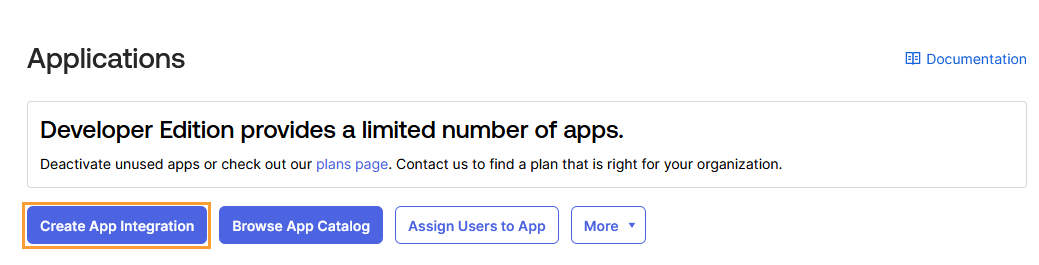
Go to Applications > Applications.
Click Create App Integration.
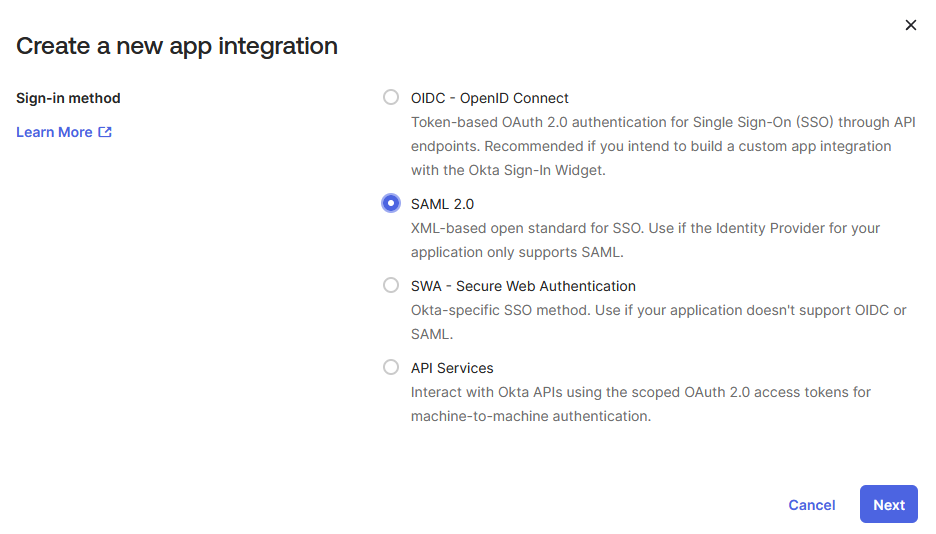
Select SAML 2.0 as the sign-in method, then click Next.
Enter an App Name (for example,
QMetry SSO) and click Next.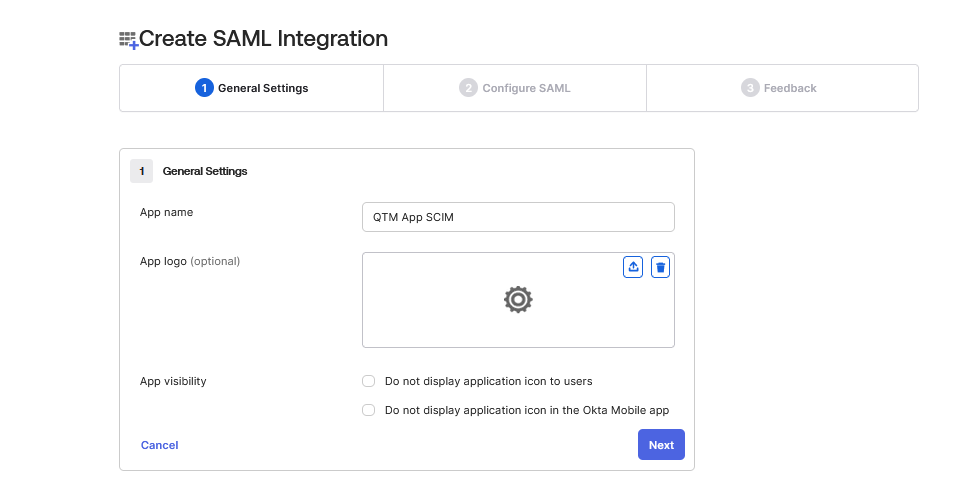
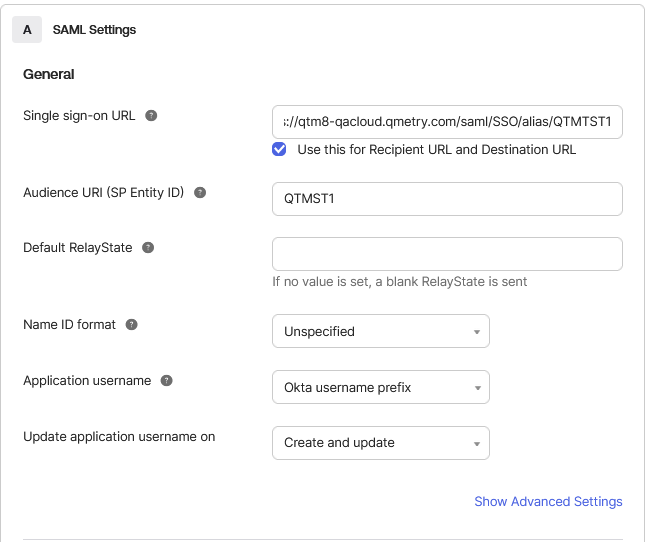
In the SAML Settings section, provide the following details:
Single sign-on URL: Enter your QMetry SSO endpoint, including the organization code.
Example:
QMetry URL:
https://testmanagement.qmetry.comOrganization Code:
QTMTST1.Resulting SSO URL:
https://testmanagement.qmetry.com/saml/SSO/alias/QTMTST1
Select Use this for Recipient URL and Destination URL.
Audience URI (SP Entity ID): Enter your application’s Entity ID corresponding to your Org Code.
Application Username: Choose Okta username prefix as the default value for user identification.
Click Next.
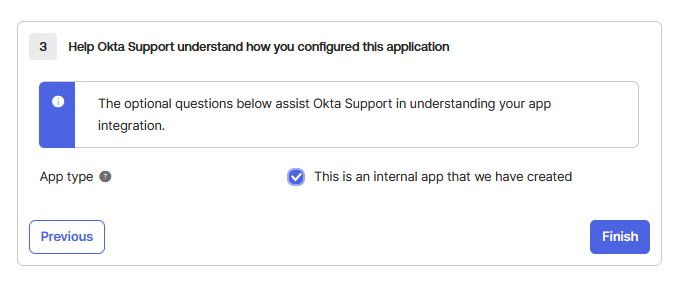
Select This is an internal app that we have created, then click Finish.
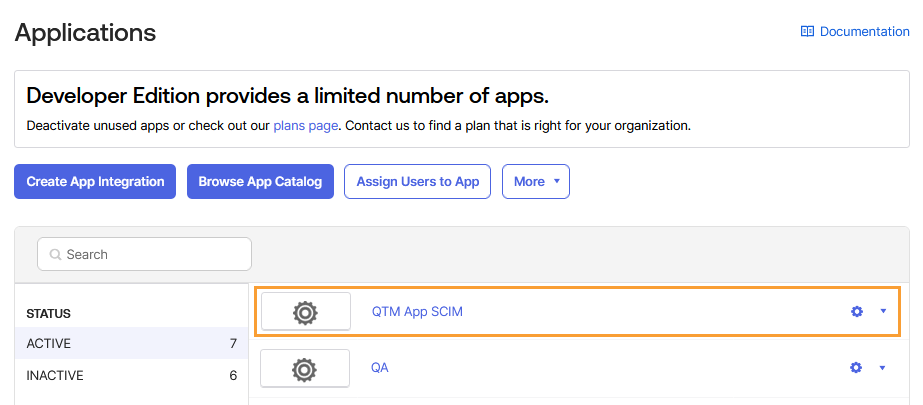
The SAML integration now appears in your Okta organization. You can edit its configuration parameters or assign it to users as needed.
Step 3. Add SCIM Provisioning in Okta
Add SCIM provisioning in Okta to enable automated user creation, updates, and deactivation between Okta and the QMetry (QTM) application.
Steps
In Okta, open the QMetry (QTM) application you created earlier.
Go to the General tab.
Click Edit under App Settings.
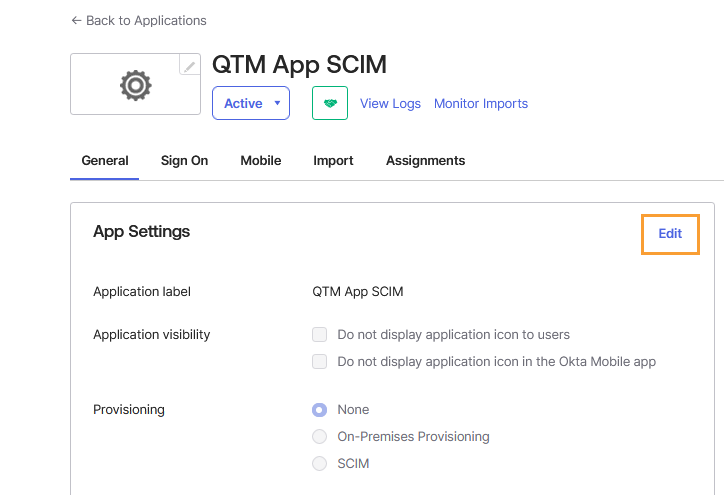
Under Provisioning, select SCIM to enable SCIM-based user provisioning.
Click Save.
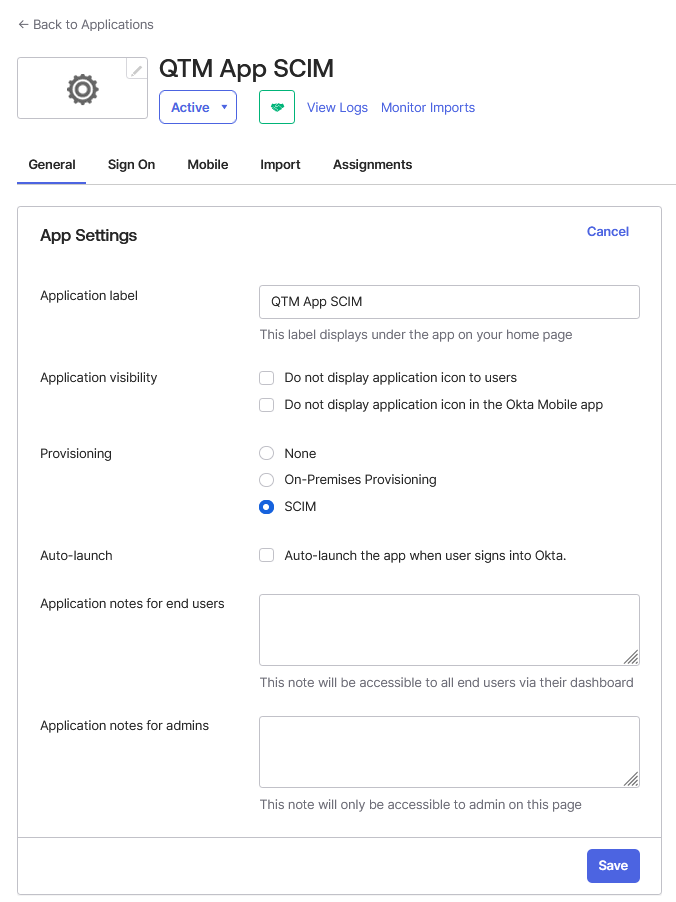
After saving, the Provisioning tab becomes available for configuration.
Step 4. Select Provisioning Options
QMetry supports the following provisioning features.
Push New Users
Push Profile Updates
Push Groups
Steps
In Okta, open your QMetry (QTM) app integration settings.
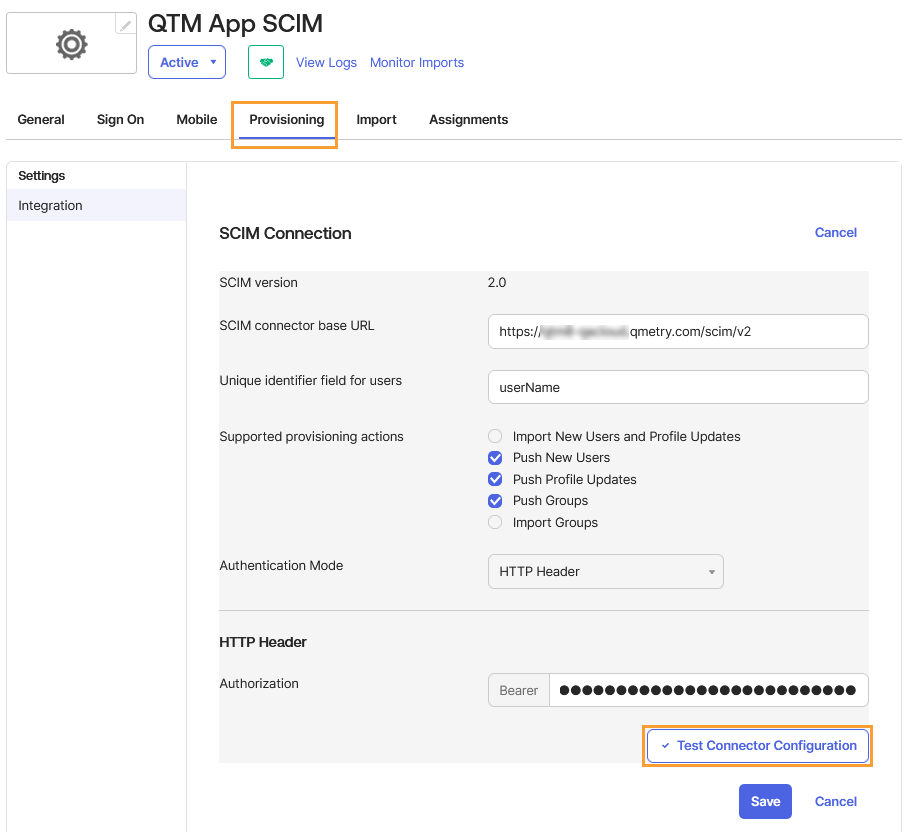
Go to the Provisioning tab. The SCIM connection settings appear under Settings > Integration.
Click Edit to modify the SCIM connection configuration.

Enter the following details:
SCIM connector base URL: Enter the SCIM connector base URL. You can find the base URL in Integration > SCIM in QMetry.
Syntax
{QTM_url}/scim/v2.Example:
https://qtmcloud.qmetry.com/scim/v2
Unique identifier field for user: Enter the field name of the unique identifier for the users on the SCIM server. This is a static parameter value.
Example:
userName
Supported provisioning actions: Select the provisioning actions supported by the SCIM Server. The following provisioning features are supported:
Push New Users: This option populates the Settings > To App page and contains settings for all the user information that flows from Okta into the SCIM app.
Push Profile Updates: This option populates the Settings > To App page and contains settings for all profile information that flows from Okta into the SCIM app.
Push Groups: This option populates the Settings > To App page and contains settings for all group information that flows from Okta into the SCIM app.
Authorization Mode: This is the mode you want Okta to use to connect to your SCIM app. Select HTTP Header.
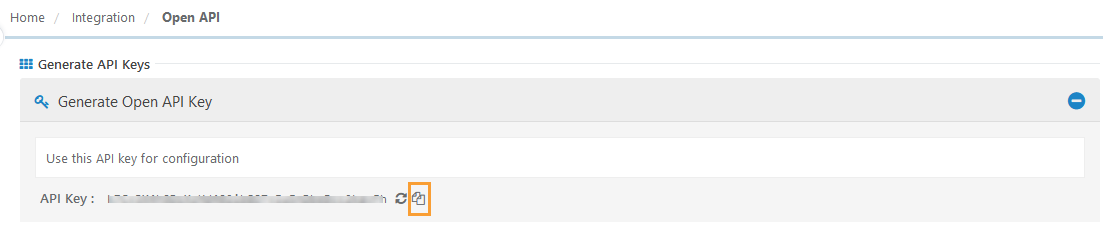
Authorization: To authenticate using the HTTP Header, you need to provide a bearer token that provides authorization against your SCIM app. Enter the Open API Key of the Super Administrator of the QMetry instance.
Generate the Open API KeyLog in to QMetry Test Management with Super Administrator credentials.
Navigate to Integration > Open API.
In the Generate Open API section, click Generate to create a new key.
Copy the generated key and paste it into the Authorization field in Okta.
Click Test Connector Configuration to verify the connection.
Note
If you are using the Okta Integrator, ensure that the following options are checked:
Import New Users and Profile Updates
Import Groups
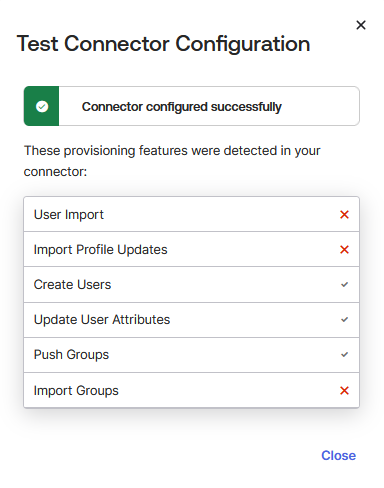
A success message confirms that the SCIM connector is configured correctly. Close the confirmation pop-up.
Click Save to apply and store the configuration.
Step 5. Configure “To App” Provisioning Settings
When configuring To App provisioning in Okta, you need to define several settings that enable the synchronization of user data from Okta to the QMetry application.
Steps
Log in to Okta with an Admin account.
Go to Applications > Applications.
Open your QMetry (QTM) app integration.
Go to the Provisioning tab.
You’ll see three sub-tabs:
To App
To Okta
Integration
Select the To App tab.
You can configure what is to be copied from Okta to the QMetry app integration.
Click Edit to modify the configuration settings.
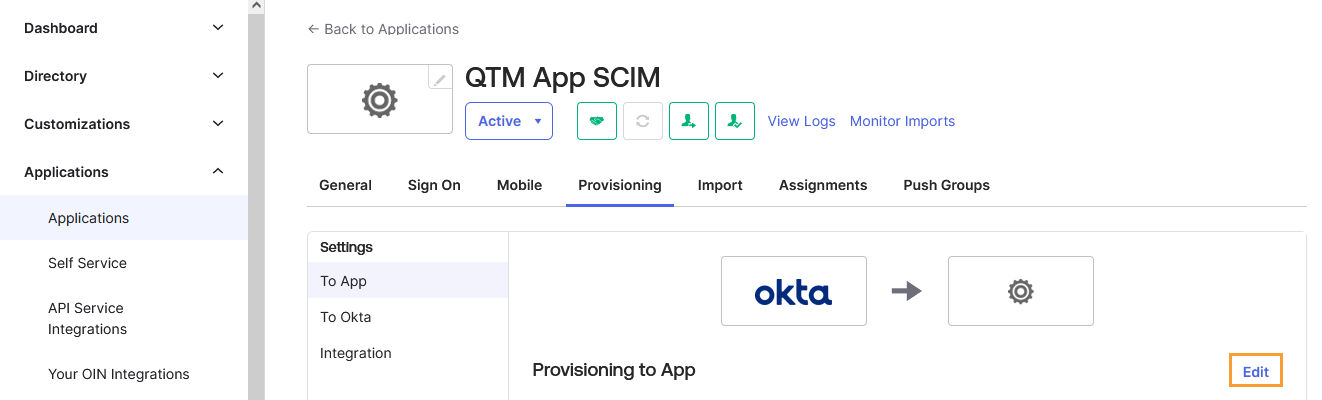
Select the required provisioning options for synchronization from Okta to QMetry:
Create Users: Creates or links a user in the app integration (for example, QMetry App SCIM) when assigning the app to a user in Okta. It assigns a new external application account to each user managed by Okta. Okta sends a random password in its request to create a user.
Update User Attributes: Okta updates a user's attributes in the integrated app (for example, QMetry App SCIM) when the app is assigned. Any attribute changes made to the Okta user profile will automatically overwrite the corresponding attribute value in the integrated app (for example, QMetry App SCIM).
Deactivate User: Deactivates user accounts when the users are unassigned in Okta or their Okta account is deactivated. Accounts can be reactivated if the app is reassigned to a user in Okta.
Click Save to apply the changes.
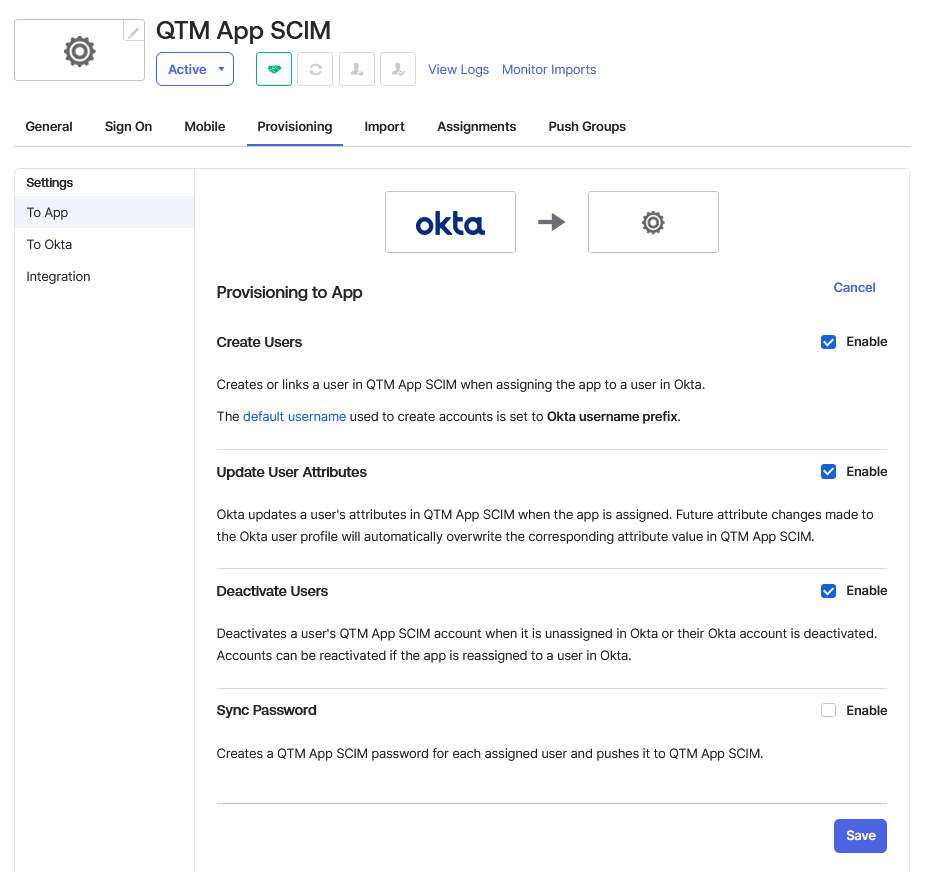
Once saved, To App mappings are enabled, and user provisioning between Okta and QMetry begins based on the selected settings.
Step 6. Map License Type as a Custom Attribute
Note
Skip this step if Automatic User License Management is enabled in QMetry.
In Okta, the Directory refers to the user profile attributes stored within the Okta platform. The Profile Editor allows you to customize these attributes and their mappings. You can tailor user attributes to meet your organization's specific requirements for seamless integration and data synchronization.
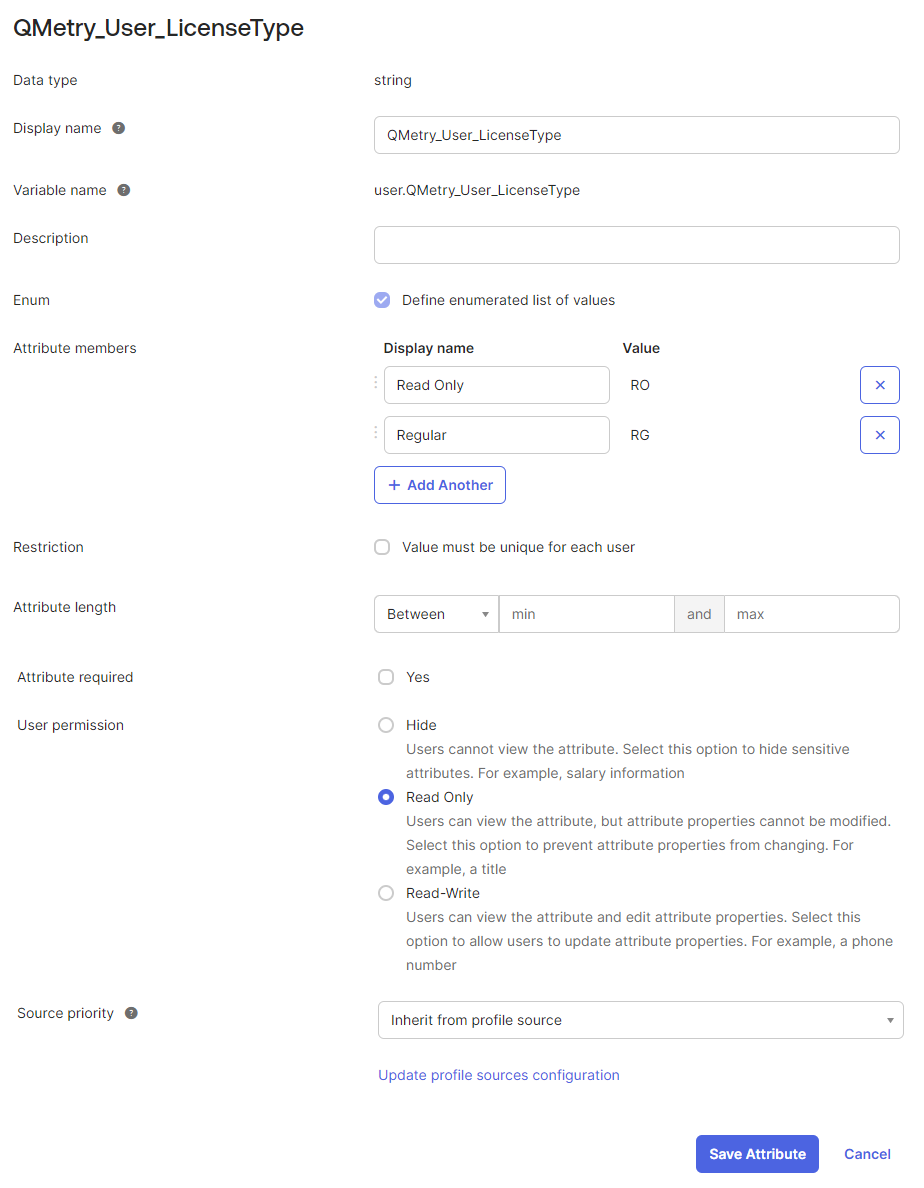
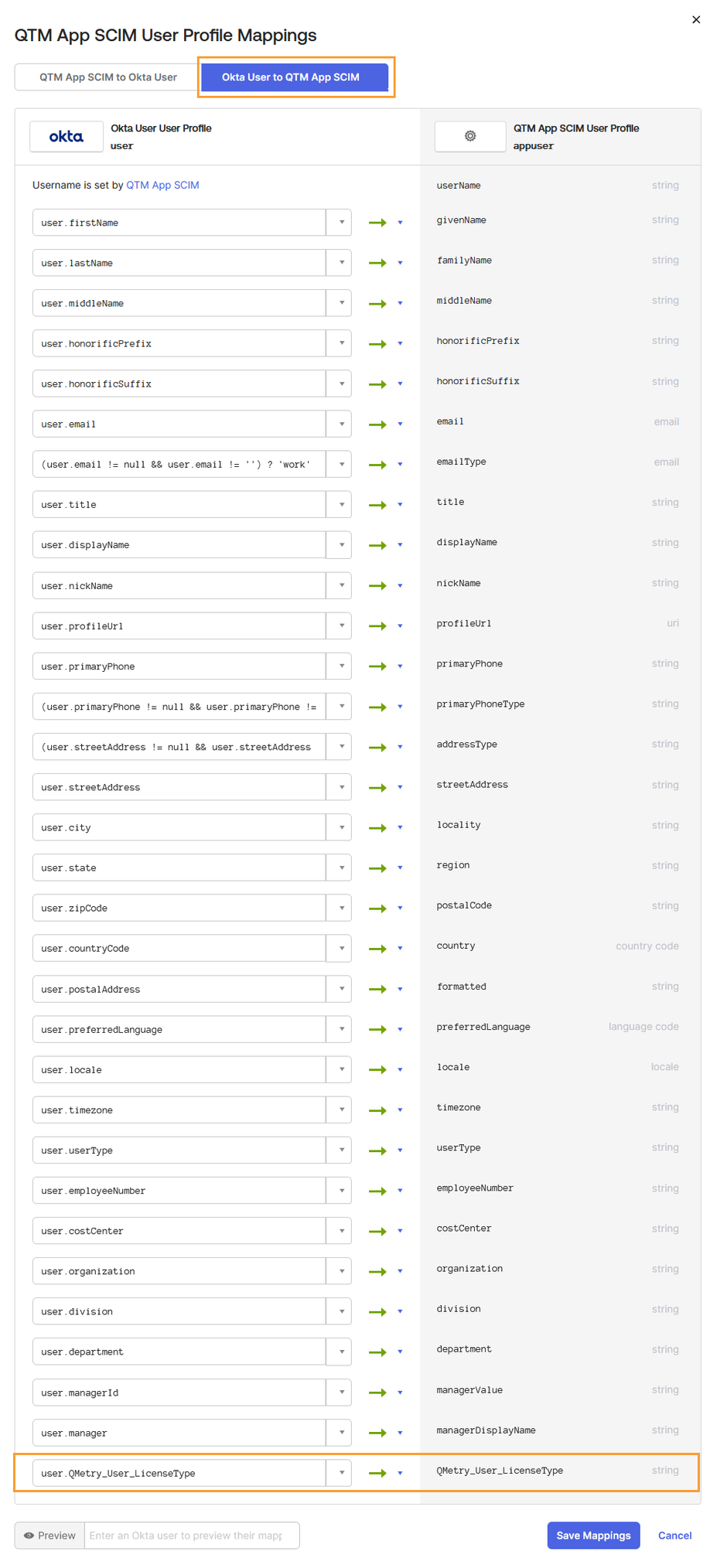
We need to add a custom attribute QMetry_User_LicenseType for license type mapping, regular and read-only.
The user license type can be changed (from Regular to Read-Only and vice versa), without needing to unassign and reassign the projects, only if the user has read-only access to all projects.
Steps to perform attribute mapping in the Directory > Profile Editor are mentioned below.
Steps
Log in to your Okta Admin account.
Go to Directory and select Profile Editor.
Open the Default Okta User profile.
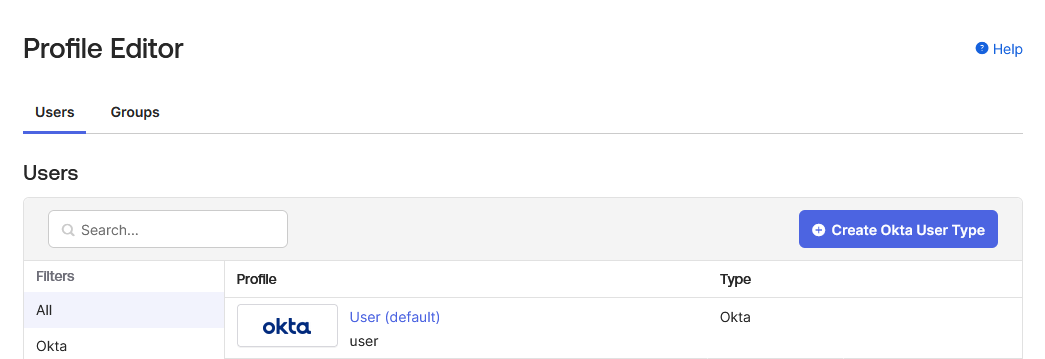
Add a new custom attribute, or edit an one named
QMetry_User_LicenseTypefor license type mapping, regular, and read-only.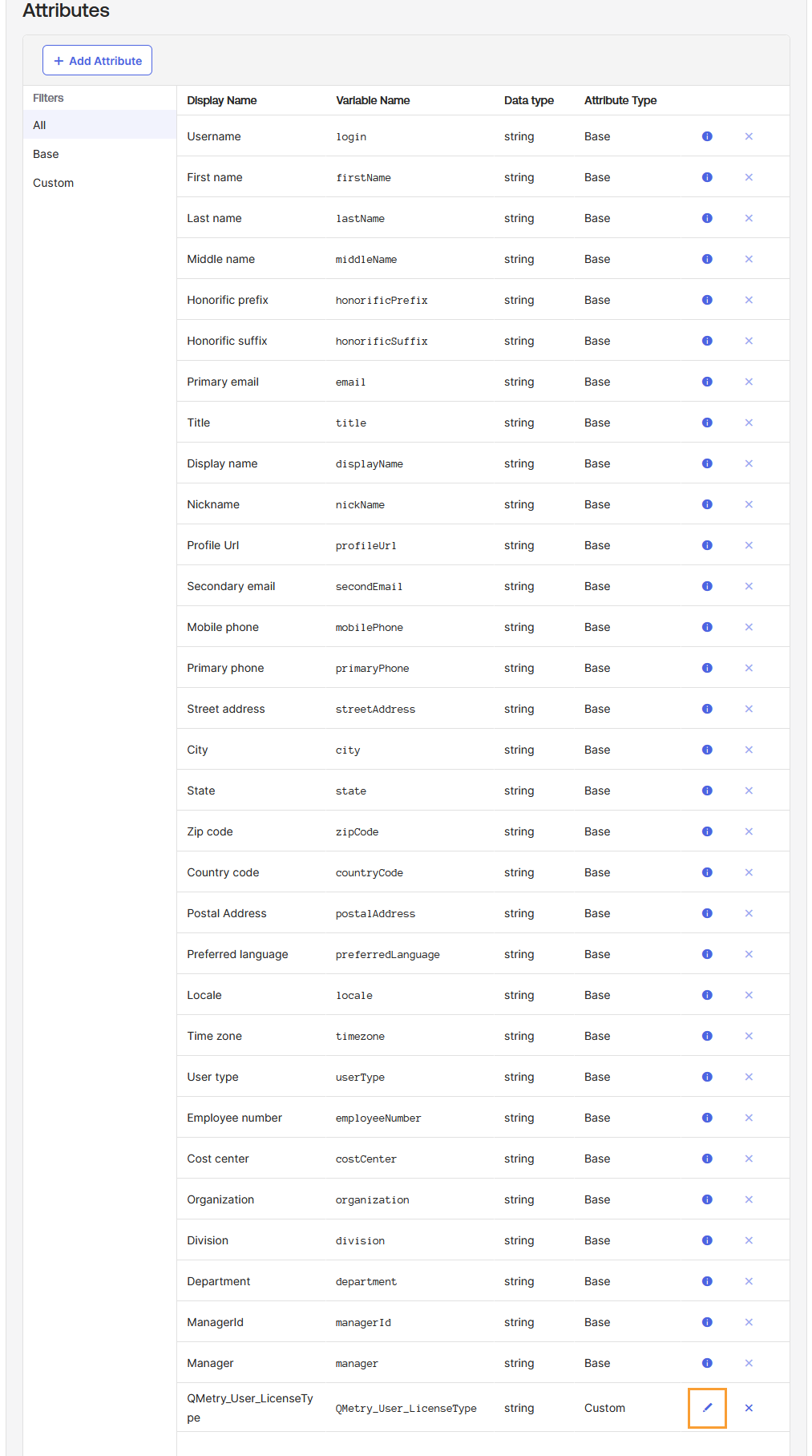
After adding the values, Click Save Attribute.
If the Attribute required parameter is marked as Yes, the first value will be used as the default when people are added to Okta.
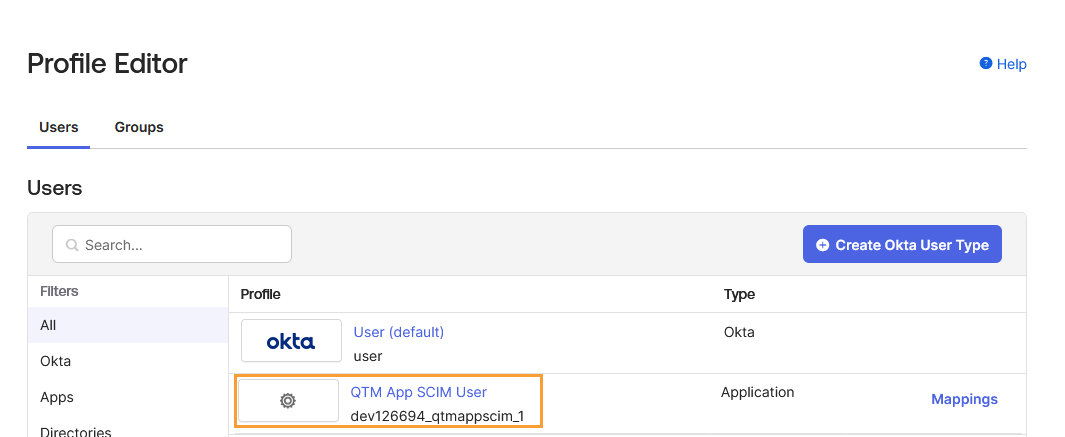
Return to the Profiles list.
Open the QMetry (QTM) application profile.
Add a new custom attribute or edit an existing one named
QMetry_User_LicenseTypefor license type mapping, regular, and read-only.External namespace: While adding an attribute, enter
urn:ietf:params:scim:schemas:core:2.0:Useras the External namespace. The external namespace is used to refer to the namespace in the external system. It allows you to use additional or custom user attributes beyond what is provided by default in SCIM.
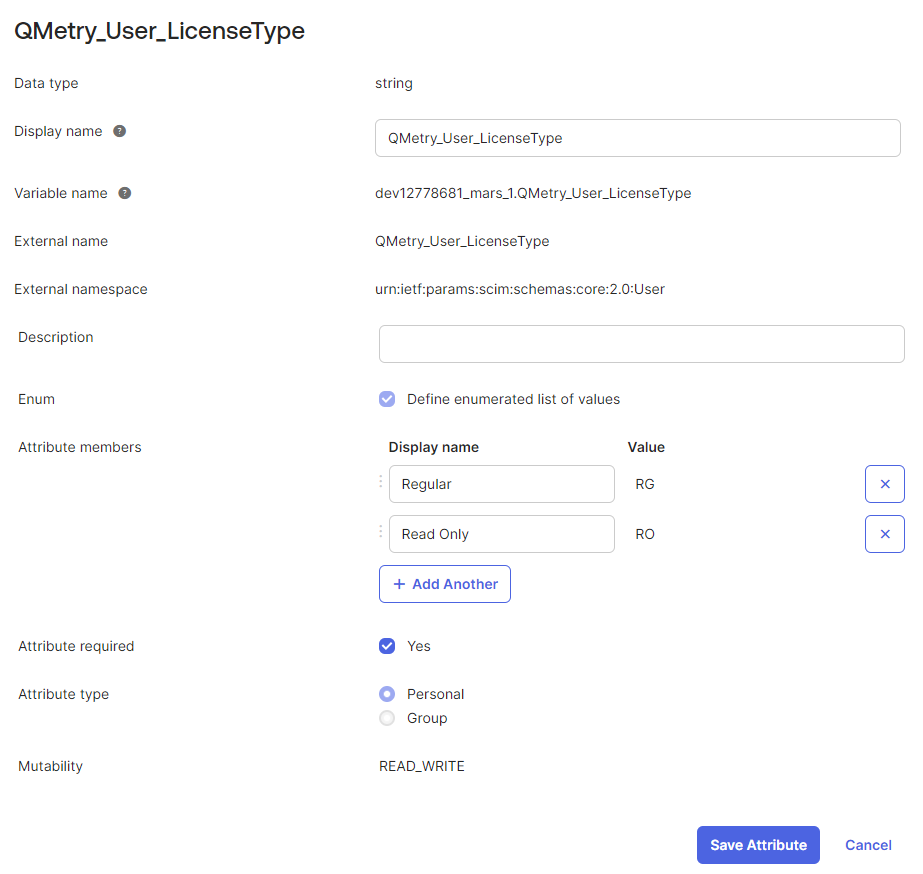
After adding the values, save the attribute.
Return to the Profile page.
Click Mappings for the user profile.
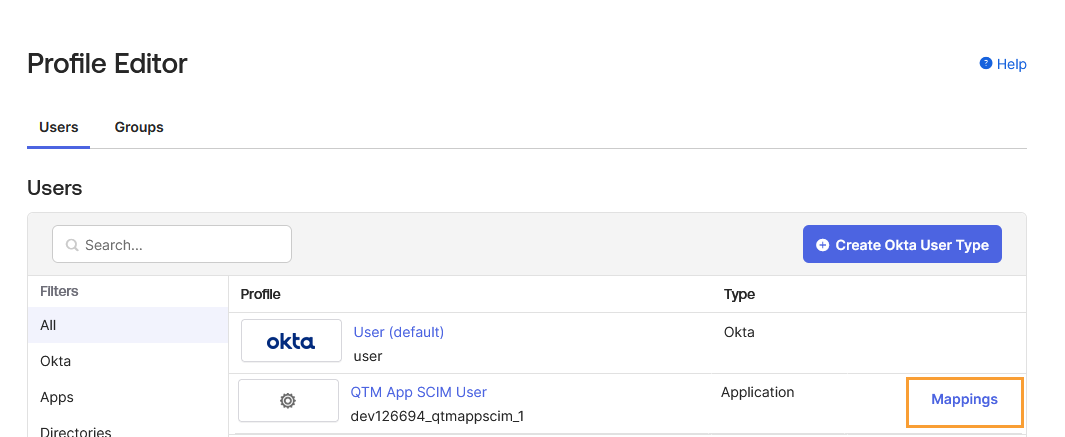
Select the Okta User to {QTM App} tab to map the user attributes.
Click Save Mappings to confirm the mapping between Okta and QMetry.
Step 7. Refresh App Groups
The Refresh App Groups option allows you to manually trigger a group refresh from the external application. This action pulls the latest group information (including group names and memberships) from the QMetry application into Okta.
Steps
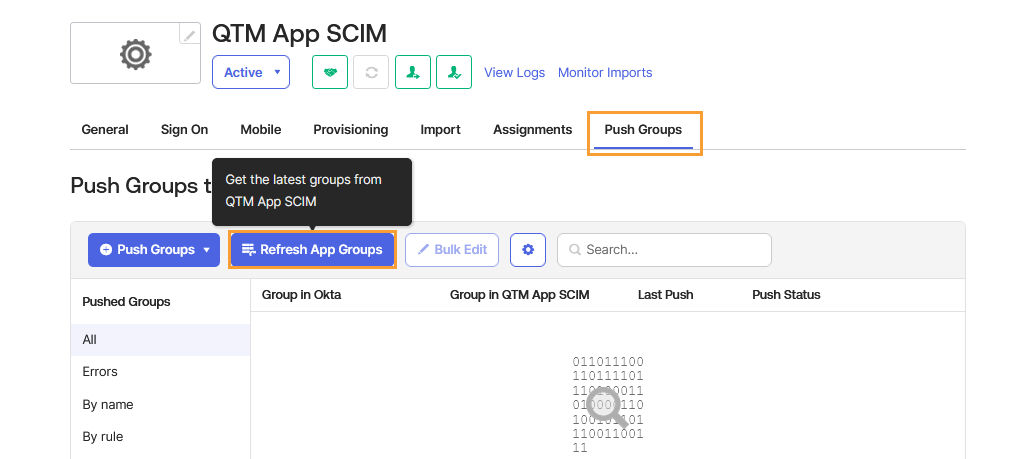
In Okta, open your QMetry (QTM) app integration.
Go to the Push Groups tab.
Click Refresh App Groups.
Okta imports all groups created in QMetry into Okta.
The synchronization process begins automatically.
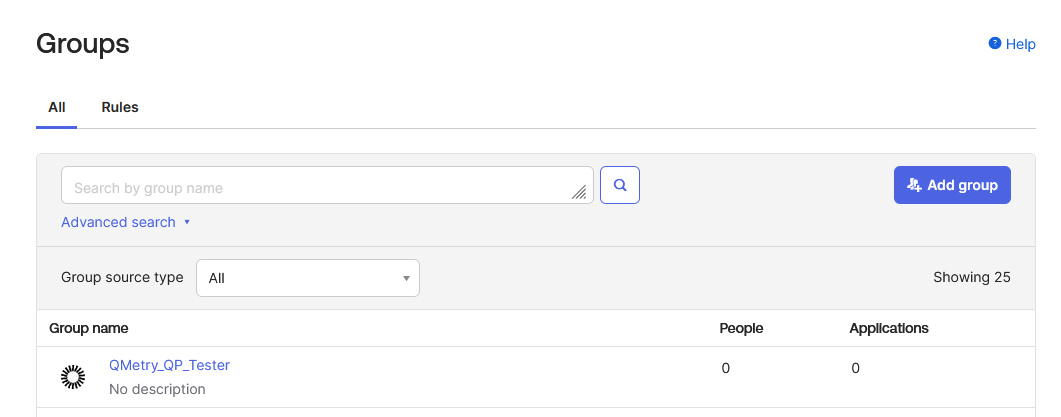
To verify the imported groups, go to Directory > Groups in Okta.
Details
The Groups page displays both Okta and QMetry (App) groups. The icon is the differentiator between groups created in QMetry and groups created in Okta.
Groups with the Okta icon originate from Okta.
Groups without the icon originate from QMetry.
You can filter the list to display only Okta groups or only App groups.
Once synchronization completes, Okta reflects all roles or user groups from QMetry using the following syntax:
QMetry_{ProjectName}_{RoleName}Example:
QMetry_QTM_TesterGroup memberships synced from QMetry are managed automatically by Okta and cannot be modified manually.
Step 8. Create a New Group in Okta
Create a group in Okta to map QMetry projects and roles.
Steps
In Okta, go to Directory > Groups.
Click Add Group.
The Add group window opens.
In the Name field, enter the group name using the following syntax:
QMetry_{ProjectKey}_{Role}Click Save.

The group is added to the list.
Step 9. Assign an App Integration to a Group
When app integrations belong to the same group, they are considered "linked." This feature can be particularly useful when provisioning functionality needs to be incorporated into an SSO-enabled app integration.
Steps
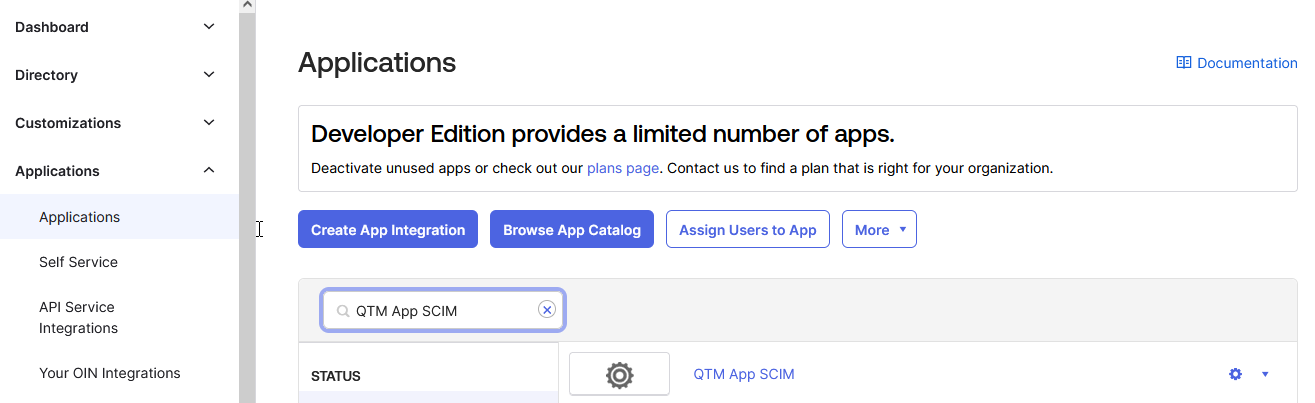
In the Okta Admin Console, go to Applications > Applications.
Locate the app integration on the list. You can search for the app integration using the Search field if the list is long.
Open the app integration once you locate it.
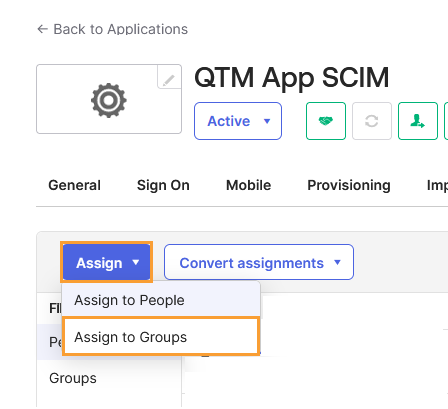
Open the Assignments tab.
Click Assign and select Assign to Groups.
Locate the group to which you want to assign the app integration and click Assign.
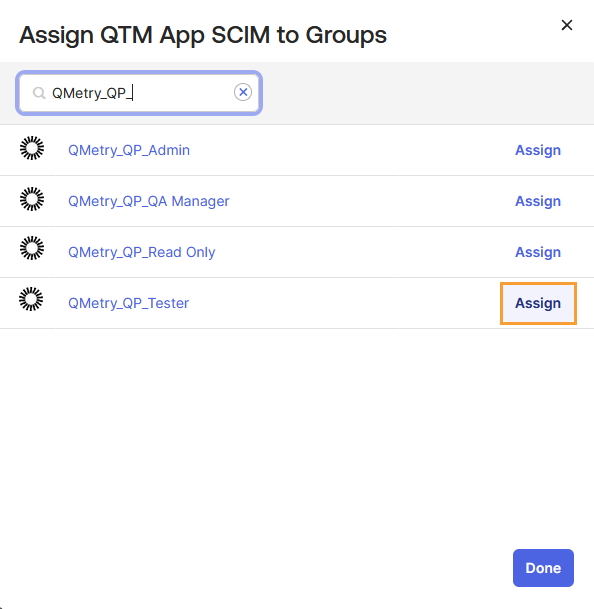
Review the attributes set in the Assign <application name> to Groups dialog.
Click Save and Go Back.

The Assign button changes to Assignment and becomes disabled, indicating that the app integration has been assigned to the group.
Click Done to confirm.
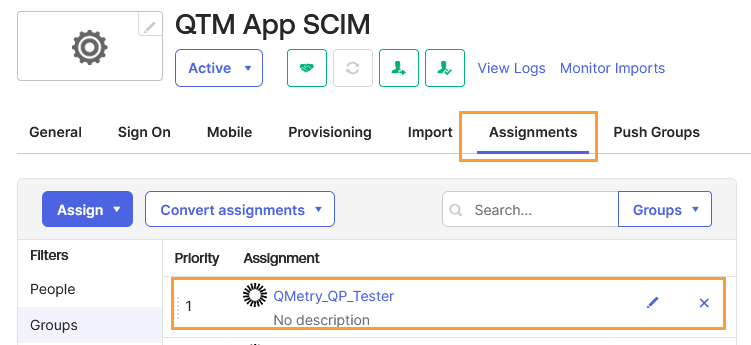
The app integration is assigned to the selected group. All users within the group automatically gain access to the integration. Each user's assignment type for the app integration is categorized as Group, and this information can be accessed from the Assignments tab of the integration.
Open the Groups tab.
You can see the assignment for the group.
Step 10. Push Groups
You can set up group push in SCIM from Okta to the QMetry application, which allows automated management of group memberships across Okta and QMetry.
Once SCIM is enabled for your Okta organization and you have configured the SCIM app for the QMetry application, you can then configure Group Push.
In Okta, configure group push settings for the SCIM app associated with the QMetry application. This involves specifying which groups should be pushed to the application and mapping Okta group attributes to corresponding attributes in the QMetry application.
Steps
In Okta, open the QMetry (QTM) app integration.
Locate the required group.
Use the Search or Advanced Search options if needed.
Open the Push Groups tab.
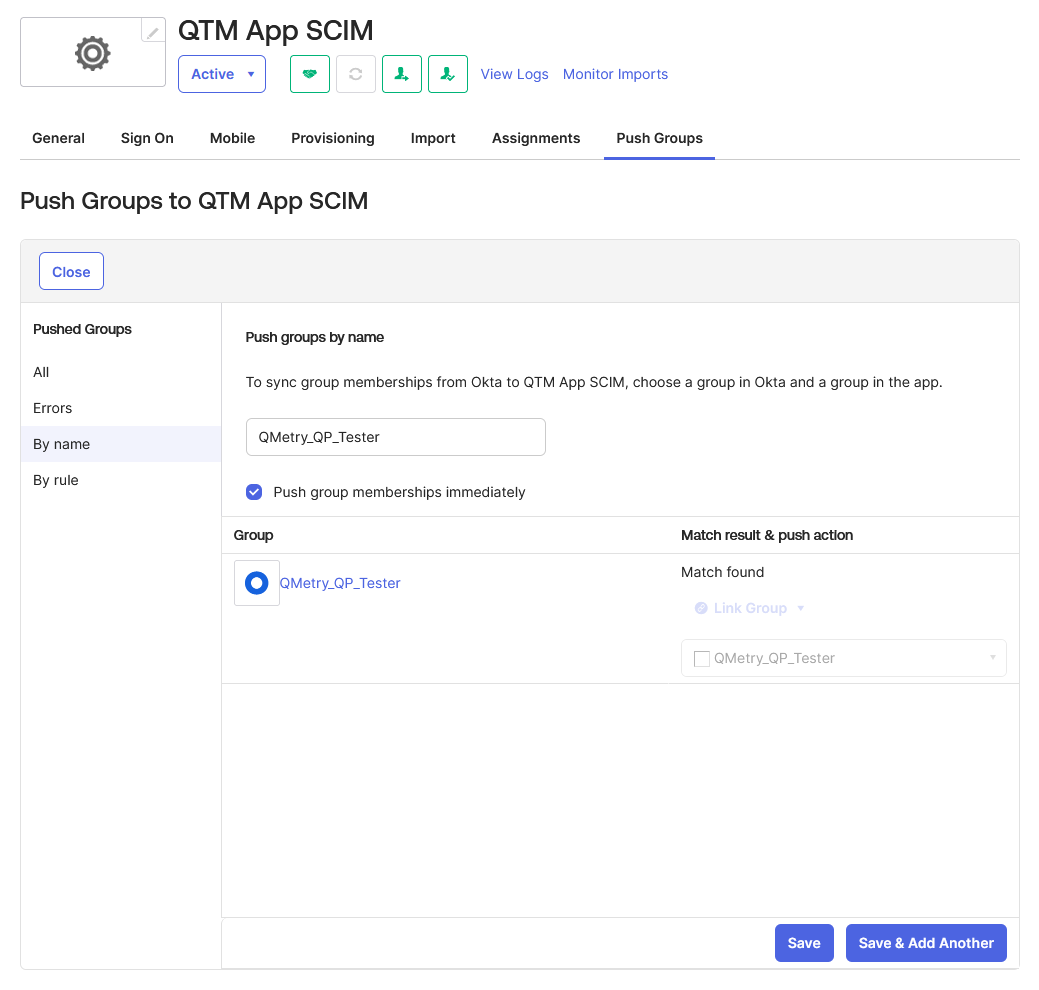
From the Push Groups drop-down list, select Find groups by name.
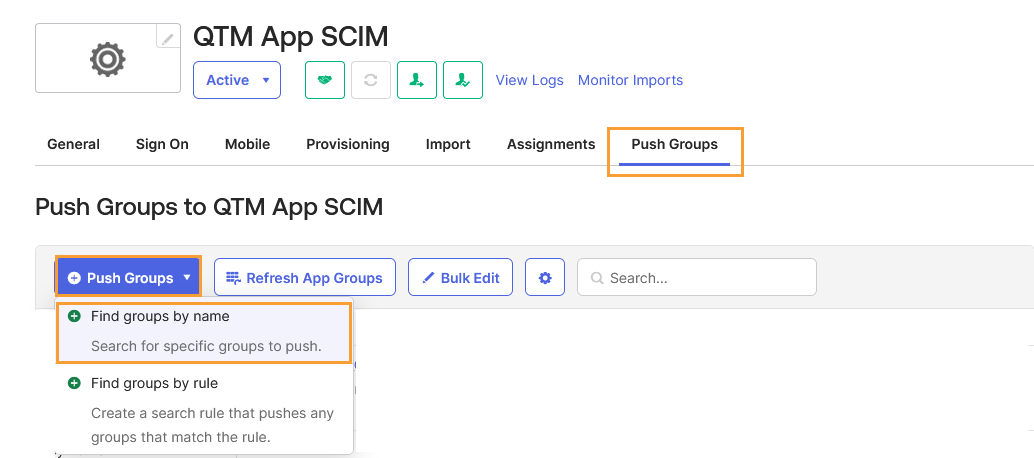
Search for the group name you want to push.
When the matching group appears, select it.
Select the option Push group memberships immediately.
Click Save.
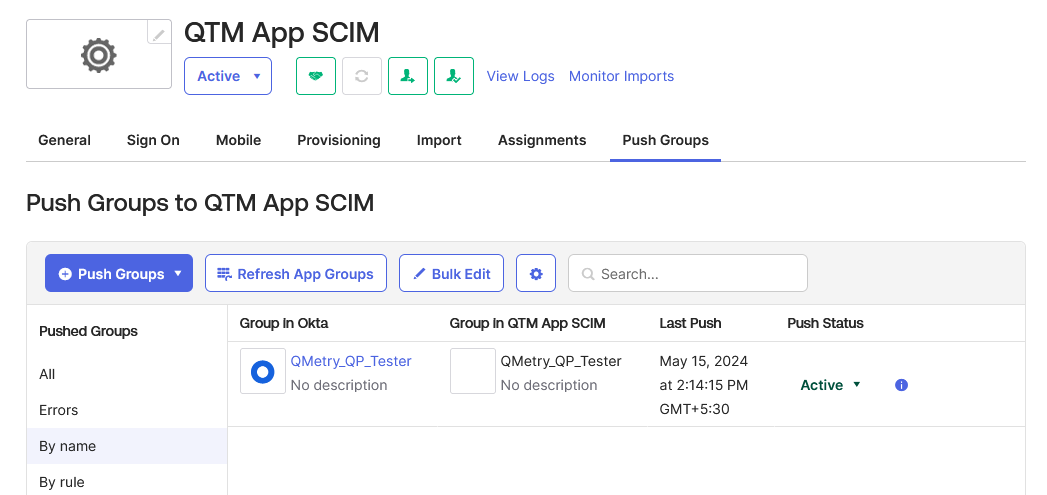
The selected group from Okta appears under the list of pushed groups.
Under Match result & push action, select Link Group.
If a matching group exists in QMetry, Okta links it automatically.
Click Save again to confirm the configuration.
The group gets linked automatically.
Step 11. Assign People to a Group
Assign people to a group in Okta to manage user access and apply group-based permissions for QMetry integration.
Steps
Log in to Okta with an Admin account.
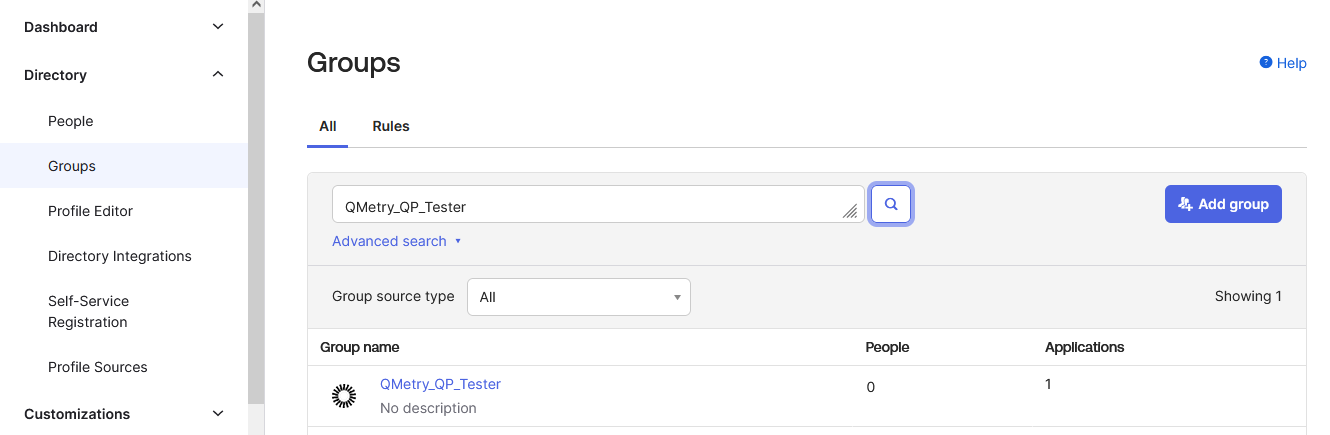
Go to Directory > Groups.
Click the group name to open it.
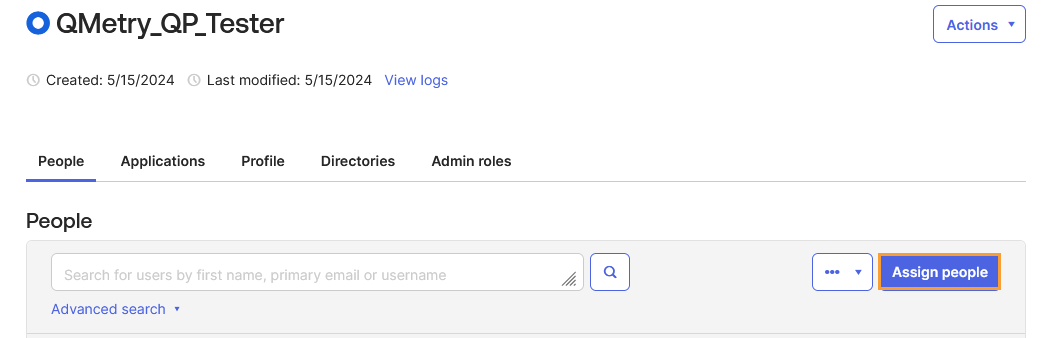
Click Assign people.
Click the + (Add) icon to select and add users to the group.
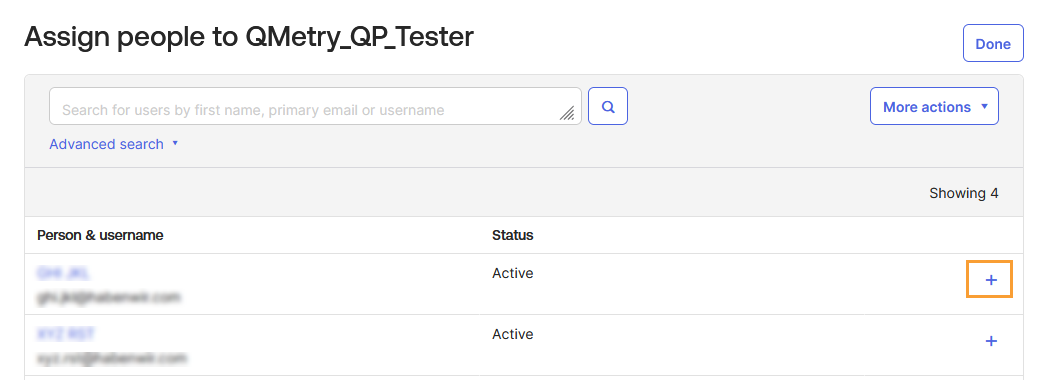
Assigned users appear in the list with the status Assigned.
Click Done to return to the People tab.
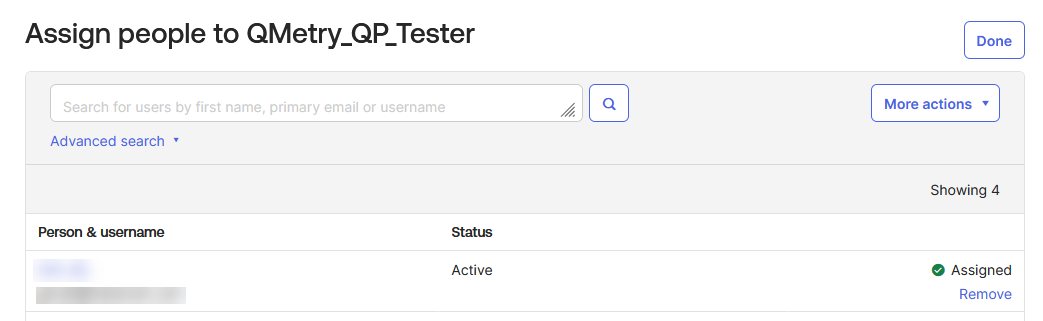
You can verify the assignments in the Assignments tab > People section of the group.
Step 12. Verify Users in QMetry
After a group is assigned to a user in Okta, QMetry automatically creates the corresponding user account and assigns it to the appropriate project and role based on the Project Name and Role Name defined in the group name.
User Creation and Assignment
QMetry creates new users with the following attributes:
Username
Alias
First Name
Last Name
Email
Users with the QMetry authentication type receive an email containing their username and a temporary password.
They must reset their password upon first login.
If an Okta user is not part of any group, or the group has not been pushed from Okta, QMetry still creates the user, but without any assigned projects.
As a best practice, disable the default project and role while SCIM is enabled.
Note
Only the Super Administrator can create, delete, or update user details, manage project assignments, activate or deactivate users, and remove users from QMetry.
Verify in QMetry
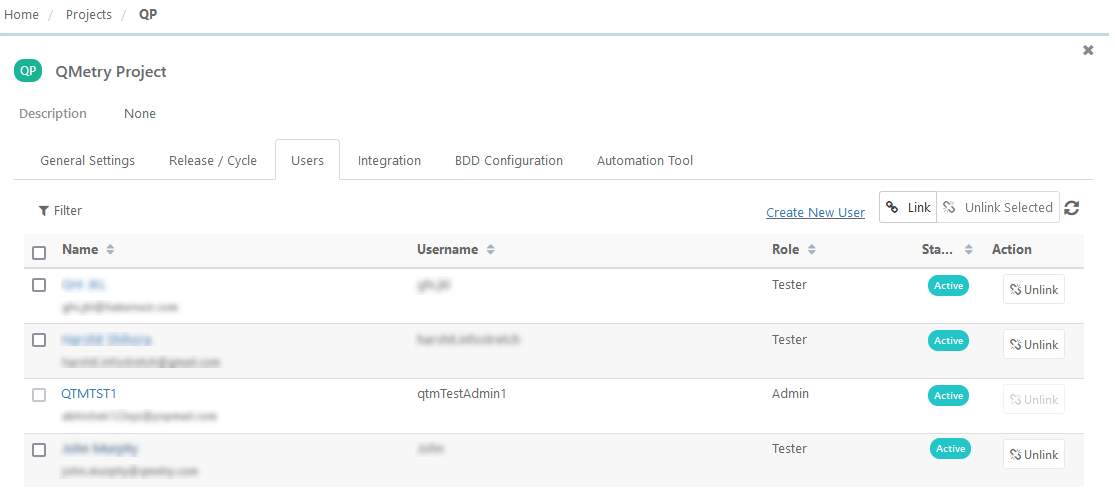
In the QMetry instance, go to Customization > Users to view all synchronized users.

Users are also assigned to the project with a role.
Open Projects > Project / Release / Cycle.
Select the Users tab to see the assigned users and their roles.
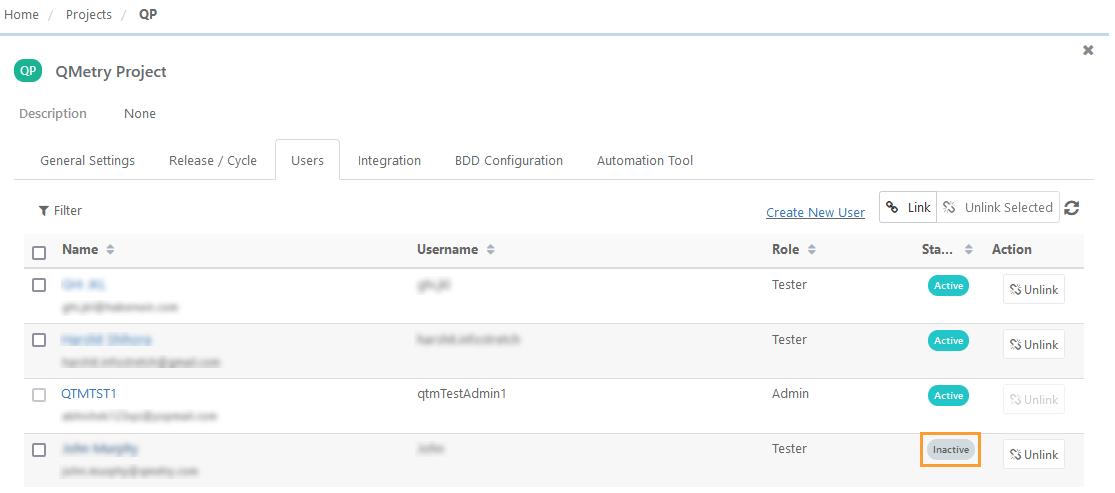
If a user is inactivated or removed from Okta, their Status in QMetryInactive, provided they are not assigned to any other projects.
View Audit Logs
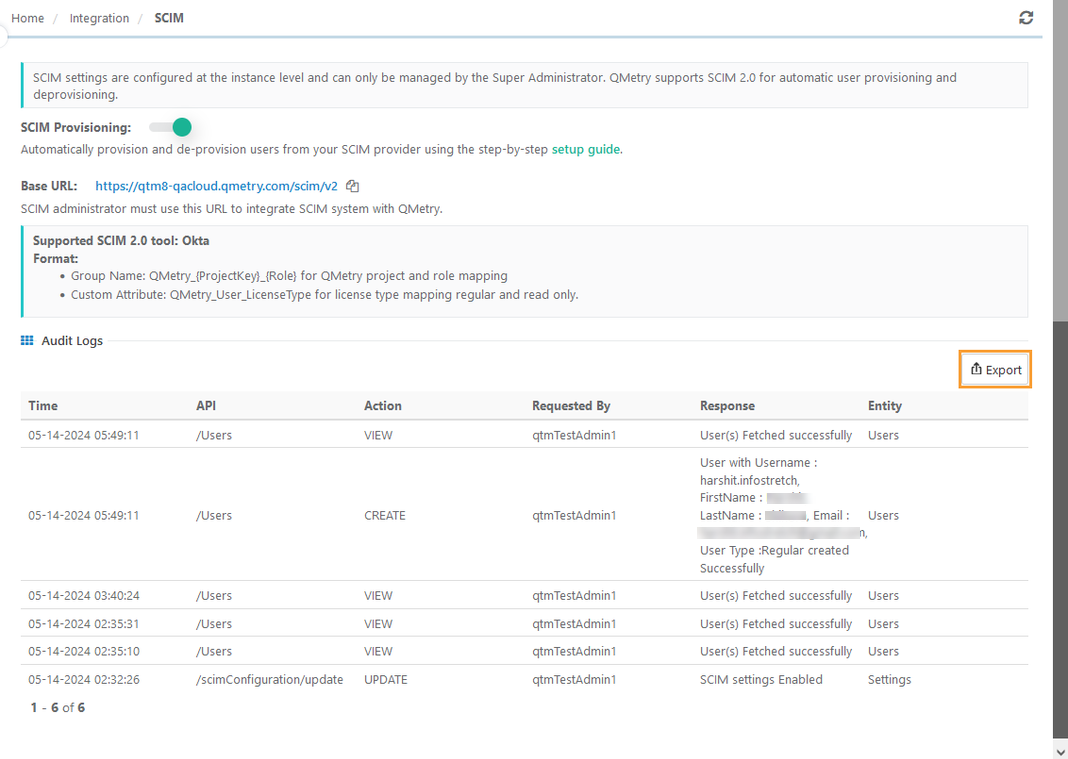
QMetry captures audit logs for all SCIM-related activities, including:
Enabling or disabling SCIM settings
Project assignments and removals
User creation, updates, and deactivation
Steps
In QMetry, go to Integration > SCIM.
Review the audit logs for all SCIM activities.
To export the logs to Excel, click Export.
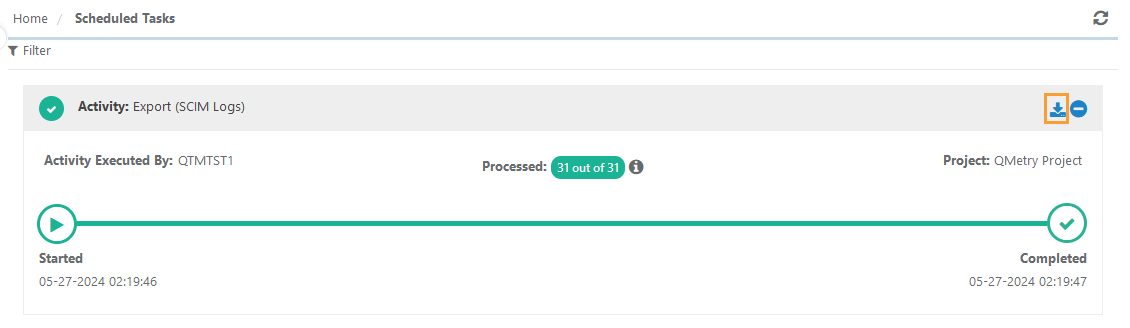
Download the exported file from the Scheduled Tasks section.
Scenarios When SCIM Is Enabled in Okta for QMetry
When SCIM is enabled, Okta automatically manages user provisioning, deprovisioning, and synchronization for QMetry (QTM).
The following scenarios explain how different user and project actions behave under SCIM management.
Update User Details in QMetry
When SCIM is active, only the following user details can be updated directly in QMetry:
Username
Alias
First Name
Last Name
Email
Update Project Assignments for Users
In Okta, go to Directory > Groups.
Open the People tab for the desired group.
Remove the user from the existing group.
Trigger a Group Push to synchronize the change with QMetry.
Deactivate Users
You can deactivate users either from the Applications area or directly from the Directory in Okta.
From Applications
In Okta, go to Applications > Applications.
Open the QMetry app integration.
Go to Assignments > People.
From the user list, remove the user you want to deactivate.
From Directory
In Okta, go to Directory > People.
Open the More actions drop-down menu.
Select Deactivate.
Choose the users and click Deactivate Selected.
Once deactivated in Okta, the user automatically becomes Inactive in QMetry.
Restricted Operations in QMetry
When SCIM is enabled, only the Super Administrator can perform user and role management actions.
All other users, regardless of role or permissions, are restricted from performing the following operations:
Creating or updating users
Assigning or unassigning users to projects
Editing their own user details (Username, First Name, Last Name, Email)
Activating or deactivating other users
Changing authentication types
Editing or assigning roles (including Role Title changes)
Using the following project-level options:
Add new LDAP/SAML users to this project
Make this the default role for new LDAP/SAML users
Sync New Projects or Roles
When a new project or role is created in QMetry, you need to refresh the Okta app groups to reflect the changes.
In Okta, go to Applications > Applications.
Open the QMetry app integration.
Go to the Push Groups tab.
Click Refresh App Groups to sync newly created projects or roles.
Sync a Non-Synced User
If a user in Okta has not yet synced to QMetry:
In Okta, go to Applications > Applications.
Open the QMetry app integration.
Open the Assignments tab.
Click Provision User to sync the user immediately.
Scenarios When SCIM Is Disabled in Okta for QMetry
When SCIM is disabled, Okta no longer manages user provisioning or deprovisioning for QMetry.
User creation, updates, and project assignments must be done manually in QMetry.
Automatic synchronization of users and groups between Okta and QMetry stops.