Configure QMetry Application in Azure AD
The document describes the steps to set up single sign-on (SSO) for the application that you added to your Azure Active Directory (Azure AD) tenant. After you set up SSO, you can sign in to the application by using your Azure AD credentials.
Supported Browsers
Browser Name | Steps to use the browser smoothly |
|---|---|
Chrome | Clear cache or log out of Azure AD portal |
Firefox | Clear cache or log out of Azure AD portal |
Edge |
|
Configuring QMetry Application in Azure AD
Note
One Azure AD tenant can be integrated with only one QMetry instance. For example, if you have two QMetry client instances, setting them up as separate enterprise applications in a given Azure AD tenant will not be supported, and could cause issues with the authentication of users during login into QMetry.
Log in to https://portal.azure.com/ with an Admin account.
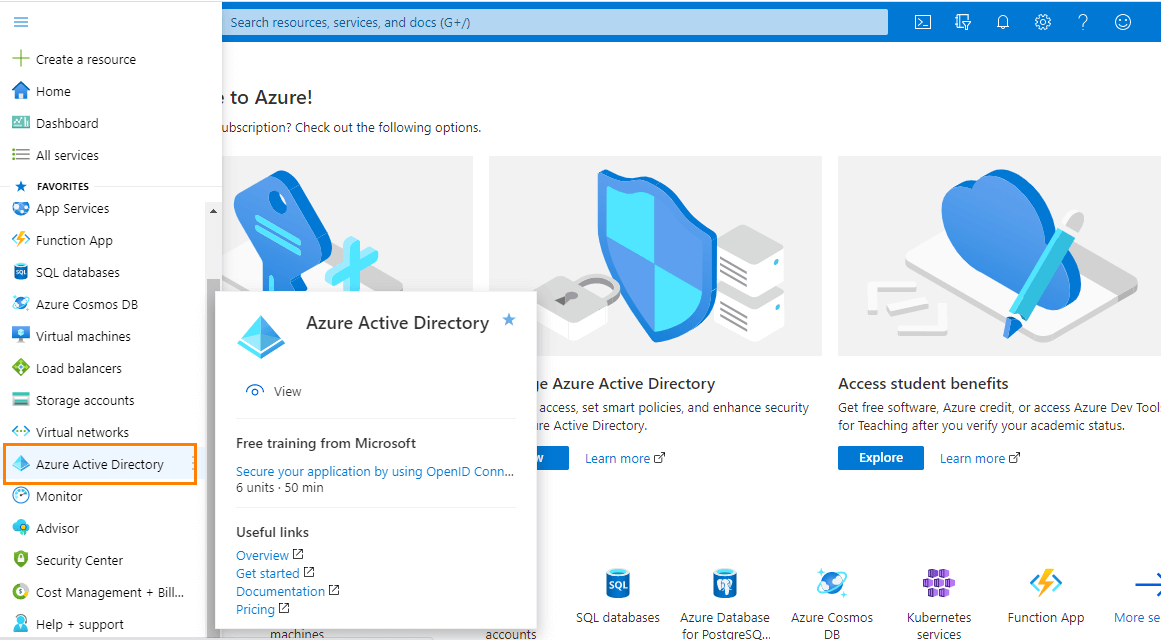
On the side menu bar and go to Azure Active Directory.
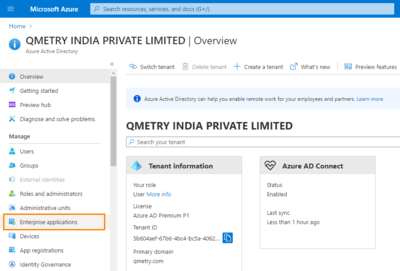
Go to Enterprise Applications.
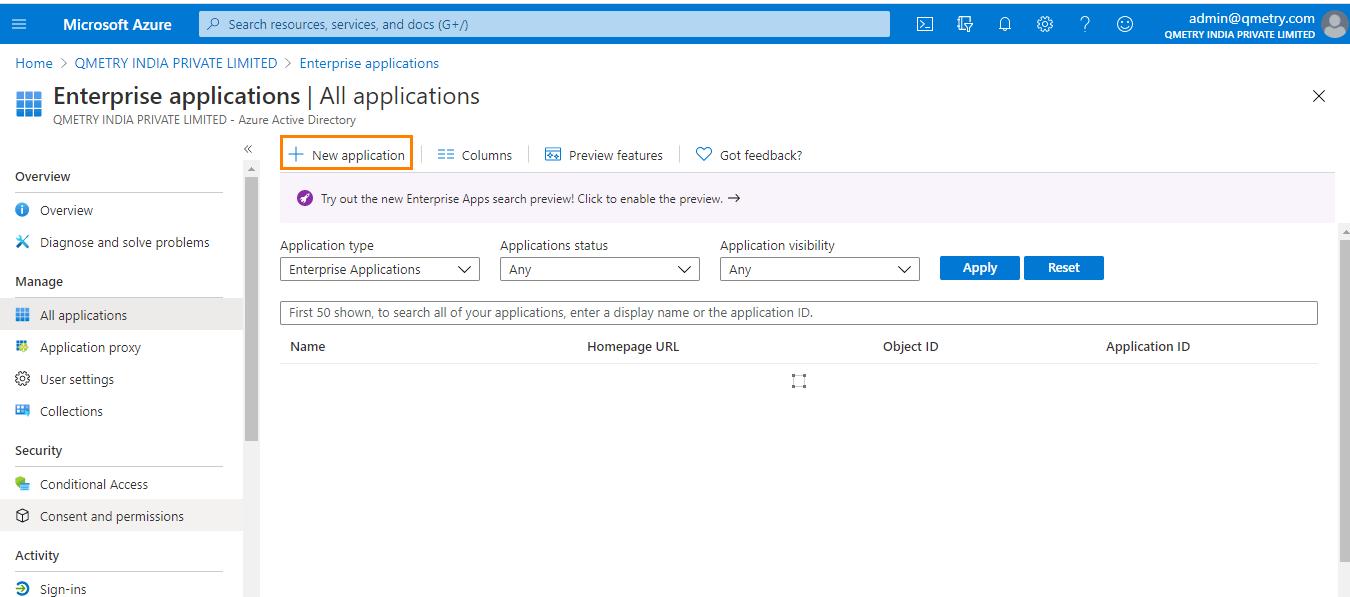
Click New Application.
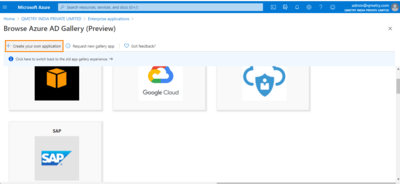
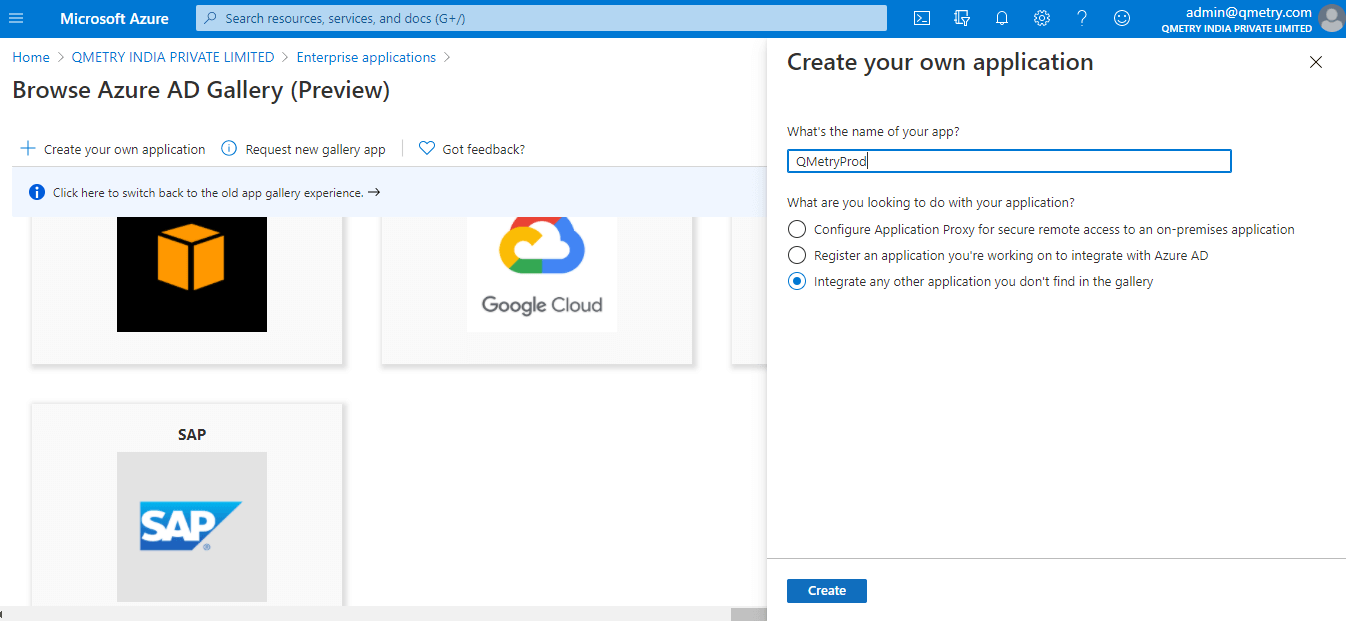
Click Create your own application.
Enter the name of the application. Ensure you select the option - Integrate any other application you don't find in the gallery.
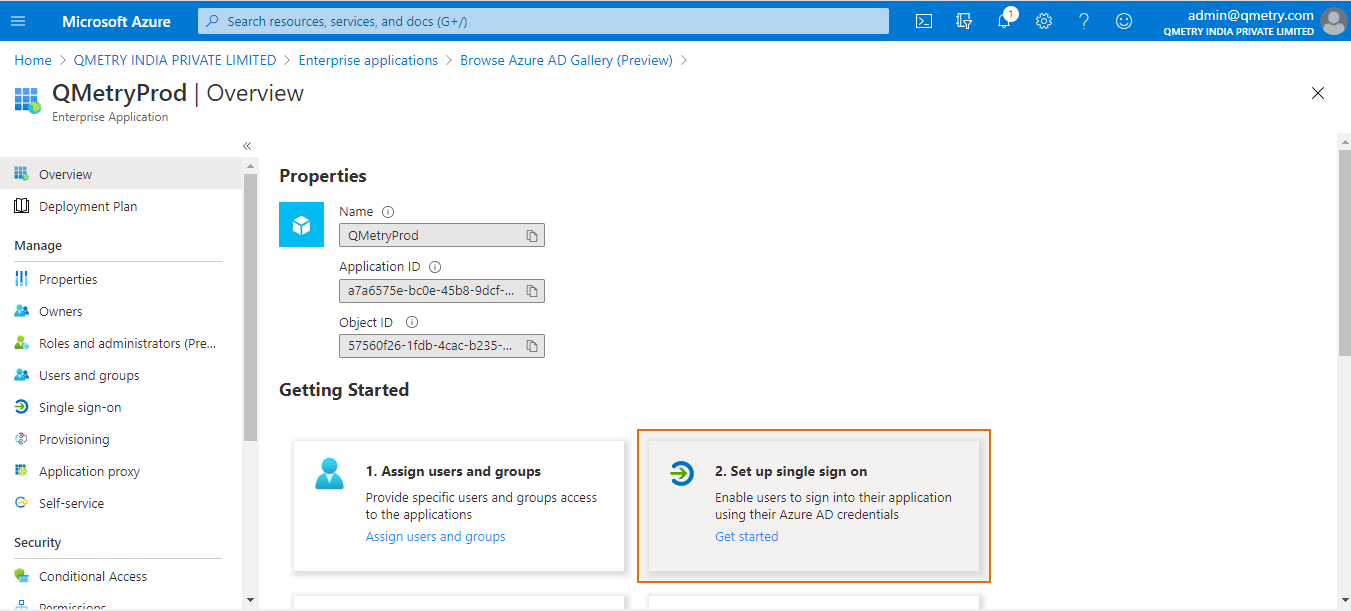
Click Set up single sign-on section.
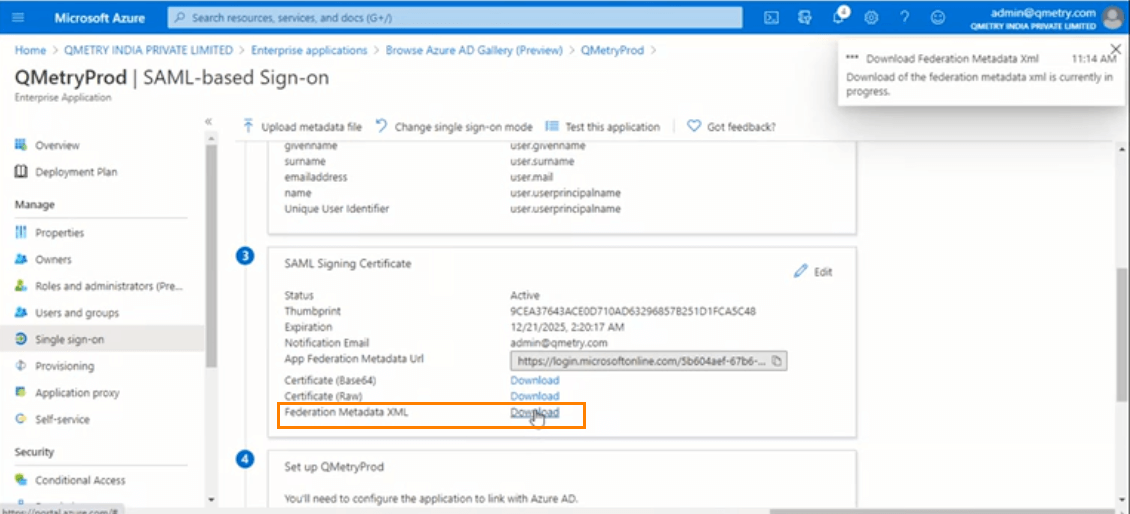
Click SAML.
Download XML file and comment the code. Download the Federation Metadata XML from the screen.
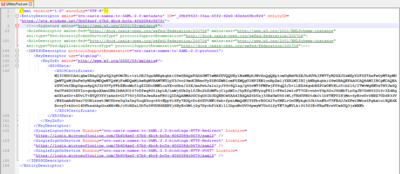
Open the XML file and comment the Signature and RoleDescriptor tags in the file as shown below.
It is recommended to delete the commented portion in the file.
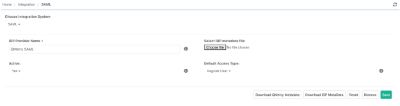
Upload the XML file in QMetry with the following parameters set:
Active: Select "Yes" to keep the SAML State "Active".
Default Access Type: Select the Default User Access Type for Regular User.

Upload the metadata file.
How to get metadata file?
Log into QMetry Test Management using your administrator account.
Go to Integrations and select LDAP/SAML. Choose SAML and click Download QMetry Metadata. You will get an XML file "qmetrysaml_meta.xml".
Now go to the SAML section of Microsoft Azure.
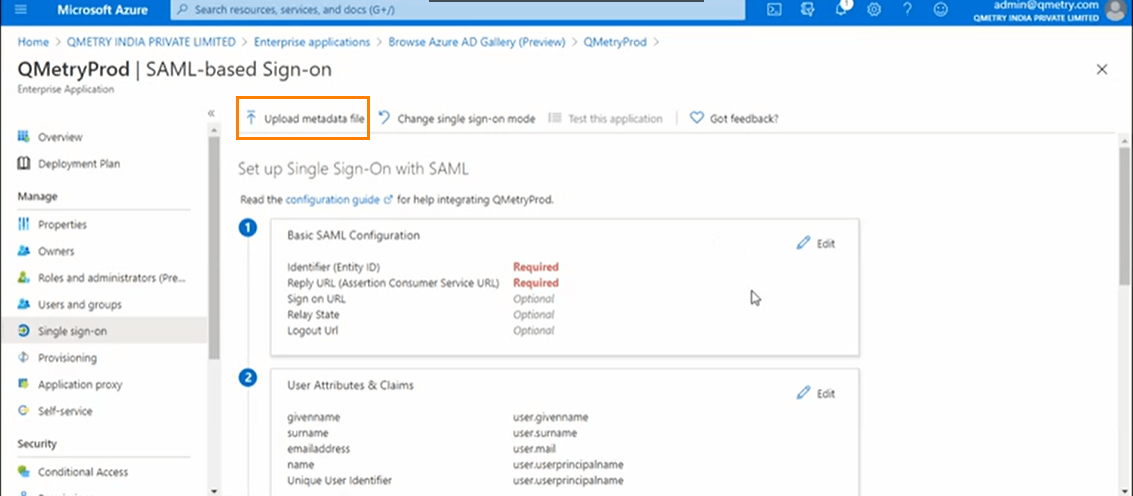
Click Upload metadata file and upload the "qmetrysaml_meta.xml" file.
Once you upload the file, save it.
Change in user attributes.
You should configure Firstname, LastName, and Email from Azure to QMetry. The values will be populated in respective fields when you are creating a new user in QMetry.
In Azure, go to the User Attributes' Claims section and click Add new claim.
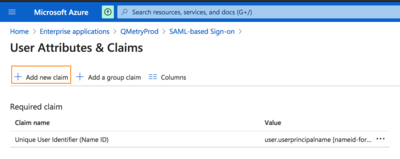
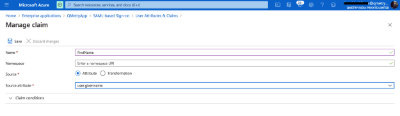
Mention QMetry fields (FirstName, LastName, and Email) at left under Claim name.
Note
Make sure the format is FirstName, LastName and Email.
Select its corresponding values in Azure from the drop-down list at right. The values are editable.
For example, the value for FirstName is set as user.givenname, LastName is set as user.surname and the value for Email is set as user.mail in the screenshots below.
Open the created app and click Assign users and groups section.
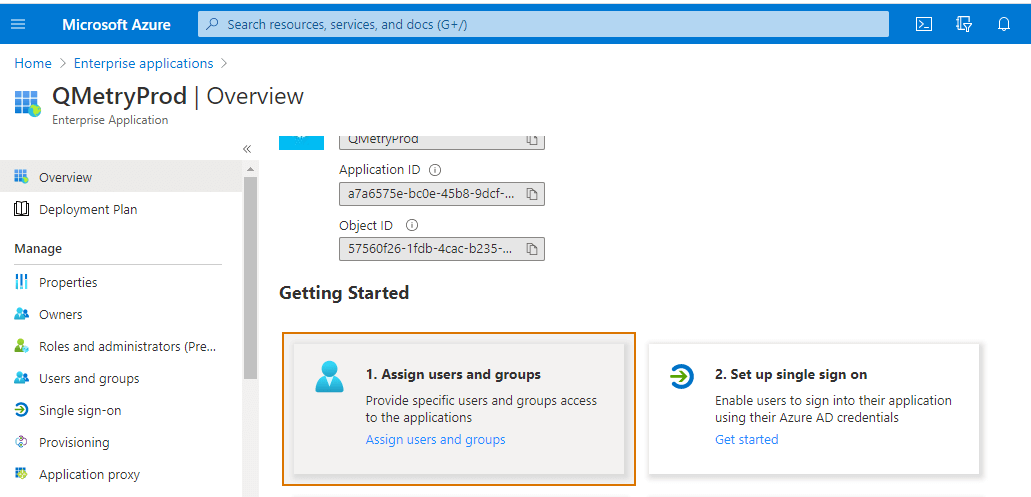
Add required users or group by clicking on the Add user or group button. Click Assign. Assign users to the app through Add Assignment.
The assigned users are displayed on the screen. These users will have access to the created app and will be able to log into QMetry through Azure AD.
Log into QMetry.
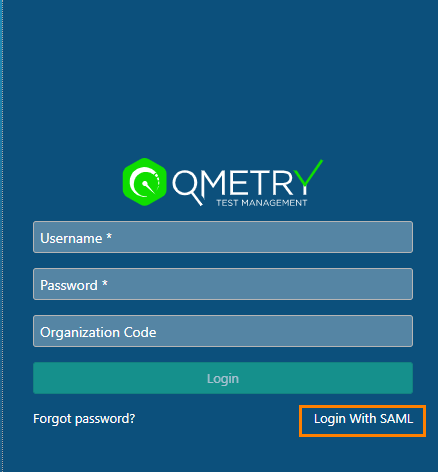
Now check the QMetry Login screen. If the SAML Settings are configured successfully, then the Login with SAML link appears on the QMetry Login screen.
Once your credentials are authenticated, you are navigated to the QMetry application. You can log in to QMetry with Azure AD credentials.
Click on the Login with SAML link.
Click Submit. It navigates you to the IDP Provider site.
The login screen of the Identity Provider opens. Provide your Username and Password here.
The login screen of the Identity Provider opens. Enter your Username and Password here.