Test Execution

Associate Release, Cycle, and Platform to a test suite to view platform-wise records on the Test Execution tab. Test Execution records are added on the screen by the number of platforms, releases, and cycles linked to the test suite.

Example 12. Test Execution Count

If there are 2 Releases, 4 Cycles, and 2 Platforms associated with the test execution, then the number of test execution records sums up to16 for each combination of Release - Cycle - Platform.


Note

The Test Executions tab displays suites that have at least one Release, Cycle, and Platform linked.

QPro_TS_Test_Execution.png

Customize Test Execution Grid View

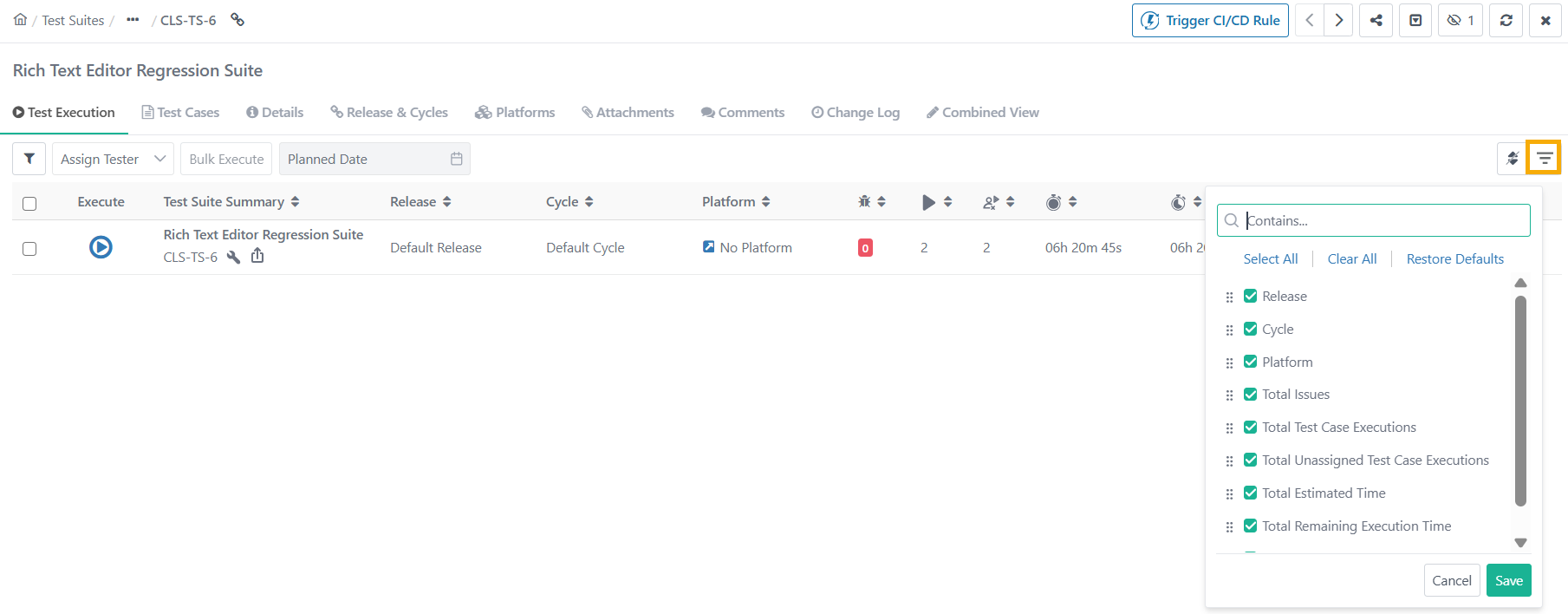
Click Arrange Column icon to adjust the Test Execution view:

QPro_TS_CustomizedView.png
  • Show or Hide Columns: Select the checkboxes to display specific fields.

  • Reorder: Reorder columns to fit the preferred layout by dragging and dropping the fields.

  • Resize Columns: Adjust column widths for better visibility by dragging the borders.

Note

  • You cannot arrange or hide Execute, Automation Execution, and Summary buttons.

  • The Test Execution view configured in the Test Execution tab is applied to:

    • Bulk Operations: For eSignature-enabled projects, during bulk approval processes for statuses like Approved, Request Changes, and Closed.

    • Traceability Report: When tracing by test executions.

Test Execution Tab Fields

  • Execution Type

    The Execution Type displays whether the execution is Manual and Automated.

    Testers find it difficult to search through multiple pages to find their automated executions on the Test Execution Screen. Thus, having a column helps sort and list the test suites by the execution type.

  • Status

    Hover the mouse over the bar under the Status column to view the test suite status.

  • Total Test Case Executions and Total Unassigned Test Case Executions

    The count excludes archived test execution runs, archived test cases and their runs, and test cases linked through archived platforms, releases, and cycles.

Assign Tester

Permissions needed to Assign, Modify, Un-Assign test execution testers:

  • Test Suite Modify Permissions

  • Test Suite Execute Permissions

To assign a tester to execute a test suite on a specific platform, perform these steps:

  1. Select the test suites by checking the corresponding boxes.

  2. Click Assign Tester.

  3. Select a user from the drop-down menu.

QPro_TS_AssignTester.png

Set Planned Date of Execution

Manually record the planned execution date for each test case run using the "Planned Date” field. This feature enables testers to schedule and document intended execution dates, improving visibility, tracking, and reporting for planned versus actual timelines while ensuring alignment with project schedules.

Users with permission to execute Test Suites or Test Cases can set a planned date.

To set planned date of execution, perform the following steps:

  1. Go to the Test Suite Detail Page and select the Test Execution tab.

  2. Go to the test execution run.

  3. Select test execution runs.

  4. Click Planned Date and select the date.

  5. If execution is not planned, then select Set as Unplanned.

Note

  • Planned dates can be bulk updated from the Execution Screen, the Test Executions tab, and the Bulk Execute section on the Test Execution tab.

  • For eSignature-enabled projects, planned dates can only be assigned to approved executions and are restricted to those with "In Review" or "Closed" statuses.

Bulk Execute

Bulk assign Execution Status, Execution Type, Assignee, and Planned Date for test suites with multiple test cases, platforms, releases, and cycles. Once triggered, the assignments are processed in the background.

To bulk execute test runs, perform the following steps:

  1. Go to the Test Suite module and select Test Execution tab.

  2. Select test cases to execute and click Bulk Execute.

    QPro_TS_BulkExecute.png

    Note

    A maximum of 20 test execution runs can be selected at a time.

  3. Perform bulk updates for selected test cases, including:

    • Execution Status

    • Execution Type

    • Assignee

    • Planned Date

The image below denotes the selection range of respective checkboxes on the screen:

  • Platforms

  • Releases and Cycles

  • Platform Attribute: To view Platform attributes, click the icon adjacent to the platform name.

  • Select a particular release and cycle for all test cases on the current page.

  • Select a Platform with all test cases under all releases and cycles.

  • Select individual test cases.

  • Select a test case with all releases and cycles and platforms associated with it.

  • Select all test cases (of the current page) under all releases and cycles associated with all platforms.

QPro_TS_BulkExecuteOptions__1_.png
QPro_TS_BulkExecute_Options.png

Bulk Assign Test Cases to Testers

To bulk assign test cases to testers, perform these steps:

  1. Select test cases, releases and cycles, platforms to allocate.

  2. Click Assignee and select the user to assign to the selected test cases and their platforms at a time.

Bulk Execute Test Cases

To bulk execute test cases to testers, perform these steps:

  1. Select test cases and platforms for the execution status to update.

  2. Click Execution Status and select the status to apply to test cases and their platforms at a time.

Refresh the screen to view the updated status accordingly.

Bulk Set Execution Type

  1. Select test cases and platforms for the execution type to update.

  2. Click Execution Type and set the type (Manual or Automated) to apply to test cases and their platforms at a time.

Bulk Set Planned Date

To bulk set planned date, perform the following steps:

  1. Select the test cases.

  2. Open the Planned Datecalendar and select the date.

  3. If no planned date is available, click Set as Unplanned.

The planned date for all the selected test cases will be updated in bulk.

Archive Test Execution or Test Run

Lock executions to prevent any further changes.

QPro_TS_Archive_Test_Execution.png

Test executions can be archived in the following scenarios:

  • When the entire Test Suite is archived.

  • When the associated Release or Cycle is archived.

  • When the associated Platform is archived.

  • When the Test Execution itself is archived.

  • When the Project is archived.

Archived test executions do not appear on the Test Executions tab of the test suite.

Archive Test Runs Manually

To archive test runs manually, perform these steps:

  • Open the test suite detail page and go to the Test Execution tab. Click Archive for the test run to archive.

    QPro_TS_Archive_TestSuite_Manually.png

View Archived Test Runs

To view archived test runs, perform the following steps:

  1. Go to Test Executions.

  2. Expand the Filters and select Show Archived Records.

This displays test runs archived due to platforms, releases, cycles, or the test run itself.

For imported data, the system ignores any changes in the status of archived test case executions.

QPro_TS_View_Archived_Test_Runs.png

Impact of Archiving a Test Execution or Test Run

  • New test cases linked to the test suite is not added to the archived execution.

  • Test cases that are linked to an archived execution cannot be unlinked.

  • When new version of a test case is created, it cannot be force-synced or manually sycned in the archived execution.

  • In case of test case steps update in the existing version, any change in test case step data in that test case version reflects in test cases under archived execution.

  • Bugs, and attachments which are part of archived executions cannot be unlinked.Test

  • Test Case and Step Comments, Execution Status, Actual, and Expected outcome added during execution cannot be changed for archived executions.

  • When "archived" execution is unarchived, any test cases that are linked to the test suite, are auto-linked with the execution after unarchive.

  • You cannot unarchive an execution if its release, cycle, or platform is archived.

  • Deleting any executed test case or test case version removes the executions from the archived executions.

  • In a cloned project (with data), the archived test run also gets copied.

  • For eSignature enabled project, you can not change the State (In-Review, Approve, Closed) of the test Run.

  • Closed test execution can be archived but on unarchive test execution nothing will happen.

  • Test case data grid-related modification are not reflected in archived execution.

Unarchived Test Runs or Test Executions

  • Missing test cases are linked on unarchive test execution with the associated test case version and latest data grid values.

  • Manually archived test execution are not unarchived if any associated archived Platform, Release, or Cycle is unarchived.

  • If Test Case-Test suite Data Grid Mapping is modified after archive test execution, then older mapping (steps) is removed on unarchive test execution.

  • In case of parameterized test case, edited value of test case do not affect test cases under the archived test run.

  • Once the test run is unarchived, the values get updated in the respective test cases.

Note

When you copy a test suite inside the same project, any test runs in that suite that were manually archived also gets copied in the same archived state.

Publication date: