Connect Jira to QMetry Using OAuth
OAuth 2.0 authentication is supported for Jira Cloud and Jira Server or Data Center (DC) integrations to ensure secure connectivity between QMetry and Jira.
Pre-requisites for Enabling OAuth Authentication
Install and configure QMetry Jira Integration App.
The Jira instance should be in an active status.
Required Permissions
In QMetry: Users must have "Modify" rights for Integration system.
In Jira: Users must have administrative permissions to configure the integration.
For Jira 8.22 or above version is supported for OAuth 2.0.
Configure Jira Cloud to Use OAuth
To Configure OAuth 2.0, perform the following steps:
Log in to the Atlassian Developer Console with admin credentials.
Go to My apps.
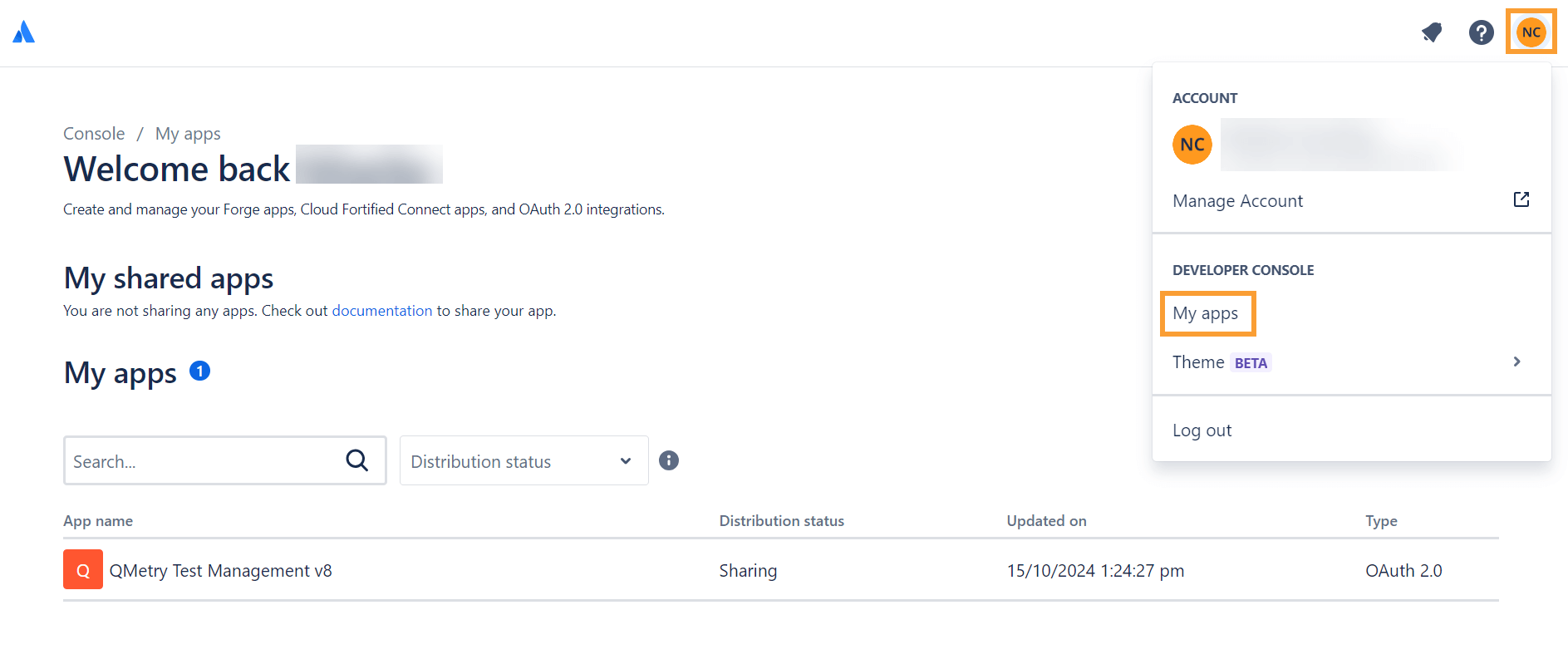
Click Create and select OAuth 2.0 Integration.
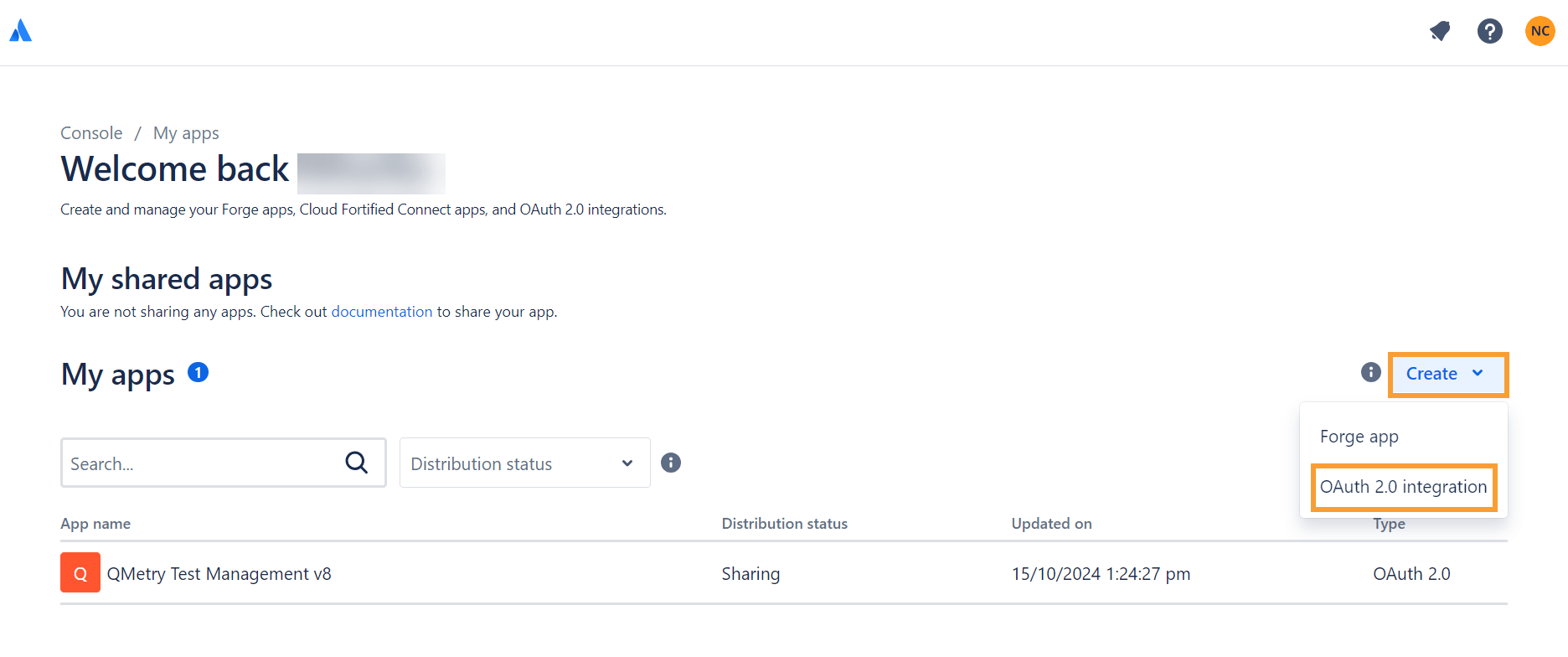
Enter the name of the integration and click Create.
Next, go to Authorization tab, under Actions, click Add.
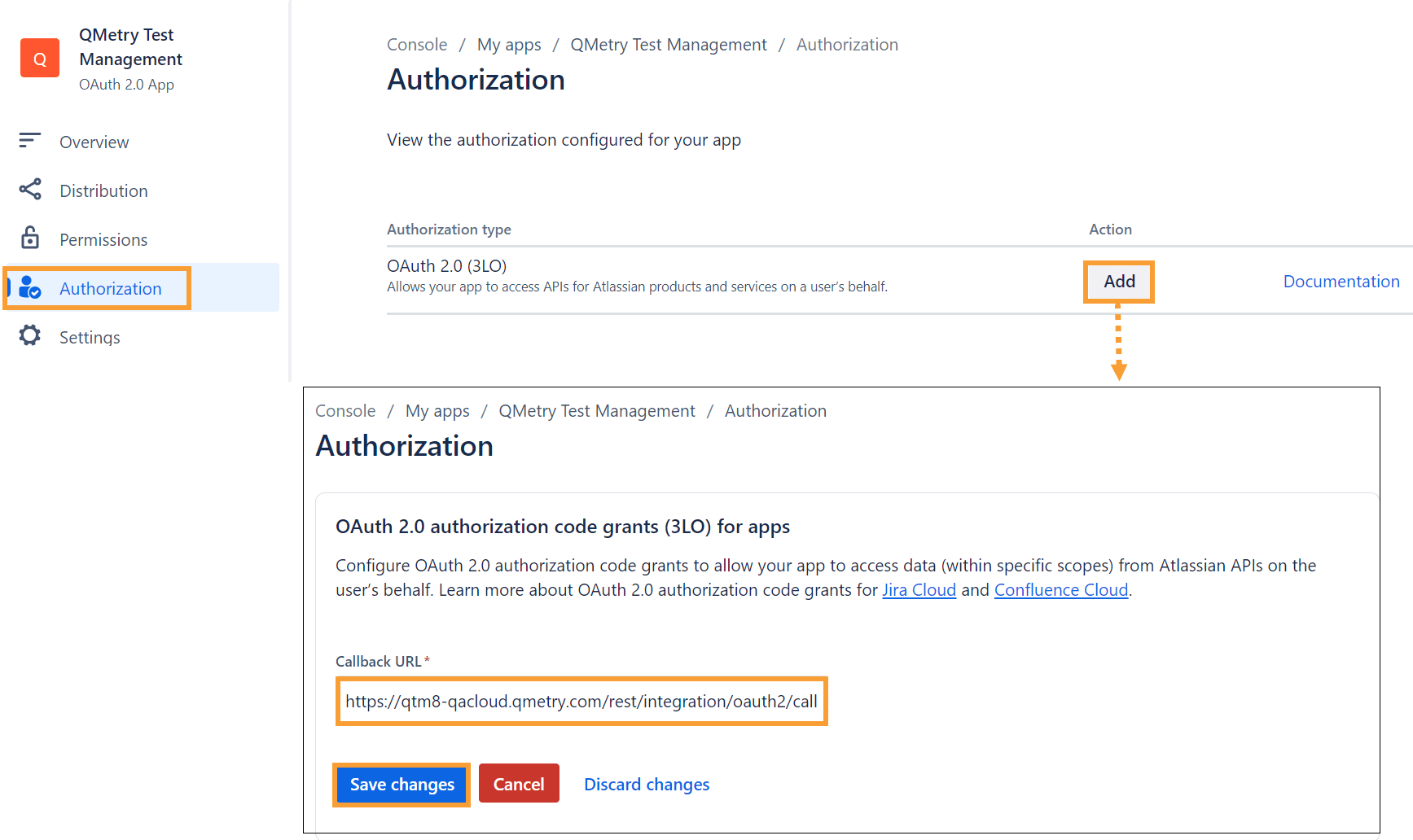
In the Callback URL field, enter
{QTM-Instance-URL}/rest/integration/oauth2/callbackUrl.Click Save Changes.
Set Permissions
Go to the Permissions tab.
Add and configure Jira API.
Under Classic Scopes, ensure the following scopes are selected
read:jira-workread:jira-userwrite:jira-work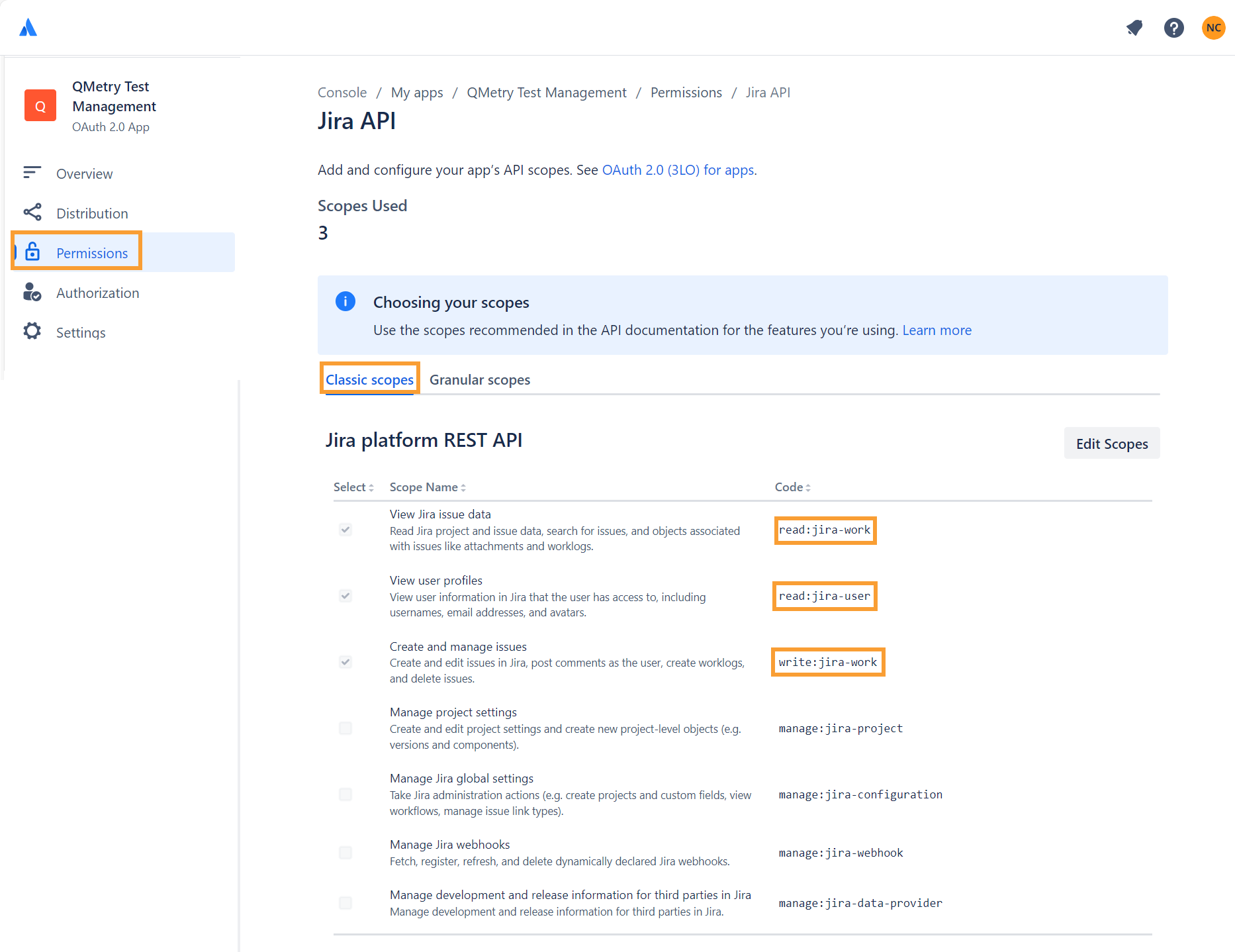
Configure Distribution
Click on the Distribution tab and select Edit.
Set the Distribution Status to Sharing.
Provide Vendor Name as "QMetry"
Set the Privacy Policy
Click Save Changes.
Retrieve Client ID and Client Secret
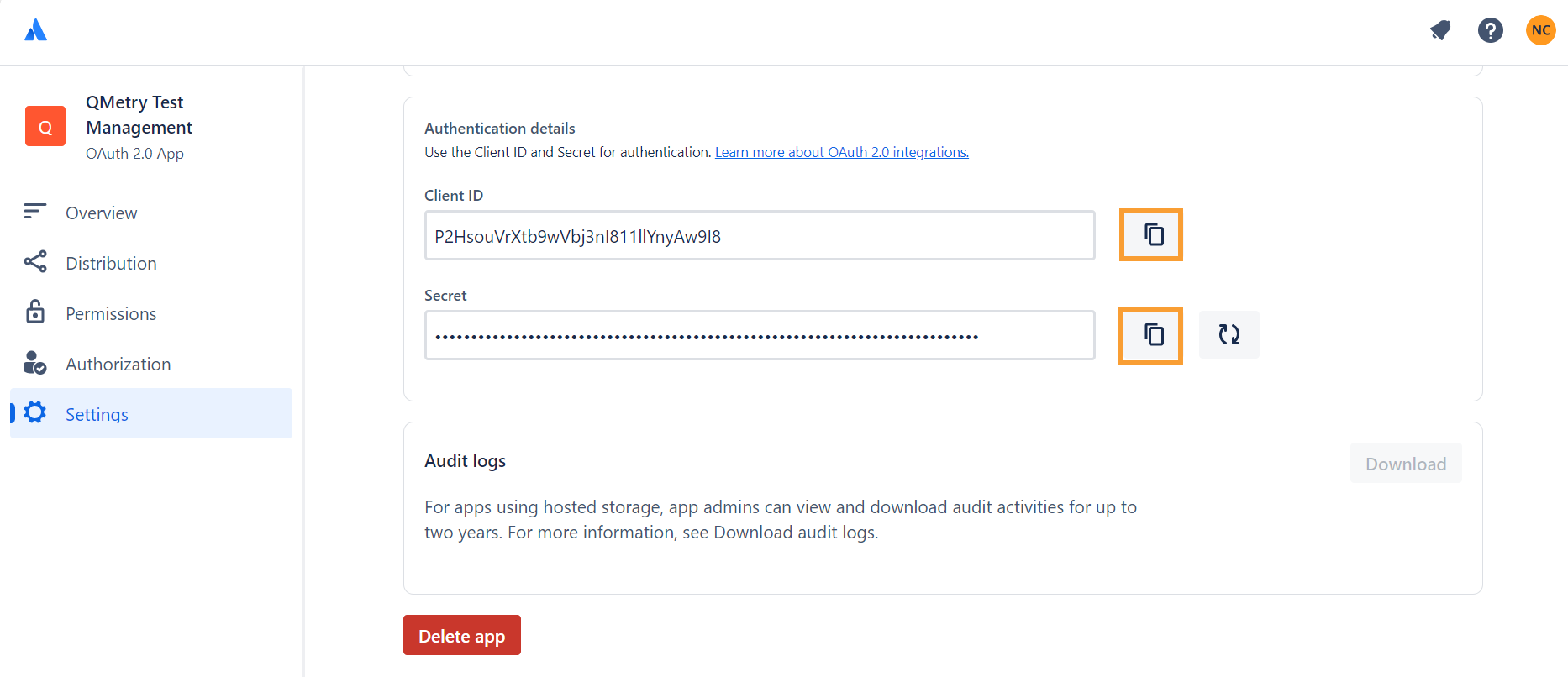
Under Settings, locate the Authentication details section.
Copy the Client ID and Client Secret for future use. Under Authentication details, copy the values of Client ID and Client Secret
Configure Data Center Jira version
Here are the steps to configure an application link in the Jira Server Data Center:
Login to Jira, go to Settings and select Application.
Go to Application Links and click Create Link.
Select External Application as the Application Type and set the Direction to Incoming.
Configure the link properties as follows:
Name*: Enter a suitable name in the Name field.
Redirect URL*: Input the following URL: {QTM-Instance-URL}/rest/integration/oauth2/callbackUrl
Example: https://qtm8-devcloud.qmetry.com/rest/integration/oauth2/callbackUrl
Permissions*: Assign Write permissions.
OAuth 2.0 credentials are generated. Copy the following:
Client ID
Client Secret
The rest of the steps remain same as cloud version.
Configure Connection in QMetry
Log in to your QMetry instance as a user with “Modify" rights for Integration system.
Go to Integrations.
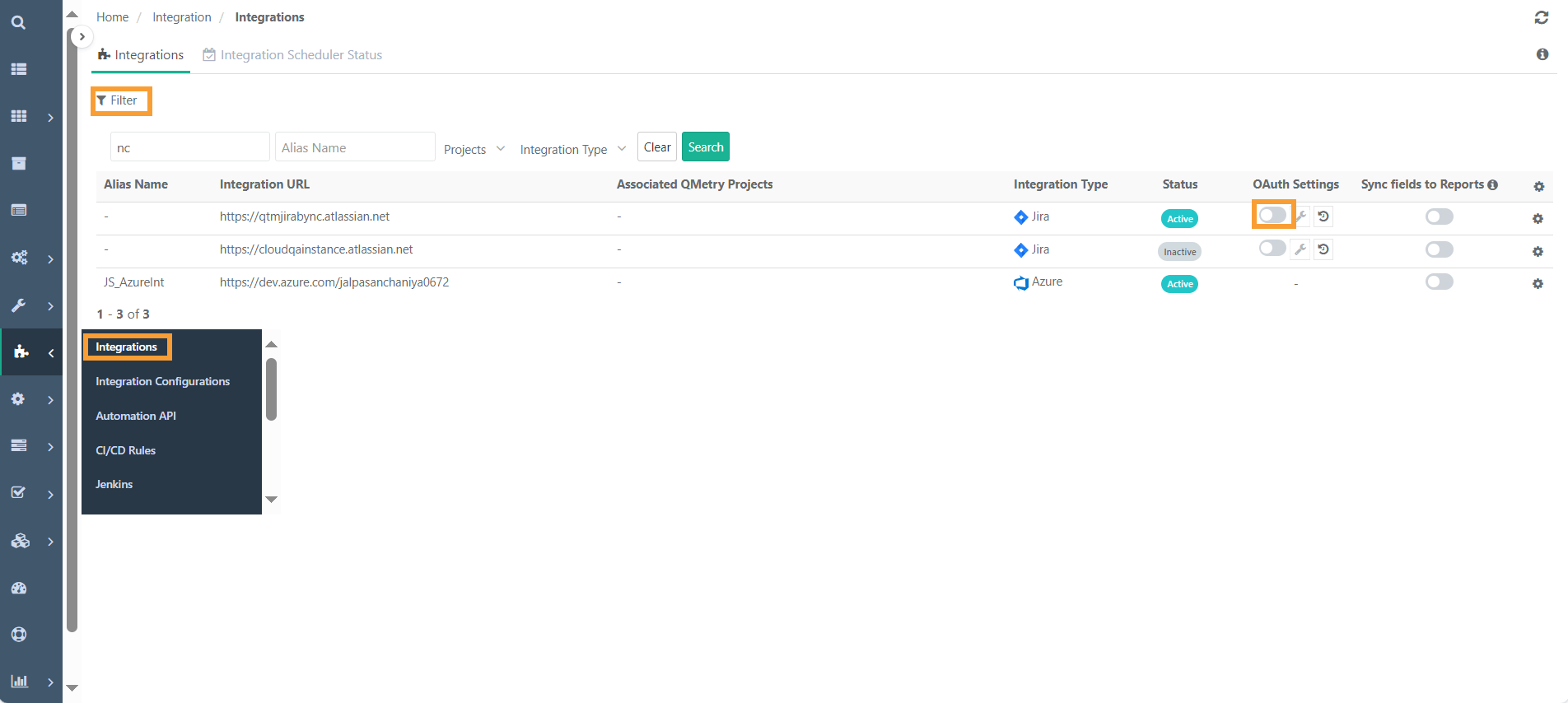
Enable OAuth Settings by clicking on the toggle button.
Enter the Client ID and Client Secret Key from Jira app settings. Click Next.
Connect Jira Account by clicking the link.
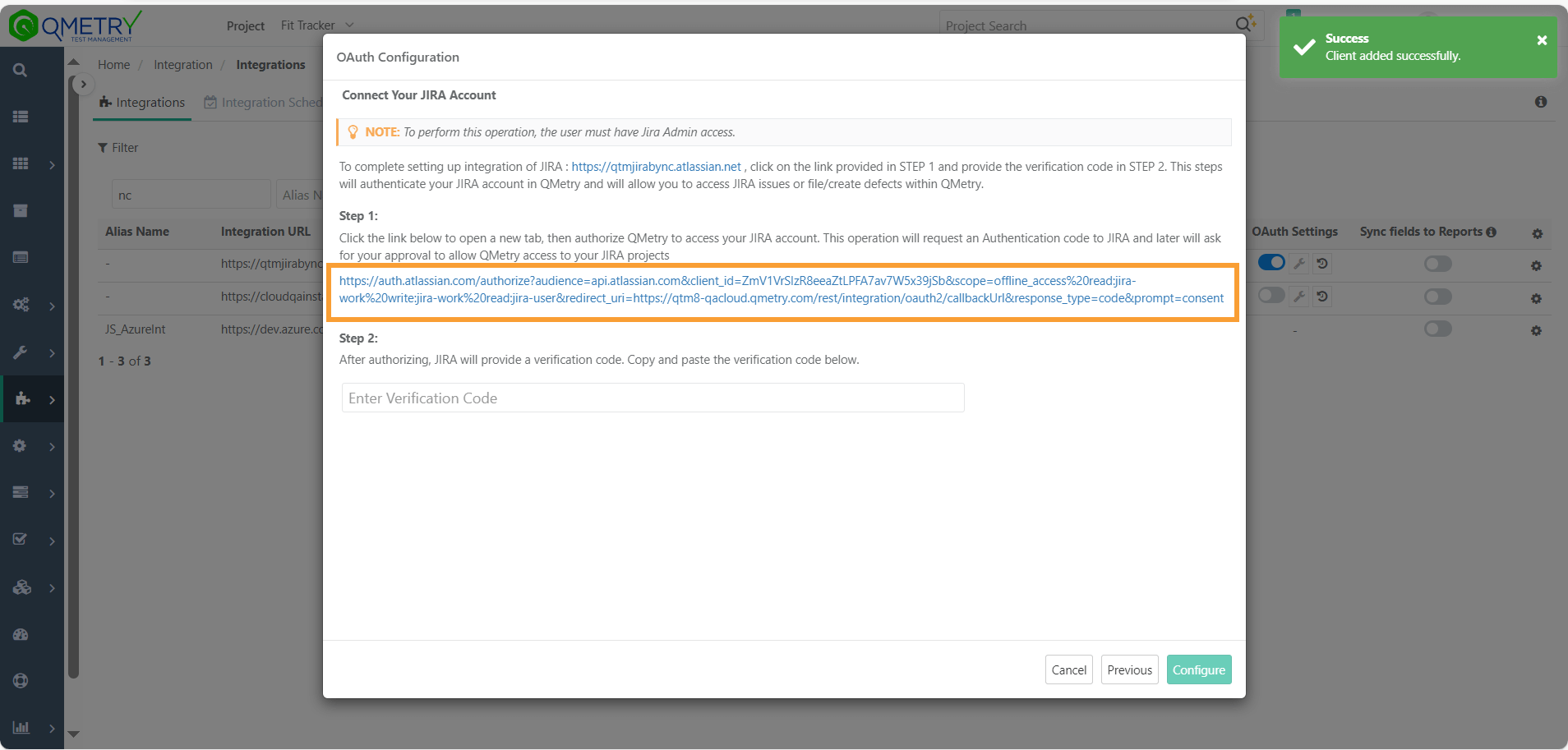
Select your Jira instance from Use app on and click Accept.
Accepting the access request generates a unique verification code.
Copy the verification code and paste it in the textbox and click Configure.
Check OAuth History
To check OAuth history, perform the following steps:
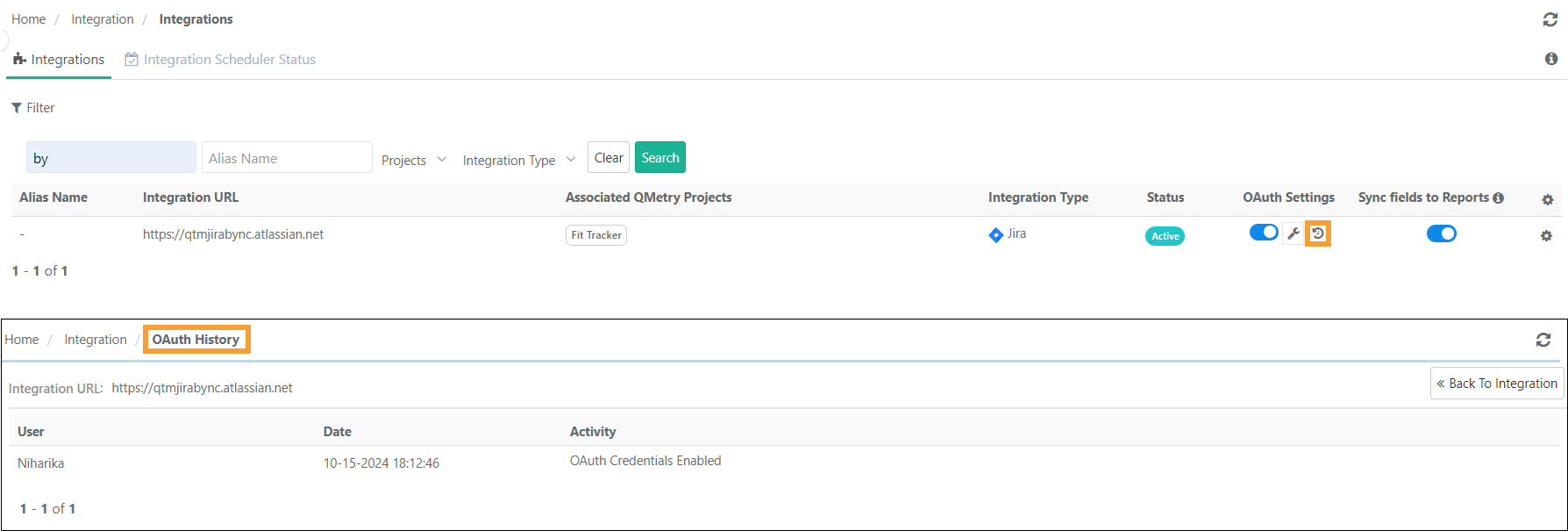
Go to Integrations.
Under OAuth Settings click OAuth History icon.
Update OAuth Configurations
To update OAuth Configurations, perform the following steps:
Go to Integrations.
Click the wrench icon.
Reconfigure the connection.
End-User using OAuth
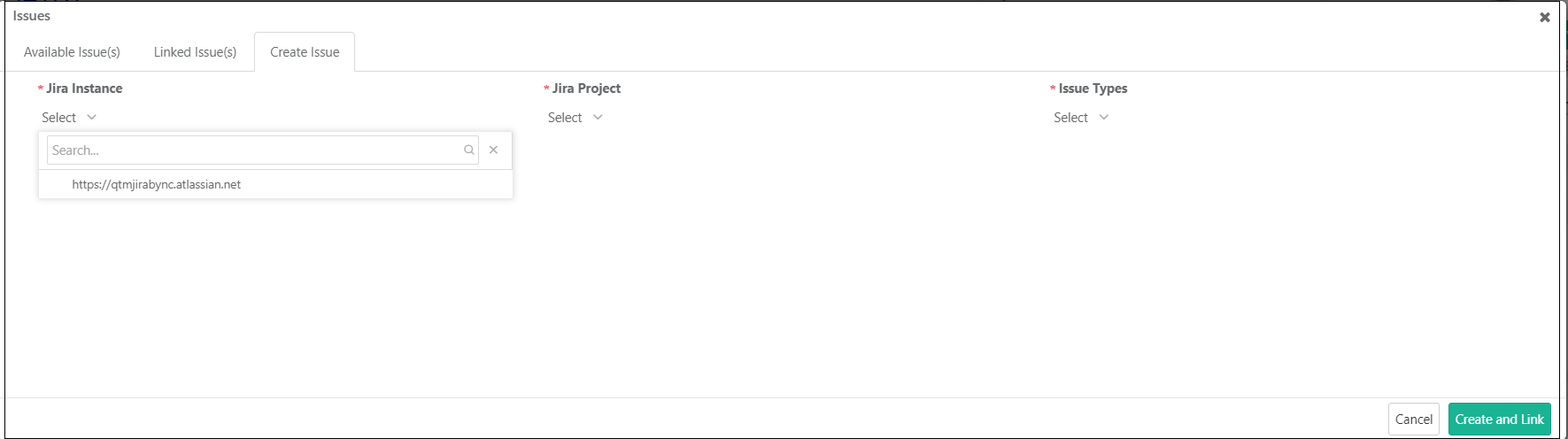
Complete OAuth authentication to create new issues from the Issue Module or link issues from Test Suite.
To authenticate using OAuth, perform the following steps:
Select the appropriate Jira instance.
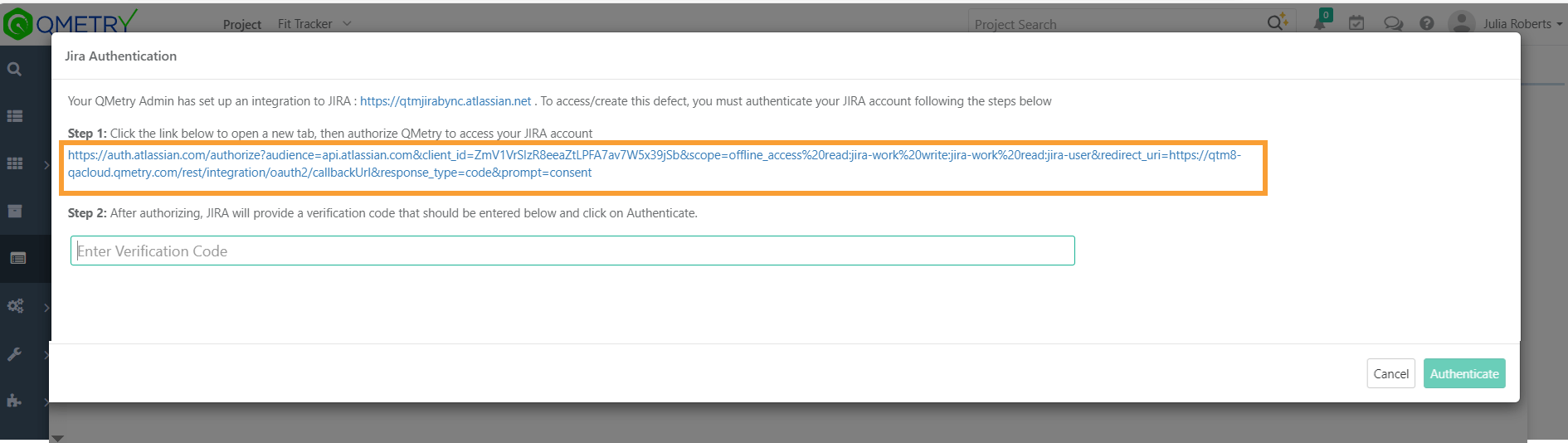
Enter the verification code to authenticate the Jira connection.
Click the link.
Select Accept to generate the verification code.
Copy the verification code and paste it in step 2.
Click Authenticate to complete the OAuth authentication process.