Install and Configure Jira Integration
Pre-requisites: Supported QMetry JIRA Integration
Below is the support matrix for the QMetry Test Management Jira integration app.
QMetry | Jira | Supported? |
|---|---|---|
Cloud | Cloud | Yes |
Server | Server | Yes |
Cloud | Server | Yes |
Server | Cloud | No |
Note
For Jira Data Center versions 9.x, the compatible QMetry Jira Integration App v2.3.7_jira9. For Jira Data Center v10.x, the QMetry Jira Integration App v2.3.7.
If you are using a Cloud Jira or Server Jira and integrating with QMetry Cloud instance then the Jira instance should be accessible to QMetry instance.
Step 1. Install App: QMetry Jira Integration
Install "QMetry Jira Integration" app in your Jira Instance.
Jira Edition | Jira App Availability | Upgrading Jira App |
|---|---|---|
Cloud | Already Installed | Automatic Upgrade. Configuration Required |
Not Installed | Installation and Configuration Required | |
Server | Already Installed | Upgrade and Configuration Required |
Not installed | Installation and Configuration Required |
Login in Jira with admin credentials. Admin login is required to install the App from Atlassian Marketplace.
Go to the Jira settings and select Apps.
Search QMetry Integration for JIRA.

3. Click .
4. Click .
5. Select a site and click Request App.
Step 2. Configuring JIRA with QMetry Admin
To configure JIRA with QMetry, perform the following steps:
Note
The integration requires QMetry admin credentials.
Configure JIRA with QMetry:
Connect using Credentials: Connect JIRA with QMetry using QMetry admin credentials.
Connect using Open API Key: Use Open API key to connect QMetry with Jira.
Note
Enable integration package to get the Open API key.
 |
Connect Using Credentials
Note
Connect QMetry to JIRA using QMetry authentication. SSO Login can not be used for Integration.
Recommended: Use system admin (for cloud instances - the user who has registered for the QMetry instance) or administrator (for server customer - user "Admin" is the administrator) user for authentication.
If two-step verification is enabled in QMetry, provide the verification code to connect using this method.
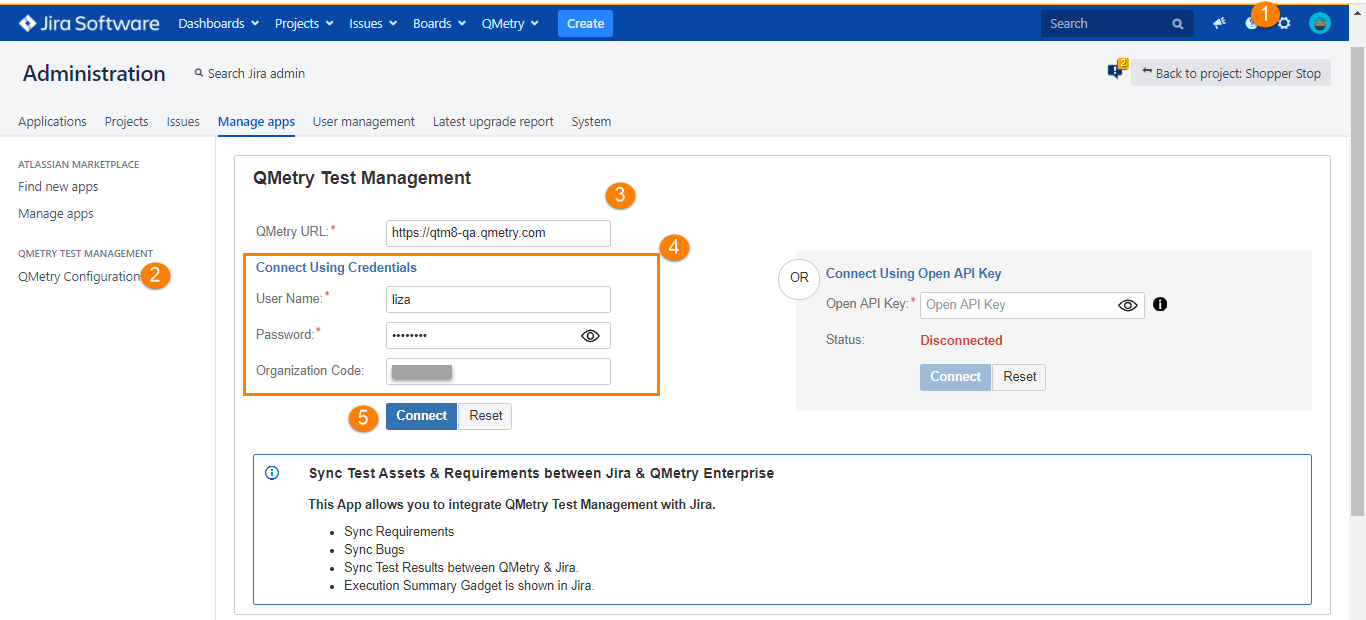
To connect using credentials, perform the following steps:
Go to JIRA settings and select QMetry configuration.
Enter QMetry URL.
Enter QMetry admin credentials and Organization Code.
Connect.
Note
If two-step verification is enabled for the user, provide the two-step verification code and click Submit.
B. Connect Using Open API Key
Integrate Jira with QMetry by using the Open API Key.
Note
Open API Key is only available for users who have opted for the Integration app.
Go to Connect using Open API Key section.
Go to Open API under Integrations to get the Open API key.
Click Connect and the integration is established.
Step 3. Verify All Modules are Enabled (only for server or data center Jira editions).
Note
Skip this step if you're using Cloud Jira.
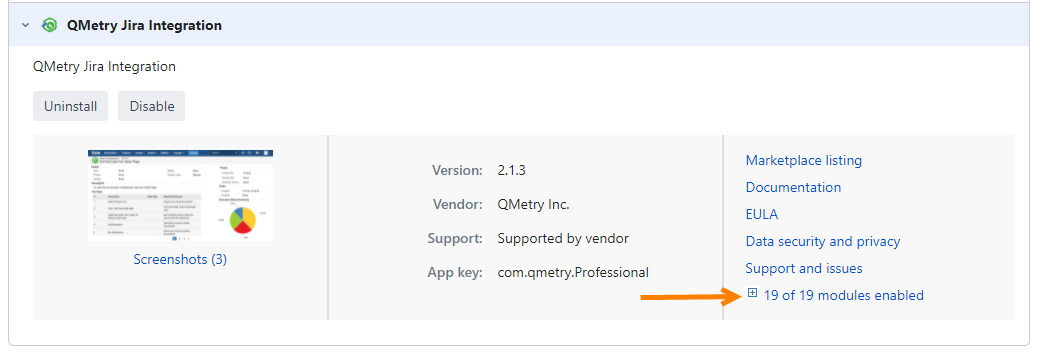
If you are on Server or Data Center version of Jira, verify that all the modules are enabled on the Manage app screen.
In Jira, go to Apps and select Manage apps section.
Expand the modules and enable all modules.
Step 4: Verify the QMetry - Jira Integration
To verify QMetry JIRA integration, perform the following steps:
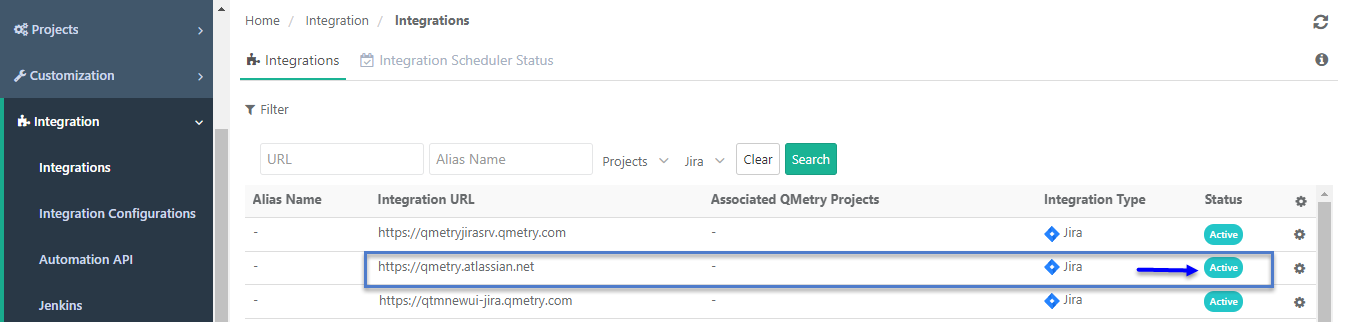
Login to QMetry and go to Integrations.
Go to Jira Integration and verify Integration URL and status as Active.
The Associated QMetry Projects column shows QMetry projects configured with this integration.
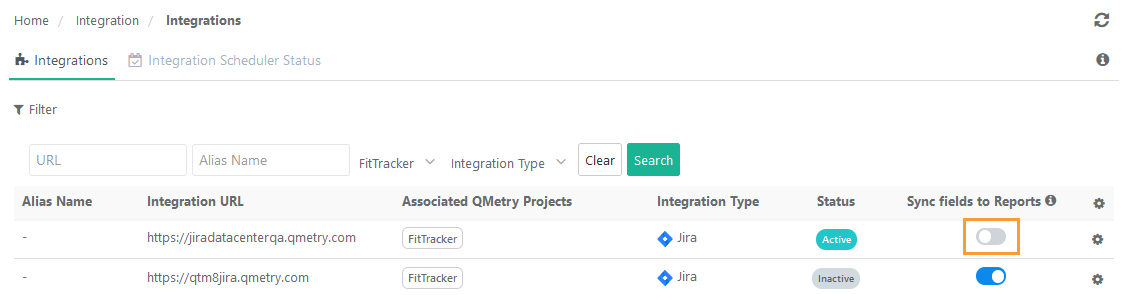
Sync Fields to Reports
Note
The feature is only available to the customers who have opted for the Advanced Reports App.
Only users with Integration “Modify” rights can enable or disable the sync.
Sync the mapped custom fields of the external tracker to the reports. Include Jira's custom fields of Issues and Requirements modules in QMetry Insight tables for both Visual and Advance Query Reports to create a custom report with UDFs.
If Sync Fields to Reports is “On”: The mapped custom fields for Issues and Requirements modules are synced in the QMetryInsight module.
If Sync Fields to Reports is "Off": The synced fields in the QMetry Insight module are removed.
Use Case: Project admin wants to create a custom report in QMetry Insights using Jira's custom fields, which are mapped in Project Integration Screen.
Note
After enabling or disabling an external tracker integration, you can modify its state again only after 8 hours.
After enabling or disabling the option for one external tracker integration, update the options for other integrations only after 4 hours.
You cannot disable the Sync Fields to Reports option while the syncing process is in progress.
Only the external UDFs mapped under the Project and Integrations tab are synced to the QMetry Insight module.
A maximum of 1000 UDFs, including internal and external, can be synced to the Insight module.
Field syncing to reports occurs at the instance level. As a result, all users of projects integrated with the external tracker can view the synced UDFs in the Insight module.
If the integration with the external tracker is removed, the UDFs will no longer appear in the Insight module.
To , perform the following steps:
1. Go to Integrations and open the Integrations tab.
2. Turn the Sync fields to Reports option “On” for the integration to sync mapped external custom fields to QMetry Insights. By default, the option remains “Off”.
Step 5: Integrate Jira Project with A QMetry Project
Refer to this link to Map Jira Projects with QMetry Projects.
Step 6: Enable QMetry Test case and BDD panels for Jira Projects
Configuration to enable QMetry Test case and BDD panels for Jira Projects. This change is required for all Jira projects that are to be integrated with QMetry.
Log into Jira and go to your Project.
Click Project Settings.
Click Manage QMetry Features.
Enable QMetry Panels for Project: View Test Case panel showing the Test cases - Issue linkages.
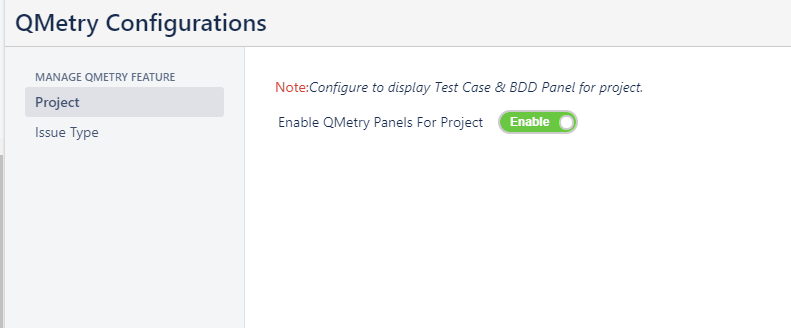
Issue Type: Enable Issue types for which Test case and BDD panel should be displayed in Jira.
Note
BDD and Test Case panels are enabled only for the current project.
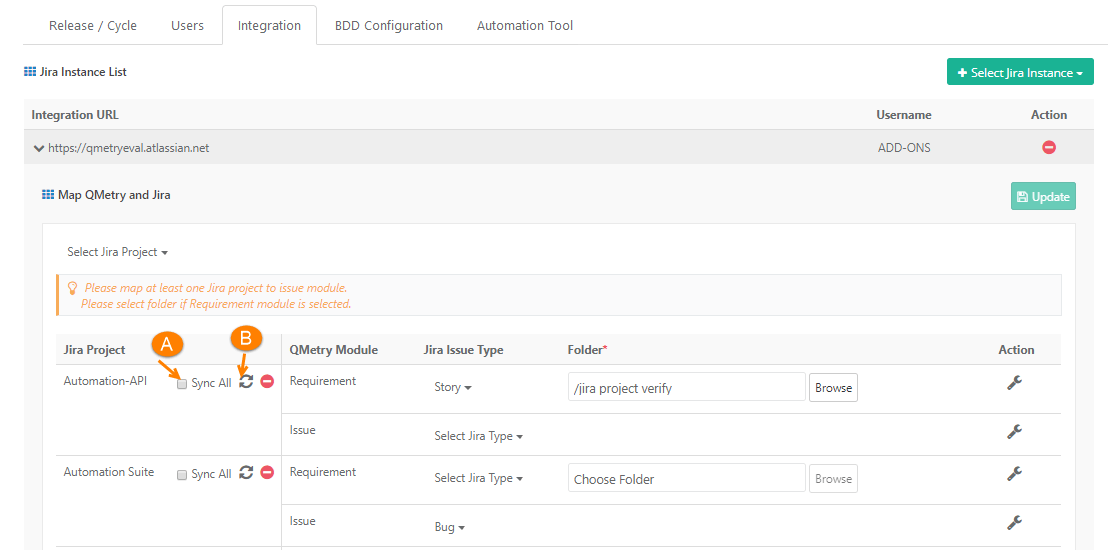
Go to Projects to sync the data of the already linked Jira project. Open the Integration tab and click the Sync button.
Sync All: Sync complete data between QMetry and Jira (syncing all the Jira assets to QMetry.
Sync:Sync only updated assets from Jira. This is useful when there are structural changes made in Jira like adding new fields, updating of the existing fields in Jira layouts, or when the QMetry-Jira integration was stuck or broken due to some reason.