Test Suites Module
A Test Suite organizes a set of test cases in a defined order to validate a complete end-to-end scenario. Teams often create suites to group test cases by type, such as BVT, smoke, or regression.
In QMetry, Test Suites belong to specific cycles. Teams can copy them to new cycles for future testing, allowing QA groups to plan testing for each development cycle.
Test Suites run against a selected platform, which provides the required environment or configuration details. This helps QA team understand not only which functions were tested but also the hardware and software used during testing.
Key Features of the Test Suite Module
Create and organize test suites.
Define and manage test case execution plans within each test suite.
Monitor the status and results of test cases and suites.
Configure test suite settings and parameters to tailor them to specific testing needs.
Test Asset List View
The module grid view offers various customization options.
Managing Grid View
Use Arrange Columns to customize the grid view. Resize, hide, organize, sort, and rearrange columns. Refer to Manage Grid Columns to learn more.
Filtering Assets
Filter records by the system or custom fields. Apply basic or advanced filters on the records. To learn more about filters, refer to Filtering Assets.
Folder Management
Organize your assets in a hierarchical structure using folders. To learn more about available actions, refer to Basic Folder Operations document.
Bulk Operations
To perform Bulk operations on the asset, refer to Bulk Operations.
Columns in Test Suite List View
The Test Suite List View screen displays the following important details:
Total Test Case Executions and Total Unassigned Executions.
Linked Test Cases and Linked Platform Count.
Total Estimated Time and Remaining Execution Time.
Review details such as Created By, Updated By, and their corresponding dates.
Icons on the Test Suite List View
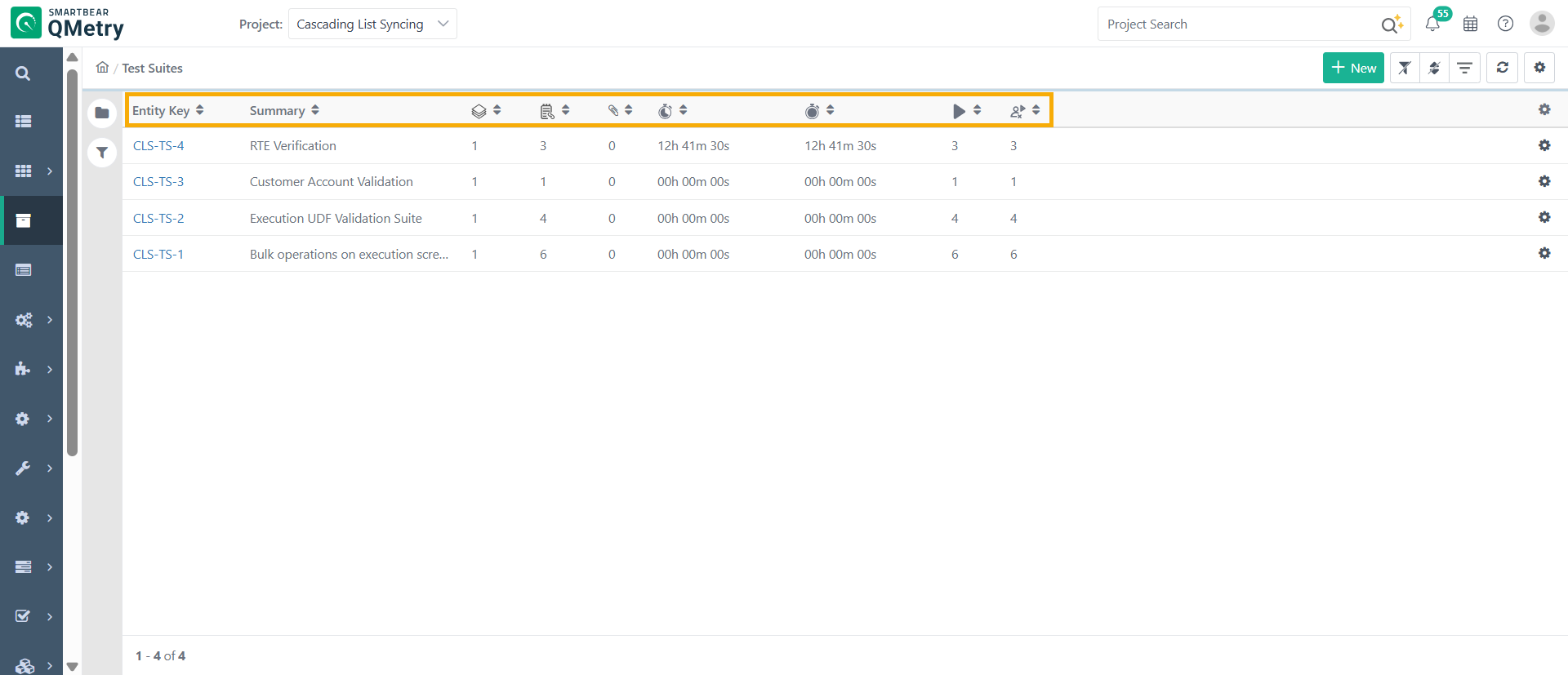 |
The table below provides a brief description of the icons in the test suite list view:
Column Icon | Column Name |
|---|---|
| Linked Platforms Count |
| Linked Test Cases Count |
| Total Test Case Executions |
| Total Unassigned Test Case Executions |
| Total Remaining Execution Time in minutes |
| Total Execution Time in minutes |


Test Suite Detail View
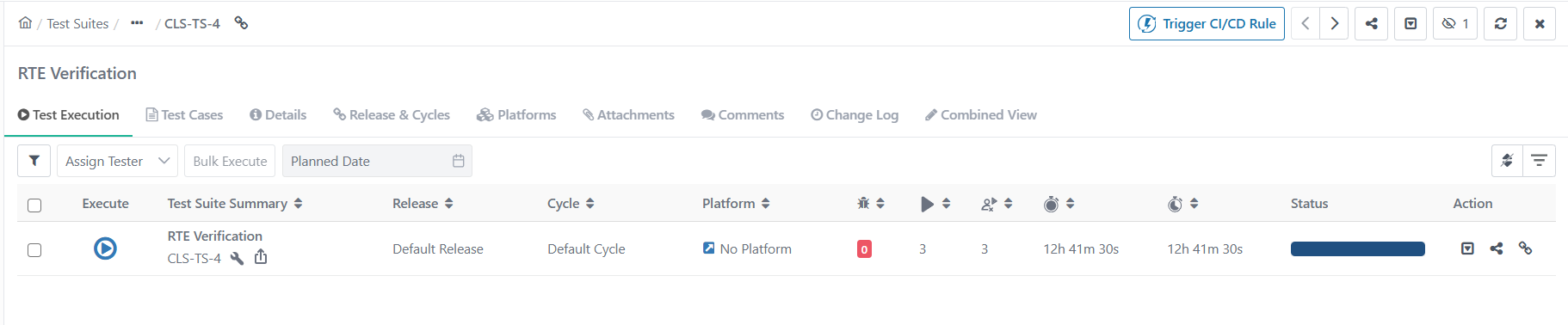 |
Individual Tabs: Test Suites detail page displays all relevant details in separate tabs.
Combined View: This tab consolidates all the test suite details into a single page. The details are read-only and cannot be edited.
Also Explore