Editing Test Cases
Modify an existing test case to update its details, steps, or parameters. You can add attachments, reorder steps, insert shareable test cases, or copy steps from existing ones.
Editing Test Details
Edit system-defined and user-defined fields from the Details tab.
Inline Editing
Edit field values directly on the Test Case Detail page without opening a separate editor. In-place edits update the existing version, no new version is created.
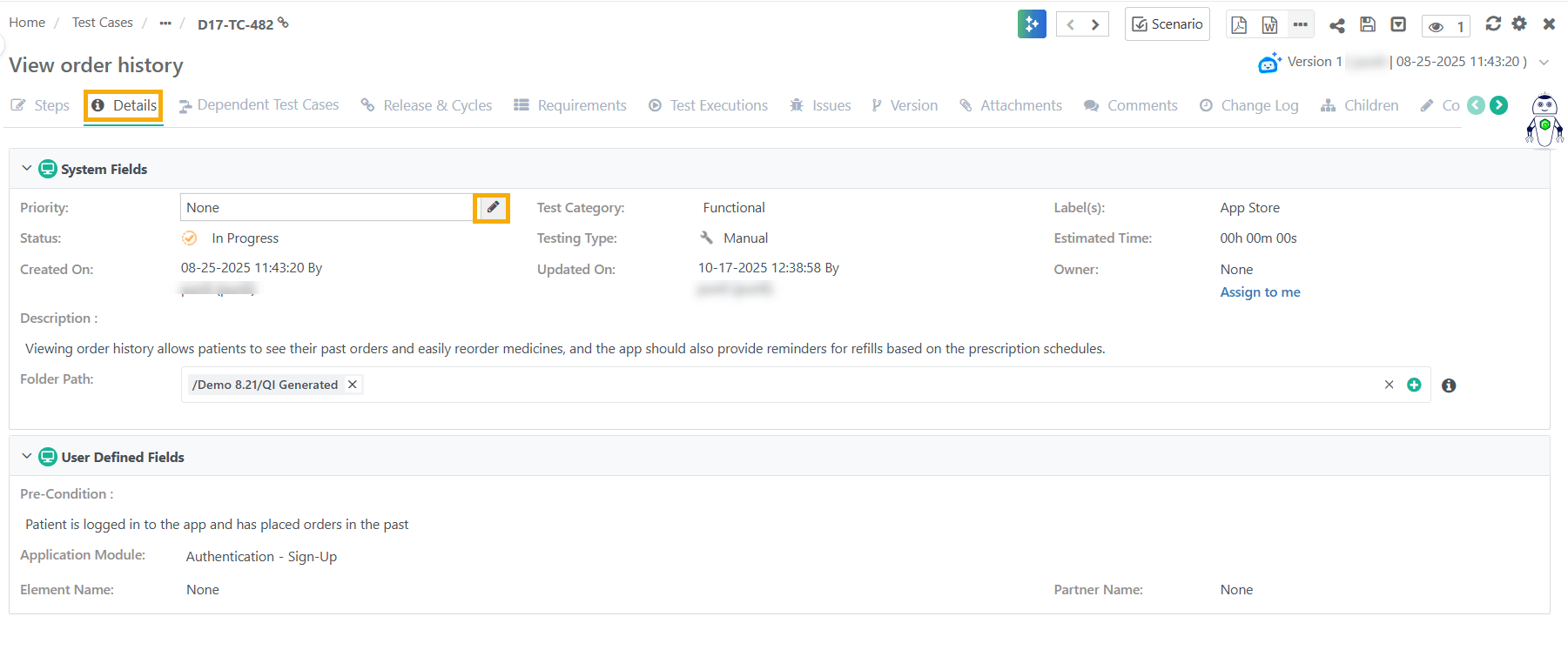 |
To edit the steps with in-line editing, perform the following steps:
Go to Test Case Detail Page.
Click the field to edit.
Note
Changing the folder path moves the asset to a different folder.
Editing Test Steps
Edit steps within a test case — modify existing steps, add new ones, attach files, insert shareable test cases, or copy steps from other test cases.
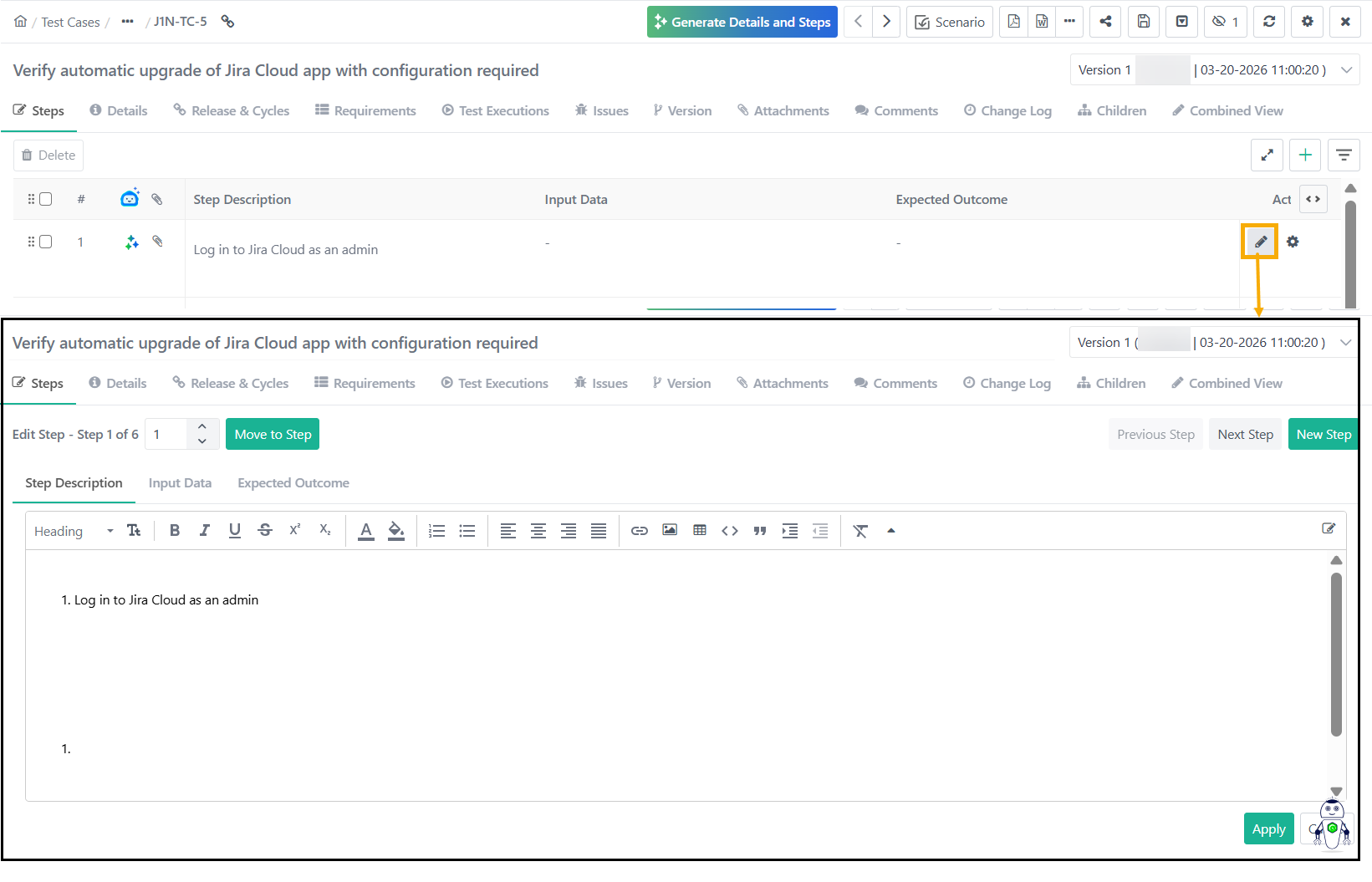
To edit test steps, perform the following steps:
Go to Test Case Details page.
Click the Test Steps tab and click Edit.
Hover over the cells to edit.
Alternatively, click Edit to edit Large Text UDFs.
Add Attachments to test steps by clicking the attachment button or by embedding attached images or files in rich text fields.
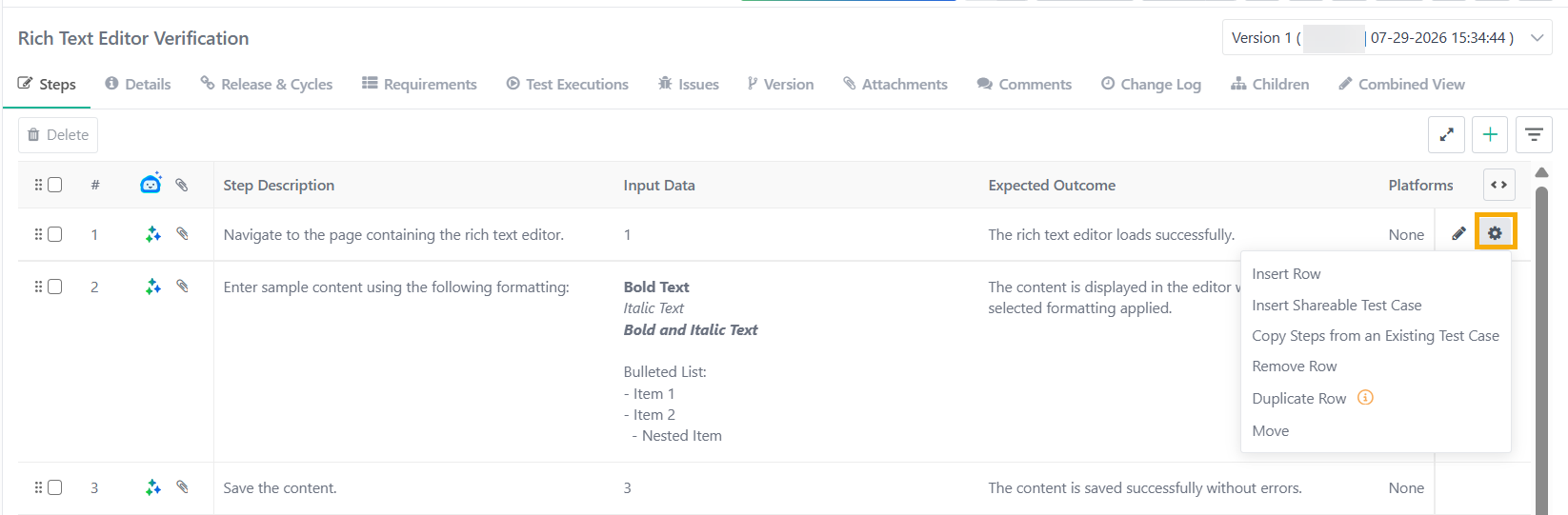
Cog Icon Actions
Action | Description |
|---|---|
Insert Row | Add a new step at the end or next to the current step. |
Insert Shareable Test Case | Add a shareable test case. In the Link Shareable Test Case screen, use filters to locate the relevant STCs. Click Save and Apply to save the applied filters. You can also filter by folder path. Note
|
Remove Row | Delete the selected step. |
Duplicate Row | Copy the selected step. |
Move | Change the position of the step by selecting a new index. |
Copying Steps from an Existing Test Case | Copy repetitive steps from an existing test case for reuse. |
Reordering Steps
Test steps appear in the same sequence during execution as in the test case.
To change the order, select Move from the Cog (⚙) menu and enter the new index for the step. The system rearranges the remaining steps incrementally.