Creating Test Cases
You can create test cases in QMetry in three ways: build them manually, generate them from a Behavior-Driven Development (BDD) feature file, or auto-generate them with QMetry Intelligence (QI). This flexibility lets each team create and manage test cases in the way that best fits its workflow.
Choosing a Test Case Method
Use the method that matches your source material and workflow:
Create Manually - Use this option when you want to create test cases from scratch with full control over fields, test steps, and links.
Create from a BDD feature file - Use this option if you already have Gherkin feature files and want QMetry to automatically generate the corresponding test cases. View More Details.
Auto-Generate with QI - Use this option when you want QMetry Intelligence to generate test cases and test steps from a requirement or description.
Pre-requisites
The manual creation workflow can require several permissions, depending on how far you take it. Make sure you have the permissions you need before you start.
Task | Required Permissions |
|---|---|
Link requirements to the test case | Link Test Case, Link Requirement |
Create a test suite while creating the test case | Create Suite, Link Test Case, Link Test Suite |
Link the test case to an existing test suite | Modify Suite, Link Test Case, Link Test Suite |
Note
Plan Executions is available only in projects that have eSignature disabled.
The Risk Analysis section appears only when the Risk Analysis feature is enabled in General Settings.
Creating New Test Cases
The Create New Test Case screen lets you define test case details, link requirements, add test steps, associate a test suite and plan execution, all in one place.
To create a new test case, perform the following steps:
Open the Test Cases module.
Select New.
Fill in all details under System Fields and User-Defined Fields.
Add steps in the Test Steps section.
Link Requirements. Select requirements from the list, or enter the Requirement entity key directly.
Save the test case in one of the following ways:
Click Create to save the test case.
Select Plan Executions to link the test case to a test suite and schedule execution before saving.
After you save, QMetry generates an entity key for the test case and places it in the folder shown in the Folder Path field.
System Fields
The System Fields section contains the standard fields for defining a test case.
Field Name | Description |
|---|---|
Summary | Name of the Test Case. |
Priority | Priority of the test case, for example, Minor, Major, Critical, Blocker, or Trivial. |
Status | Workflow status of the test case: New, Approved, In Progress, or Ready to Review. |
Owner | Assign an owner from users with access to the project. |
Test Case Category | Regression, Performance, Security, or Functional. |
Estimated Time | Estimated execution time in HH:MM:SS format, up to a maximum of 99,999 minutes. |
Folder Path | Folder location of the test case. This field is auto-populated based on where you create the test case. You can update the path manually. |
User-Defined Fields (UDFs)
Custom fields that an administrator adds to the Test Case module appear in the User Defined Fields section. Note the following:
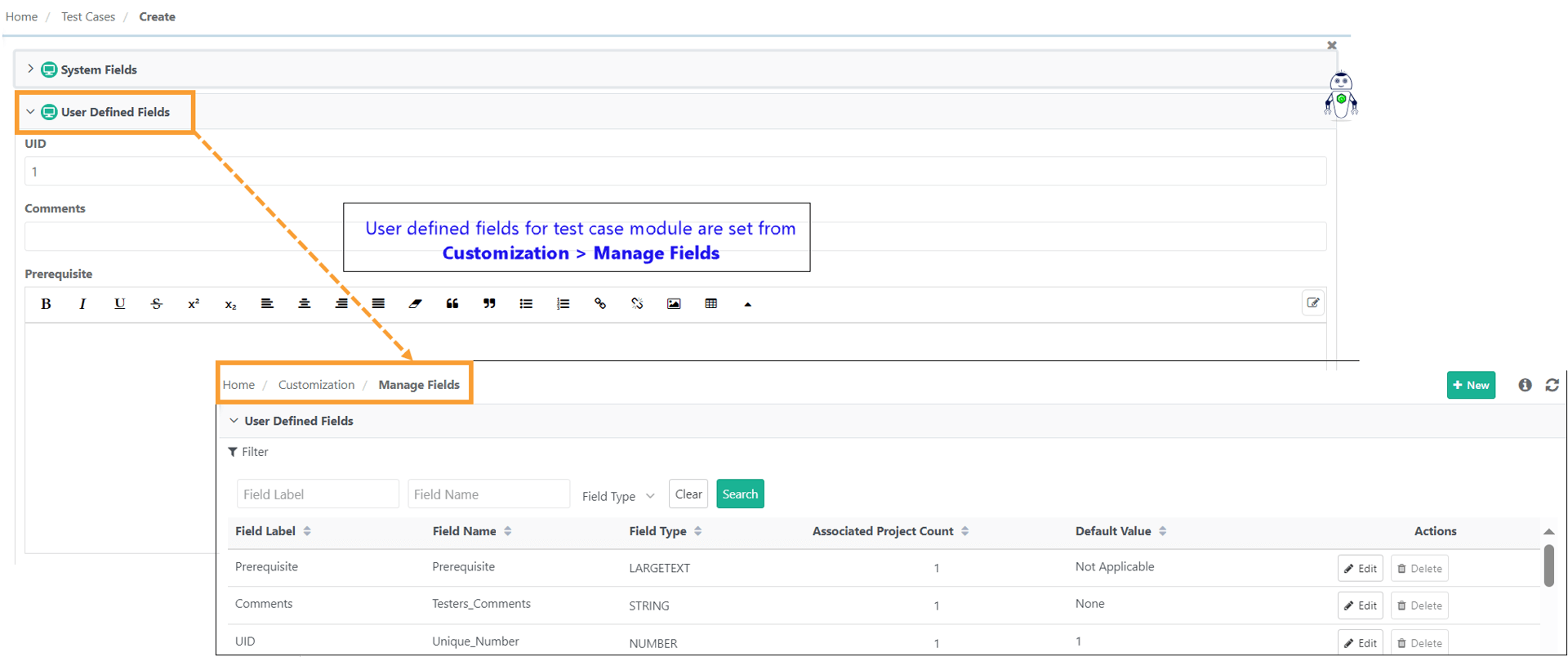
Administrators configure UDFs for the Test Case module in Customization, in Manage Fields.
You can configure UDFs as look-up lists, multi-lookup lists, or cascading fields.
For a mandatory cascading field, you must select both the parent value and the child value.
 |
Adding and Editing Test Steps
To add or edit test steps, perform these steps:
Go to the Test Steps section.
Select the Expand icon to open the full-screen view.
Add a step in one of the following ways:
Select the Edit icon, or press Tab to navigate between fields.
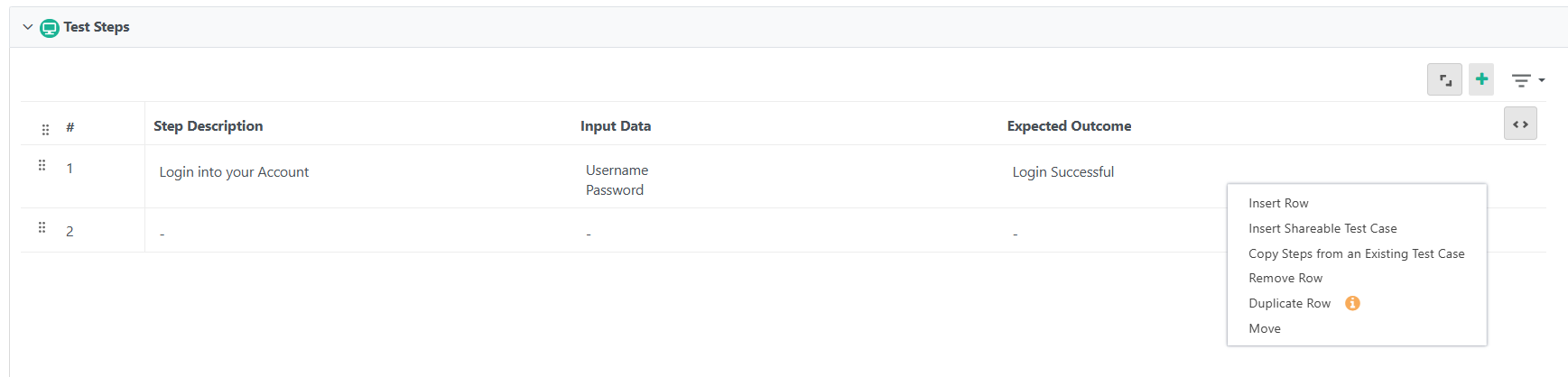
Select the cog icon, and then select Insert Row.
Enter Step Description, Input Data, Expected Outcome, along with any other user-defined field.
Repeat to add additional steps.
Reusing Steps
You can reuse steps from an existing test case or from shareable test cases in two ways:
Select Insert Shareable Test Case.
Select Copy Steps from Existing Test Case.
Access both options from the cog (⚙️) icon or the + icon on the Test Steps toolbar.
Insert a Shareable Test Case
To insert a shareable test case, perform the following steps:
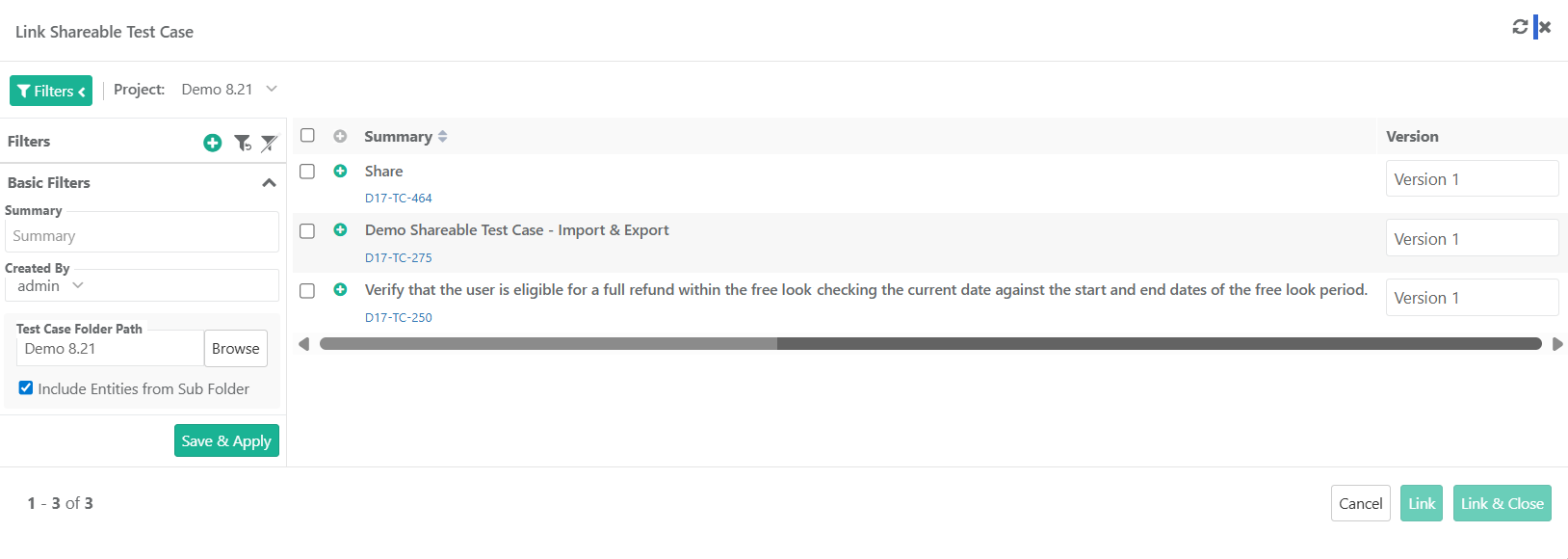 |
Select the cog (⚙️) icon and then select Insert Shareable Test Case.
In the Link Shareable Test Case screen, apply a filter to locate the relevant test cases. You can also filter shareable test cases by folder path.
Click Save and Apply to save the applied filters.
Copy Steps from Existing Test Cases
To copy steps from an existing test case, perform the following steps:
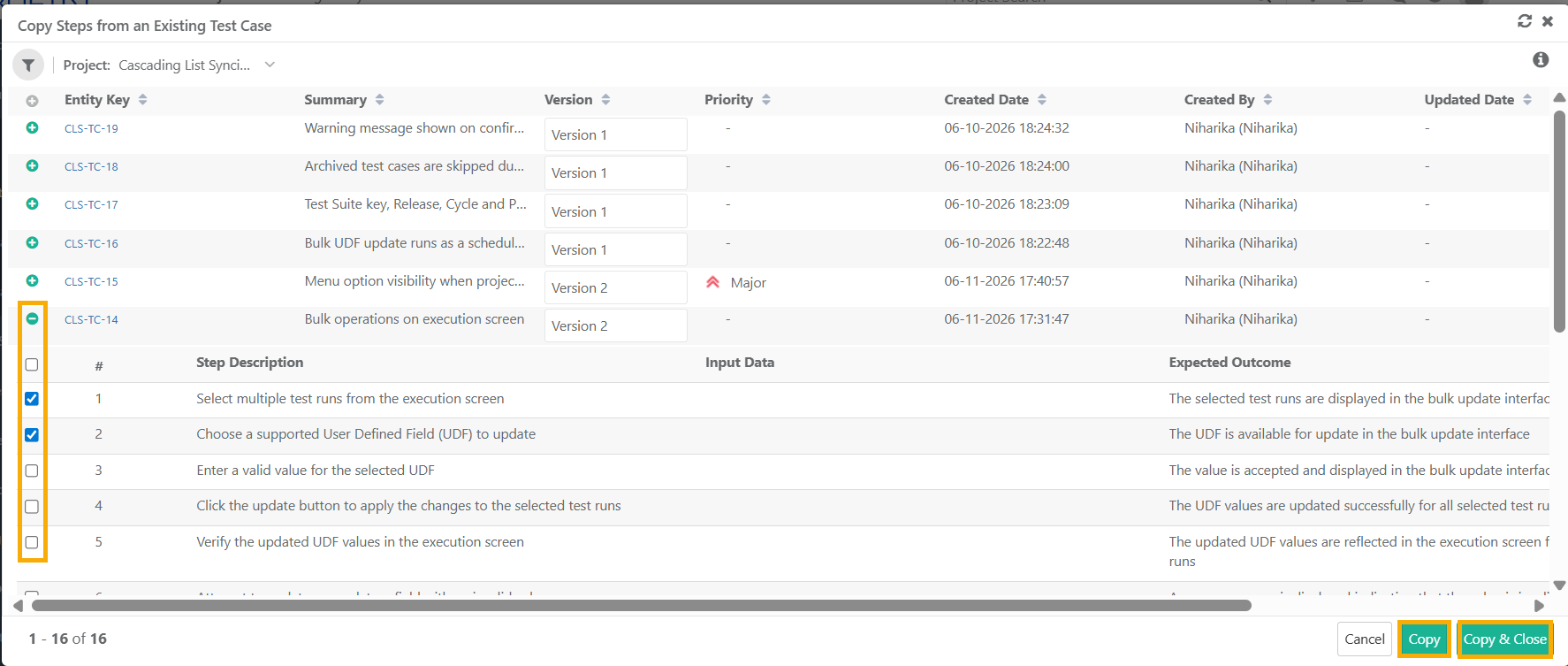 |
Select the cog (⚙️) icon and select Copy Steps from Existing Test Case.
In the Copy Steps from an Existing Test Case screen, select a Project in the Project list.
Expand the test case that contains the steps you want.
Select the test steps and then select Copy or Copy and Close.
To copy steps from more than one project, select Copy, change the project in the list, and continue selecting steps.
Note
QMetry preserves the applied filters.
Enable Include Entities from Sub Folder to display STCs from the selected folder and all its sub-folders. Disable it to display STCs from the selected folder only.
Editing Steps
To edit a step, perform the following steps:
Point to a step field, and then select the Edit icon to turn on inline editing.
Press Tab or select outside the field to save your changes.
Note
If an administrator adds UDF step fields in Customization, those columns appear next to the default fields.
Changes to the column arrangement of UDF step fields apply across all related screens: Execution, Detail, Version, and Exploratory Testing.
Entering Risk Analysis Fields
Note
This section is visible only if you have enabled Risk Analysis feature from General Settings under Projects.
To enter risk analysis values, enter the Risk Type, Risk Category, Likelihood, and Impact. QMetry calculates the Risk Priority Number and the Extent of Testing to help you prioritize test cases.
Linking Requirements
To link requirements, perform the following steps:
Select Link.
Link requirements in one of the following ways:
Enter the requirement entity key.
Select requirements directly in the Linking screen.
Create a new requirement in the Linking screen, and then link it to the test case.
You can link up to 500 requirements to a single test case in the Link Requirements section.
Planning and Executing New Test Cases
Plan Executions helps you streamline test execution. You can add a new test case to an existing test suite, or create a new test suite and schedule its execution.

Creating a Test Suite
Note
To create a test suite, you need the Create Suite, Link Test Case, and Link Test Suite permissions.
 |
To create a test suite, perform the following steps:
Select Create Test Suite to open the creation screen.
Enter the test suite details.
Associate a folder path.
Link one or more releases, cycles, and platforms. You can select multiple values for Release, Cycle, and Platform. By default, Release and Cycle are inherited from the test case, and the owner defaults to the logged-in user.
Save the test suite in one of the following ways:
Select Proceed With Executions to save the test suite and continue to execution.
Select Create Test Suite to save the test suite.
The entity key of the new test suite appears at the top of the screen. Select the entity key to open the test suite. All linked test cases appear in the Test Cases section.
Linking an Existing Test Suite
Note
To link an existing test suite, you need the Modify Suite, Link Test Case, and Link Test Suite permissions.
You can associate a test case with only one Test Suite.
QMetry excludes the following test suites from the list:
Test suites that have no associated release, cycle, or platform.
Test suites in which all associated releases, cycles, or platforms are archived.
Archived Test Suites.
Link Existing Test Suite opens the list of available Test Suites in the current project.
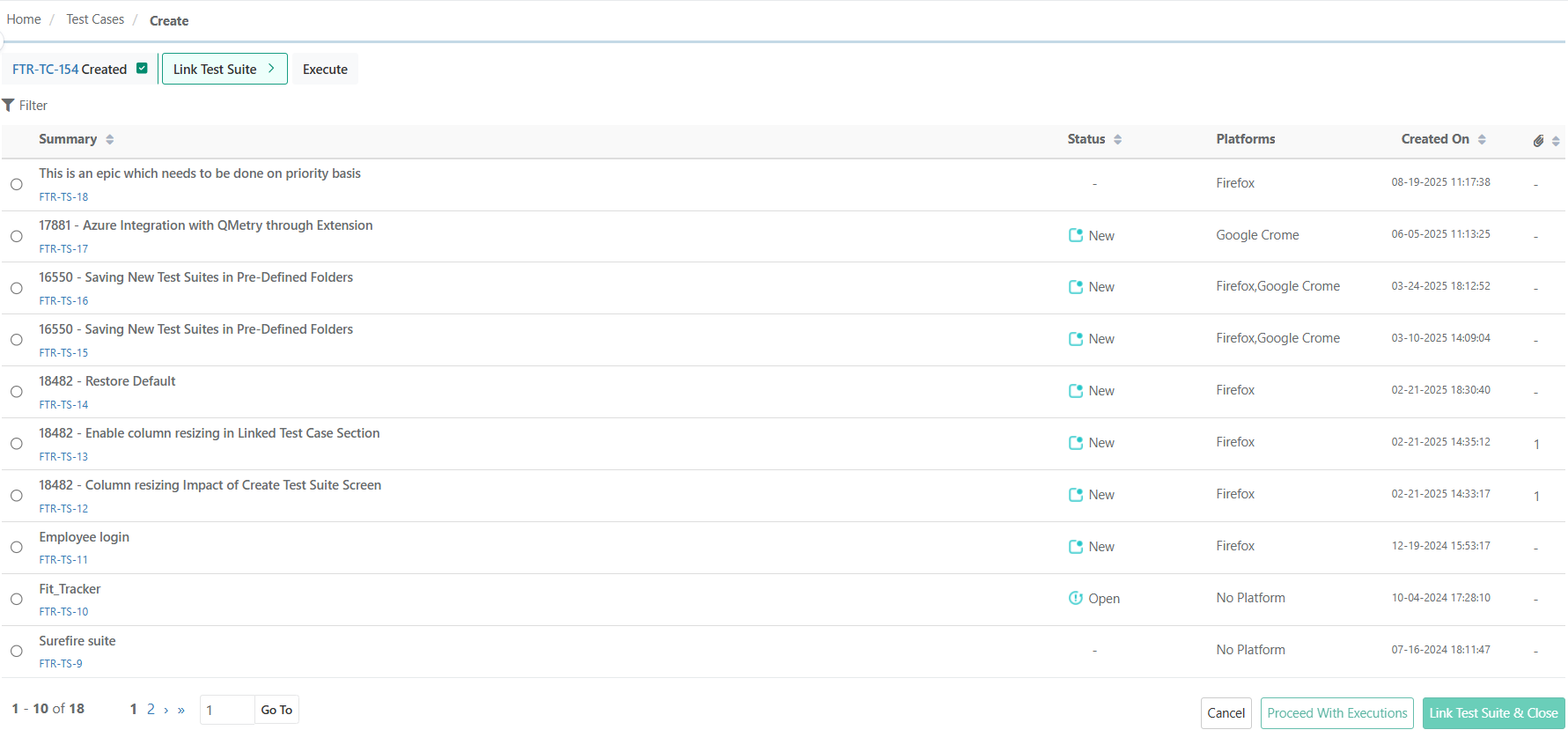
To link an existing test suite, select the test suite, and then select one of the following options:
Link and Close: Links the test case to the selected Test Suite and closes the screen.
Proceed with Execution: Links the test case to the selected Test Suite and initiates execution runs. You are redirected to the Execution Flow screen to begin execution.
Cancel: The test case is saved but not linked to any Test Suite.
Proceeding with Executions
The Execution Flow screen displays the test suite key, summary, and all execution runs for the test case. You can edit the following details for each run.
Field | Description |
|---|---|
Build Name | Build for the execution run. The mandatory project-level build settings are applied automatically. |
Attended Time (timer) | Time spent on the execution. Edit it manually. The timer does not start automatically with execution. |
Planned Date | Optional. Select a planned execution date. |
Link or Add Bug | Link or create bugs |
Execution Type | Defaults to Manual |
Tester or Execution Assignee | Defaults to logged-in user |
Setup Time | Hidden by default |
Execution Status | Editable |
Note
The project-level timer restriction for Actual Attended Time does not apply on this screen.
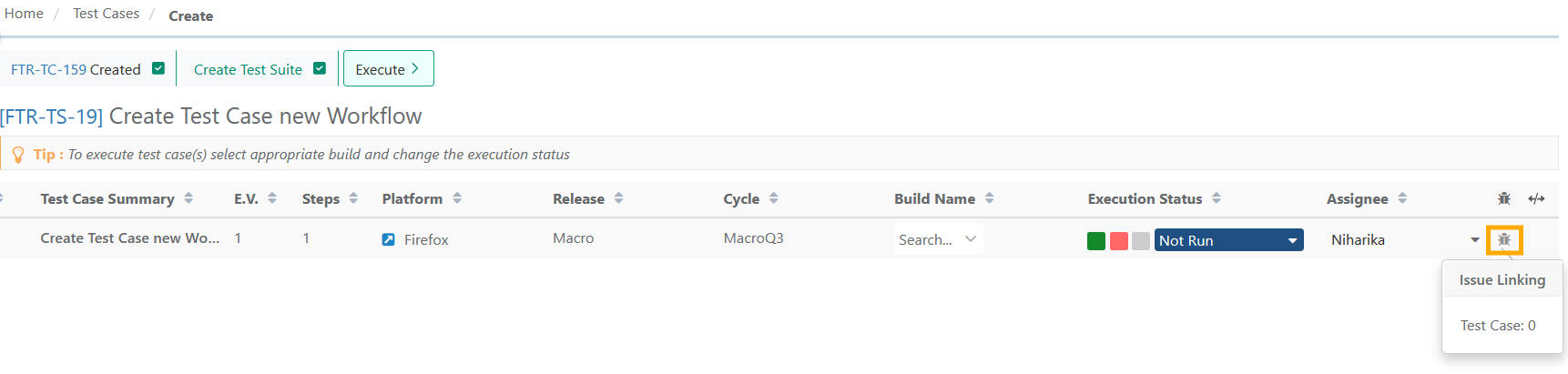
You can add or link existing bugs directly from the test case execution screen .
Test Case execution view

Step execution view.