Track Progress for Test Case Creation from Feature File
Track the status of test case creation or updates performed using feature files from Background Tasks. It also provides visibility into any issues encountered during the import process.
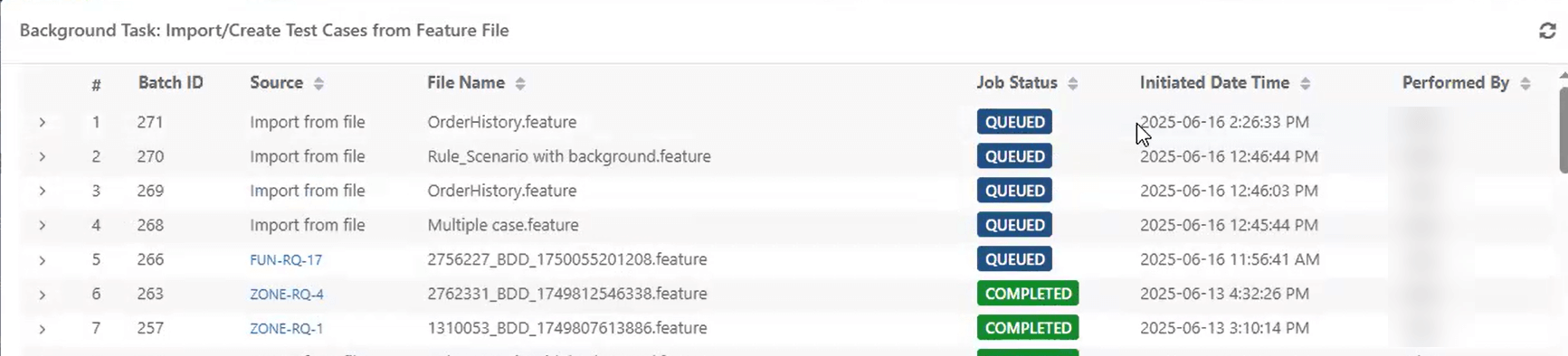 |
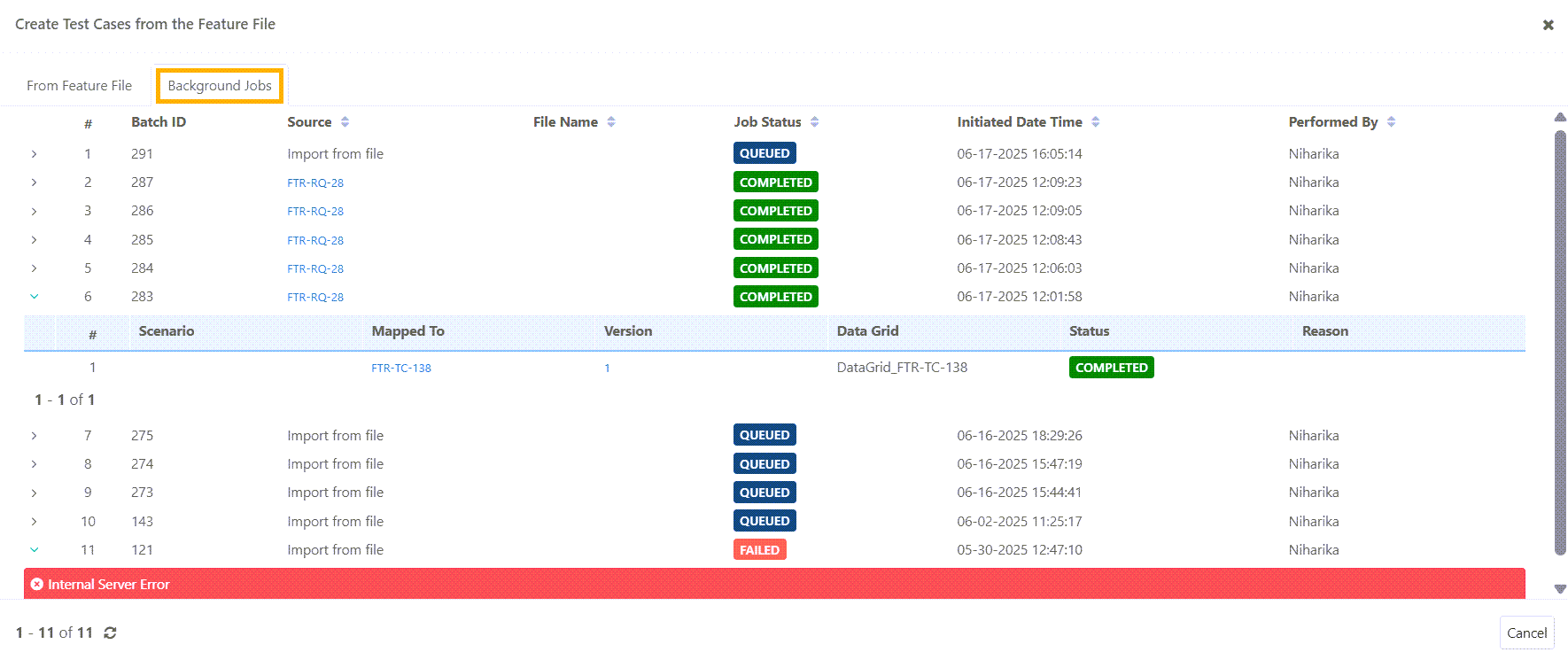
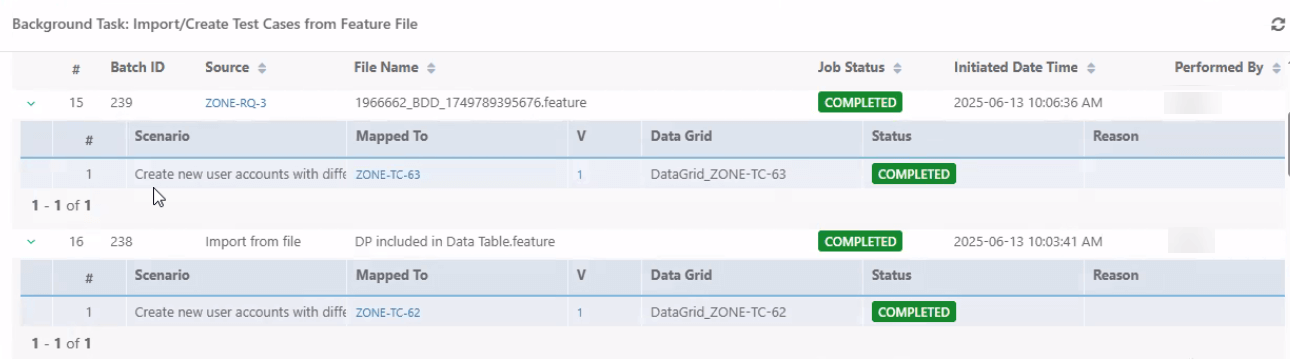
The system logs each feature file import as a separate entry. Expand the record to view the following details:
Scenarios Imported
Test Case Keys
Test Case Version
Data Grid Name (if available)
Import Status
Failure reasons (with a link to View details)
 |
Import Status Descriptions
The following status messages indicate the outcome of the import process:
Queued: The import process is in queue and has not started yet.
Completed Successfully: Import completed without any issues.
Completed with Warning or Error: Import completed but encountered minor issues such as:
Missing labels or parameters
Invalid or missing entity keys
Insufficient permissions to create links
Failed: The import was not successful due to reasons such as:
Test case is archived, approved, or already executed
Feature file is invalid
Missing or invalid entity keys
Permission issues
Label creation failure
Steps to View Import Status
To view the status of test case creation from feature file, perform the following steps:
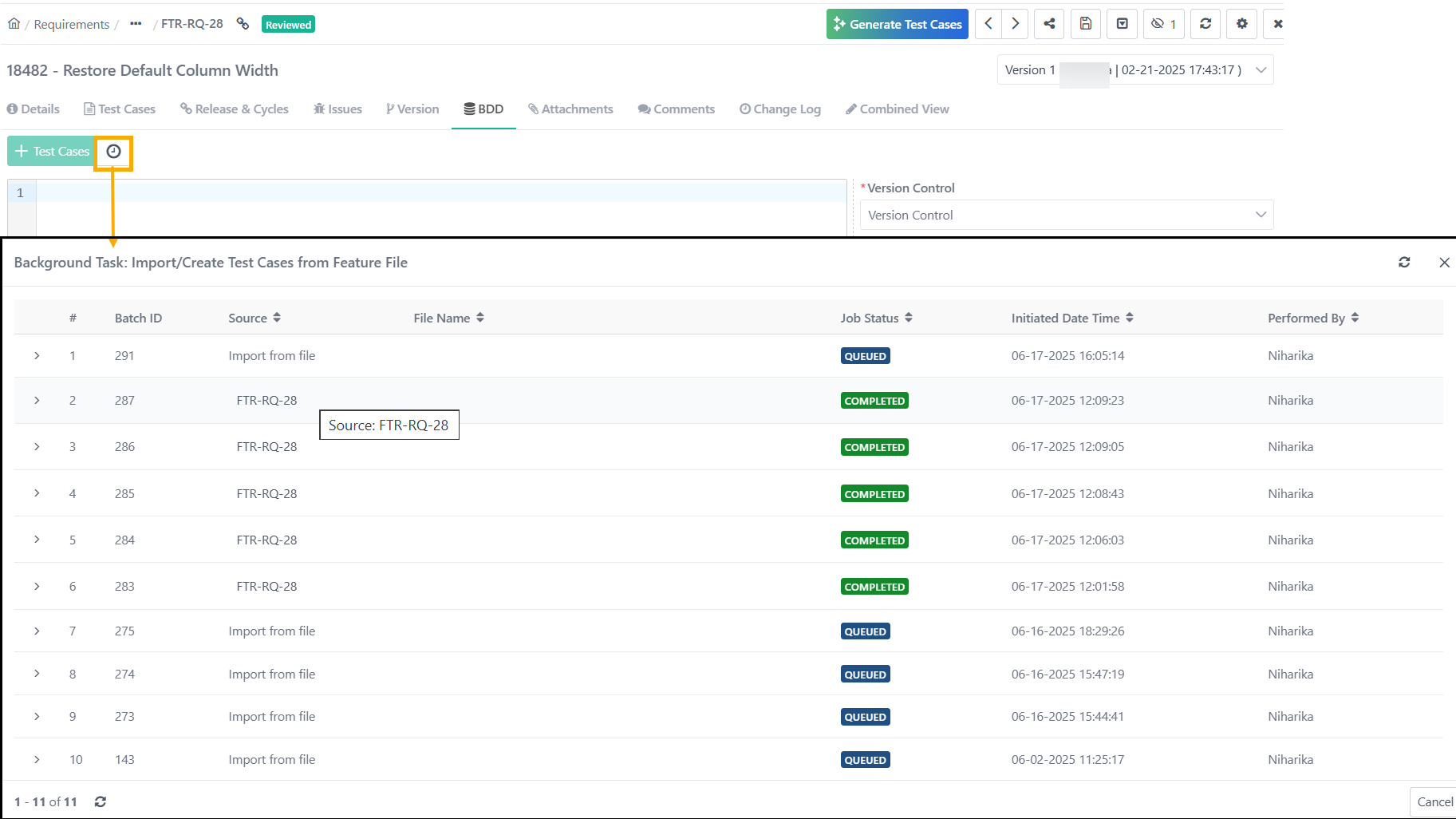
From Requirement Module
Open the relevant requirement.
Go to the BDD section.
Click the Background Task Icon.
From the Test Case Module
Click Import from Feature File.
Go to Background Jobs tab.
Expand the record to view the details of Scenarios imported during the operation, Test Case Keys to which the scenarios were mapped, test case version, and Status.