Linking Issues to Requirements
Link issues to requirements through the Issues tab on the Requirement details page and the Requirement edit screen.
Note
Admins can set Link rights for the requirement module from Roles.
Use the Advanced Filter option to access custom fields configured for the Issue module in Integrations under Managing Projects.
Linking Issues from JIRA
To link Issues from JIRA, follow these steps:
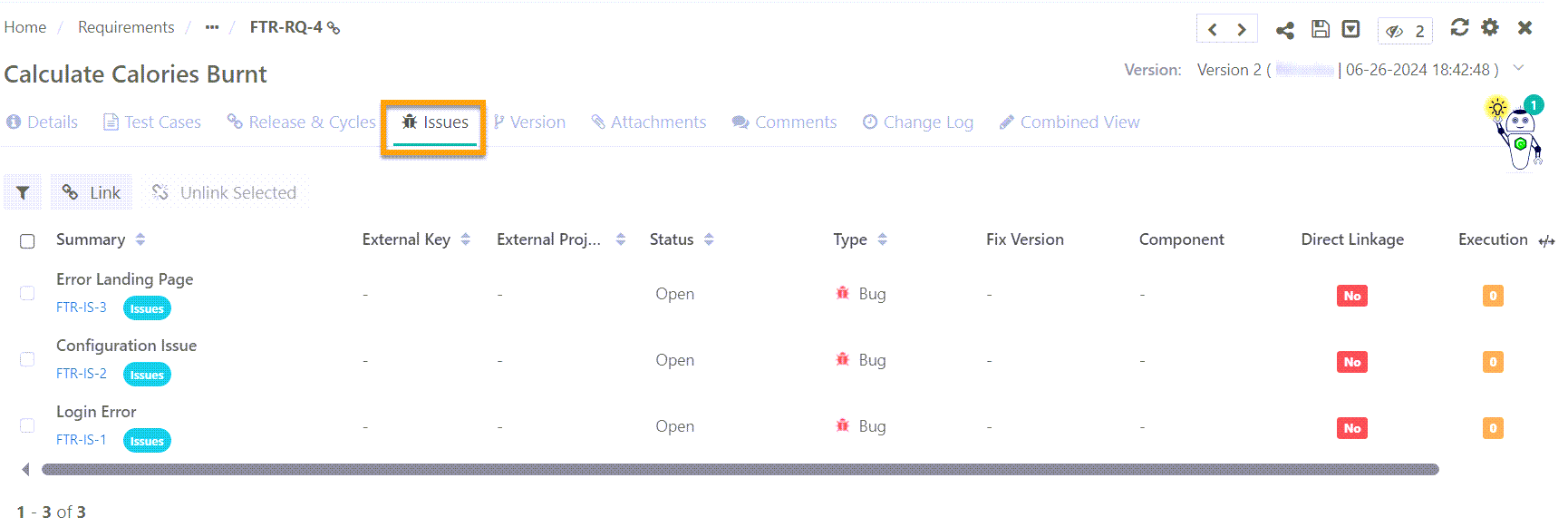 |
Go to the Issues tab of the requirement details page.
Click Link to associate JIRA issues with the requirement.
Select the issues and click Link.
Note
To link issues from multiple projects, click Link before switching the project. Once you have selected all the issues click Link and Close.
To link a new issue, click Create a New Issue. Click Refresh. Select the issues and click Link and Close.
When you have configured a Jira project, select the Jira instance and its project to link Jira issues to requirements in QMetry.
Unlinking Issues from a Requirement
Go to the Issues tab from Requirement Details or Edit page.
Select the issues to unlink.
Click .
Associating Releases and Cycles
Note
Add Release and Cycle to a project from Releases and Cycles under .
To associate release and cycle, perform the following steps.
Go to the Requirement Detail Page.
Select the Release and Cycle tab.
Click Add New.
Select the releases; the cycle list is prompted for the selected release.
Select the cycles.
Select the requirement version.
Click .
To remove the release and cycle association with the requirement, click for the release and cycle combination.