Editing Requirements
Note
Admins can set Edit rights for the requirement module from Roles.
You can update a requirement within the current version or by creating a new version.
Editing the Current Version
To update requirements without creating a new version, perform the following steps:
 |
Go to Requirements detail screen.
Select the Details tab.
Hover over the values to edit and use the in-place editor.
Enter the new value and save your changes.
Note
Editing the folder path moves the asset to the new folder.
Creating a New Version
Versioning lets your organization track changes made to specific fields across different versions of a requirement.
Note
Only users with versioning rights can see the Save As New Version icon.
Versioning rights are assigned from Roles.
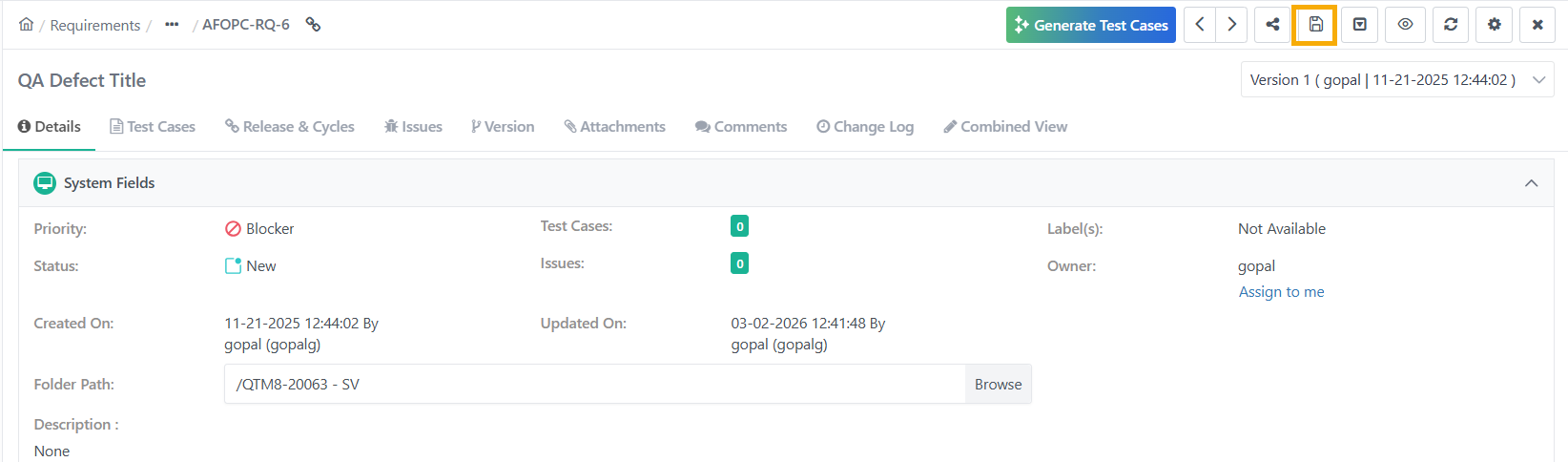
To create a new version of a requirement from the detail screen, perform the following steps:
Select the Create New Version icon.
Make the changes and select Save As New Version.
Add a Comment for reference.
Enter a description that explains the relevance of this requirement version.
To create a new version from the requirement grid view, perform the following steps:
Go to the Requirement grid view.
Click the Cog (⚙️) icon for the requirement and select Create New Version.
Repeat steps 2 to 4 in the previous procedure.