BDD Implementation
Enterprise teams practicing Behavior-Driven Development (BDD) can author, store, and sync feature files directly to or from Version Control Systems (VCS) like SVN, Git, GitLab, Bitbucket, and Azure DevOps, using the built-in Gherkin editor.
The two-way syncing between QMetry and VCS keeps developers, testers, and product owners up-to-date with the latest source code change commits with automated step definitions. Using QMetry automation agents, testers can trigger test executions directly from QMetry .
Test cases are smartly authored based on the feature step definitions and linked to requirements. Test Suite stores the automation execution results, ensuring complete feature traceability.
Workflow
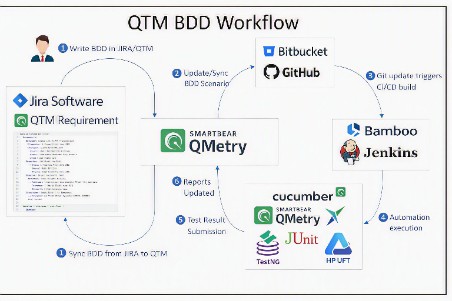
Business analysts or scenario writers create test scenarios for upcoming features in Gherkin.
Once finalized, they push the code to the repository linked with the QMetry project.
Automation engineers get notified when the BDD code is updated.
At the time of test execution, automation engineers pull the latest code from the repository and run automation tests.
After the automation test run -
The system creates automated test cases, test suites, and test executions.
The system updates automation test results on the Test Execution screen
Pre-requisites
Get the following rights in QMetry :
Project module "Modify" rights.
Requirement module "Modify" rights.
Write BDD Code in -
QMetry
QMetry Jira Add-on
Configure BDD in QMetry
To configure BDD in QMetry , perform the following steps:
Go to and select
Go to the Project details page and select BDD Configuration.
Click the + sign to add BDD Configuration.
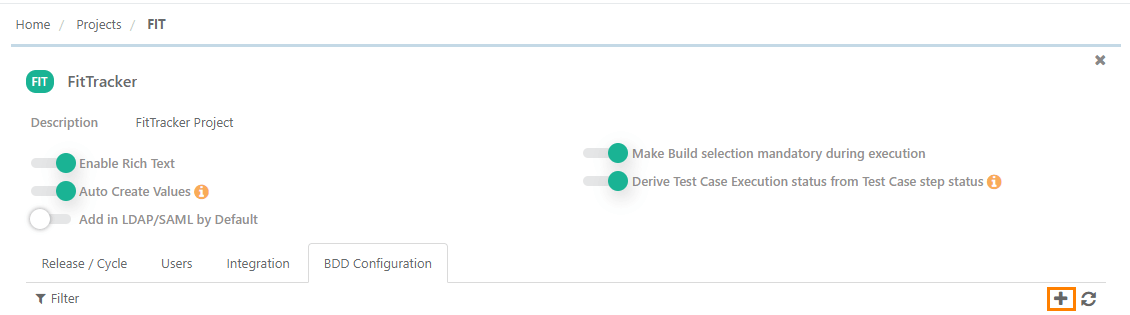
Enter the following details on the Add Configuration screen:
Version Control System:Select the version control system your organization uses as the code repository.
Type Select the Version Control System type as Cloud or Server.
Repository URL: Enter the repository URL.
Access Token: For Gitlab, Github, and Azure DevOps, enter the personal access token for authentication.
Username and Password: For Bitbucket or SVN integration, provide your username and password for authentication.
Click Test to verify the Repository credentials.
Once the Test is verified, click Save.
Note
For Bitbucket and Azure Integration, enter the cloned repository URL.
The configured version control system for BDD is displayed on the BDD Configuration tab.
 |
Additional Resources
Learn how to generate a personal access token for GitLab authentication.
Learn how to generate a personal access token for GitHub authentication.
Learn how to generate a personal access token for Azure DevOps authentication
Learn how to generate a Username and a Password for Bitbucket authentication.
BDD in QMetry
Note
The BDD section in the Requirements module becomes visible only when a version control system is configured for the QMetry project.
Writing BDD Code in the Requirements Module
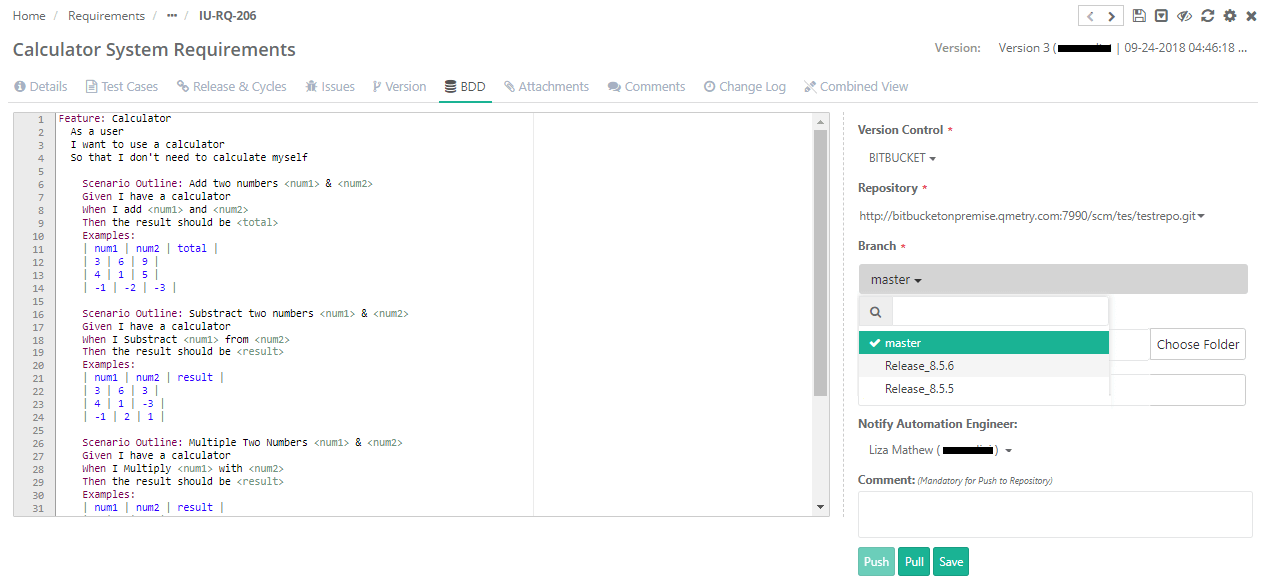
The Requirements module includes a Gherkin editor to write Test Scenarios in BDD code. Once finalized, you can push the code to GitHub, GitLab, Bitbucket, or SVN for automation testing.
 |
To write BDD code in the Requirement module, perform the following steps:
Go to the Requirement Details page.
Go to the BDD tab.
Write the BDD code in the editor.
Enter the following details:
Version Control: Select the Version Control System.
Repository: Repository populates based on the Version Control System.
Branch: Select the branch based on the repository selection. Branch access depends on the user who connects the BDD integration..
Folder Path: Select the folder to store the BDD file. If the folder path is not given, it pushes it into the root directory of the repository.
File Name: Enter the name of the file along with the extension. The file name should contain only characters, digits, and "_". No other special characters or spaces are allowed.
Notify Automation Engineer: Select users to notify about BDD updates. By default, all current Watchers of the requirement are selected.
Comment: Add notes to push the code to the repository.
Perform either of the following:
: Saves the BDD content and requirement details in the QMetry database.
Note
The BDD content is saved by requirement version, not by individual entity.
: Creates a feature file with the given name and pushes it into the specified repository on the given folder path.
If you are writing BDD code while creating a requirement, then you can only save the code.
Pull Code from Repository
To pull the updated code from the repository to QMetry, perform the following steps:
Open the Requirement Detail page.
Go to the BDD tab.
Click .
After displaying the warning message, the system automatically pulls the latest code from the repository and save it in QMetry.
BDD in QMetry Jira Add-on
BDD is implemented in the QMetry Jira add-on to facilitate test scenario creation and syncing of code directly to code repository even when requirements are imported from Jira.
The BDD panel is available in the Jira add-on for the issue types synced with "Requirement" in QMetry .
Pre-requisites
Install and Configure QMetry Jira Integration Add-On.
Configure the version control system with the Jira integrated QMetry project.
Writing BDD Code in QMetry Jira Add-on
The system displays Requirements or Stories imported from Jira with an External Key. Clicking the External Key opens the requirement detail page in the QMetry Jira add-on.
The BDD panel is also added to the requirement detail page, enter BDD code and push the code to the repository.
To write BDD Code in QMetry Jira Add-on, perform the following steps:
Open the Requirement Details Page in the Jira add-on.
Select the Project.
Locate the BDD section.
Write or edit the BDD code in the editor.
Click Push.
Enter the requested details.
Click Save to save the content or Push to create a feature file and push it into the repository.
BDD Code Execution
To execute BDD code and record results, follow this process:
Write the BDD Code and push it to the repository.
The system creates the file in the repository using the extension.
Add the repository reference in Jenkins and trigger the build from Jenkins.
Jenkins publishes the build results according to the configured parameters. Refer to Jenkins Plugin for QMetry for more details.
Once the test process completes, QMetry automatically creates the corresponding test cases, test suites, and test executions.
QMetry updates the automation test results on the Test Execution screen.
Reusing Existing Test Cases
Reuse existing test cases for automation testing by writing BDD code in the Requirements module.
Include the Test Case ID of the existing test case in the BDD code using annotations. Specify individual test case IDs for each scenario.
If the test case is of Automation type and the test steps differ, then its version will be updated after execution of the BDD code.
If the test case is of "Manual" type, then its new version will be created with "Automation" type test case.
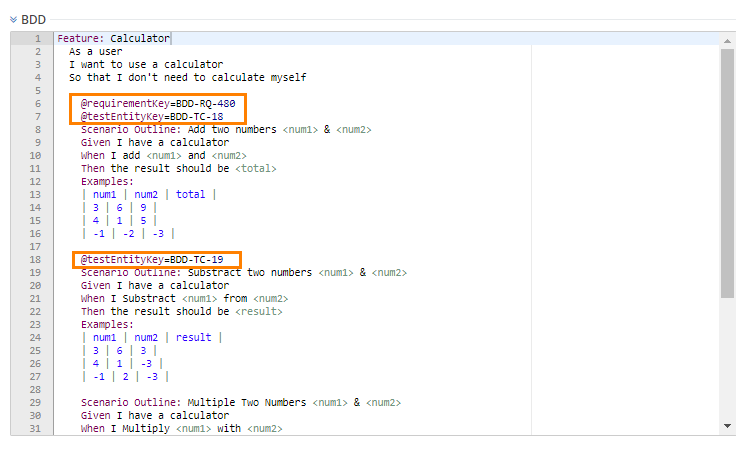
The test scenarios written in the Requirement BDD section become test steps added to the test case referenced by the annotation.
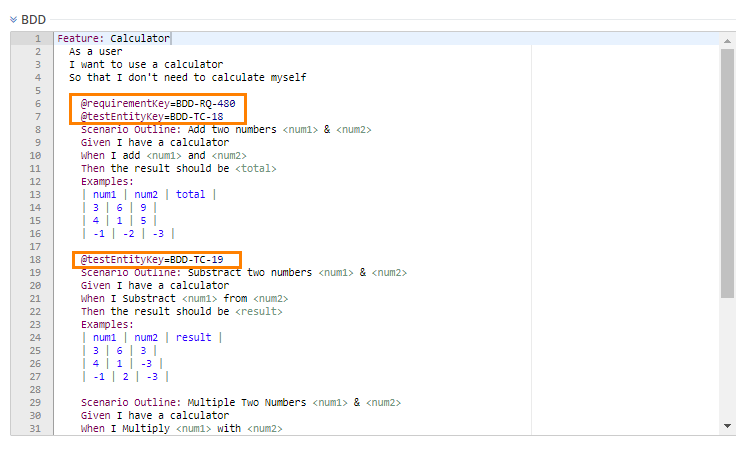
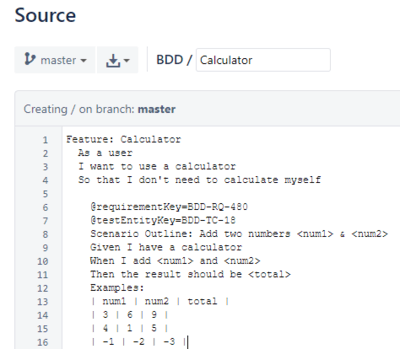
For example, in the BDD code, you mention Test Case ID "BDD-TC-18" with the annotation @testEntityKey=BDD-TC-18.
In repository
 |
When the BDD code executes:
|
If Test Case ID "BDD-TC-18" is a manual test case, then its new version will be created as an automated test case.
If Test Case ID "BDD-TC-18" is an automated test case, a new version will be created if there are differences in test steps.
Finally, the system adds the test scenarios from the BDD code as test steps to the specified test case.
Linking Test Cases to Requirements
After executing the BDD code, the system either creates a new automation test case or updates an existing one. To track test coverage, link these test cases to their corresponding requirements.
To link a test case to a requirement, include the Requirement ID in the same test scenario of the BDD code where you mention the Test Case ID. Use annotations to specify both IDs.
When you include both the Test Case ID and Requirement ID annotations in the same BDD code, the system automatically links the created or updated test case to the specified requirement.
In the BDD Code
Annotate the Test Case ID as @testEntityKey=BDD-TC-18.
Annotate the Requirement ID as @requirementKey=BDD-RQ-480
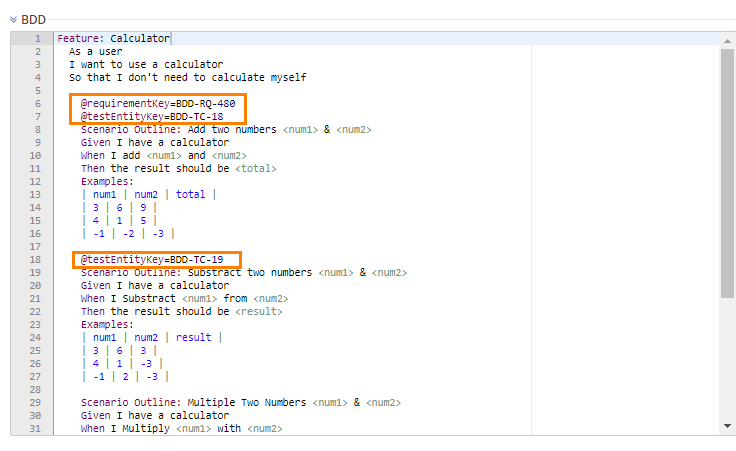
Go to the Requirement Details page and select the Test Case tab and verify that the test case is linked to the requirement.