Requirement Module
The Requirement module is a central repository for managing test requirements.
Create requirements manually, import them via Excel, or import them directly from Jira. Track these requirements throughout the development lifecycle and ensure complete test coverage by linking them to test cases.
Note
Admins can set View, Modify, Create, Delete, Import, Export, Link, Copy, and Versioning permissions from Roles in Customization.
Key Features of the Requirements Module
Add requirements from external development or product management tools.
Create requirements directly from Jira.
Link requirements to test cases for coverage.
Run quick ad hoc executions of linked test cases.
Generate requirement reports.
Test Asset List View
The module grid view offers various customization options.
Managing Grid View
Use Arrange Columns to customize the grid view. Resize, hide, organize, sort, and rearrange columns. Refer to Manage Grid Columns to learn more.
Filtering Assets
Filter records by the system or custom fields. Apply basic or advanced filters on the records. To learn more about filters, refer to Filtering Assets.
Folder Management
Organize your assets in a hierarchical structure using folders. To learn more about available actions, refer to Basic Folder Operations document.
Bulk Operations
To perform Bulk operations on the asset, refer to Bulk Operations.
Requirement Detail View
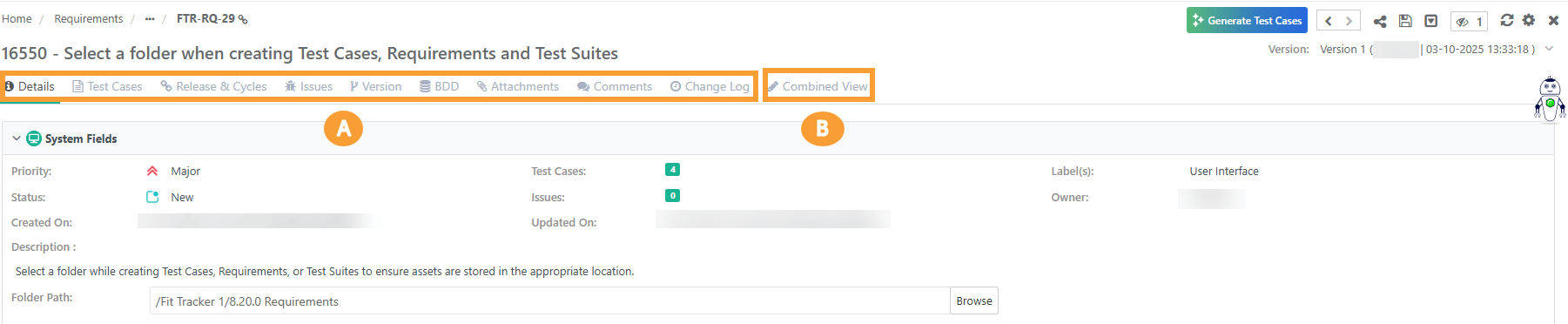
To access the Requirement Detail page, click the Requirement Entity Key in the grid view or Right-click the Entity Key to open it in a new tab. The requirement details page contains:
A. Individual Section Tabs (Editable)
B. Combined View (Read Only View)
 |
Note
BDD section is visible only when you configure a version control system for the project.
Customize the detail page view by changing the order of tabs. The system preserves the tab order for each user.
Refer to the Manage Attachments to learn more about the attachments tab.
Refer to the Change Log document to learn more about logs.
Explore:
How to Create New Requirements
How to Import Requirements
How to Update Requirement
How to Map Requirements from Jira
How to Map Requirements from Azure
How to Export Requirements?
Learn about BDD Implementation