Generate or Regenerate the Existing Steps of a Test Case
Generate or regenerate test steps for existing test cases. QI analyzes key elements such as the Test Case Summary, Description, Story Summary, or custom user-provided inputs to create test steps that align precisely with the scope and objectives of each test case.
This feature is supported within the Test Case Module.
Super Admin Configurations: The Super admin must enable the Enable users to generate details and steps in an existing test case by either updating the current version or creating a new one feature from AI Configuration under System Settings. Refer to Auto-Generate Test Cases and Test Steps using QI.
You must have Test Case Modification permissions.
Best Practices
QI uses the Test Case Summary, Test Case Description, and Requirement Description to generate Test Steps.
For high-quality Test Steps, ensure that the descriptions are detailed.
It must explain the key aspects of the functionality.
Generate or Regenerate Existing Test Case Steps
Generate or update test case steps based on test scenarios, expected outcomes, and past executions. AI can create step-by-step instructions, suggest improvements, remove redundancies, and enhance the current steps.
To auto-generate or regenerate test case steps, go to the Test Case module, click the test case entity.
To generate or regenerate test case steps, select one of the following options:
Enhance Current Steps (Enabled only if the test case has existing steps.)
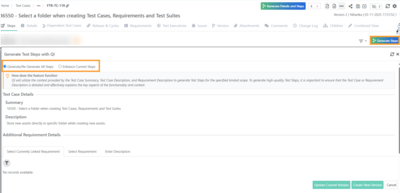 |
Generate or Regenerate All Steps
Generate or regenerate all steps in a test case based on the descriptions you provide. This is particularly helpful when creating new test case steps based on a requirement description or a user-entered description.
To generate or regenerate existing test steps using QI, perform these steps:
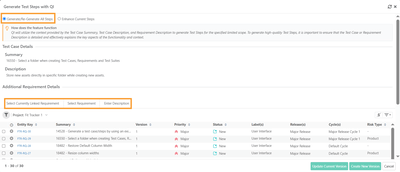 |
Click Generate Steps on the Test Case Detail screen.
The Generate Test Steps with QI pop-up window appears.
Enter the necessary inputs: Test Case Summary and Description, and/or Requirement Summary and Description, or User-Entered Description.
Select whether to Update Current Version or Create New Version.
QI initiates the test step generation process.
Review and make necessary edits to the QI-generated test steps (if needed),
Click Create New Version or Update Current Version.
Enhance Current Steps
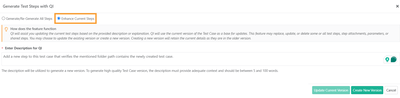
Use this option to enhance the existing test case steps. In this option, QI analyzes the current steps along with your description of the required enhancements and suggests automatically updating the test steps.
The Enhance Current Steps option is available only if the test case has existing steps.
 |
To enhance the current steps, perform the following steps:
Select Enhance Current Steps.
Enter a description (5 to 100 words) with required details for QI to generate enhanced test steps.
Ensure the description provides a clear context for accurate results.
Click Create New Version.
Note
To use the Enhance Current Steps option, the test case must contain at least one test step.
For test cases that have existing steps, you can create a new version with AI-generated test steps.
Inputs for Automatic Test Case Step Generation
Test Case Details: Test Case Summary and Description
Testers can modify the Test Case Summary and Description to regenerate test case steps.
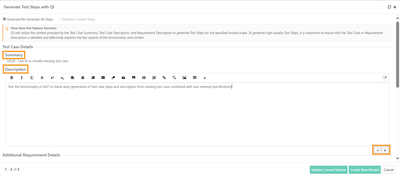 |
To modify the test case summary and description, perform these steps:
Hover over the Summary or Description fields to edit.
Click the existing text to enable edit mode.
Make the necessary updates.
Click the checkmark icon to save the changes.
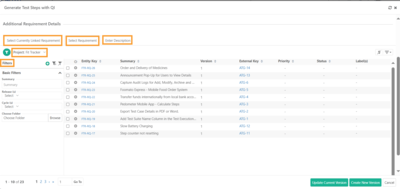
Additional Requirement Details
Testers can regenerate test case steps by choosing one of the following options:
A requirement from the list of currently linked requirements.
Any other requirement from the current project or another project.
A user-entered description.
You can apply both basic and advanced filters to the records. Additionally, the Arrange Columns option enables you to customize the column view according to your preferences.
 |
Note
If the test case or requirement descriptions lack sufficient detail to generate test steps, the system notifies the user to provide more comprehensive information.
Create New Version or Update Current Version
You can create a new version of the test case with the newly generated test steps or update the existing version. The Update Current Test Case Version option is available exclusively for non-executed versions, while the Create a New Test Case Version option is accessible for both non-executed and executed versions.
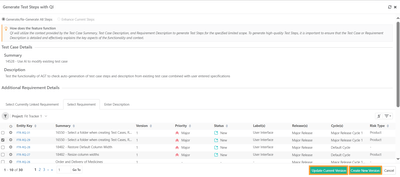 |
Clicking Update Current Version prompts a caution message, asking whether to update the current version or create a new version.
QI Generated Test Steps
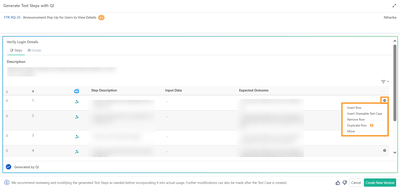
The QI-generated test steps include the step description and expected outcome. All fields are editable, allowing you to modify the steps to suit the requirements.
Further, you can insert a new row, add a shareable test case, remove a row, duplicate a row, or move a row using the cog icon.
 |
Feedback for QI Generated Steps
To provide feedback on QI, click Thumbs Up or Thumbs Down. A pop-up appears with predefined options, allowing you to choose or submit custom feedback. This helps improve the model's accuracy and performance.
If you want to submit feedback that differs from the predefined options, click Others and enter your customized feedback.