Operations on Column Headers
The following options are available to apply on the individual variable in the chart.
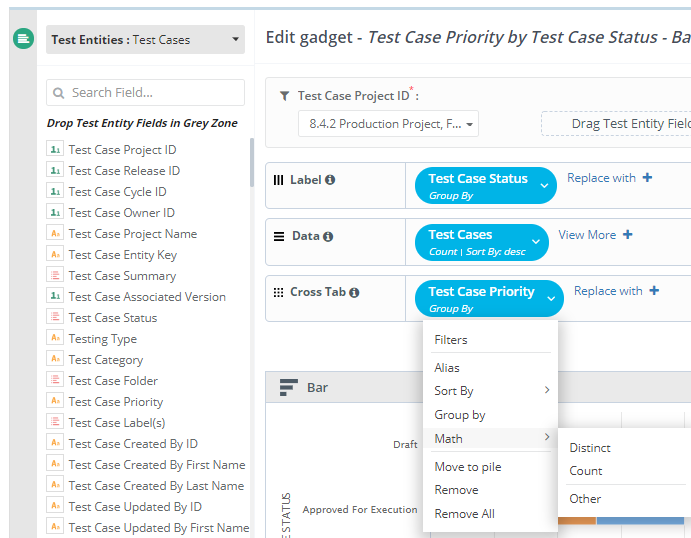 |
Apply Filters
You can apply multiple filters with different conditions on the fields.
Apply All Filters:
If you keep Apply All Filter On, then the system applies all the filters that are constructed for the field.
If you keep Apply All Filter Off, then the system does not apply the filters to the field.
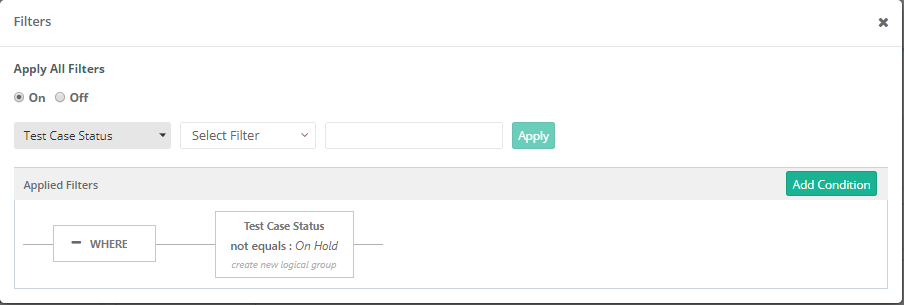
Here, we add one condition by selecting a Field, operator and values for the operator. Click Apply to add the condition on the below panel.
 |
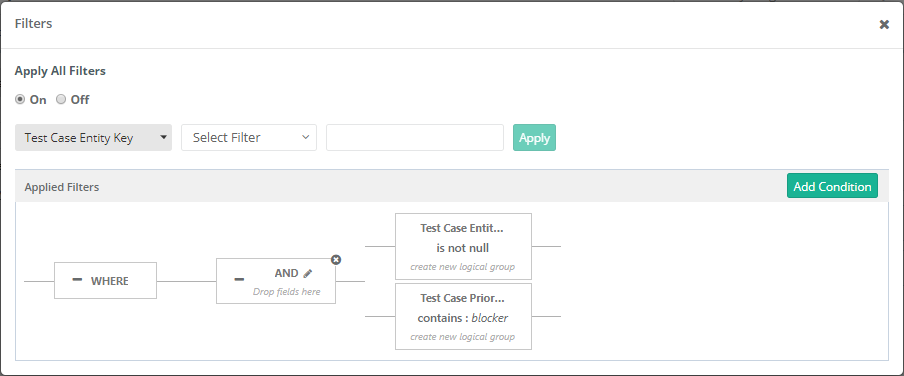
AND Condition: Add another condition to create a condition with AND operator to the same filter.
 |
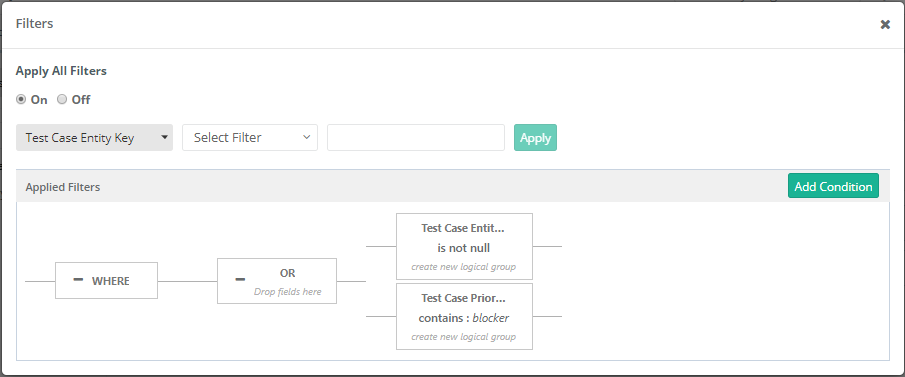
OR Condition: To apply OR condition, click the Pencil icon of AND condition and it gets converted into OR condition.
 |
The following table describes available Operators and their expected values.
Operator | Description | Possible Values |
|---|---|---|
Is Blank | String type field - Finds records with blank value (without any value) in the field. | No value required |
Is Not Blank | String type field - Finds records that have at least some value in the field. | No value required |
Is Null | List type field - Finds records that have no value for the list field. | No value required |
Is Not Null | List type field - Finds records that have at least one value for the list field. | No value required |
Equals | Finds records that have field values that are equal to the number/text you enter. | Number/Text |
Not Equals | Finds records that have field values that are not equal to the number or text you enter. | Number/Text |
Between | Finds records that have field values within a date or numerical range. | Date and Time Range Number Range—Select a minimum and maximum number that a value can be. |
Greater or Equals | Finds records that have field values that are more than or equal to the number you enter. | Number, Date |
Greater Than | Finds records that have field values that are more than the number you enter. | Number, Date |
Less Than | Finds records that have field values that are less than the number you enter. | Number, Date |
Less or Equals | Finds records that have field values that are less than or equal to the number you enter. | Number, Date |
Starts With | Finds records that have field values that start with the text you enter. | Text |
Not Starts With | Finds records that do not have field values that start with the text you enter. | Text |
IN | Finds records with field values that match at least one of the values from a list. It is used to validate the field against multiple values. | Text, Date |
Not IN | Finds records that do not have at least one value from a list. It is used to validate the field against multiple values. | Text, Date |
Contains | Finds records with the field that contain the partial value you enter. | Text |
Not Contains | Finds records with the field that do not have the partial value you enter. | Text |
Alias
Change the Column or field name.
 |
Sort By
Sort the column details either in Ascending or Descending order.
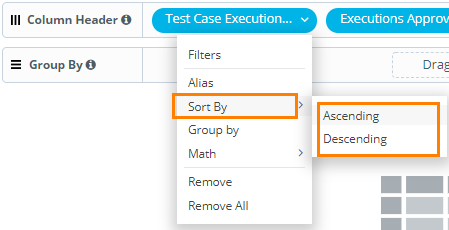 |
Group By
Select the option to group the report data on that particular field.
 |
Math
To view the Distinct or Count and apply other math operators.
Distinct: It returns records with only different values and eliminates duplicate records with similar values from the results.
Count: It returns total count (irrespective of duplicate values) of records for the field.
Other: When you select Other, it opens a query editor for the column with its relevant statement on it. You can apply different operators and corresponding functions to the statement -
→ Math: To do mathematical operations. For example, Sum is useful where total of something is required. E.g., Sum of Actual Execution Time of test cases.
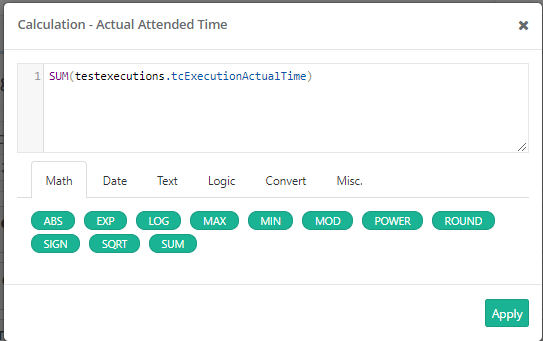 |
→ Date: For example, Created Date is a combination of date and time stamp. To convert it into Date format you can use DATE function.
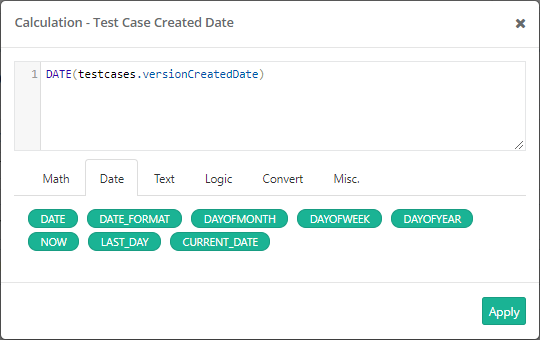 |
→ Text: It works on text fields. For example, to display Test Case Priority in Upper case we apply the below function.
 |
→ Logic: For example, to check the count of test cases to which Assignee is not allocated then we can apply the following Logic to the field.
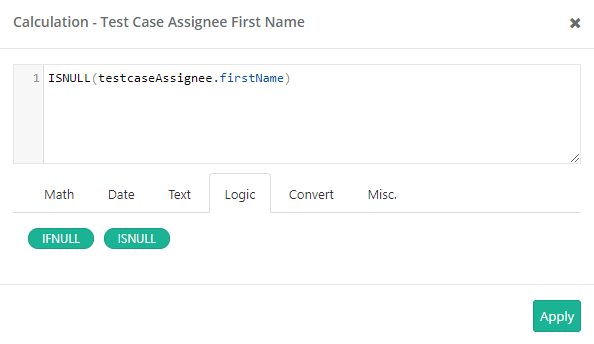 |
The same way you can apply required functions for -
→ Convert
→ Miscellaneous
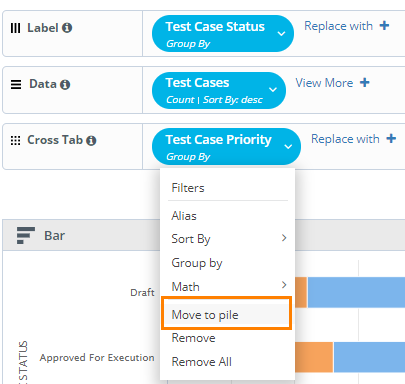
Move to Pile
If the the option is applied to the field, then the field operation is performed but the field is not displayed in the report.
Remove
Removes a field for the attribute. For example, we select Remove on Test Case Priority field.
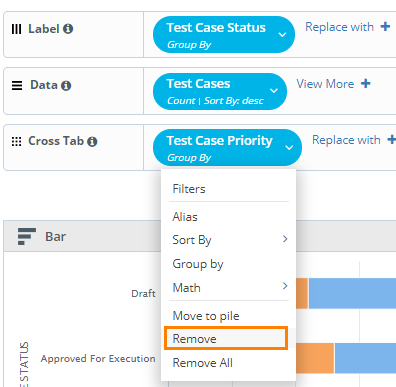
It removes that particular field for the attribute i.e. Cross Tab. The field isnot be considered while generating the report.
Remove All
Removes all the fields for the attribute. For example, we select Remove All on Test Case Priority field.
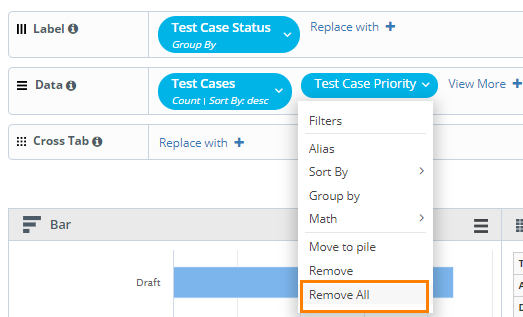
It removes all the fields for that particular attribute of the chart i.e. Data. The fields is also not be available on the View More list.