Line Chart
A line chart usually displays the information on a series of data points.
Example 41. Line Chart
Generate a report that displays the Count of Issues per a release by priority.
SQL Query
Count of Issues Per Release Per Priority
 SELECT
 COUNT(issues.entityKey) as "Count of Issue Entity Key",
 issues.priority as "Issue Priority",
 testexecutions.releaseName as "Executions Release Name",
 testexecutions.cycleName as "Executions Cycle Name"
 FROM testexecutions
 INNER JOIN testexecutionissue ON testexecutions.tcExecutionID = testexecutionissue.tcExecutionID
 INNER JOIN issues ON testexecutionissue.issueID = issues.issueID
 WHERE issues.projectID IN (`@filter.project`)
 AND issues.priority in (`@filter.issues.priority`)
 GROUP BY issues.priority, testexecutions.releaseName
Query Output
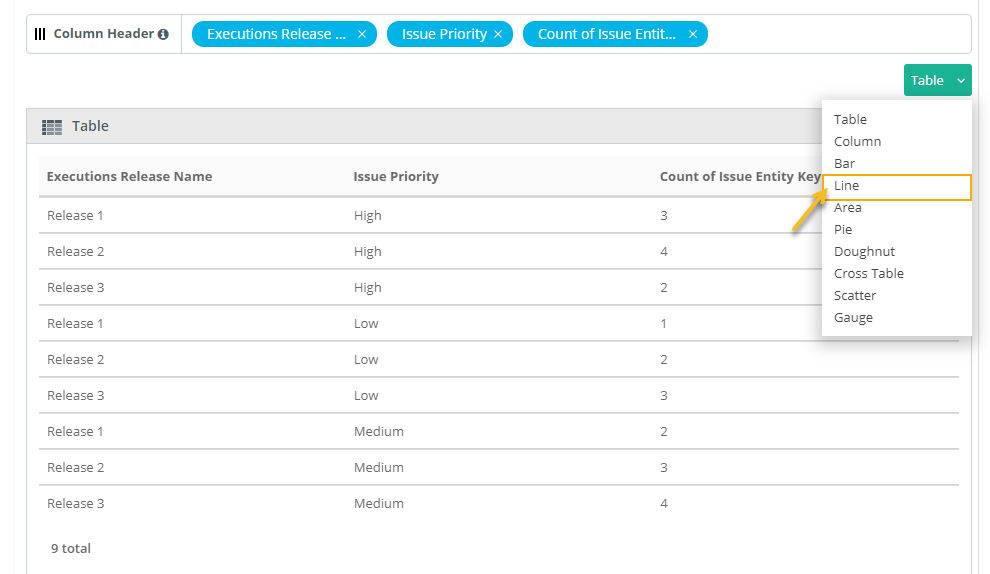
By default the output is in Tabular format, modify the format to view it in Line format.
 |
Adjust the Columns based on the requirement to X-Axis, Y-Axis and Cross Tab.
X-axis always holds a single Test entity field with any value.
Multiple Test entity field on Y-axis creates a stacked chart; Y-axis always contain fields with numeric values.
Cross Tab field will help to create a Group Stacked chart.
Click Add Gadget to save the report as a Gadget.
Once you save the gadget, it becomes available in QMetry Custom Gadget under My Gadget tab.