Bar Chart
A bar graph is a chart that uses bars to show comparisons between categories of data. The bars can be either horizontal or vertical. There are two types of the bar chart.
Basic Bar Chart
Stacked Bar Chart
Generate basic and stacked bar charts with Advanced SQL queries.
Generate a bar chart that displays the Count of the requirements by status.
Count of Requirements by Status:
Advance SQL Query provides an ability to gSELECT
COUNT(requirements.entityKey) as "Requirement Count",
requirements.requirementStatus as "Status"
FROM requirements
WHERE requirements.projectID in (`@filter.project`)
GROUP BY requirements.requirementStatus
Query Output
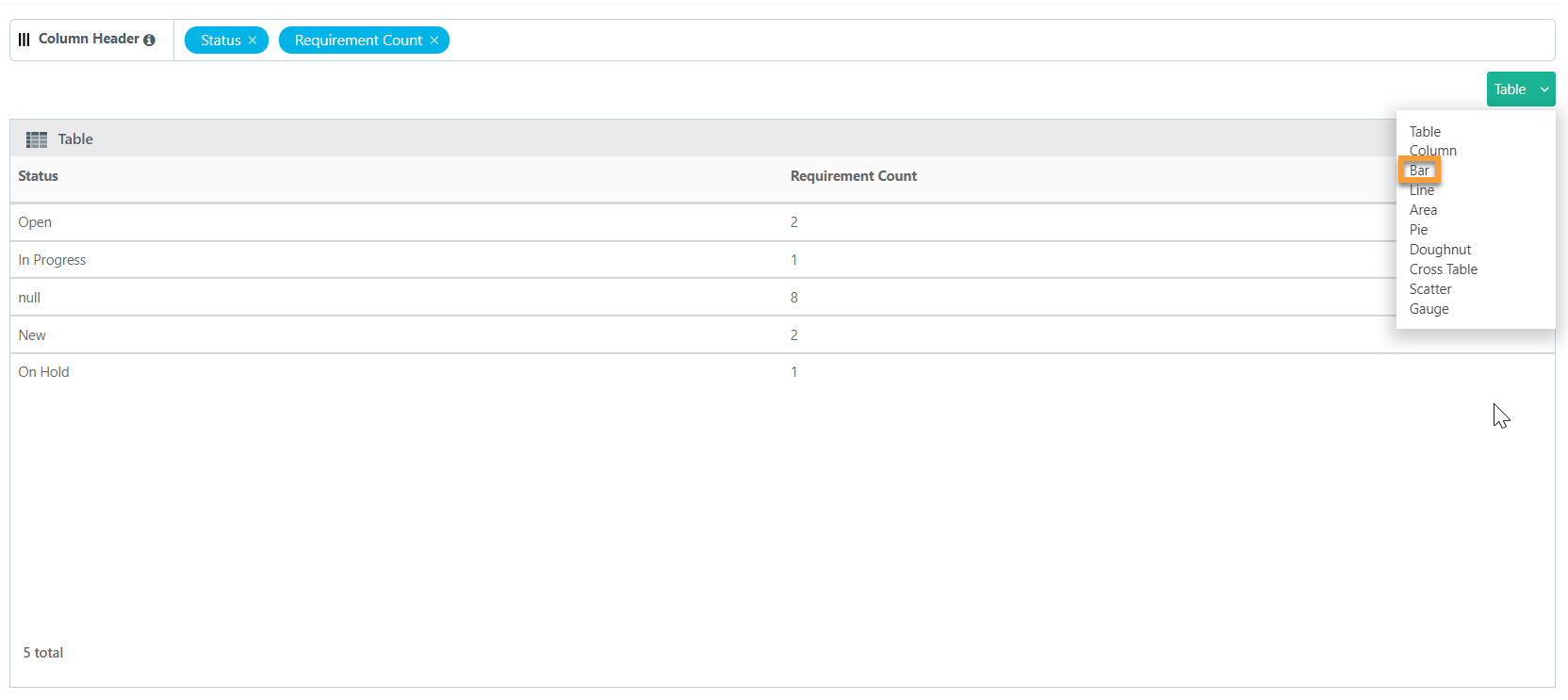
The default output is in tabular format. You can modify the chart type.
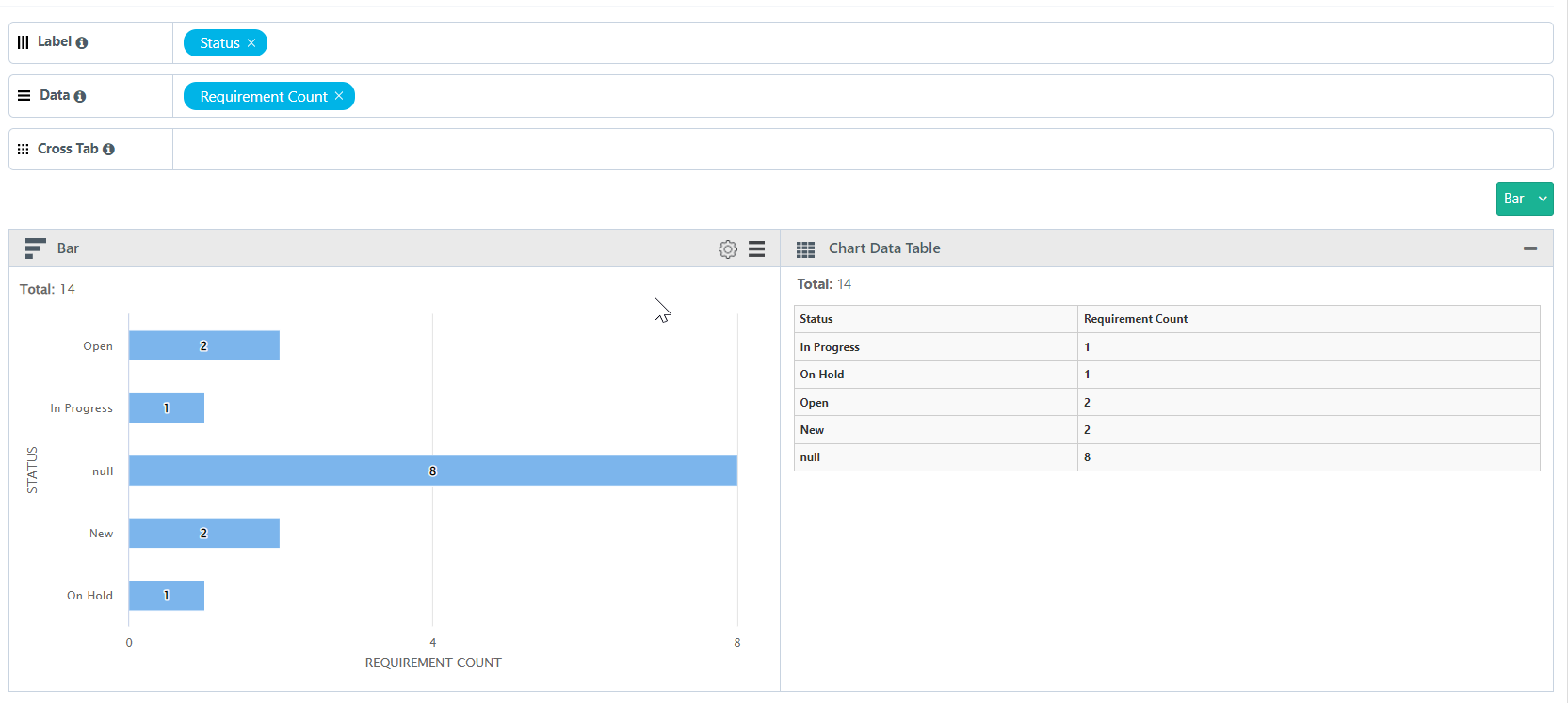
Adjust the data columns based on your requirement to Label and Data section.
Label : Label always holds a single Test entity field with any value.
Data : Multiple Test entity field on Data creates a stacked chart; Data always contain fields with numeric values.
 |
Click Add Gadget to save the report as a Gadget.
Once you save the gadget, it becomes available in QMetry Custom Gadget under My Gadget tab.
Generate a bar chart that displays the Count of the test cases by status over priority.
SQL Query
Count of Test Cases By Status Over Priority
SELECT
count(*) as "Testcase Count",
COALESCE(testcases.priority, 'No Priority') as "Test Case Priority",
COALESCE(testcases.testCaseStatus, 'No Status') as "Status"
FROM testcases
WHERE testcases.projectID in (`@filter.project`)
GROUP BY testcases.priority, testcases.testCaseStatus
Query Output
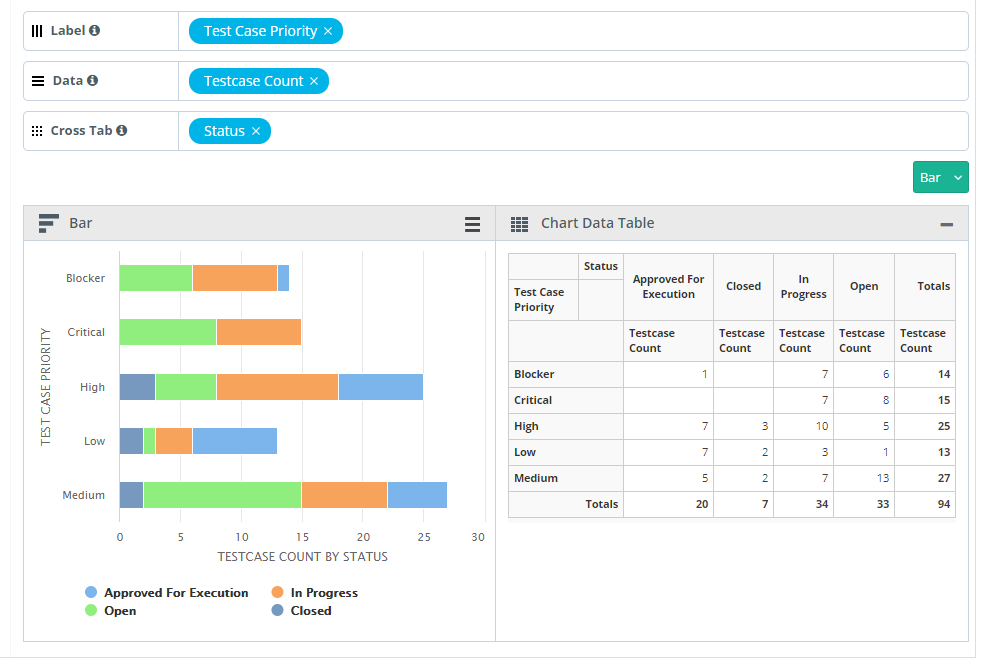
Adjust the Columns based on the requirement to Label, Data and Cross Tab sections.
Label always holds a single Test entity field with any value.
Multiple Test entity field on Data creates a stacked chart; Data always contain fields with numeric values.
Cross Tab field will help to create a Group Stacked chart.
Click Add Gadget to save the report as a Gadget.
Once you save the gadget, it becomes available in QMetry Custom Gadget under My Gadget tab.