QMetry Custom Gadgets
The system displays all gadgets created using QMetry Insights under QMetry Custom Gadgets. You can view owned or shared custom gadgets in QMetry Custom Gadgets.
Note
QMetry Custom Gadget module is visible only if you have View rights for QMetry Insight. Also, you can make changes within the module only if you have Modify rights for QMetry Insight.
QMetry Custom gadgets list the following custom reports:
Type of Gadgets | Tab | Owner | Gadget operation(s) | Dashboard operation(s) |
|---|---|---|---|---|
Gadgets created using Visual Reports (drag and drop) | My Gadget | Logged-in user |
|
|
Gadgets created using Advance Query Reports | My Gadget | Logged-in user |
|
|
Gadgets created by other users and shared with the logged-in user. | Shared Gadget | Other users |
|
|
You can perform the following operations on custom gadgets:
View Gadget
Edit Gadget
Share Gadget
Sharing Gadgets with Co-owner Rights
Assign Co-owner while Deactivating Users
Super Admin assigning Co-owners
Export Gadgets
View My Gadget
Go to QMetry Custom Gadgets and select My Gadget.
It lists all the gadgets created by the logged-in user.
 |
On the My Gadget screen, you can perform the following actions:
Details | Description |
|---|---|
# | It shows the serial number of the gadget you have saved. |
Gadget Name | It shows the name of the saved gadget. You cannot create QMetry Custom Gadget with a duplicate name. You can still access the shared Gadget which may hold the same name as users' own Gadget. |
Private | This column basically has 2 values; "Yes" and "No".
|
| Click this icon to edit the gadget. This option launches the gadget either in the drag and drop or Advanced SQL mode (whichever option was used to create a gadget). |
| Click this icon to remove the gadget. Once you remove a gadget, there is no way to recover it. If you have shared the gadget with others, then it disappears from their dashboards. |
| Click this icon to share the gadget with others. Shared gadgets are available to users in the "QMetry Custom Gadget ⟶ Shared Gadget" section. |


Viewing Shared Gadget
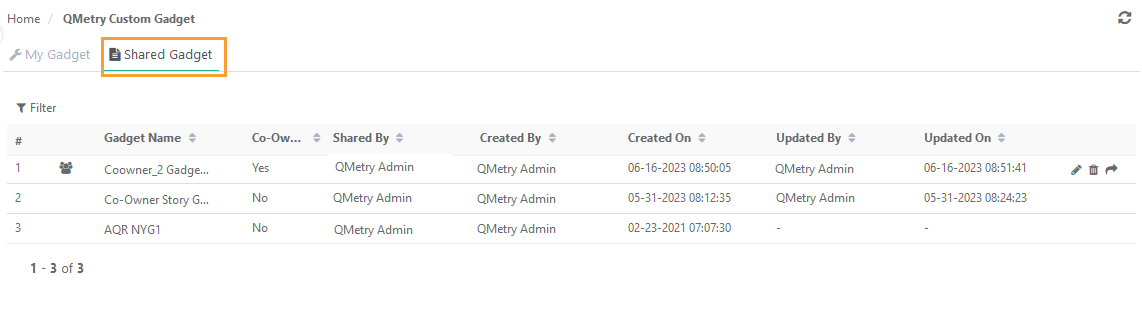
Go to QMetry Custom Gadget and select Shared Gadget.
It lists gadgets shared by other users with the logged-in user.
 |
Edit Gadget
You can edit gadgets created under the Visual Reports or Advance Query Reports.
Go to My Gadget tab.
Click the Edit icon for the gadget to edit.
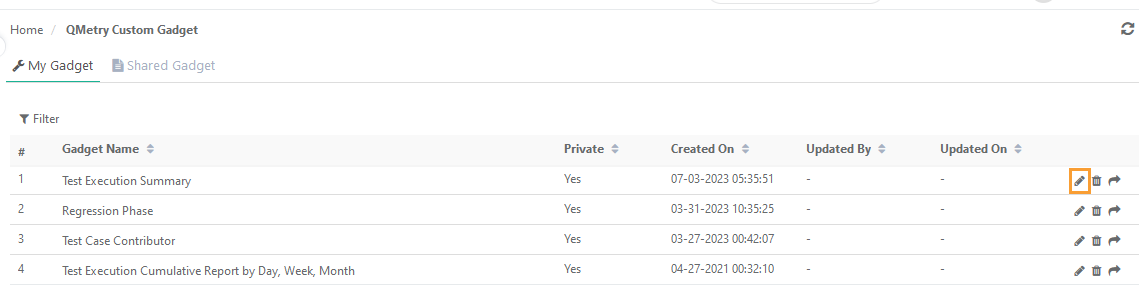
Edit the report query in the Visual Reports or Advance Query Reports view.
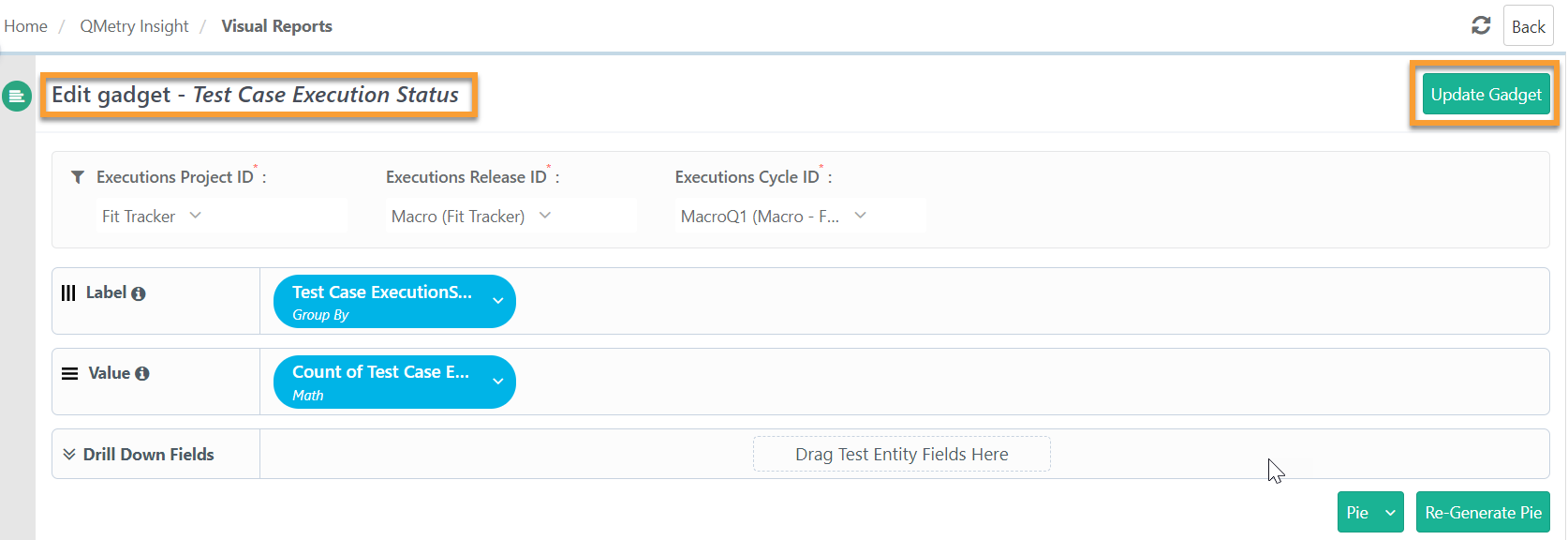
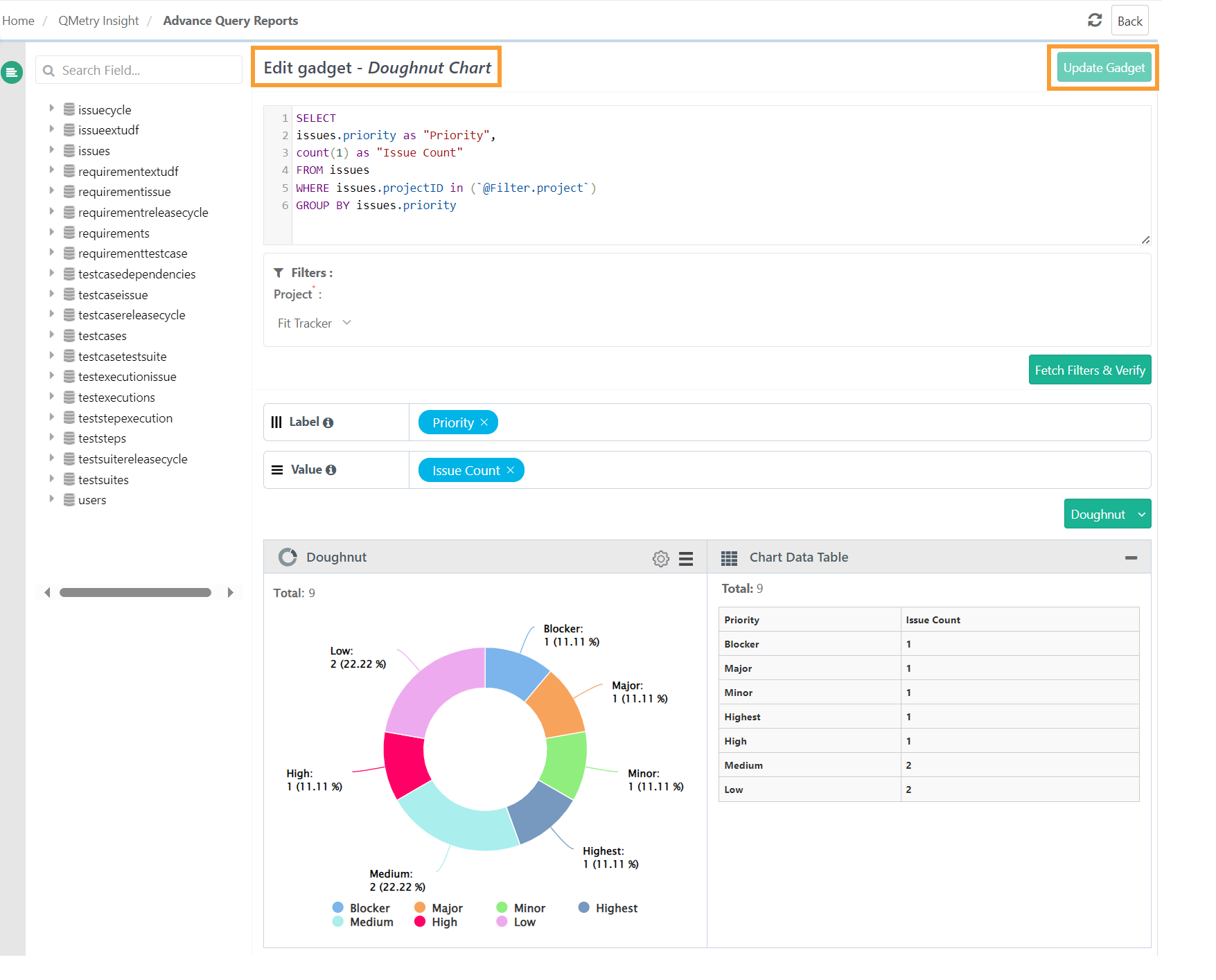
Make the changes and click Update Gadget to save the changes. The changes are reflected in all the dashboards where the gadget is shared.
Edit Gadget in Visual Reports
 |
Edit Gadget in Advance Query Reports
 |
Sharing a Gadget
Gadget owners can share custom gadgets with their team. You can add the shared gadget to your dashboard, adjust filters, and customize its view. Only the creator can edit the gadget’s query; shared users can modify filter values but not the query itself.
You can share the gadgets with:
Users
A particular Project
A particular Role in a Project
To share a gadget, perform these steps:
Click the Share icon for the gadget to share.
Select one of the following options:
Users: Share the gadget with individual users.
Project or Role: Share the gadget to a particular role or project.
Sharing gadget with Project or Role:
Is Project selected? | Is Role selected? | Gadget is shared with |
|---|---|---|
Y | Y | All the users with the assigned Role in a particular Project |
Y | N | All the users of all the assigned Projects |
N | Y | All the users with the assigned Role in all the Projects |
Once shared, the gadget appears under the Shared Gadget tab for the recipient.
A shared gadget is read-only. You can view the filters applied to the report query and export the filters as well.
Sharing Gadget with Co-owner Rights
Note
Users with whom the gadget is being shared or who are being assigned as co-owner should have the Report and QMetry Insight rights to access the gadget and gadget data.
A co-owner can:
Edit the dashboard.
Delete the dashboard.
Add or remove gadgets on the dashboard.
Modify filters of gadgets.
Share dashboards with users or roles or projects.
Schedule or clone the dashboard
The system displays the details of the user who last updated the dashboard. This helps identy the editor in case of multiple co-owners.
The system captures Dashboard deletion entry in Audit Log.
Assign Co-owner while Deactivating Users
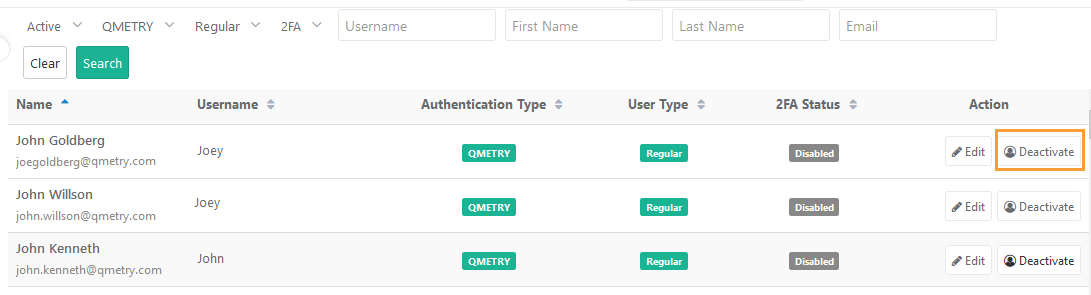
While deactivating, you can select another user as the co-owner of the deactivated user's gadgets or dashboards.
All the private and public dashboards or gadgets of the user are shared with the user as a co-owner of those dashboards or gadgets.
 |
Super Admin Assigning Co-owner
The Super Admin can access all the gadgets created by users and share gadgets with other users and make them co-owners of the gadget who can also edit the shared gadgets. The Super Admin can share the gadget with users or project-roles as viewers or as co-editors of the gadget.
Note
The super admin can view all the dashboards but to edit the dashboard, the super admin should assign oneself as the co-owner of the dashboard to perform the edit operation.
Users should have Super Admin rights to be able to view all the gadgets and share them with other users.
To assign a co-owner, perform the following steps:
Go to QMetry Custom Gadget and select All Gadgets.
Filter the list to search the Gadget.
Assigning Co-owner for a Single Gadget
Click Share Gadget for the gadget to share.
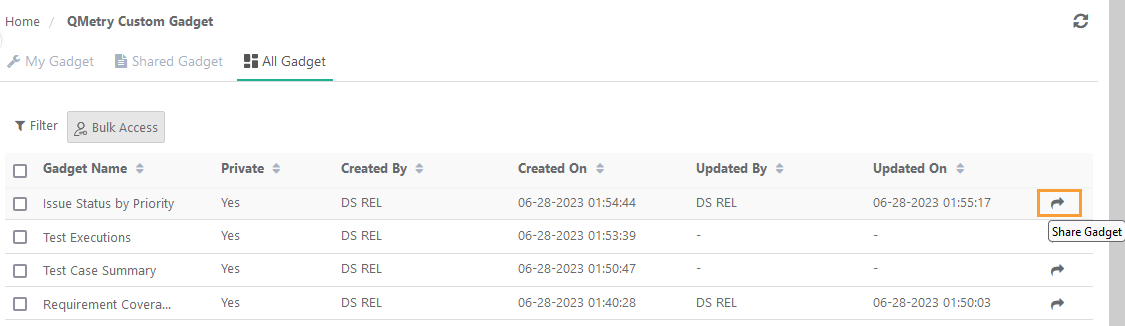
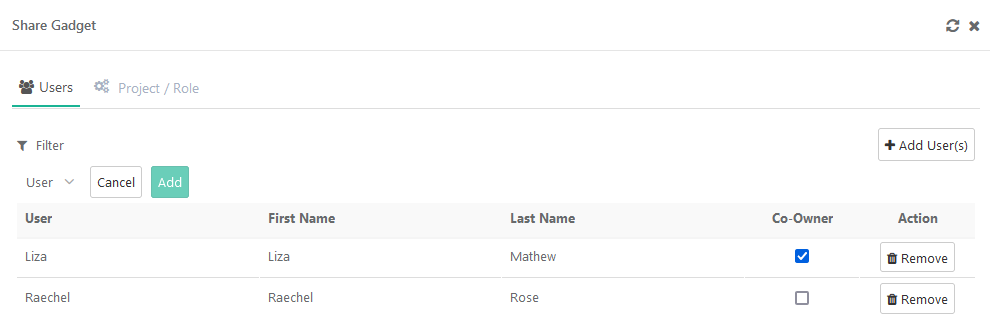
On the Users tab, click Add Users.
Select users on the drop-down list with whom the gadget is to be shared.
Click Add.
Select the co-owner check box to assign the user as a co-owner for the gadget being shared.
Assigning Co-owners for Multiple Gadgets
To assign co-owners for multiple gadgets, perform the following steps:
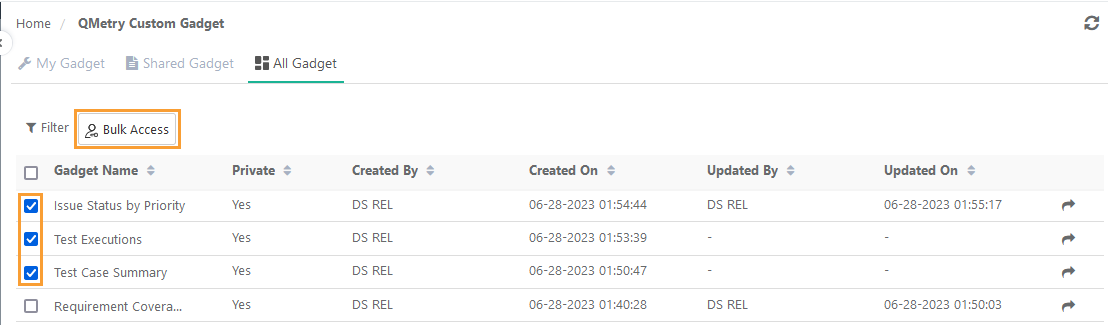 |
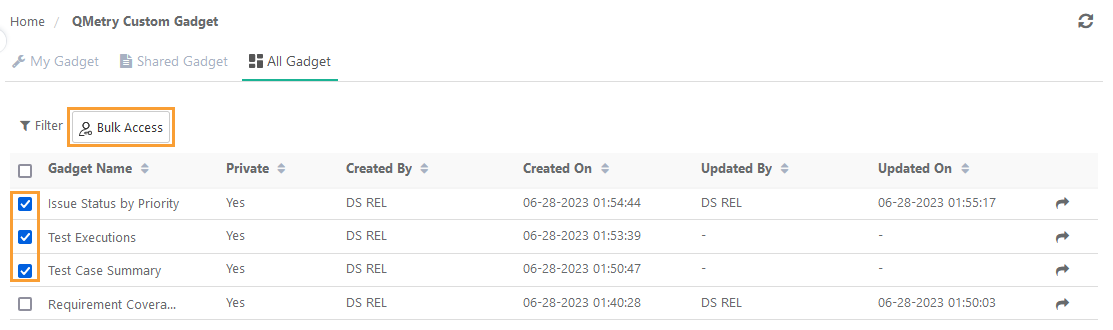
To share multiple gadgets, select the gadgets and click Bulk Access.
On the Users tab, click Add Users.
Select users on the drop-down list with whom the gadget is to be shared.
Click Add.
The Co-owner checkbox is checked by default.
Clear the checkbox if you do not want to assign the selected users as co-owners. They will just be able to view the gadgets.
 |
Sharing Gadget by Project or Role
Sharing a Single Gadget
The user who has created the gadget can share it with other users by specifying either Project, Role or the combination of Project & Role in QMetry.
Go to the Project or Role tab.
Click Add Projects or Roles.
Select Project from the drop-down. The Roles will populate for the selected projects. Select Roles from the drop-down.
Co-owner: Select the checkbox to assign all the users holding the selected Role as co-owners of the gadget.
Share Multiple Gadgets
Select the gadgets to share and click Bulk Access.
 |
The Co-owner checkbox is checked by default for projects-roles.
Clear the checkbox if you do not want to assign the users of the selected project-role as co-owners. They will just be able to view the gadgets.
Co-owner View
If you have been assigned as a co-owner of a gadget, you can view the Co-owner icon before the Gadget Name under the Shared Gadget. The info icon displays the Gadget Description on hover.
 |
Edit the Gadget: Click the Edit icon to edit the gadget. It takes you to QMetry Insight report from which the gadget has been created.
Delete the Gadget.
Share the Gadget: Click the Share Gadget icon to share the gadget further with other users with "View" rights or as co-owners.
Unshare a Gadget
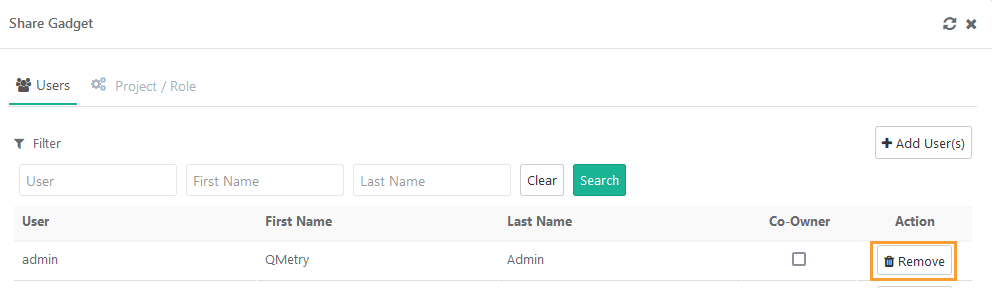
The gadgets can be unshared for any user or group of the users by clicking the remove button from "Users" and "Project / Role" tab.
 |
Export Gadget
You can Export System Gadgets and Custom Gadgets.
Note
All gadgets are exported in the UTC time zone.
To export a gadget, perform the following steps:
Go to the Dashboard.
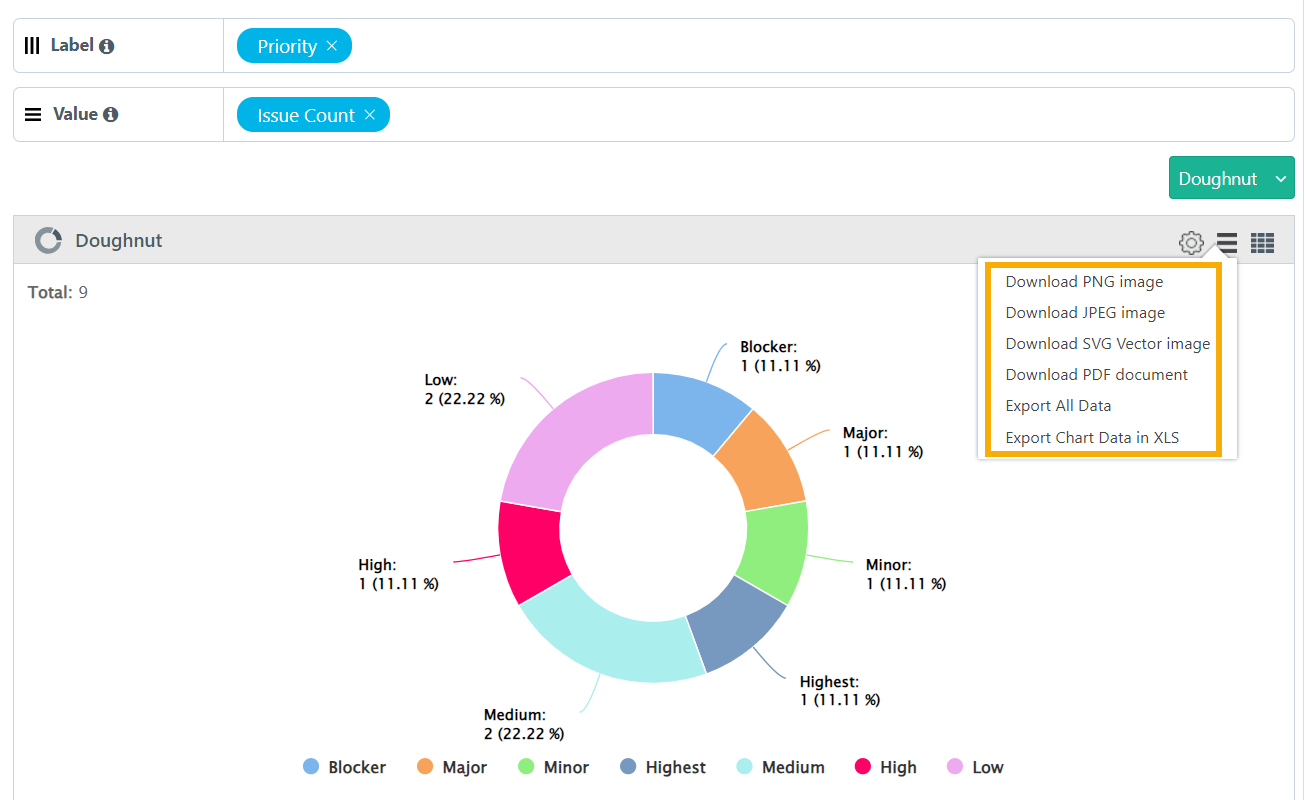
Click the cog icon for individual gadgets. You can find the different Export options to export the gadget. The Export job is scheduled.
Go to the Scheduled Task section and download the report.
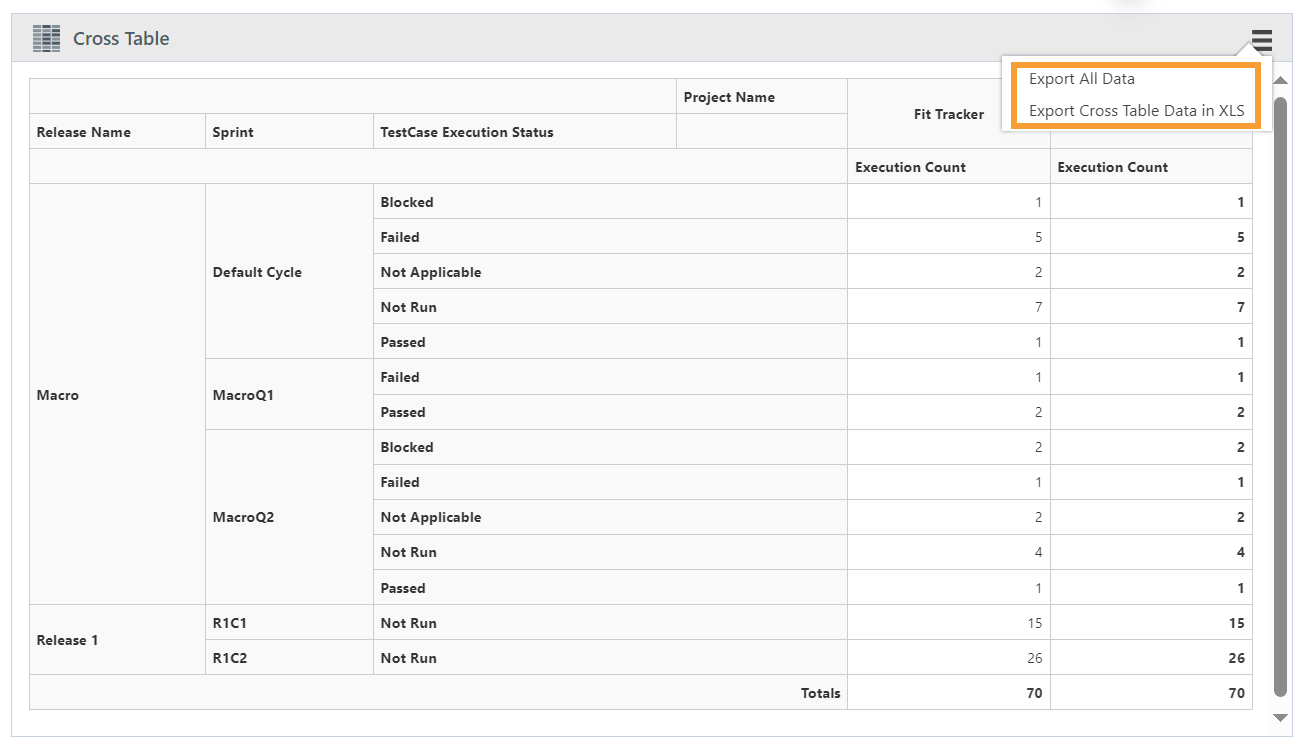
The export options for gadgets saved as Pie chart, Bar chart, Column chart, Line chart, etc are different compare to the gadgets saved in the tabular/cross table.
The gadget details are exported in the CSV file when the option "Export Raw Data" is used whereas the other options download the chart in image format.
Export options available in the Charts
Export options available in the Cross Table reports
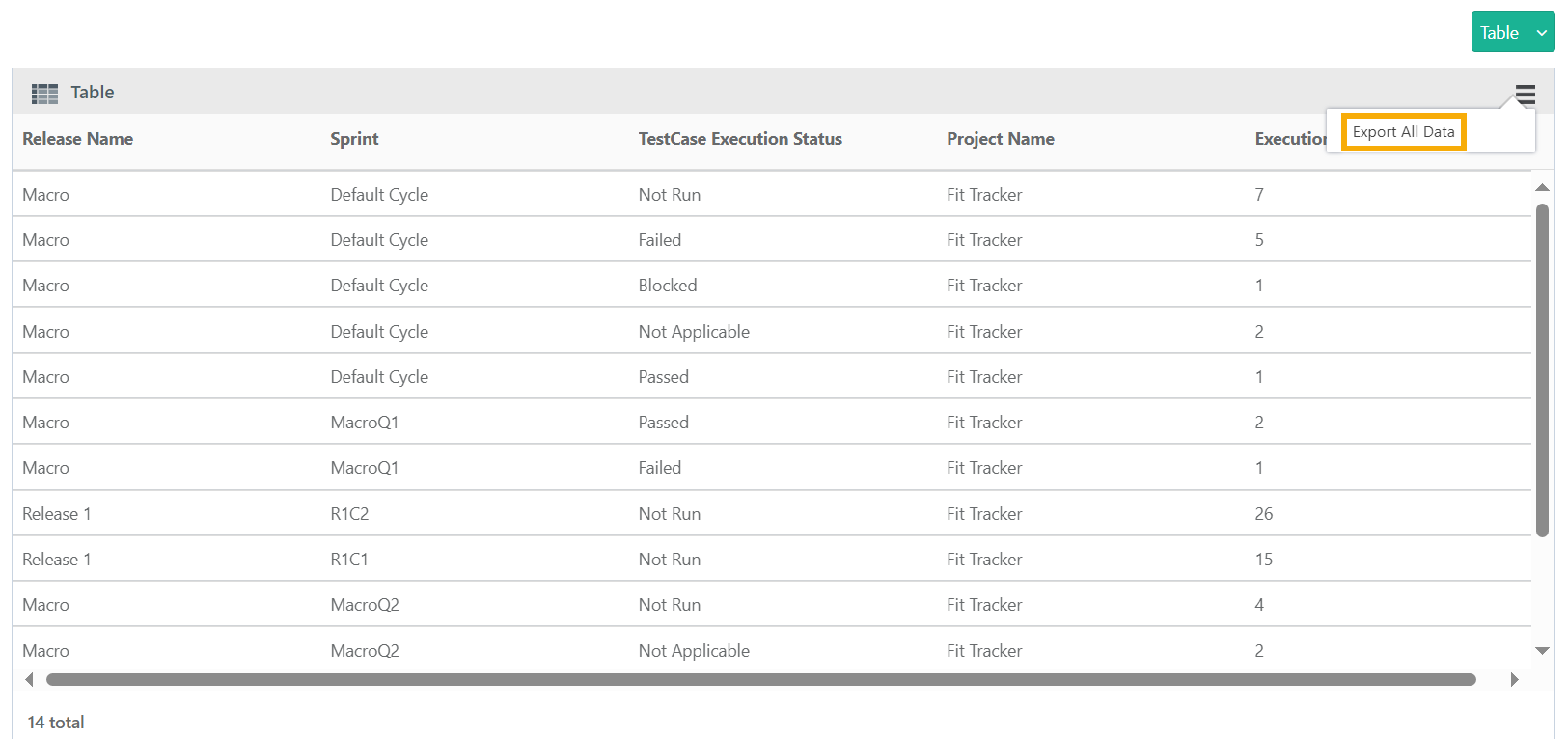
Export options available in the Table reports