Add QMetry Custom Dashboard Embedded URL in Jira Dashboard
The creator of a custom dashboard can generate and share an embedded URL, providing read-only access to live report data for users without direct access to QMetry. This link enables sharing the dashboard with other users or integration with third-party systems.
Generating Embedded URL
You can generate embedded URLs for sharing a dashboard with users outside QMetry.
Note
The super admin must activate the setting Allow Users to Generate Embedded URL for Sharing Reports Outside QMetry.
By default, this feature is enabled for Super Admins.
Super admins can enable this feature from General Settings & Audit under System Settings.
When enabled, the dashboard creator can generate an embedded URL for all types of dashboards like co-owned, shared, cloned etc.
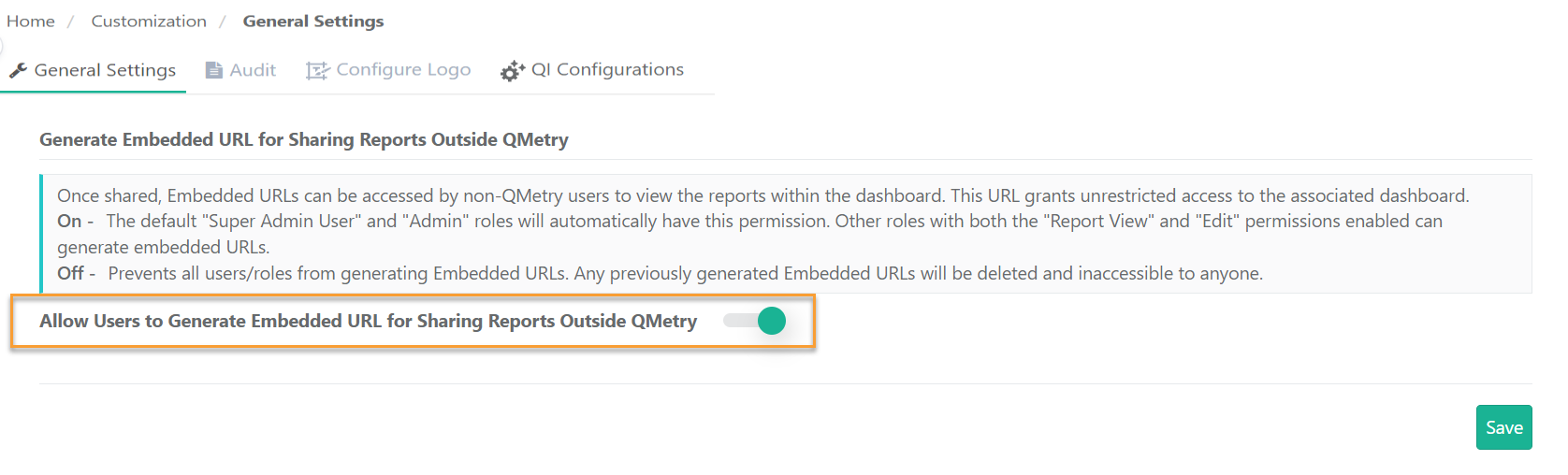 |
If Enabled:
You can access the Embedded URL tab through Edit Dashboard screen.
Steps to Generate an Embedded URL:
Go to QMetry Custom Dashboards and select My Dashboard. Select the dashboard and click Edit Dashboard icon.
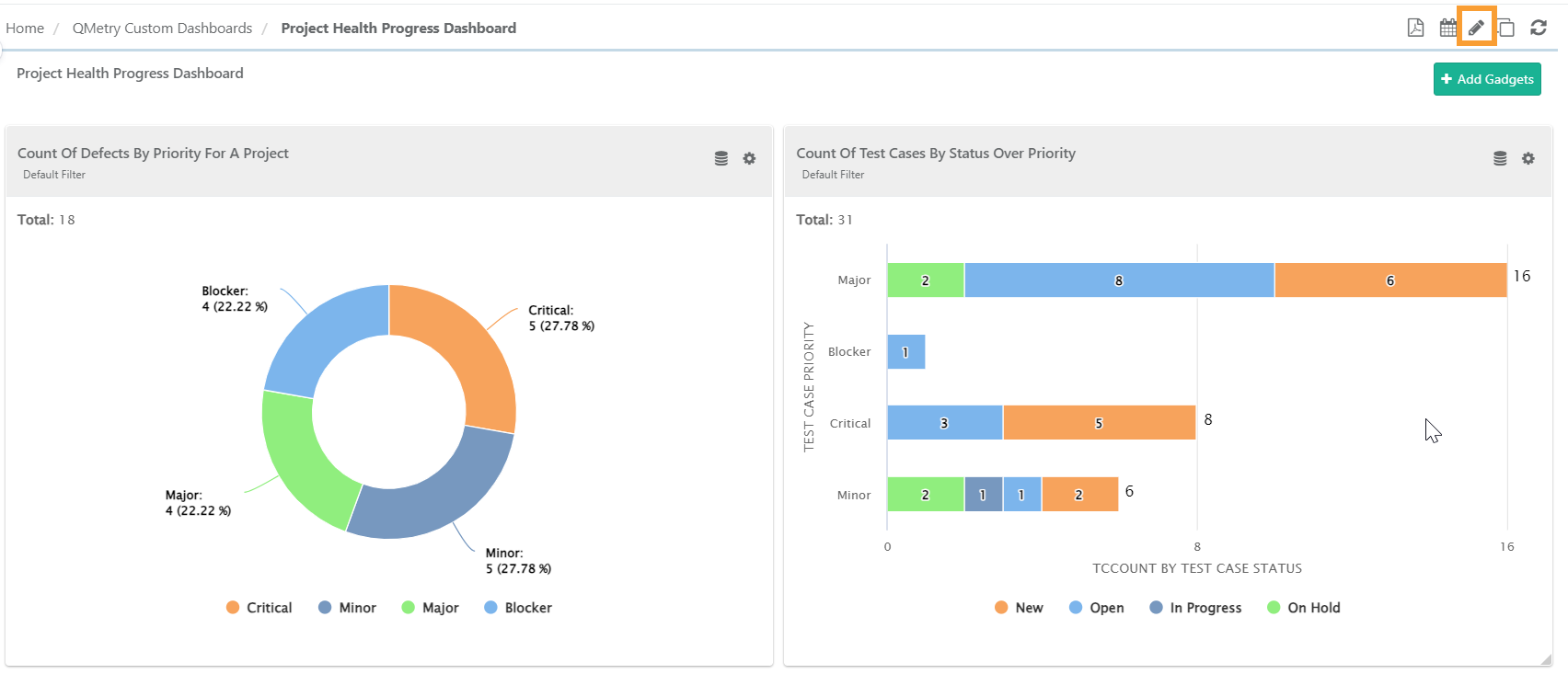
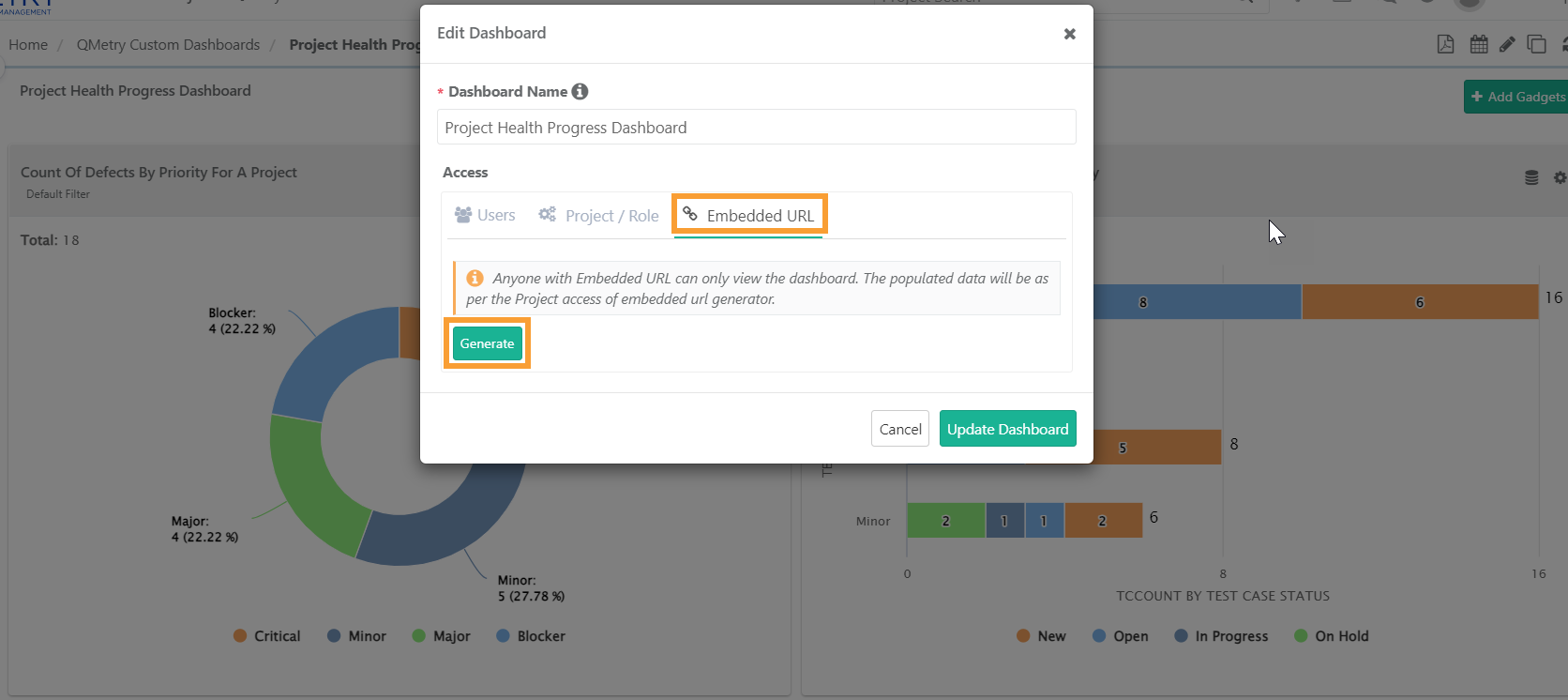
Generate URL: In the Edit Dashboard pop-up, go to the Embedded URL tab and click Generate. This creates an embedded URL for the dashboard.
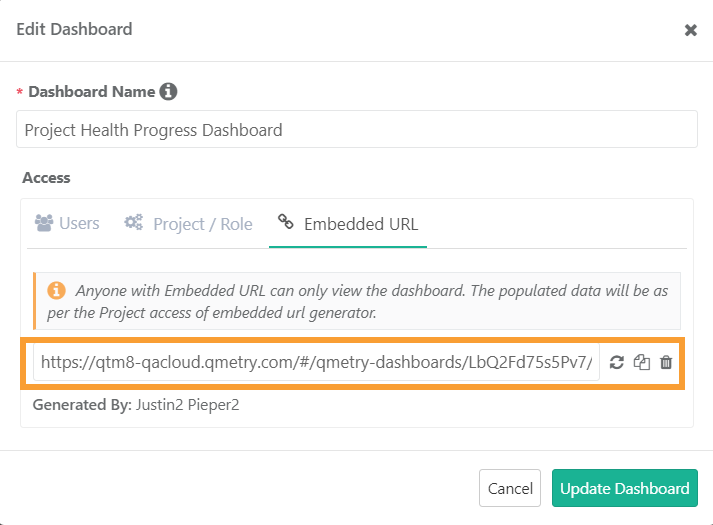
Share URL: Copy the embedded URL and share it via any communication channel.
Access the dashboard: Users outside QMetry receive view-only access to the dashboard, with tags and applied filters visible on hover.
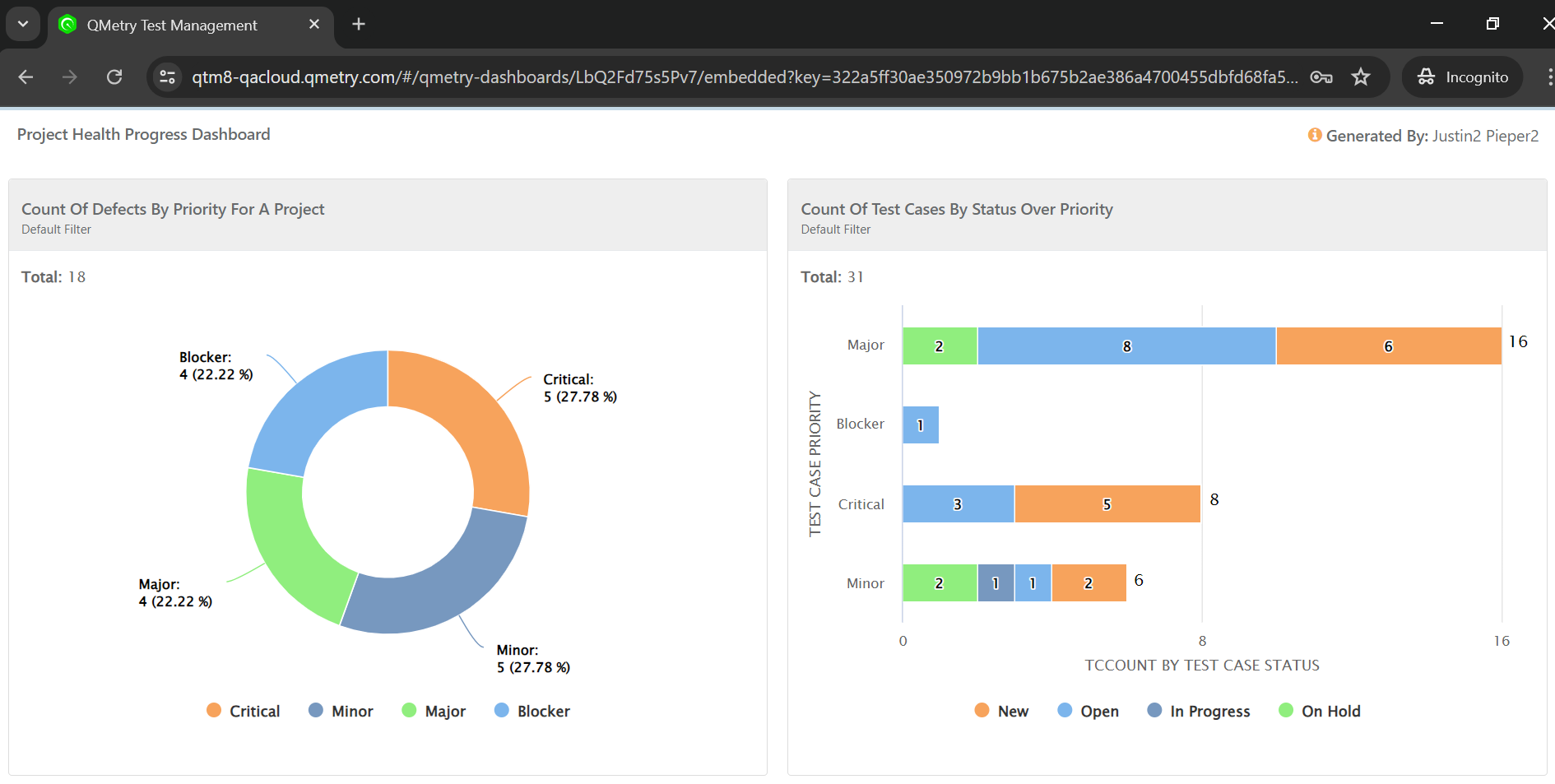
You can use the embedded URL for third-party integrations.
If Disabled:
The Super Admin can disable embedded URL sharing by toggling off Allow Users to Generate Embedded URL for Sharing Reports Outside QMetry.

Disabling the toggle:
Hides the embedded URL option in the edit dashboard.
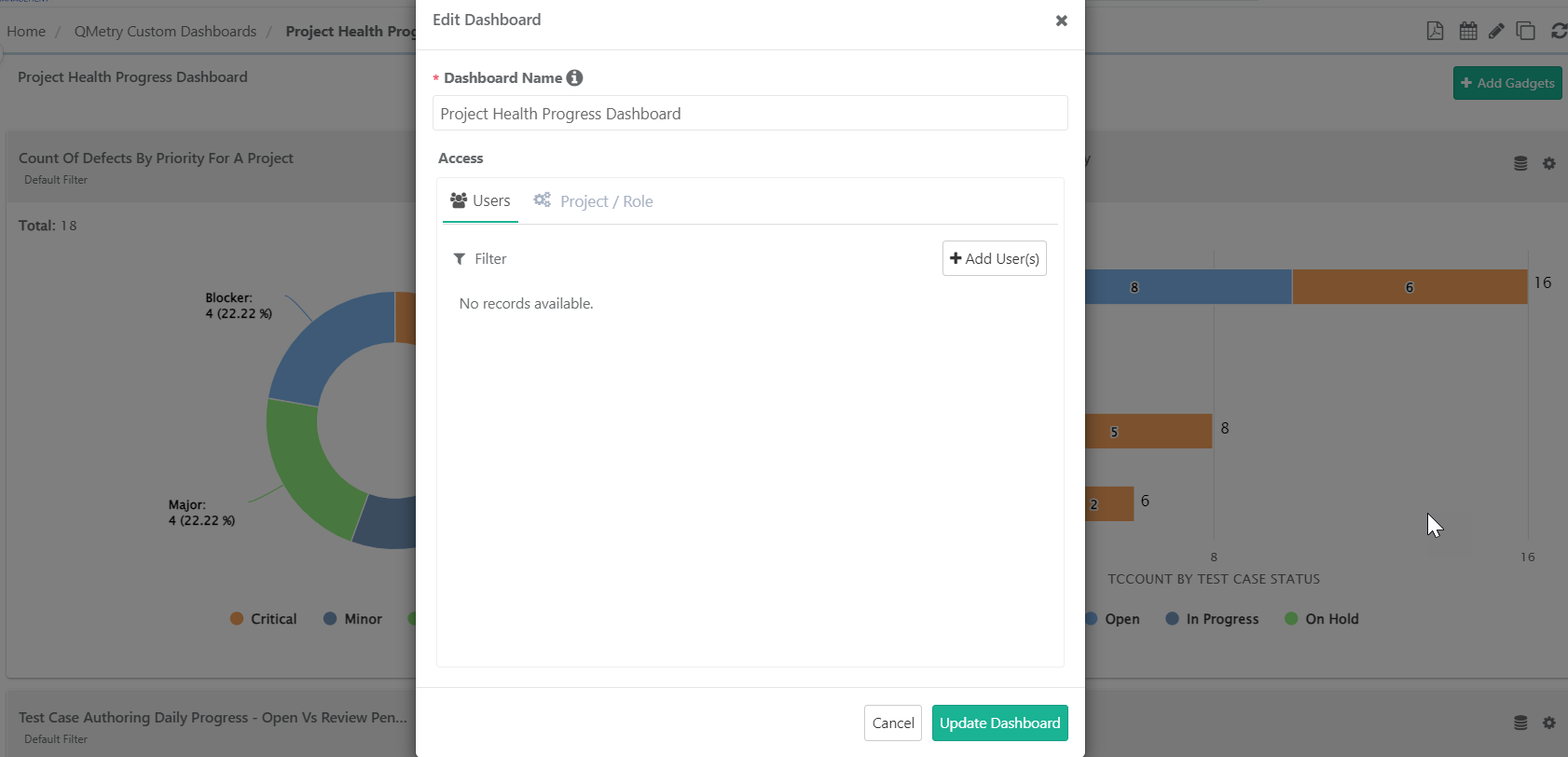
Previously shared embedded URLs become inaccessible. Users attempting to access these URLs receives an error message.
Re-enabling the toggle does not reactivate the URLs; users need to regenerate new URLs and reshare.
This setting allows Super Admins to control the availability of dashboard embedded URLs, ensuring both security and functionality. It restricts external sharing and viewing of dashboards, enhancing overall security.
Note
Embedded URL gives access over live reports - graphical as well as tabular.
Using Embedded URL in Jira Dashboard through iFrame
The Embedded URL can be used in JIRA to view QMetry reports on Jira Dashboard page. Users without QMetry access can view these reports in read-only mode within Jira.
Steps For Jira Cloud
This section describes the Prerequisites and Steps required to embed Iframes into Jira Dashboards for Jira Cloud edition.
Any Jira app that enables displaying iframe in Jira gadgets will allow you to render the QMetry custom dashboard on your Jira dashboard through the embedded URL.
Pre-requisites:
Iframes for Jira Cloud or any other similar Jira app should have been installed on the Jira instance.
There should be connectivity between QMetry and Jira.
Steps to embed an iframe into a Jira Dashboard:
Go to your Jira dashboard and click Edit.

On the Add a Gadget panel, search for “iframe” and click Add to add the gadget to the dashboard.
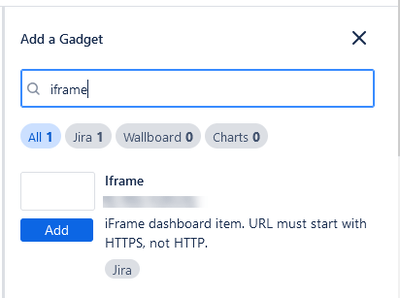
Provide the QMetry dashboard embedded URL in the URL parameter.
Adjust the Height as per requirement.
Click Save.
The QMetry Custom Dashboard is displayed on the Jira Dashboard.
Steps For Jira Server
This section describes the Prerequisites and Steps required to embed Iframes into Jira Dashboards for Jira Server edition.
Pre-requisites:
QMetry Application and Jira server both should be configured on https or http.
There should be connectivity between QMetry and Jira.
Steps to embed an iframe into a Jira Dashboard:
Users can use the provided Text-Gadget to enter arbitrary HTML. Ensure that the Text-Gadget is enabled by the JIRA Administrator.
Go to Settings, select Add-ons.
Click Manage-Addons and select System Add-ons.
Click Expand.
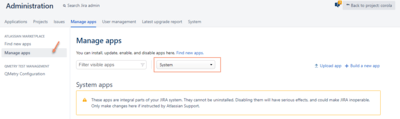
Search Atlassian Jira - Plugins - Gadgets Plugin.
Expand the Modules and enable Text (text-gadget).
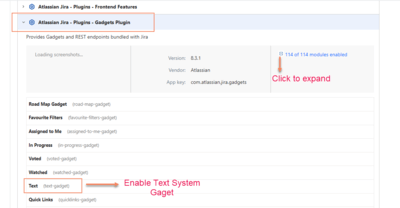
After making the relevant changes, go to Jira Dashboard and select Create Dashboard.
Click Add Gadget (ensure all gadgets are loaded).
Search for “Text,” then select Add Gadget.
In the HTML text field, specify the embedded URL (under the “src” tag) using the following format (refer to the attached example).
Replace the QMetry Custom Dashboard Embedded URL in the “src” tag (highlighted in the given example).
Width of iframe (recommended: 1200)
Height of iframe (recommended: 3000)
Example:
<iframe src="https://testmanagement.qmetry.com/#/qmetry-dashboards/A0IqbS1R/embedded?key=6c8ebb03f0e6cac383832e1c34d681af42ea" style="height:3000;width:1200;"></iframe>
Click Save.
The iframe is added to the page, displaying the QMetry report in read-only mode.