Move or Copy Test Assets
Manage assets between folders within the same project. You can copy and move assets in the Requirement, Test Case, and Test Suite modules.
Copy creates a new asset with the same name but a different entity key in the selected folder. Move relocates the existing asset to another folder.
Moving or Copying an Asset
To move or copy an individual asset, perform the following steps:
Go to the relevant module: Requirements, Test Cases, or Test Suites.
Locate the test asset to move or copy.
Click the cog ⚙️ icon next to the test asset.
Select Move/Copy.
Select the destination folder.
Select Copy or Move.
Copying Steps from an Existing Test Case
The Copy Steps from an Existing Test Case window displays all test cases in the current project. To copy steps from a different project, select another project from the top-left section of the screen.
To refine the list, use the filter option to filter by summary, release, cycle, test case status, or test case folder.
To copy steps from a test case, perform the following steps:
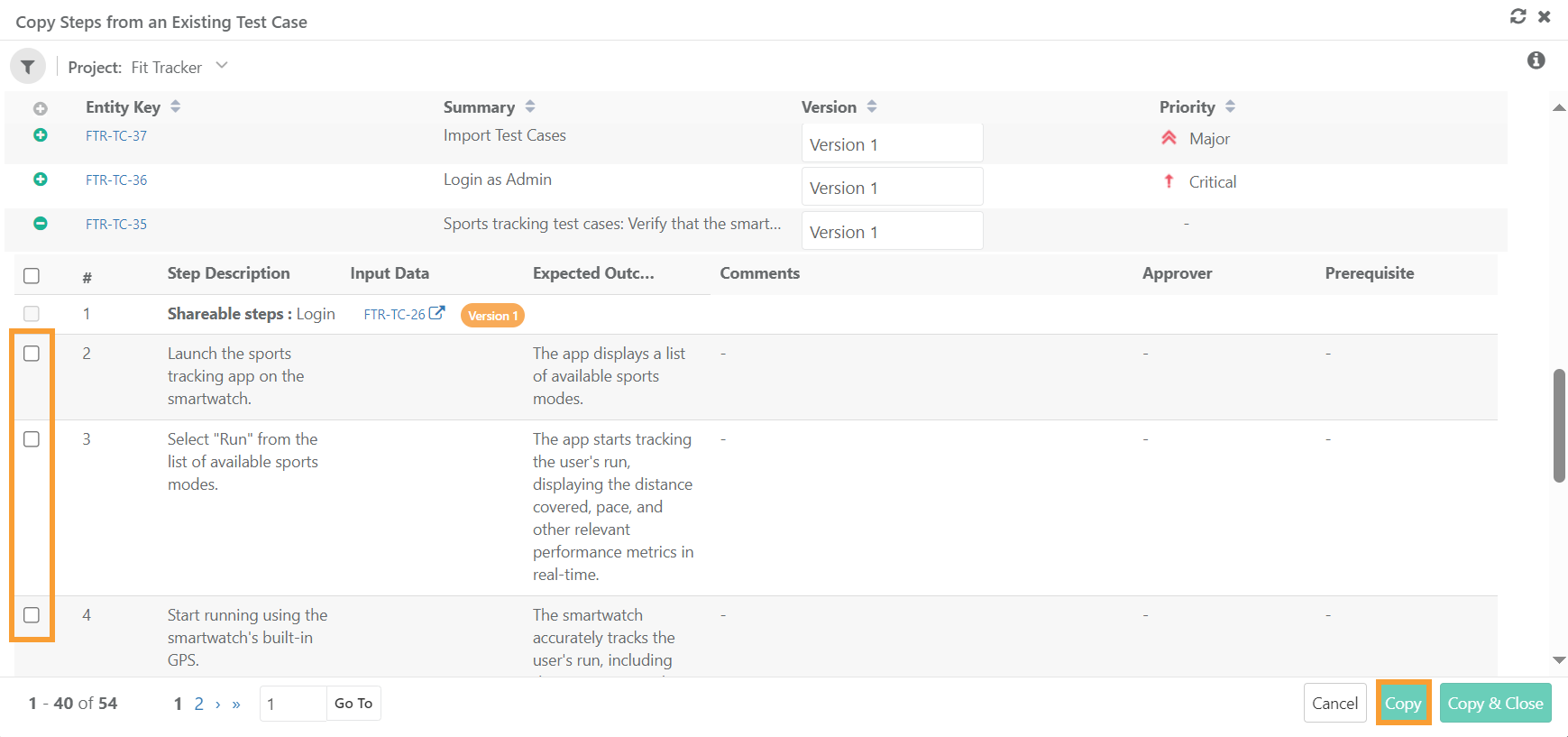 |
Next to the test case key, select the + icon to view the steps within the test case.
Select the steps you want to copy.
Select Copy or Copy and Close.
When copying test steps from another project:
The system copies all system-defined column values.
The system copies all user-defined field (UDF) values that the two projects share.
The system excludes UDFs that the projects do not share.
Note
You cannot copy shareable test cases that are added as steps.
To copy steps from shareable test cases, select Show Only Shareable Test Case from the filters.
A copy icon highlights the copied steps. Hover over the icon to view the details of the source test case.
The system copies attachments along with the steps. The attachments become visible and editable after you save the copied steps.
An info icon appears for copied steps. Hover over the icon to view attachment-related details in a tooltip.