Projects using QMetry internal issue module for Issue (Bug) Tracking
Note
This document is applicable only when your project is not configured with external issue tracker.
For Jira integrated projects, refer to Projects using Jira integration for Issue (Bug) Tracking.
The Issue module enables internal issue management. Create, view, and modify issues within QMetry. Add custom fields to tailor issue details to business needs.
You can:
View, add, modify, and delete issues
Manage the Issue Grid by displaying or hiding fields
Create custom fields and update system-defined values
Perform bulk operations
Configure email notifications for various triggers
Access issues logged during test execution directly in the Issue module
Note
After integrating QMetry with Jira, the system does not display issues created in the Issues module before the Jira integration.
Issues created and linked from the Execution screen before the Jira integration are displayed in read-only mode.
When you link an internal issue from the Execution screen, the issue opens in read-only mode on clicking the link.
View and Organize Issue Details
Click the Issue Entity Key in the grid view to open the issue detail page.
Customize the grid view by resizing columns, organizing tabs, or applying filters and sorting. To learn more, refer to Manage Grid Columns.
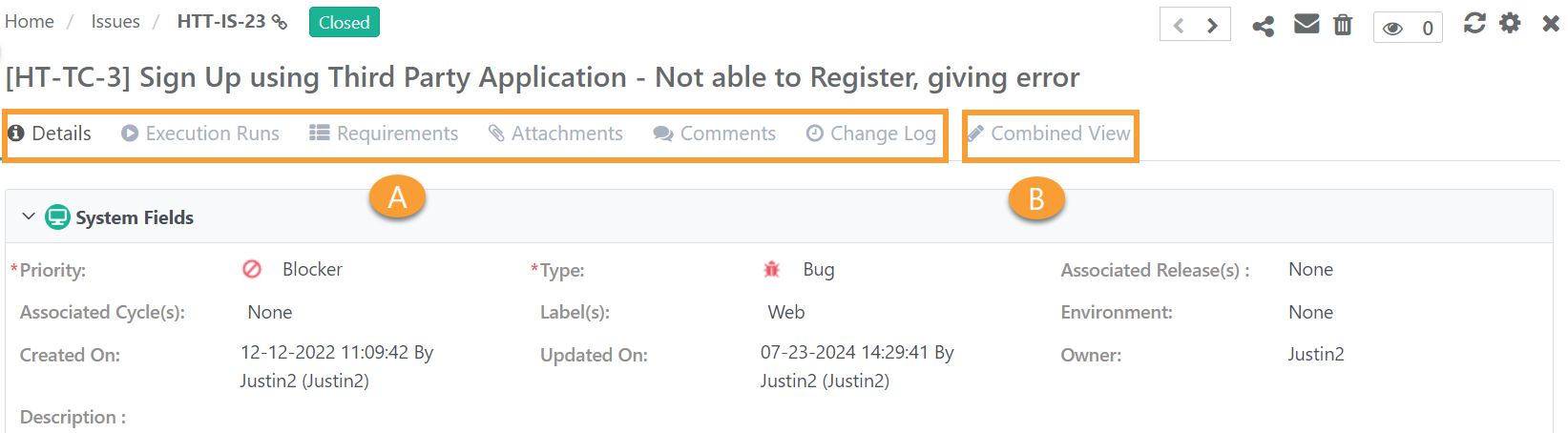
You can view issue details from:
A. Individual Section Tabs
B. Combined View (Read Only View)
 |
Details
In the Details tab, edit the following fields:
Summary: View the summary of the Issue.
Priority: Assign priority to the issue by selecting appropriate option from the drop-down. It is a mandatory field.
Type: Assign a type to the issue e.g. Bug, New Feature. It is a mandatory field.
Status: When an issue is created, it has default status Open.
Owner: Use the Owner field to select the user to be assigned of the issue.
Associated Releases: Assign relevant release to the issue by selecting appropriate option from the drop-down.
Labels: Add respective tags as labels to filter or differentiate the issues.
Environment: Enter environment details in which the issue was found e.g., Chrome, Firefox, Production, Staging, etc.
Description: Enter the description for the issue. Description can be added either in Plain Text or Rich Text.
User Defined Fields: If UDFs are added for the Issues module, then they are displayed on the Create Issue and Issue Details screen.
Note
For Rich Text, the super admin must enable the rich text editor for project from General Settings under Project.
Execution Runs
Issues logged from the Test Executions module are displayed here.
Note
Test Case Execution UDF details
Each execution run row displays a UDF icon beside the Execution Status. Click the icon to open a view-only panel showing the Test Run UDF values captured for that execution run.
The icon is visible only when at least one Test Case Execution UDF is defined for the project.
View Archived Test Runs
Execution runs are archived when the associated Platform, Release, Cycle, or Test Suite is archived. When a test suite, platform or Release/Cycle is archived, the test executions associated with them will be hidden on the Execution Runs tab.
To view archived test runs, select the Show Test Runs with Archived Platform(s)/Release(s)/Cycle(s)/Test Suite(s) checkbox on the Test Executions tab.

Execution Time and Remaining Time
To view Execution Time and Remaining Time for test execution, open the issue detail page and go to the Execution Runs tab.
The columns Execution Time and Remaining Time are added to the grid in the following locations within the application:
In Test Executions tab under Test Suite detail page.
In Test Executions tab under Test Case detail page.
In Execution Runs tab under Issue detail page.
Execution Time of a Test Suite: Calculated based on the estimated time of all test cases within the suite.
Remaining Time of a Test Suite: Calculated for all "Not Run" test cases after execution. Test cases marked as "Failed" or "Blocked" are also considered as having remaining work. The Remaining Time is adjusted for test cases with "Pass" and "Not Applicable" statuses.“Not Applicable” status accordingly.
Execution time | Status | Remaining time | |
|---|---|---|---|
TC1 | 2 | Pass | - |
TC2 | 3 | Not Applicable | - |
TC3 | 4 | Failed | 4 |
TC4 | 5 | Blocked | 5 |
14 | 9 |
Requirements
The requirement tab helps link single or multiple requirements to an issue through the Requirements tab on the Issue details page.
To link a requirement, perform the following steps:
Open the Issue details page.
Go to the Requirements tab.
Click .
Use filters to refine the list.
Select the requirements from one project and click Link.
Select another project from the Project drop down. Select the requirements from that project.
Click Link and Close.
 |
View Linked Requirements
The system links the selected requirements to the issue, and the linked records are displayed on the screen.
The linked requirements are displayed on the screen. If a requirement belongs to another project, clicking the Entity Key opens the requirement in that project and switches you from the current project.
Link Requirements By Entity Key
Link the latest version of a requirement to an issue by using the requirement key, with multiple keys separated by commas.
Note
A maximum of 500 entities can be linked at a time.
The system ignores the requirement key if a relevant requirement with given key is not found.
If a single key is mentioned multiple times, it will be linked only once.
If an older version of a requirement is already linked, linking the same requirement key does not replace it. The latest version is skipped.
The system only links the latest unarchived version of requirements.
To link requirements using Entity key, perform the following steps:
Go to the Requirements tab in the Issue Detail view.
Click .
Use filters to search for and select the required requirements.
Click Link or Link and Close.
Unlink Requirements
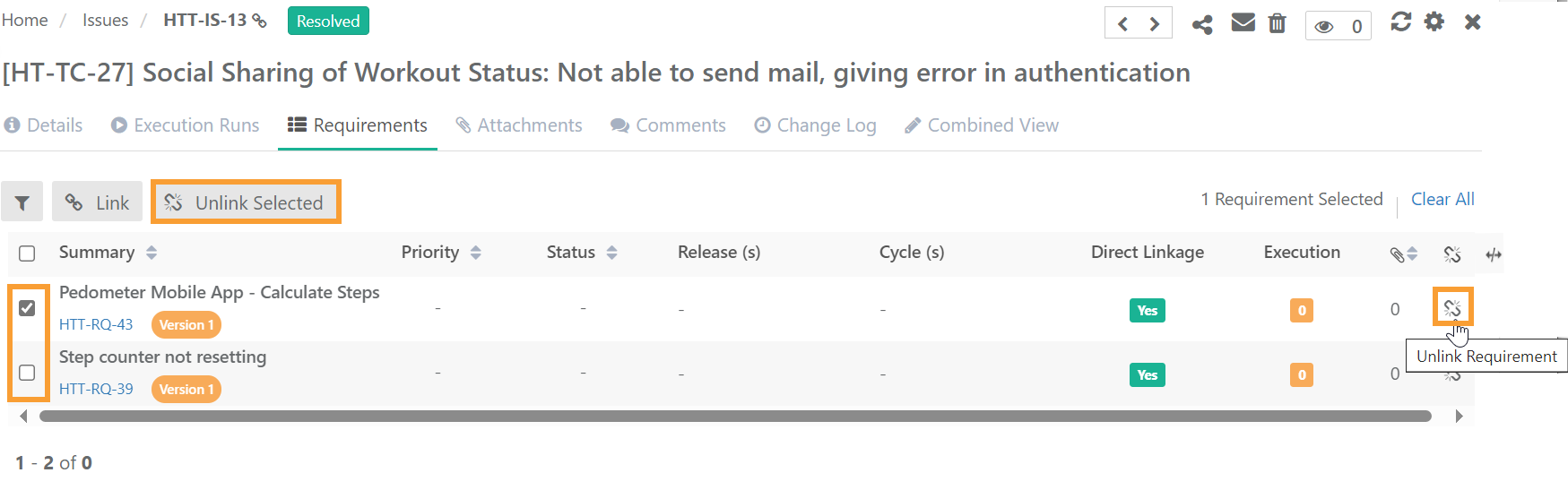
To unlink requirements, follow these steps:
 |
Go to the Requirements tab of the issue.
To unlink a single requirement, click the Unlink icon for the requirement. The requirement is unlinked after confirmation.
To unlink multiple requirements, select the requirements to unlink and click Unlink Selected.
Attachments
View, download, add, and delete attachments. Refer to Managing Attachments to know more.
Change Log
Note
This tab is visible if the Audit and Compliance package is enabled for the QMetry Test Management.
The Change Log tab shows changes done in the particular entity like the activity log. To know more about change log, refer Change Log document.
Comments
View, add, edit, and delete comments in QMetry. Refer to Add Comments to know more.
Combined View
The tab displays a read-only version of the details page, showing all sections on a single page. The information is viewable but cannot be edited.
Add Issues, Bugs or Defects
To add issues, perform these steps:
Open the Issue module.
Click New.
Fill the issue details.
Table 34. Steps to log issue from Issue ModuleField
Description
Summary
Add the summary of the Issue.
Priority
Assign priority to the issue by selecting an option from the drop-down. It is a mandatory field.
Type
Assign a type to the issue e.g. Bug, New Feature. It is a mandatory field.
Status
When an issue is created, it has the default status Open. Assign appropriate status from the drop down.
Owner
Use the Owner field to select the assignee of the issue.
Associated Releases
Assign relevant releases to the issue.
Labels
Add respective tags as labels to filter or differentiate the issues.
Environment
Enter environment details in which the issue was found e.g., Chrome, Firefox, Production, Staging, etc.
User Defined Fields
UDFs added for the Issues module are displayed on the Create Issue and Issue Details screen.
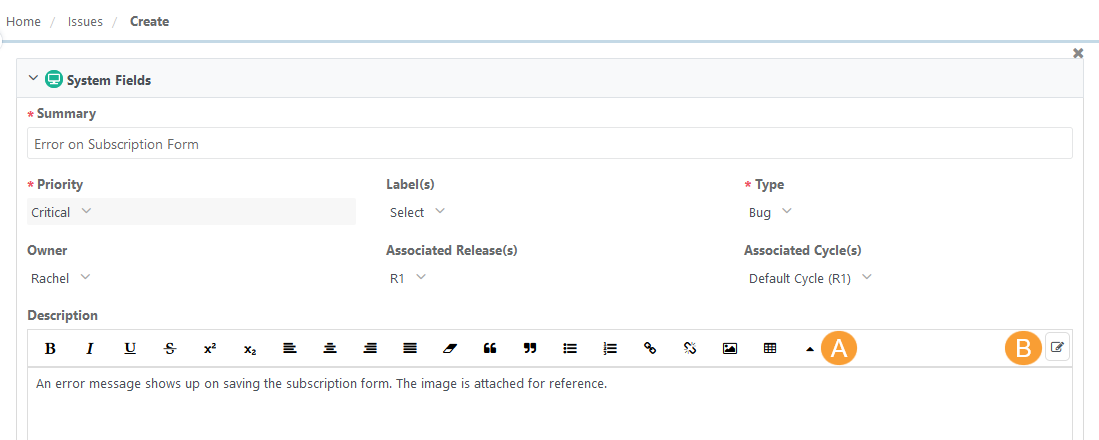
Description
Enter a description for the issue. Description can be added either in Plain Text or Rich Text.
Note
To enable rich text editor, the Enable Rich Text parameter should be enabled for the Project. Refer to Enable Rich Text Editor for more details.
 |
Note
The supported file formats to upload are jpg, jpeg, png, and gif.
The maximum file size should be 1 MB (for images uploaded through browsing).
Paste the html or xml content into the Source editor of the "Large Text" field type and it auto-renders the code to show the text outputs on the screen.
Link Attachments: Link attachments while creating issues.
Edit Issues
Use an inline editor to edit issue details.
Manage Issue Status
Update the status of an issue using system-defined options such as Open, Re-opened, Resolved, and Closed. To configure more status go to the Manage Fields section.
The Status field under Manage Fields tracks issue workflow and progress. List values for this field can be edited or updated in Lists.
Steps to log issue from Execution screen of Test Suites Module
Log issues at test case as well as test step level. Open the Execution screen and click the bug icon for test case or test step. Refer to Adding/Linking Issues to Test Case and Test Step for more details.
Note
Archiving assets is not supported in the Issue Module.
Deleting Issues
Delete issues from the grid or from the detail page.
To delete an issue from the Details tab, click the Delete icon.
To delete an issue from List View, click the Cog (⚙️) icon and select .
To delete issues in Bulk, open and select .
Sharing Test Assets with Other Users
Share requirement summary and details with other users via different channels.
Share Requirement
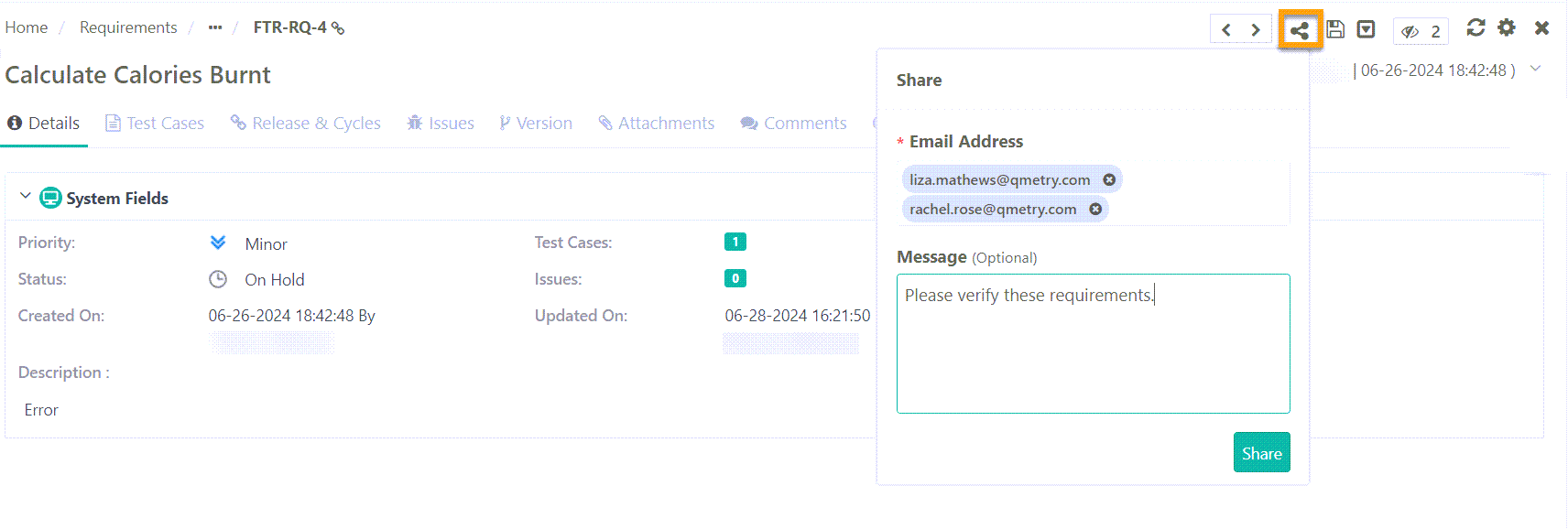
To share a requirement via email, perform the following steps:
Open the requirement details page.
Click the Share icon.
Enter the Email addresses.
Write a message (optional but recommended).
Click .
Get Requirement Link
To copy a requirement link, perform the following steps:
Open the requirement details page.
Locate and click Copy Link icon on the breadcrumb navigation.
Share this link via any preferred communication channel.
https://<URL>/#/<AssetType>/<AssetKey>;
Authorized members can access the asset directly via the shared link.
Add System-Defined Fields
Add custom fields and new values to system fields from Manage Fields.
Set e-mail Notifications
Set email Notifications for multiple triggers.
Log Issues, Bugs, Defects from Execution Screen
Refer to Adding/Linking Issues to Test Case and Test Step for more details.
Import Issues
Export Issues
Exporting Issues to CSV Format /XLSX Format
Create Requirement from Issue
To create a requirement from an issue:
Select the issue and add a new requirement.
The new requirement copies common field values and use the same name, which can be edited.
The original issue is linked to the new requirement. On the Issue details page, the Requirements tab shows this new requirement, and on the Requirement details page, the Issues section shows the originating issue. Only users with "Create" rights for Requirements can perform this action.
To create requirement from issue, perform the following steps:
Select the issue on the grid pane and click Add on the toolbar.
Click From Issue and select Requirement.
Alternatively, right click on the issue point to From Issue and select Requirement.
Email Issue Details to Other Users
Send issue details to QMetry and external users. The details include QMetry system fields, and attachments.
Internal Tracker: Attachments are sent in a zip file (up to 25 MB) if using a QMetry internal issue tracker.
To email issue details to users, perform these steps:
Open the issue details page.
Click the email icon.
Enter recipient email addresses (separated by commas) and send the email.a and send it as an email.