Mapping QMetry and Azure Projects, Fields and Entities
Overview
To sync Azure work items and QMetry data, you must correctly map the projects and fields within the QMetry Test Management application.
This guide offers step-by-step instructions for setting up this mapping between Azure and QMetry.
Note
You need Project Administrator rights to integrate an Azure project with a QMetry project.
Pre-requisites
Install the QMetry Test Management Extension from the Azure DevOps Marketplace.
Configure the Azure integration and verify the connection in the QMetry Integration Settings.
Mapping Azure DevOps Projects and Work Items in QMetry
You can map one or more Azure DevOps projects to a single QMetry project. Link Azure Features or Epics to QMetry Requirements, and Azure Tasks or Bugs to QMetry Issues. When mapping Requirements, you can also define a folder path to efficiently organize and store the imported Azure Requirements in QMetry.
Mapping Azure Projects from a Single Instance to a QMetry Project
To map an Azure Project with a QMetry Project, perform the following steps:
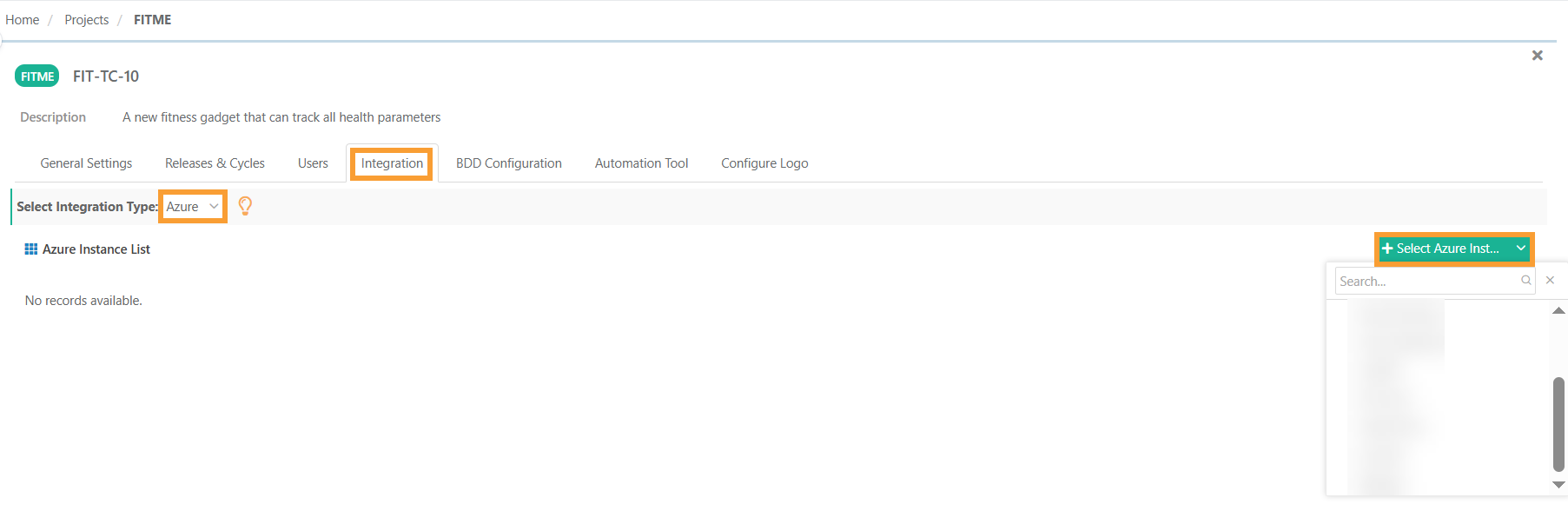
In the left navigation pane, go to Project Management and click on Projects.
Select the project and navigate to the Integration tab.
In the Integration Type dropdown menu, select Azure.
Click + Select Azure Instance and select the alias name of your Azure instance from the list.
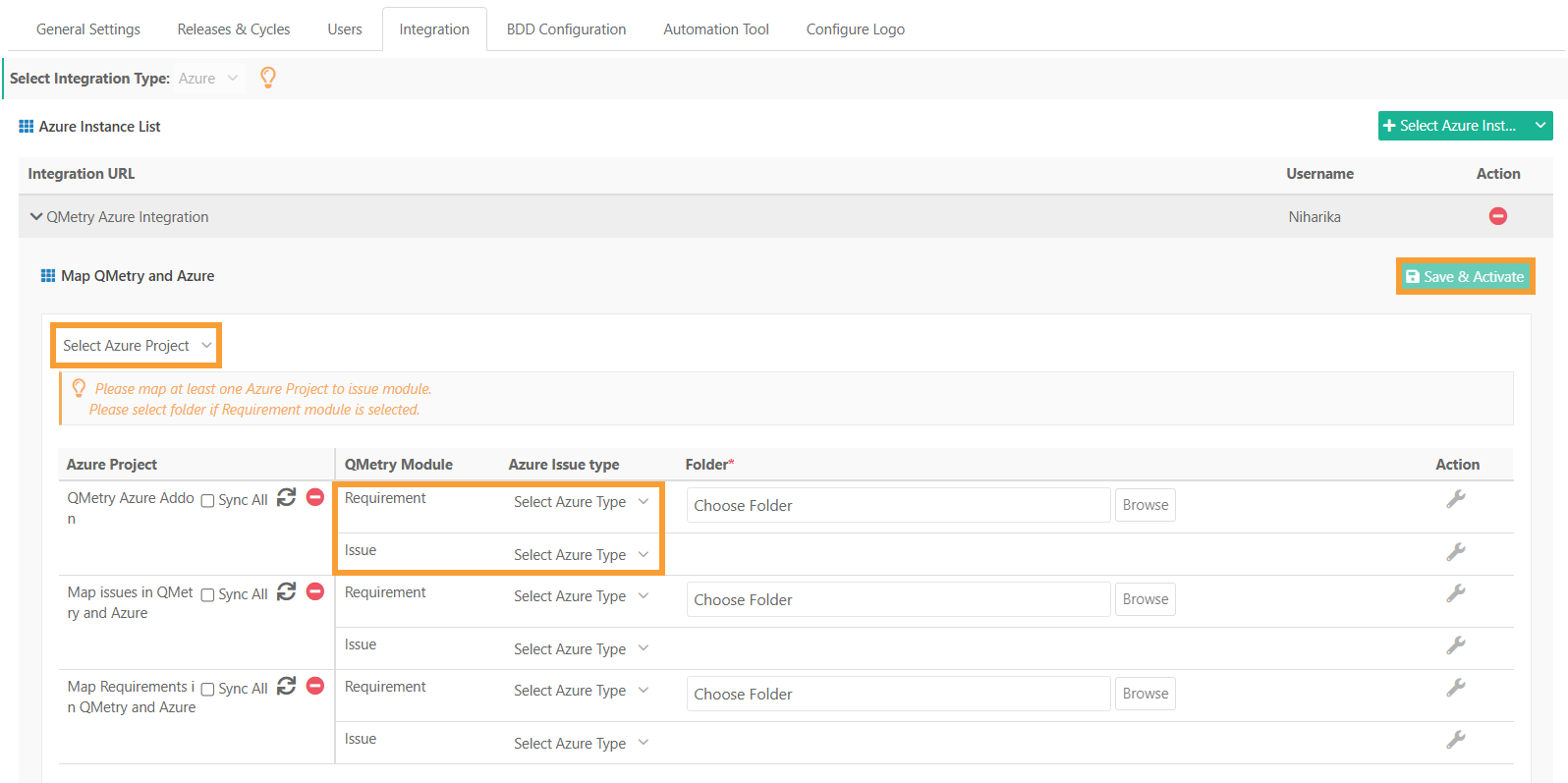
Select Azure Project from the drop down. You can select one or more projects.
Select Issue Type and QMetry Module associations. The issue type is a multi-select list.
If the requirement is mapped, select the folder to import requirements.
Click Save and Activate or Update.
Mapping Azure Projects from Multiple Azure Instances with QMetry Project
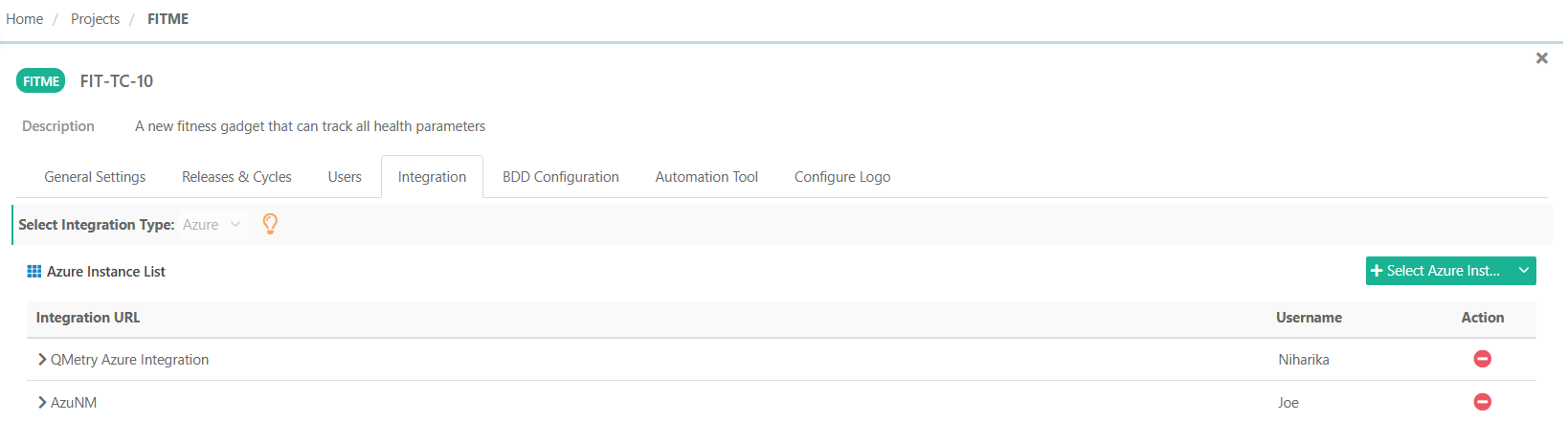
You can also configure multiple Azure instances with a single QMetry project.
To do this, follow the same steps as for mapping a single Azure instance. Simply click + Select Azure Instance to choose another Azure instance from the list and repeat the configuration process for each instance.
This allows you to configure multiple Azure instances one by one under the same QMetry project.
Mapping Azure Work Items to QMetry Modules
Once the Azure project is selected, configure the mapping between Azure Work Items and QMetry modules as follows:
Map Epics or Stories to the Requirement Module
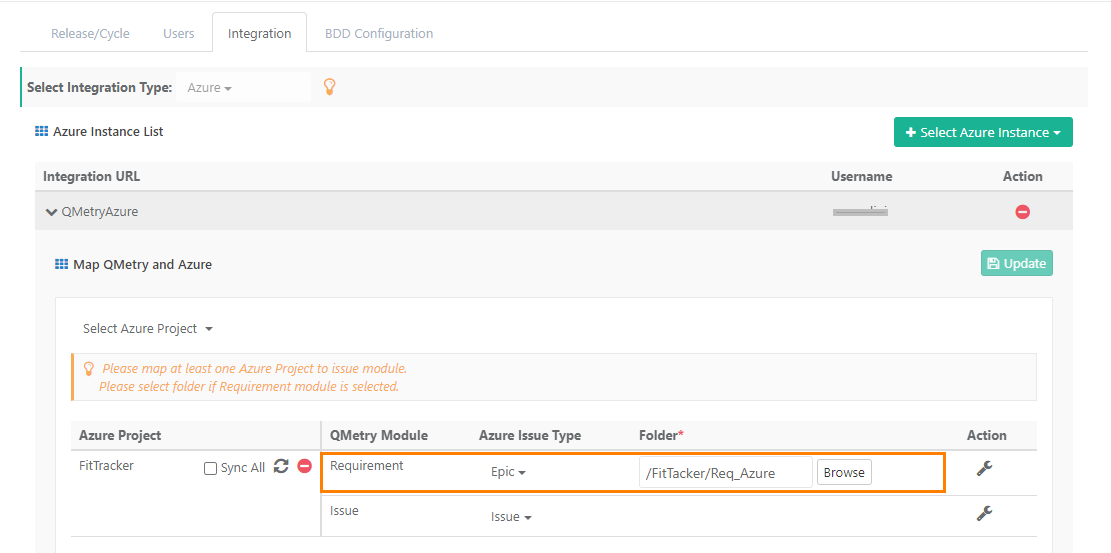
If you manage your project requirements as Azure Epics, select Azure Issue Type “Epic” to associate it with the Requirement module.
You can select and map multiple work items under the Azure Issue Type.
Folder Selection is mandatory:
Select a folder in to import the Azure work items into.
The first sync imports all work items into the selected folder.
You can later move these work items to other folders in QMetry.
QMetry syncs all new stories and epics into the selected folder.
Map Bugs or Tasks to the Issue Module
To sync Azure bugs or tasks, map the Azure Issue Type to the QMetry Issue module.
This is also a multi-select configuration.
Work items mapped to the Requirement module cannot be mapped to the Issue module, and vice versa.
Post-Mapping Behavior
Work items synced from Azure appear in QMetry’s Issue module with an external key referencing the Azure Work Item Key.
Tracking Azure and QMetry Sync Status
To monitor the sync status between Azure and QMetry, perform the following steps:
In the left pane, select Integration.
Click on Integrations.
Choose Integration Scheduler Status.
View the sync status for Requirements, Issues, and Metadata.
Click the + icon to expand and see detailed sync information.
Note
When you open a synced Azure work item from within a QMetry project, the QMetry Project list in the QMetry section automatically selects the originating QMetry project.
Map QMetry Folder to Import Requirements
During the configuration, you need to select a folder for importing Azure Issue Types as Requirements in QMetry. All imported requirements are automatically saved in the selected folder.
If you change the already set folder, then a pop-up appears asking for confirmation. The impact will be -
Only new requirements will be moved to the newly synced folder.
Requirements imported earlier will remain in their assigned folder only.
Copy / Move the Synced Folder
When a folder is copied or moved, it is relocated to the target folder, and the folder mapping is updated accordingly on the Project screen.
Archive Folder
Folders with external entities cannot be archived.
You can move the imported requirements to another folder and then can archive the folder.
The folder synced during Azure integration for import of requirements cannot be archived.
In bulk archive, folders with external entities are skipped. Their sub-folders are also skipped, even if they don’t contain external entities.
Changing Mapping of Work Items with Requirement Module
Scenario 1. Work items mapped with Requirement is replaced with another Work Item
All previously synced work items are converted into internal QMetry requirements. They are no longer linked to Azure and will not sync going forward.
New work items will be synced as requirements as per the changed work item.
Scenario 2. In addition to the existing Work Item, another Work Item is mapped with Requirement
Work Items synced based on the earlier mapping will remain intact as Azure Work Items.
New Work Items will be synced as requirements as per the added Work Item type.
Configuring Custom Azure Fields for QMetry Module
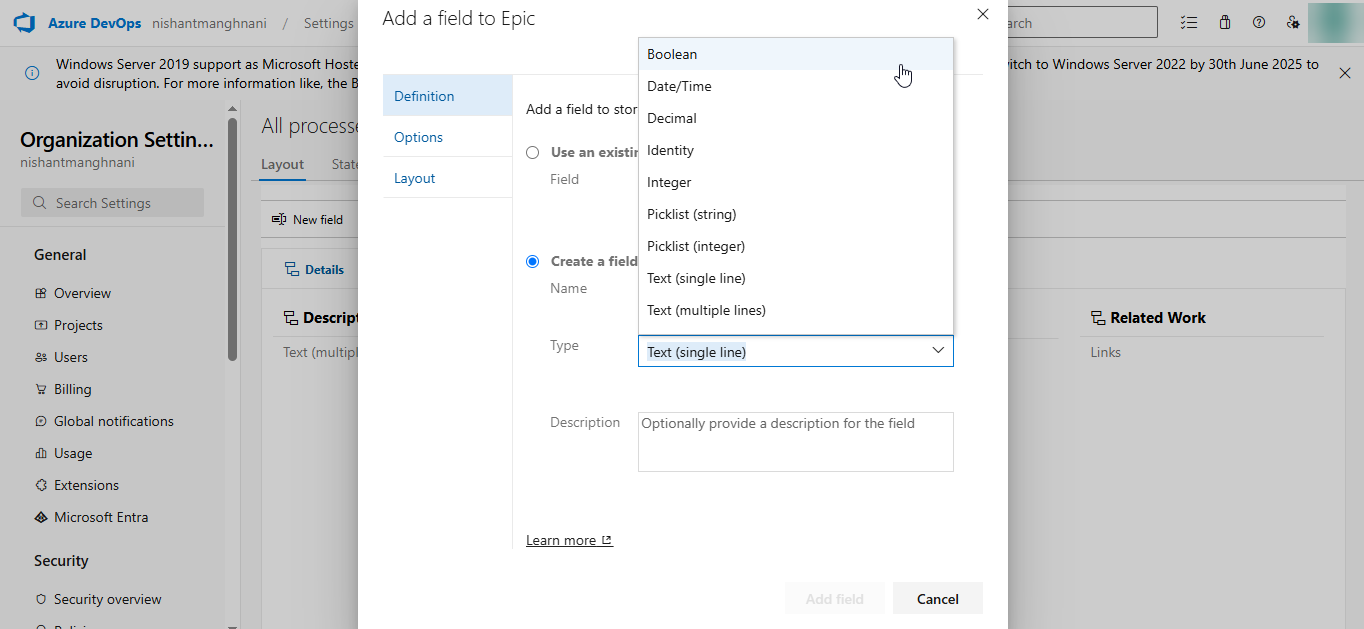
QMetry displays default Azure issue fields in QMetry Modules. Project admins can choose to display Azure custom fields as per project needs. Configuration of custom fields has to done separately for every configured Azure project and work items.
The following Azure field types are supported in QMetry:
Note
If the Azure field does not appear on the QMetry configuration screen, sync the project data to configure the fields.
To configure custom Azure fields, perform the following steps:
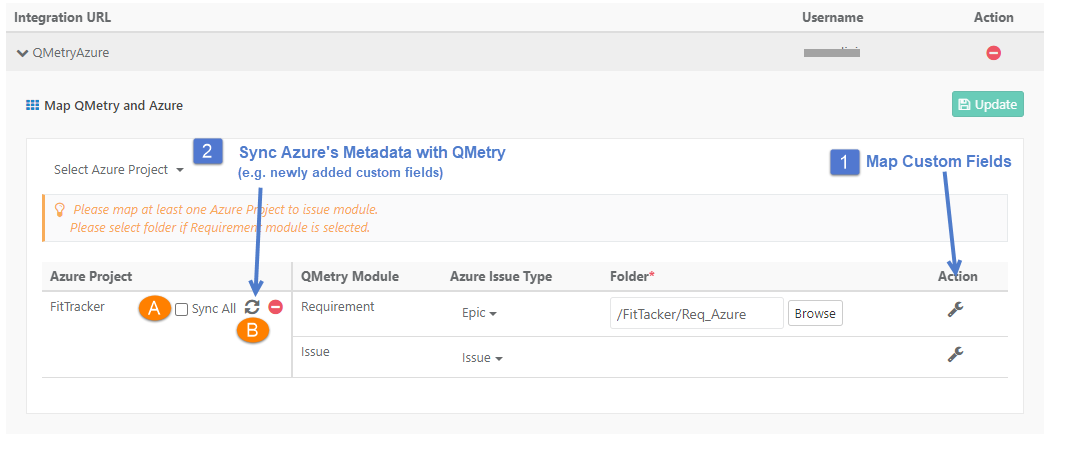
Configure custom fields for Requirements and Issues.
Sync Azure data to QMetry.
There are two sync options:
Sync All: Syncs all issues, regardless of their update date.
Sync: Syncs only the issues that have been recently updated in Azure, based on their updated date.
Additionally, you can sync the mapped Azure custom fields to the QMetry Insight module for Visual Reports and Advanced Query Reports. Read more about Sync fields to Reports.
Note
At least one of the Azure Project should be integrated with the Issue Module.
Once Azure is integrated with the QMetry project, the internal issue module will no longer appear in the project.
Viewing Azure Integration Status
The Integration tab provides an overview of all integrated Azure instances, along with their associated projects and current statuses (Active or Inactive). It offers a quick view of the integration status between Azure and QMetry projects.
To view Azure Integration Status in QMetry, perform the following steps:
Click Integration on the left pane.
Select the Integrations.
You can apply filter the records by alias name, projects or Integration type.
