Test using JUnit
JUnit is a simple framework for writing repeatable tests. It is an instance of the xUnit architecture for unit testing frameworks.
Based on your testing practices you can choose to create a combination of Test Suites, Test Cases, and Test Steps that will be created in QMetry after importing the automation result file. You need to provide a value in the automationHierarchy parameter in Automation API while importing the test results. Based on the table below the Test artifacts will be created in QMetry.
Automation Hierarchy Values | Following QMetry assets will be created and linked | Test Suite | Test Case | Test Step | ||
|---|---|---|---|---|---|---|
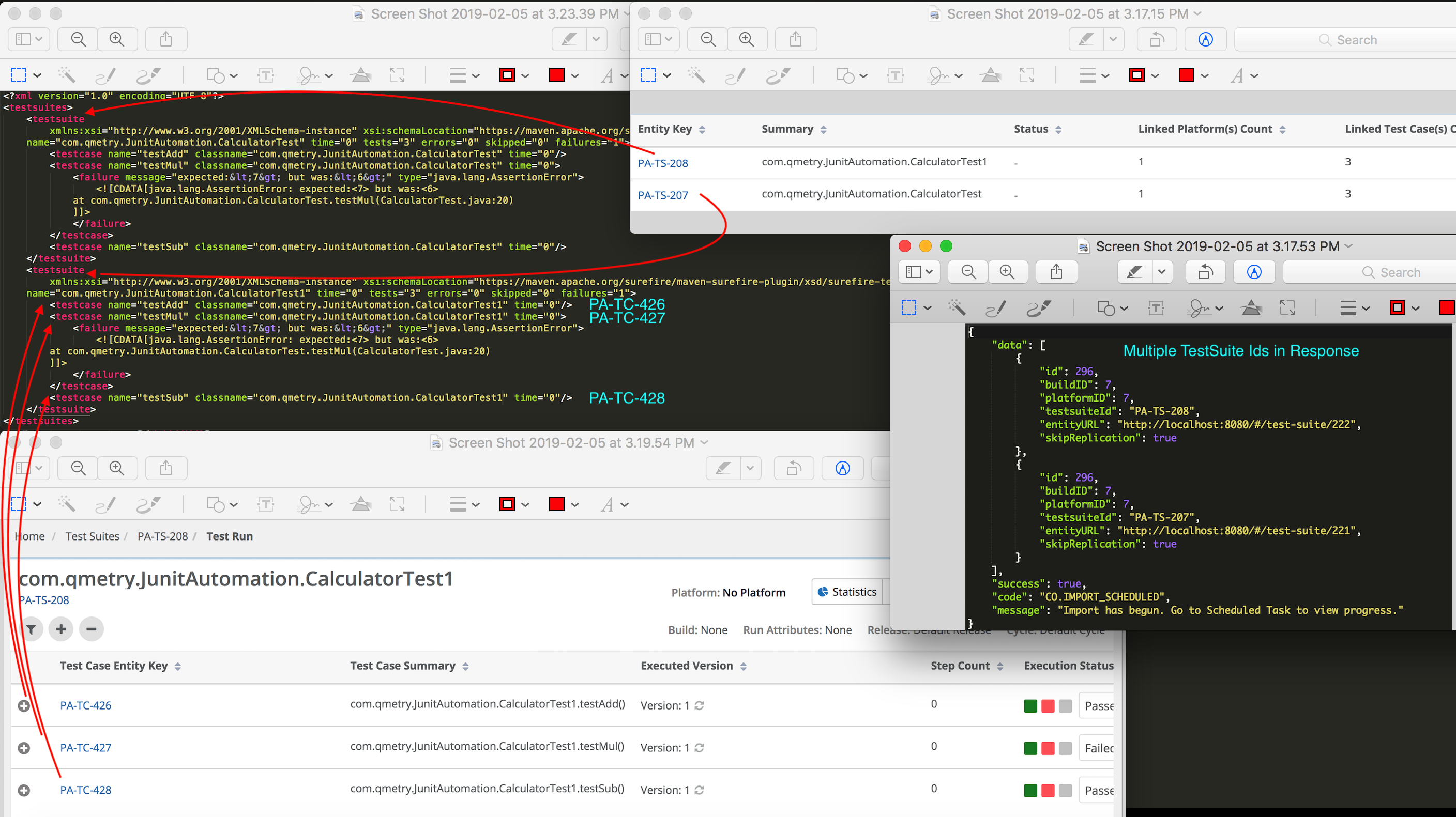
1 | Testsuite, Test Case, Test Step | Testsuite will be created based on testsuiteName parameter in Automation API or Auto generated if not mentioned. | <testsuite> tag : Parsed from the result file. Junit File Type 1: Wherein testsuite "name" matches the test case "classname".
<testsuite> tag: Parsed from the result file. Junit File Type 2: Wherein testsuite "name" does not match the test case "classname".
| <testcase> tag under the <testsuite> tag : Parsed from the result file. Classname.name will be the Test Step Description. If the result file does not have a classname tag, the Test Step Description will begin without a dot ( . ) e.g., name. Execution Status in QMetry will be determined based on the result mentioned in the result file as shown below. | ||
Tag inside <testcase> | Execution Status in QMetry | |||||
<failure> | Failed | |||||
no tags | Passed | |||||
<error> | If the Aborted status is found in the JUnit result file either by referring to the Status or Error Tag | QMetry will set the Test Case Execution Status or Step Execution Status as | ||||
If the Project have the custom execution status “Aborted” | Aborted | |||||
If the Project does not have the custom execution status “Aborted” | Failed | |||||
<skipped> | If the Skipped status is found in the JUnit result file by referring to the Status | QMetry will set the Test Case Execution Status or Step Execution Status as | ||||
If the Project have the custom execution status “Skipped” | Skipped | |||||
If the Project does not have the custom execution status “Skipped” | Not Applicable | |||||
2 | Testsuite, Test Case | Testsuite will be created based on testsuiteName parameter in Automation API or Auto generated if not mentioned. | <testcase> tag under the <testsuite> tag : Parsed from the result file. classname.name will be the Test Case summary. If the result file does not have a classname tag, the Test Case Summary will begin without a dot ( . ) e.g., name. | NA | ||
Tag inside <testcase> | Execution Status in QMetry | |||||
<failure> | Failed | |||||
no tags | Passed | |||||
<error> | If the Aborted status is found in the JUnit result file either by referring to the Status or Error Tag | QMetry will set the Test Case Execution Status or Step Execution Status as | ||||
If the Project have the custom execution status “Aborted” | Aborted | |||||
If the Project does not have the custom execution status “Aborted” | Failed | |||||
<skipped> | If the Skipped status is found in the JUnit result file by referring to the Status | QMetry will set the Test Case Execution Status or Step Execution Status as | ||||
If the Project have the custom execution status “Skipped” | Skipped | |||||
If the Project does not have the custom execution status “Skipped” | Not Applicable | |||||
3 | Testsuite, Test Case | <testsuite> tag | <testcase> tag under the <testsuite> tag : Parsed from the result file. classname.name will be the Test Case summary. If the result file does not have a classname tag, the Test Case Summary will begin without a dot ( . ) e.g., name. | NA | ||
Tag inside <testcase> | Execution Status in QMetry | |||||
<failure> | Failed | |||||
no tags | Passed | |||||
<error> | If the Aborted status is found in the JUnit result file either by referring to the Status or Error Tag | QMetry will set the Test Case Execution Status or Step Execution Status as | ||||
If the Project have the custom execution status “Aborted” | Aborted | |||||
If the Project does not have the custom execution status “Aborted” | Failed | |||||
<skipped> | If the Skipped status is found in the JUnit result file by referring to the Status | QMetry will set the Test Case Execution Status or Step Execution Status as | ||||
If the Project have the custom execution status “Skipped” | Skipped | |||||
If the Project does not have the custom execution status “Skipped” | Not Applicable | |||||
Supported Version: 1.2.5
Supported file types : XML
Sample Test Result File
Automation Hierarchy 1
Junit File Type 1: Click here to download a sample file.
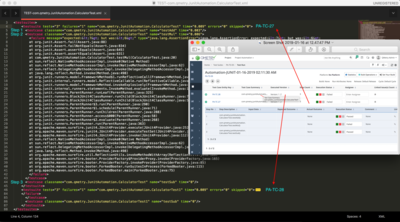
Junit File Type 2: Click here to download a sample file.
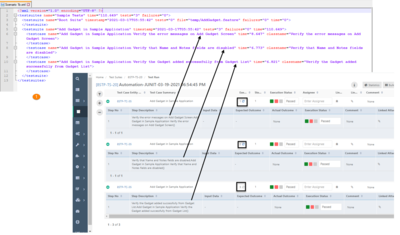
Automation Hierarchy 2
Click here to download a sample file.
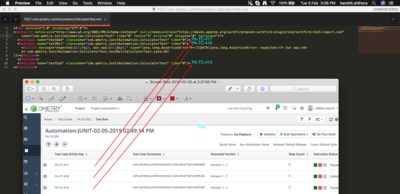
Automation Hierarchy 3
Click hereto download a sample file.
Note
“Skip” status in the automation result file will be applied as "Not Applicable" instead of "Not Run" for automation test executions upload into QMetry.
Reuse Manual Test Cases
Keyword | Applicable to Automation Hierarchy | Description |
testEntityKey | 1,2,3 |
testEntityKey="FIT-TC-1 FIT-TC2 FIT-TC-3"
|
Link Requirements to Test Case
Keyword | Applicable to Automation Hierarchy | Description |
requirementEntityKey | 1,2,3 | Auto-link internal requirements with Junit test cases using the keyword "requirementEntityKey" to specify the entity key in the result file. The keyword is only used for internal tracker requirements, i.e. QMetry requirements. The mentioned QMetry requirement will be linked to the created/linked test case.
requirementEntityKey="FIT-RQ-20 FTA-RQ-154"
|
requirementExternalKey | 1,2,3 | Auto-link requirements synced from external trackers (e.g., Jira, Azure) with Junit test cases uploaded through automation import using the keyword "requirementExternalKey" to specify the external issue/work item key in the result file. The key word is used for external tracker requirements, i.e. Jira/Azure. The mentioned external requirement will be linked to the created/linked test case. Note: The requirements from external tracker should have already been imported into QMetry Requirements module.
requirementExternalKey ="HT-30 HT-54"
|