Triggerring and Scheduling Automation Commands
QMetry provides the ability to configure an execution command for the automation agent in the test suite details. The command is saved for future use so that you do not have to enter it every time at the time of execution.
You can trigger automation scripts directly from the Test Suite Execution tab in the Test Suites module. You can also define parameters; the values of these parameters will get replaced with test suite custom field values during runtime.
The command and the arguments are defined as custom fields in the test suite details. While triggering the execution, QMetry automatically makes the command to be executed based on the arguments and passes it on to the Automation Agent for triggering.
Benefits:
Manual testers can execute automated test cases without writing scripts. Once the command is saved in the test suite, testers do not need to remember it for future runs. They can trigger automation scripts that have the command and arguments defined in the test suite details.
An automation tester wants to execute the execution command for the Automation Agent directly from the Test Suite > Test Suite Execution tab.
Note
The Automation Agent will just trigger the automation command into the agent machine. You can then import/upload the automation execution results through multiple available methods, like calling the Automation API, Maven Plugin, Jenkins/Bamboo agents.
Configure Automation Tool
The project admin can establish the mapping between your QMetryProject and the Automation tool used for triggering the execution command.
Once the Automation Agent is configured at the Project level, the Execution Command field becomes visible on the test suite details page and Schedule Automation column starts displaying on the Test Execution tab of the test suite.
To trigger and schedule aution commands, perform these steps:
Go to Project Management and select Projects.
Open the Automation Tool tab.
Select Automation Agent from the drop-down.
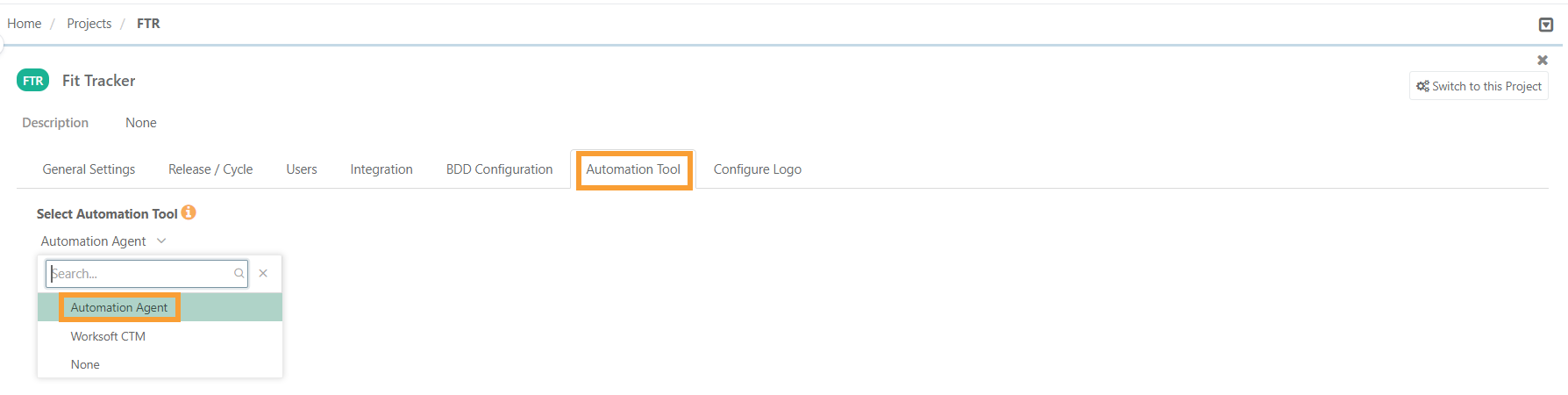
The Automation Agent issuccessfully configured as the Automation Tool for the project, and a confirmation message is displayed.
Define Execution Command on Test Suite Details page or Detail tab
Once the Automation Agent is configured at the Project level, the Execution Command field starts displaying on the Test Suite Details page. You can define the command to be executed through the Automation Agent in this field.
Note
The Execution Command field is visible in the Test Suite Details page only when the Automation Agent is configured as the Automation Tool for the Project.
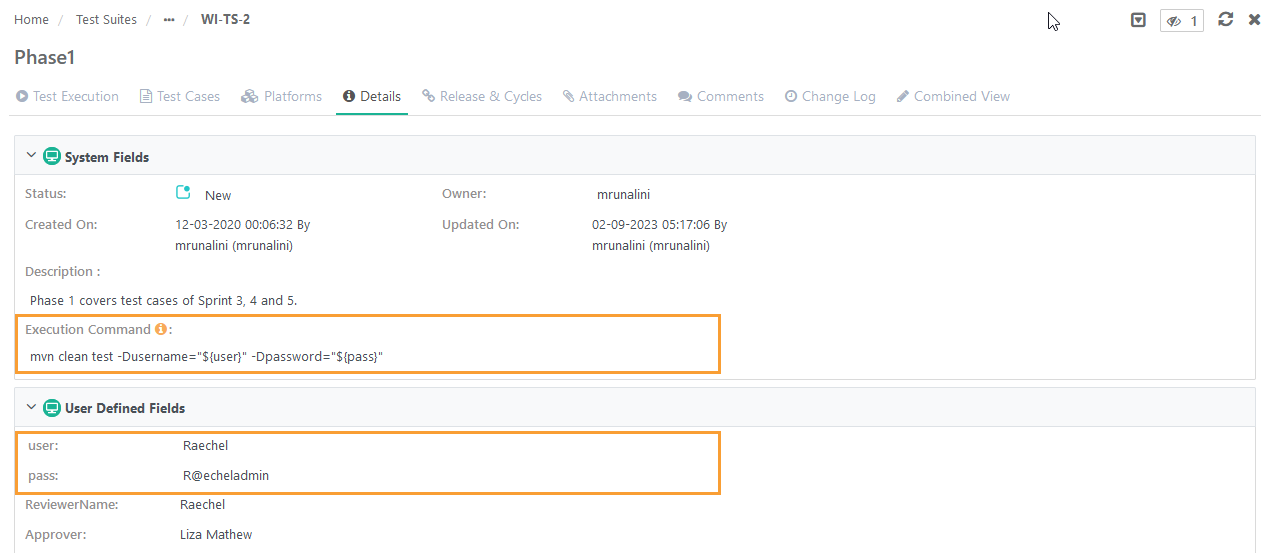
During execution, the command is picked from the Execution command defined at the test suite level. The command is created based on the arguments (custom fields) defined at the test suite details level. At the time of execution, the command is generated with the combination of multiple custom fields defined at the test suite level.
The Execution Command field is editable on the Schedule Automation screen, so you want to edit the command also at runtime.
Note
The command entered into the Execution Command field will be displayed while scheduling automation via Agent from within Test Suite. Parameterized commands can be executed by specifying the parameter in the format ${Field Name} in the command, where Field Name is a Test Suite custom field. Parameter values will be replaced with the custom field value set in Test Suite.
 |
Schedule Automation column in Test Suite on Test Execution tab
Once the Automation Agent is configured at the Project level, the Schedule Automation column starts displaying on the Test Execution tab of the test suite. The Schedule Automation icon displays details for Automation Agent execution on click.
Go to Test Suite, and click the Test Execution tab.
The Schedule Automation button is provided adjacent to the manual execution button on the Test Execution tab of the test suite. The button is enabled for a combination of Release, Cycle, and Platform.
Note
The Schedule Automation column is visible in the test suite only when the Automation Agent is configured as the Automation Tool for the Project.
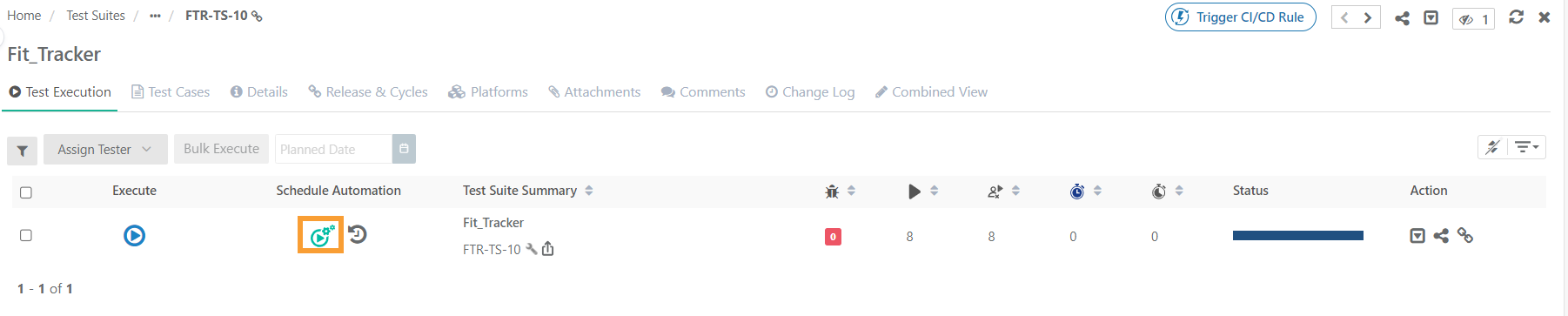
Click the Schedule Automation button to open the screen to schedule the run through the Automation Agent.
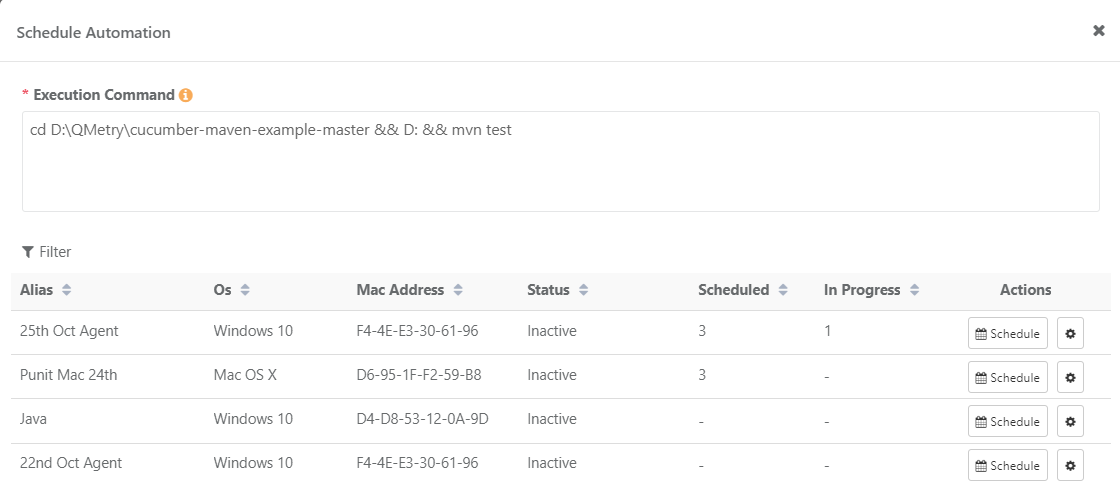
The list of configured Automation Agents is displayed on the screen.
Select the Automation Agent to execute.
→ When the Execution Command is defined in Test Suite > Details.
During execution, the command is picked from the Execution command defined at the test suite level. The command is created based on the arguments (custom fields) defined at the test suite details level. At the time of execution, the command is generated with the combination of multiple custom fields defined at the test suite level.
The Execution Command field is editable on the Schedule Automation screen so that you can edit the command at run-time.
 |
→ When the Execution Command is not defined in Test Suite > Details.
If the Execution Command is not defined in the test suite details, the field shows empty on the Schedule Automation screen. You can write and execute the command at run-time as you do from the Automation Agent module.
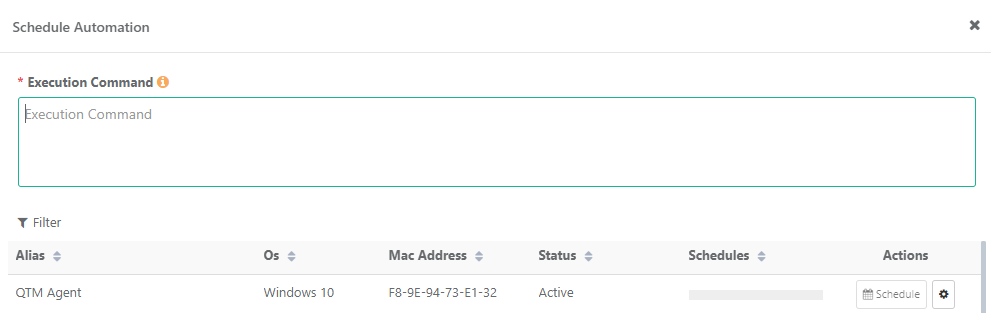 |
To schedule the run, click the Schedule button for the Agent. The Agent Status should be Active to schedule the run.
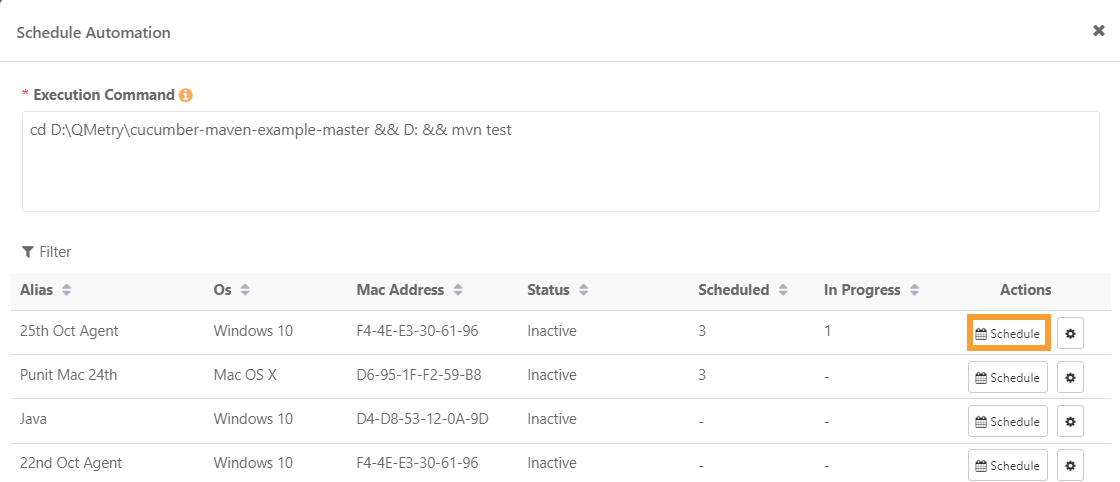 |
You can execute the command now or schedule it later.
 |
Once the job is scheduled, it is displayed in the Manage Schedule screen with Scheduled status.
Click the Automation History icon to view the command that is executed or that is scheduled to be executed.
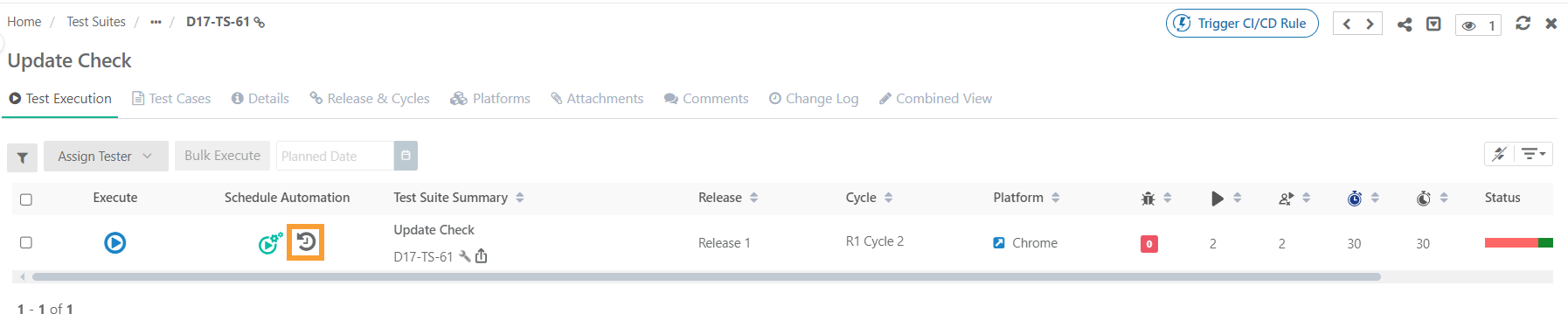 |
The screen shows the list of scheduled automation runs. Click the History button to view more details of that particular job.
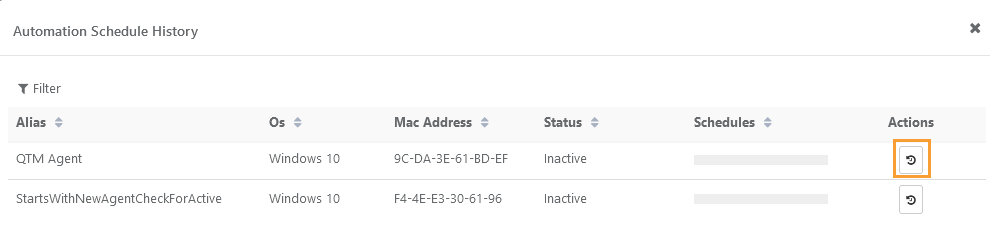
You can download the log file by clicking on the Download icon under the Actions column.
Manage Schedule
Users can edit all the commands for the scheduled agent jobs from the Test Execution tab under the Test Suites module.
Steps
Go to the Schedule Automation by clicking on the icon.
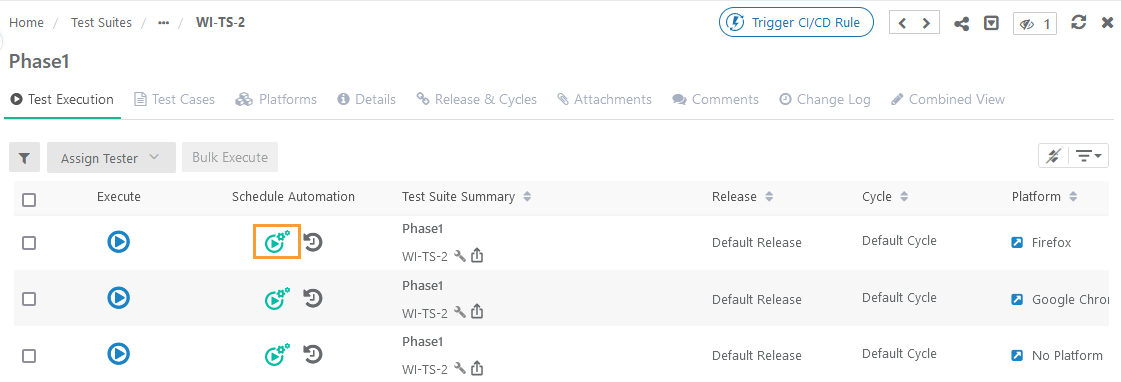
The Schedule Automation screen opens, which lists all the scheduled jobs of agents.
Click the Manage Schedule button for the job you want to edit the scheduled agent.
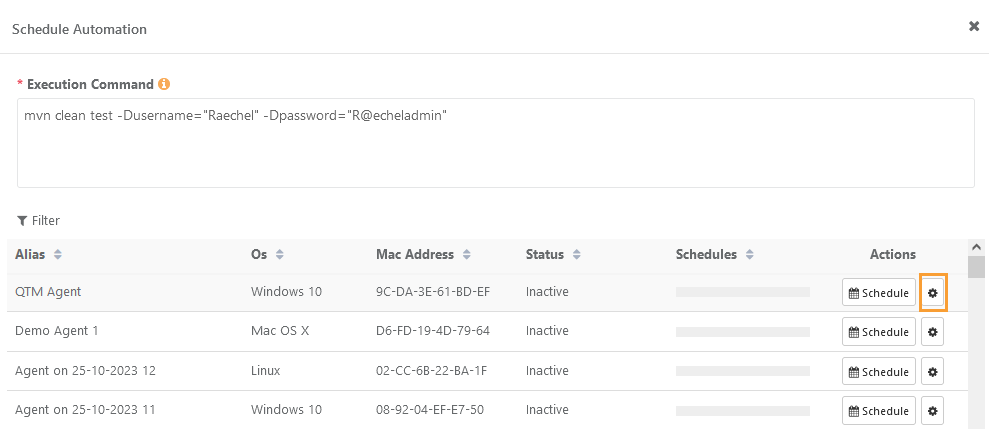
The Manage Schedule screen opens.
On the Manage Schedule screen, you can do the following:
Edit Schedule
Click the Edit icon to edit the scheduled job.
The Schedule Automation screen opens.
Make the required changes and click Update.
Delete Schedule: Click the Delete icon to delete the scheduled job.