LDAP Settings
If an organization has an LDAP server configured at its end and maintains its users’ data in LDAP, then QMetry supports LDAP integration to import such users into the QMetry application.
User authentication from LDAP/Active Directory as well as from the QMetry database is provided, considering the existence of both kinds of users in the same organization.
For example, an organization can have a large number of users in QMetry who are authenticated through their Active Directory and at the same time, can have a good number of users who do not have their accounts in the Active Directory.
Authenticate and Import LDAP Users
The LDAP (Lightweight Directory Access Protocol) feature allows LDAP users to import themselves into the QMetry database. The admin needs to do the initial settings in Integration > LDAP. The LDAP should be active to define the authentication type as LDAP.
Note
Only one LDAP AD can be integrated with QMetry for authentication.
The admin credentials are now optional to set up LDAP to enable anonymous search for users to import. If your LDAP allows anonymous queries, you can proceed without entering the admin username and password on the Settings screen.
Individual LDAP users will be added to the QMetry database when they log in to QMetry. Bulk users can not be imported at once because it may cause hanging QMetry during the process.
The admin’s credentials are made non-mandatory.
Use Case: The administrator does not want to enter the admin’s username and password in the fields and save the credentials in the system. As their LDAP allows anonymous queries, they prefer to make the fields non-mandatory.
How does the functionality work?
When a user logs in to QMetry for the first time with their LDAP credentials, the system first checks the existence of the user in the QMetry database.
If the user exists in the database, then the system authenticates the user using the QMetry database.
If the user does not exist in the QMetry database, then the system sends the user credentials to the LDAP Active Directory.
If the LDAP/Active Directory responds positively, then the system adds the user to QMetry database. The system assigns default project and default user role to this user.
Next time when an LDAP user logs in to QMetry using LDAP credentials, the credentials are sent to LDAP/Active Directory for authentication.
The user can access QMetry after successful LDAP authentication.
The new functionality works with a different approach in different scenarios, as mentioned below.
Scenario | The user has an account in - | Authentication Type is set as - | Result when the user tries to log into QMetry - |
1 | QMetry database | QMetry | QMetry authenticates the user against the QMetry database. If the system finds a match, the login is successful. |
2 | QMetry database | LDAP | QMetry authenticates that user against the LDAP/AD. If the system finds a match, login is successful. This scenario is only valid when LDAP is active. |
3 | LDAP | LDAP | QMetry authenticates that user against the LDAP/AD. If the user is authenticated successfully, the user’s account gets created in QMetry having the Authentication Type set as LDAP. Once the user is created in QMetry, the default project and default role are assigned to that user to let them log in to QMetry. Access is auto-assigned to the default Projects with the default assigned role. |
If the user doesn't have an account either in QMetry or in the LDAP, create an account for this user locally in QMetry. The user account is added to the QMetry database with the Authentication Type “QMetry”. The user can log in to QMetry.
The LDAP/AD server handles LDAP/AD passwords. So LDAP/AD users need to contact their network administrator for any password-related issues, like Reset Password, Forget Password, and Update Password. Other (non LDAP/AD) users can reset their passwords as usual through QMetry.
Ways to Authenticate LDAP Users
Manual User Authentication
In this method, the admin needs to manually add LDAP users and assign them a Project and corresponding role for security purposes and better control of the QMetry instance.
Steps for an admin to follow:
Make sure your LDAP settings are active.
Make sure your QMetry instance does not have any default Project assigned for new LDAP users.
Make sure your QMetry instance does not have any default role assigned for new LDAP users.
To add a new LDAP user, follow the steps below:
Go to Customization > Users. Enter the login ID of the user, which is the same as the LDAP username, and add other details.
Set the Authentication Type to LDAP.
Click Save. The new user is added successfully, but at this point, no project or role is assigned to them.
Now go to Customization > Users. Edit the user and assign projects and roles to that user.
Once this is done, ask your LDAP users to log in.
Automatic User Authentication
In this method, the admin needs to set default settings for new LDAP user by assigning them a default role and project. Once the settings are done, there is no manual intervention required from the admin. LDAP users are authenticated automatically.
Steps for an admin to follow:
Make sure your LDAP settings are active.
Set the default project assigned for new LDAP users. The following settings are required for it:
Go to Projects > Project/Release/Cycle. Open the Create screen or edit the screen of the project.
(Optional) Add in LDAP/SAML by default: Turn the flag on to assign this project to the new LDAP users as the default.
Set the default role assigned for new LDAP users. The following settings are required for it:
Go to Customization > Roles. Open the Create screen or the Edit screen of the role.
(Optional) Make this the default role for new LDAP/SAML users: Turn the flag on to assign this role to every new LDAP/SAML user.
For example, the Tester role is assigned as the default role to the LDAP users when they log in to QMetry for the first time. You can assign a different role later on. Only one role can be assigned as the default role. So the role selected last will override the role assigned earlier. You can assign multiple projects with a single user role to the LDAP users. A warning message pops up when you are going to unassign that single assigned role.
Once the settings are done from the admin side, LDAP users can directly log in to QMetry and are automatically assigned default roles and projects.
LDAP Configuration
To configure LDAP, perform these steps:
Go to Integration and select LDAP/SAML.
Select LDAP as the Integration System on the next screen.
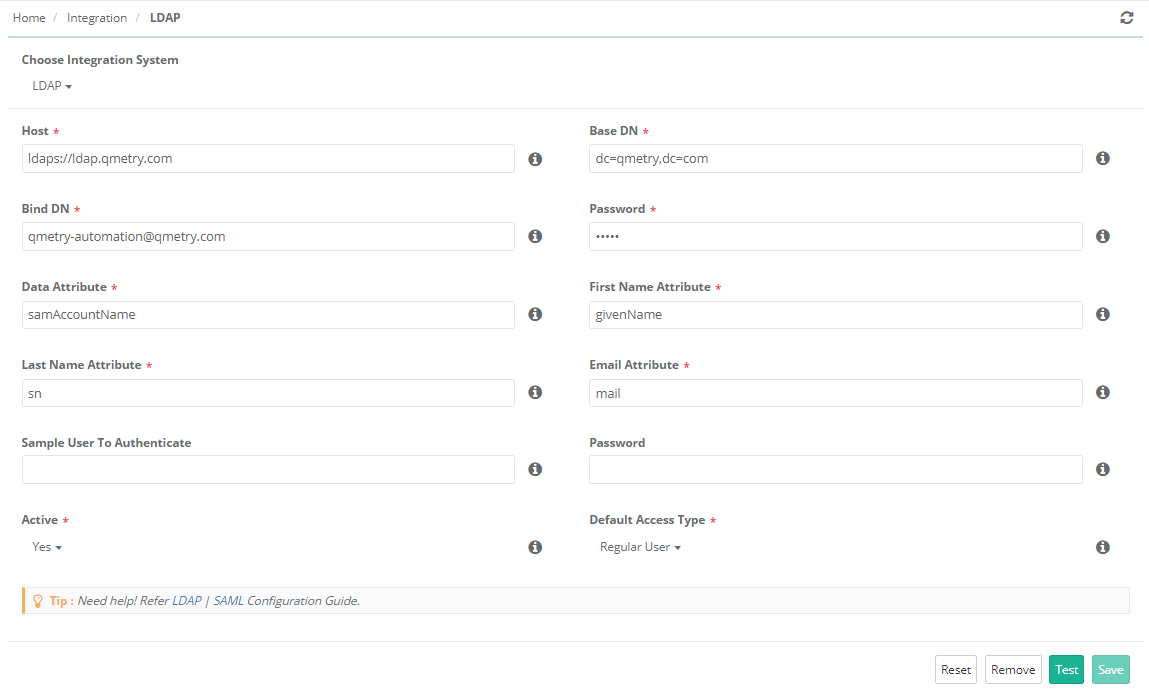
Provide the below details to configure LDAP settings:
Host: The URL contains the IP of the machine where the LDAP server is configured and the universal LDAP port number
389in the following format:ldap://<IPAddress>:<Port No.>LDAP Integration also supports the HTTPS protocol. So the host format could be:
ldaps:// <IPAddress>:<Port No.>
Base DN: Specify base DN values in the appropriate format, for example,
dc=qmetry,dc=com.Bind DN: This is the username of the person (typically an admin of the QMetry instance) who imports LDAP users. If you need to authenticate to search for users, log in as this user.
For example,
cn=example,cn=users,dc=example,dc=com.Password: This is the password for the username above. If you need to authenticate to search for users, use this password. You can leave the field blank for an anonymous search.
Note
If the admin credentials are changed but are not updated in the QMetry settings, then the LDAP users will not be able to log in to QMetry.
Make sure your password does not expire automatically at certain intervals. Otherwise, you will have to change the password in this field correspondingly.
Data Attribute: The field where the QMetry Login field is stored.
First Name Attribute: The attribute in LDAP containing the first name. (If the attribute is empty, the Data attribute will be used.)
Last Name Attribute: The attribute in LDAP containing the last name. (If the attribute is empty, the Data attribute will be used.)
Email Attribute: The attribute in LDAP containing the email name. (If the attribute is empty, the Data attribute will be used.)
Sample User Name to Authenticate: This is an optional field used to test the LDAP server integration after connection. To verify the connection, enter a sample user name, for example, the email address of the LDAP user to be authenticated.
Sample User’s Password: This is an optional field. If the Sample User Name is mentioned above, provide the corresponding password in this field.
Active: The drop-down list has two options to select from: Yes or No
Yes: Only the Authentication Type in Customization > Users can be set as LDAP, and the users can log in with their LDAP password only.
No: The Authentication Type in Customization > Users could be set as QMetry. Users are authenticated against the QMetry database for login.
Default Access Type: The Default Access Type is configured from Integration > LDAP for LDAP users. When users are imported through LDAP, the Default Access Type is assigned based on these settings.
Sample Settings Parameters
Active Directory Details (on Windows) | LDAP Directory Details (on Linux) |
Host: | Host:
|
Base DN: | Base DN: |
Bind DN: | BindDN: |
Data Attribute: | Password: Data Attribute: Sample User: Sample User Password: |
There are two buttons on the page:
Test: It authenticates the user whose password is provided in the Password field and who tries to import the user(s) from the LDAP Server. Click the Test button to verify the connection with the server. A message window pops up.
Save: Click the Save button to store the LDAP details in the database. A message window pops up.
The Authentication Type for the user is set from Users in Customization.
Default Projects are assigned from Project under Project Management.
Default Roles are assigned from Roles in Customization >.
Note
LDAP users can log in without an organization code for on-premise installations.