CI/CD Rules
QMetry provides the ability to trigger automation jobs/pipelines for CI/CD tools with a single click. Testers can save remote CI/CD pipeline jobs and launch the jobs directly.
Testers can select and map a configured rule to a test suite, then trigger the pipeline job and automate the uploading of the results after the successful execution of the job. This feature enables all testers to participate in test automation and also reduces the overhead of navigating between multiple tools by automating the testing process and reporting results.
Users can create and trigger Automation Rules from the Integration and Test Suites modules. Rules added to a project are accessible to all its users.
→ Required Permissions: Users should have CICD Rule view, manage, delete, and execute permissions.
Create a CI/CD Rule in QMetry for Jenkins
Configure CI/CD Rules in the Integration module and Test Suites module of QMetry. This section describes configuring the CI/CD Rule from the Integration module. For details about configuring CI/CD Rules from the Test Suites module, refer to Trigger CI/CD Rule from the Test Suites module.
Note
QMetry facilitates the triggering of builds to the CI/CD tools. The resultant action or outcome of triggering the build, including the import of test results back to QMetry, is not part of the feature. Though you can import the results back to QMetry using multiple methods when configured as part of the Job. Multiple methods are Jenkins Plugin, Maven Plugin, etc.
To create a CI/CD rule, perform these steps:
Go to the Integration module.
Open the CI/CD Rules section.
Click the Create New Rule button on the right screen.

The New Rule screen opens with the parameter fields on it.
Enter the following parameters to configure an automation job to be triggered in the CI/CD tool.
Parameter
Description
Name
Enter your preferred name for the rule.
Webhook URL
Enter the Webhook URL. For Jenkins, refer to How to Construct Webhook URL?
Query Params and Value
Enter the required Query Param and its value.
For example,
TestCycleKey,TestCaseFolderId,TestCycleFolerId, and so forth.After adding the Query Params and its value, click the Add button after entering Query Params and its value. The entered details will be displayed below the fields.
Headers and Value
Enter Headers and values, for example:
Authorization. For Jenkins, refer to Authorization.After entering Headers and their values, click on the Add button after entering Header and its value. The entered details will be displayed below the fields.
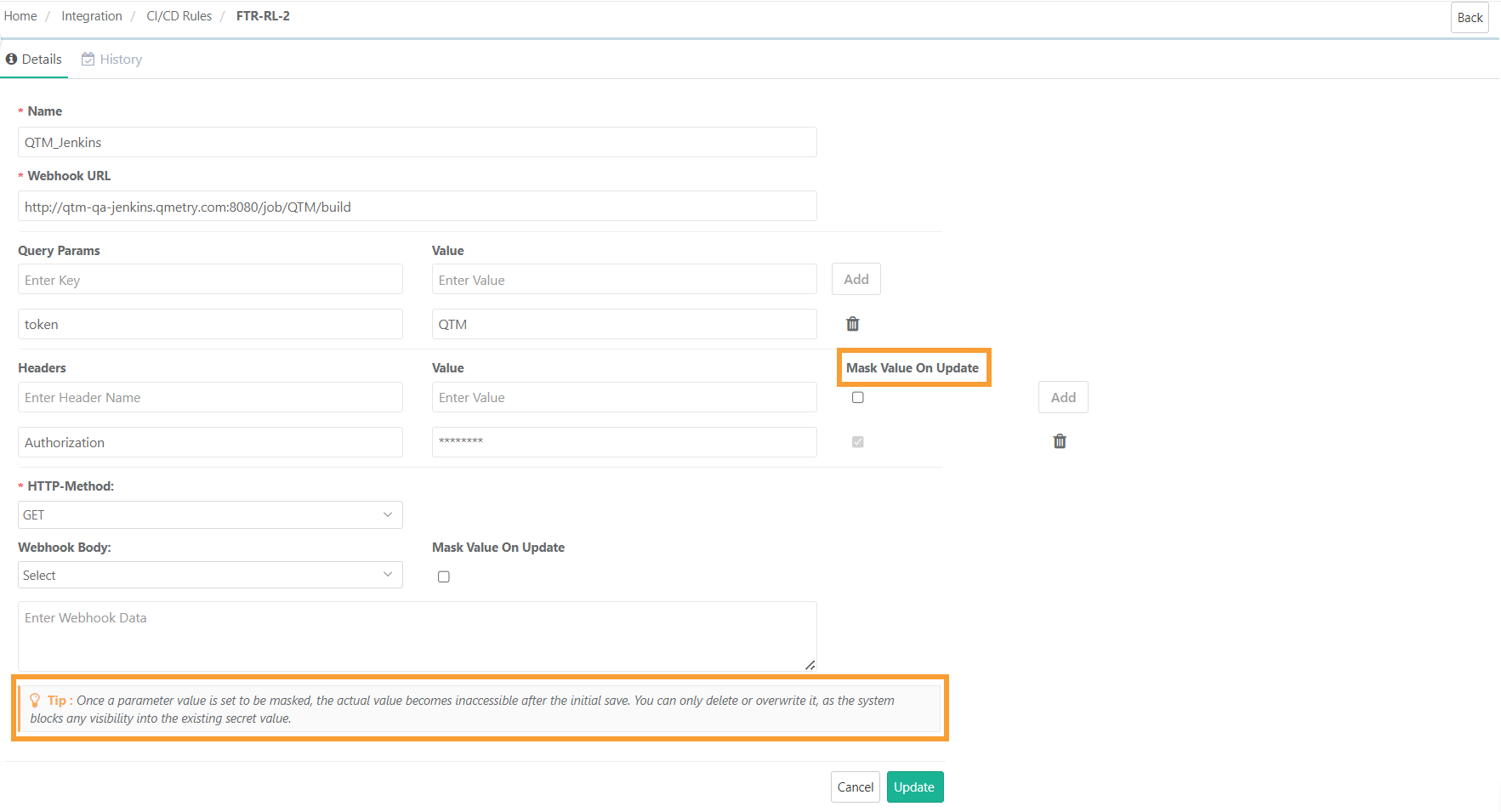
Mask Value on Create/Update:
Enabling this option (by clicking on the checkbox) ensures that the parameter value is hidden and displayed as asterisks when creating or editing a CI/CD rule.
By default, this checkbox is automatically selected if the system identifies keywords like
Authorization,Token,PAT, orAPI KEYin the Header name. This smart detection helps safeguard commonly recognized sensitive parameters.HTTP-Method
Select HTTP-method from POST/GET/PUT.
For example, the remote build trigger API for Jenkins is
POST.Webhook Body
Select Raw/JSON/None from the drop-down menu and enter the Webhook Data or request body in the field accordingly.
Mask value on Create/Update: When creating or editing a Webhook URL, enabling this option (by clicking on the checkbox) ensures that the parameter value is hidden and displayed as asterisks.
Click Create to save the configuration for Jenkins.
Mask Value on Create or Update
Use case: When configuring a CI/CD rule using a WebHook URL, the authorization token values are masked after the initial save, safeguarding sensitive information against unauthorized access or misuse.
Note
Enabling this checkbox makes the actual values inaccessible after the initial save.
The saved token cannot be viewed or accessed; users can only delete or overwrite it.
Both new and previous values in the audit history will be masked for the relevant parameters.
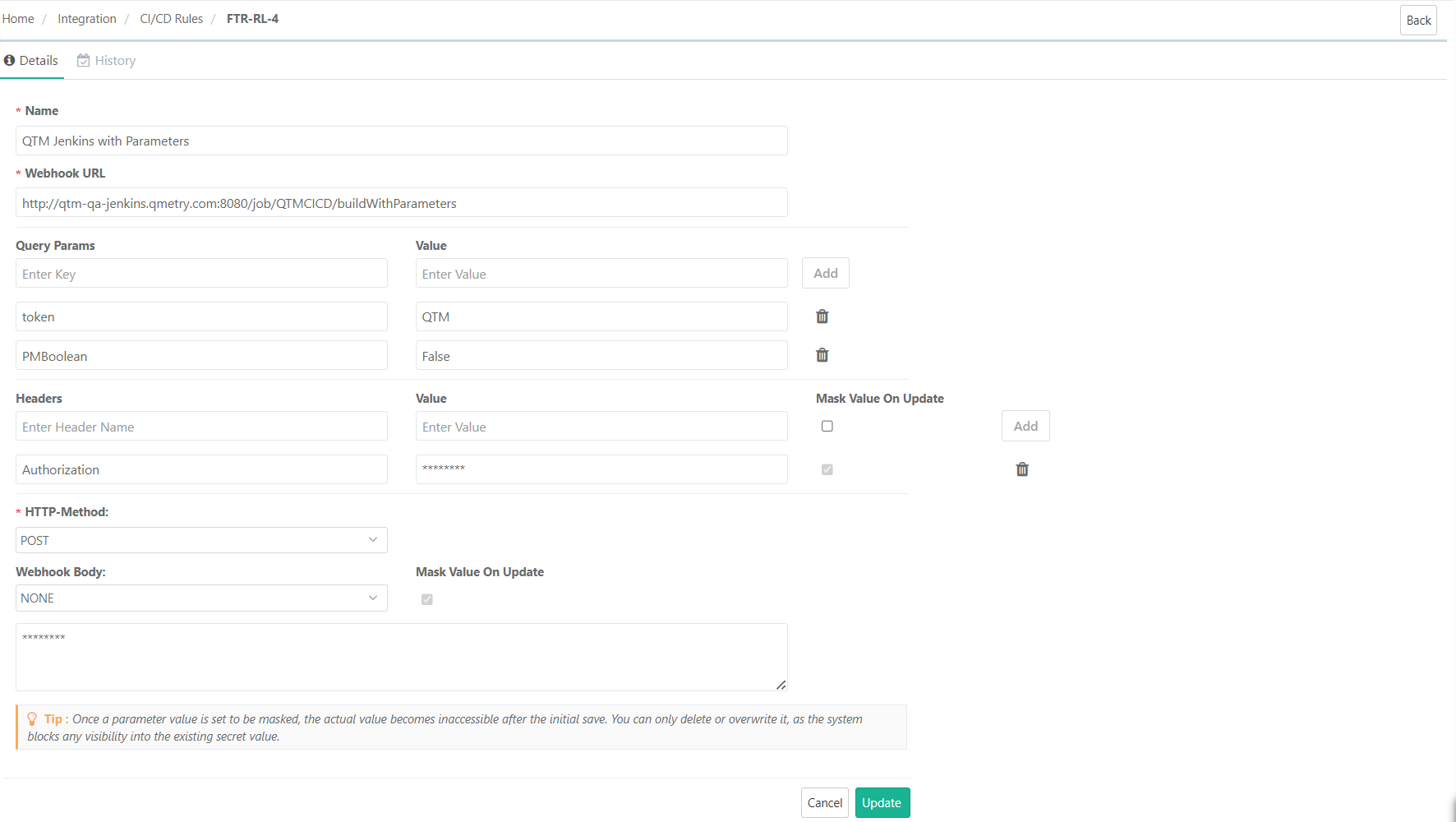
The following are examples of triggering a build without parameters, triggering a build with query parameters, and triggering a build with raw parameters.
CI/CD Rule Without Parameters
CI/CD Rule With Query Parameters
CI/CD Rule With JSON Parameters

Once the CI/CD Rule is configured, you can:
Trigger CI/CD Rule from the Integration module
Trigger CI/CD Rule from the Test Suites module
Trigger CI/CD Rule from the Integration module
The configured CI/CD rules are displayed in the CI/CD Rules section of the Integration module.
Click the Trigger icon for the rule using which you want to trigger a job in Jenkins.
The success message appears on the screen. Now, check in the CI/CD tool in which the build has been triggered.
Trigger CI/CD Rule from the Test Suites module
You can create and trigger CI/CD Rules from the Test Suites module as well. The details of CI/CD Rules will be displayed in the Change Logs tab of the test suite.
When a build is triggered from the test suite, all the related actions are captured in the Change Logs. This helps testers track which CI/CD Rule was triggered from which test suite.
Steps
Go to the Test Suites module.
Open the test suite detail page.
Click the Trigger CI/CD Rule button at the top of the screen.
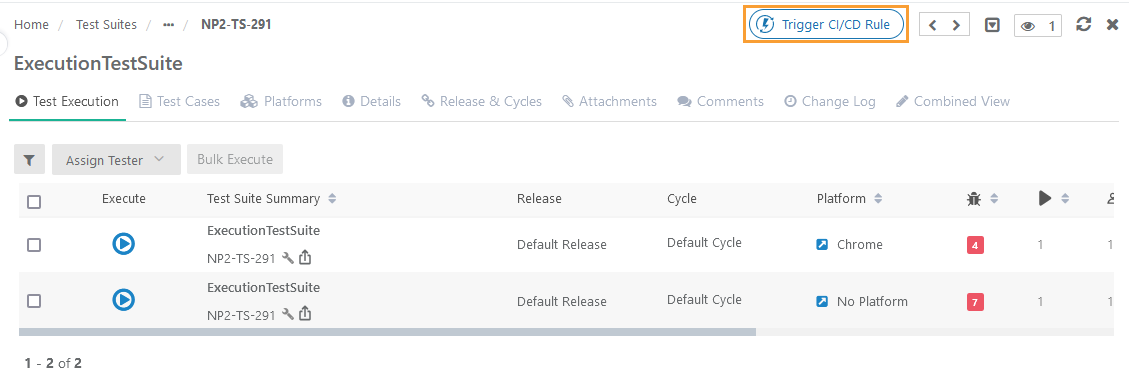
The Select CI/CD Rule panel opens.
If the CI/CD Rule is not configured from the Integration module:
If you do not have the CI/CD Rule configured in the Integration module of QTM, and you click on the Trigger CI/CD Rule from the Test Case Details page, the Select CI/CD Rule panel opens blank without any records of CI/CD Rule on it. You can create CI/CD Rules from the Test Suites module.
Create a CI/CD Rule from the Test Suites module
Steps
Go to the Test Suites module.
Open the Test Suites Details page.
Click the Trigger CI/CD Rule button at the top of the screen.
The Select CI/CD Rule screen opens.
To create a new rule from the Test Suites module, click the New button.
 |
The New Rule screen opens.
Perform the same steps described in Create a New Rule in QTM for creating a new CI/CD Rule.
Once the rule is added, it is displayed on the Select Rule screen.
The same CI/CD Rule also reflects in the Integration module.
Once the CI/CD Rules are created either in the Integration module or in the Test Suite module, you can view the summary of the configured rule on the screen.
Click the Key to view more configuration details for the rule.
The configuration details for the rule are displayed on the screen.
You can also make the required changes in the configuration from this screen.
Any changes made in the CI/CD rule configuration here in the Test Suites module will also be synced in the Integration module.
Link CI/CD Rule with Test Suite
Follow the steps mentioned below to link the CI/CD Rule with a test suite.
Go to the Test Suites module.
Open the Test Suite Details page.
Click the Trigger CI/CD Rule button at the top of the screen.
The Select CI/CD Rule panel opens with the list of rules on it.
Select the CI/CD Rule that you want to link with the current test suite. You can also apply a filter to search for a particular rule.
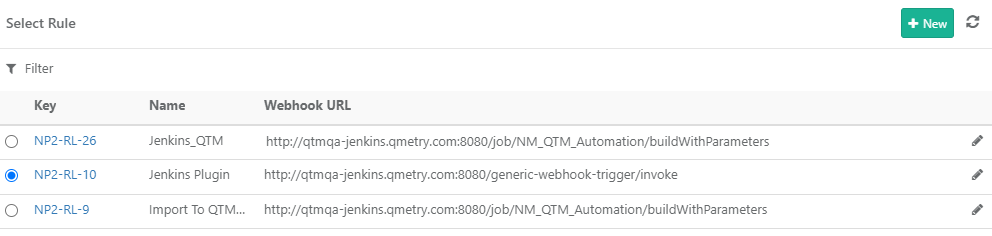
The linked CI/CD Rule starts displaying on the Test Suite Details page at the top.
Trigger CI/CD Rule from Test Suite
To trigger the CI/CD rule, click the rule linked with the test suite.
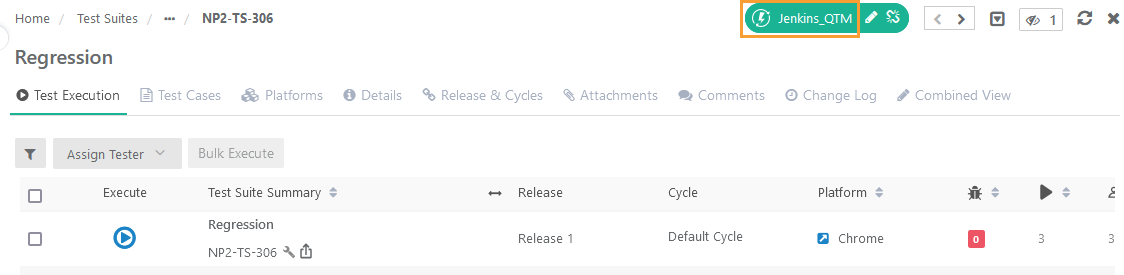 |
The CI/CD Rule name gets replaced with the Success label for a while.
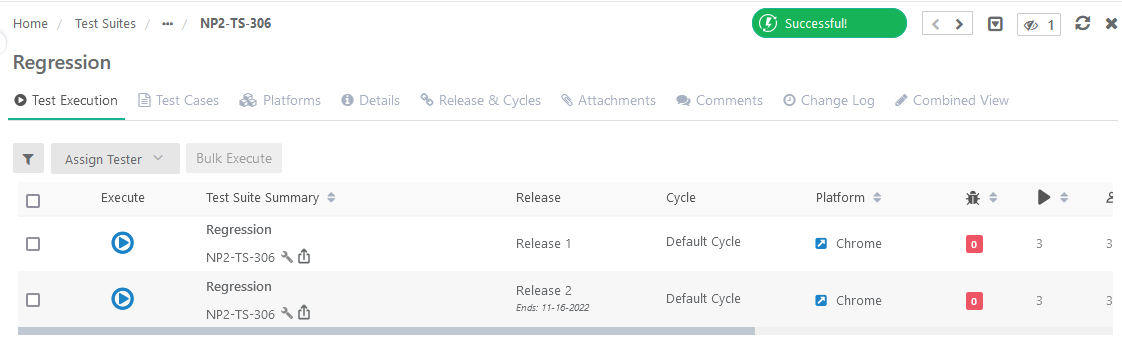 |
Trigger CI/CD Rule from Test Suite List View
Once linked to the test suite, you can also trigger the CI/CD Rule for it from the list view of the Test Suites module.
 |
Edit CI/CD Rule from Test Suite
You can edit the rule configuration details by clicking the Edit icon for the linked CI/CD Rule on the Test Suite Details page. Any changes made in the CI/CD Rule configuration here in the Test Suites module will also be synced in the Integration module.
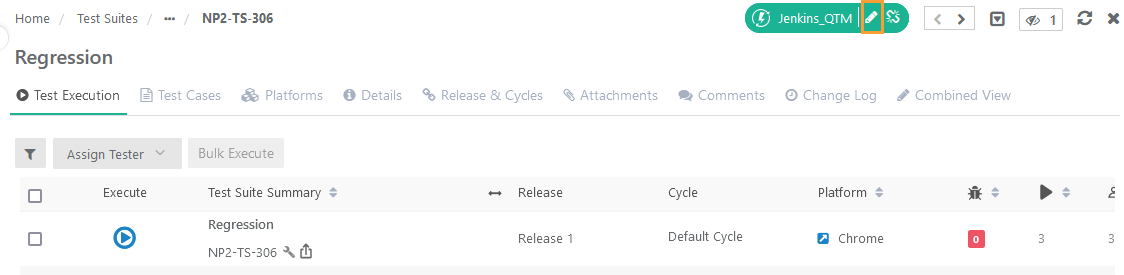 |
Unlink CI/CD Rule from Test Suite
To unlink the linked CI/CD Rule, click the Unlink icon (X) for the rule on the Test Suite Details page.
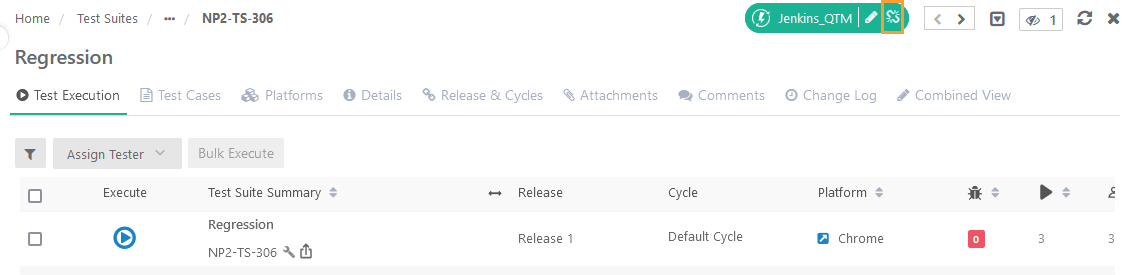 |
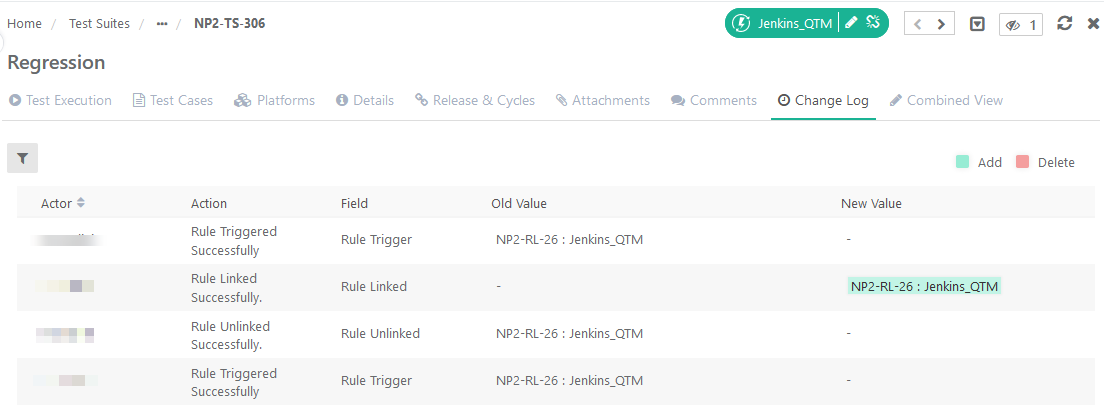
Change Logs in Test Suite
When a build is triggered from the test suite, all the related actions are captured in the Change Logs. This helps testers track which CI/CD Rule was triggered from which test suite.
Open the Test Suite Details page and open the Change Logs tab.
The Change Logs tab displays all the actions taken for the CI/CD Rules linked to the current test suite.
 |
View Details and History
Once the CI/CD Rule is configured, it displays in the CI/CD Rules section of the Integration module.
Click the Key of CI/CD Rule on the screen to view more details about the rule.
The next screen opens with two tabs on it: Details and History.
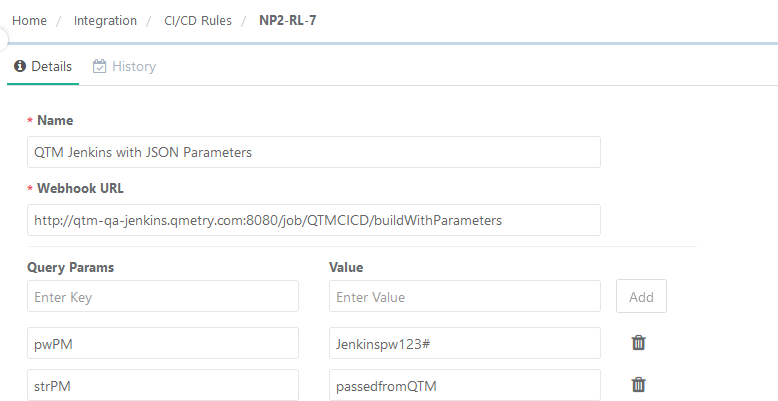
→ Details Tab:
The Details tab shows configuration details for that CI/CD Rule. You can also edit/delete details from the screen.
 |
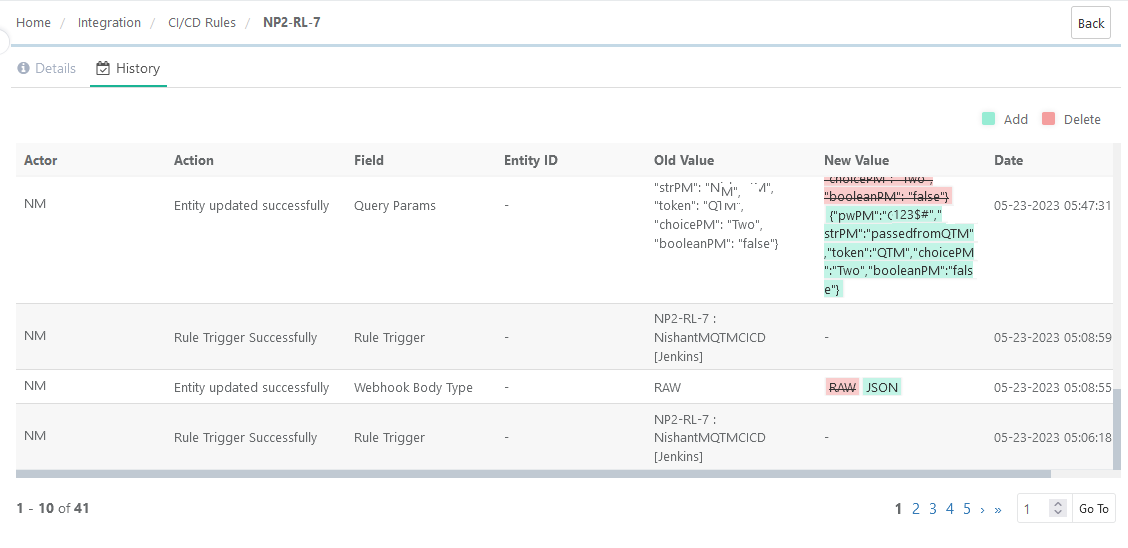
→ History Tab:
The History tab shows the audit logs for the actions performed on the CI/C Rule in the Integration module and in all the test suites with which the rule is linked. The details include Actor, Action, Field, Entity ID, Old Value, New Value, and Date.
When a build is triggered from the test suite, all the related actions are also captured in the History tab. This helps testers track which CI/CD Rule was triggered from which test suite.
 |
Disable a CI/CD Rule
You can disable the active CI/CD Rule from the Integration module. Once the rule is disabled, it can not be used to trigger a build to the CI/CD tool from the Integration and Test Suites module. When the rule is disabled, the Trigger icon will be disabled in the Integration module. In the Test Suites module, the disabled rule will not be shown on the Select Rule screen to link with the test suite.
Steps
Go to the Integration module.
Open the CI/CD Rules section.
Turn the Status inactive for the rule that you want to disable.

The CI/CD Rule turns disabled/inactive.
Edit CI/CD Rule from CI/CD Section
You can edit a CI/CD Rule from the Integration module.
Steps
Go to the Integration module.
Open the CI/CD Rules section.
Click the config icon and select Edit for the rule that you want to edit.

The Details page opens. Make the required changes and click the Update button.
Delete a CI/CD Rule
You can delete a CI/CD Rule from the Integration module. If the rule is linked with any of the test suites, then all the references with the associated test suite will be removed upon the deletion of the rule.
Steps
Go to the Integration.
Open the CI/CD Rules section.
Click the config icon and select Delete for the rule that you want to delete.

The confirmation message pops up.
Click Yes to proceed.
Refer to the following pages for details on the configuration of the CI/CD tools.