Approval Access
Project admins can add or remove reviewers, approvers, and closers for requirements, test cases, and test runs.
RQ Review: Add the levels for requirement review and users under each level in this tab. Requirements are mostly reviewed by the Business Analyst and Product Owner in the organization.
TC Approver: Add the test case approver levels and users under each level in this tab. Test cases are generally approved by Senior QA or QA Leads.
TR Approver: Once the test cases are approved, link them to test suites for execution. These test runs are then approved for execution. Add the levels of approval of test executions and users under each level in this tab. Test runs are generally approved by the QA Lead or QA Manager before execution.
TR Closer: Once the test runs are approved, they are executed. Close the executed test runs to prevent any further changes. Add the required levels of closure and users under each level in this tab. Test runs are generally approved by the QA Manager.
Note
You can add a maximum of 5 approval levels to the approval workflow.
You can add a maximum of 50 approvers in one level.
Admins are not approvers by default. They have to be added.
Adding a New Level
Note
You must have Customization Modify rights to add or remove Levels.
Adding a new level above an existing level, moves the assets to the new level with a pending status.
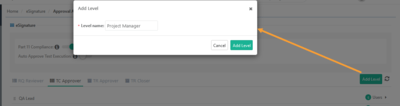 |
To add a new level, perform the following steps:
Go to eSignature and select Approval Access.
Click .
Enter the Level Name and click Add Level.
To edit the level name, click the Level name and make the changes.
Change Sequence of Levels
Change the sequence or hierarchy of the levels through drag and drop.
Changing the sequence of approval levels keeps the approval status intact, and the entity stays at the last approved level.
If the levels are QA Lead → QA Manager → Project Manager, and the entity is approved at QA Manager, then the levels are changed to QA Lead → Project Manager → QA Manager. The entity shows Pending at Project Manager (Level 2). After approval at the Project Manager, the final approval is required at QA Manager.
Delete Approval Levels
You can only delete the top-level of the hierarchy. In the presence of top-level, the lower levels can not be deleted. You can change the sequence of levels and then delete the level.
Note
If you add an approval level, you cannot delete the very last level.
At least one approval level must be present.
Once an approval level is deleted, any requirements, test cases, or test runs pending on that approval level no longer remain pending. It is approved on the previous approval level.
Adding Reviewers, Approvers, and Closers to Levels
Each level can have multiple approvers, reviewers, and closers. Approval from just one approver is enough to mark the entity as approved. The entity then moves to the next level, or if it is the last level, the system marks it as approved or closed.
Note
Only users with “Execution” rights in the project are added as Test Run Approvers or Test Run Closers.
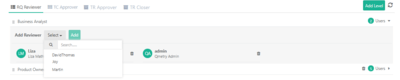 |
To add reviewers, approvers, closers under levels, perform the following steps:
Open the RQ Reviewer, TC Approver, TR Approver or TR Closer tab.
Click and select the users to assign as reviewers, approvers, closers for the level.
Click Add.
Delete Reviewer, Approver, Closer under Levels
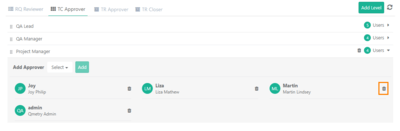 |
At least one reviewer, approver, or closer should exist under the levels.
To delete reviewers, approvers, or closers from levels, perform the following steps:
Expand the level to view users.
Click the Delete icon adjacent to the reviewer, approver or closer.